Guides
How to check file storage and database size
Invemory administrators can check which files occupy storage, which records reference them, and how much space the database uses. This guide explains how to read a saved result, inspect individual objects, and run a fresh check on the website or in the Android app.
Last checked:
What you need
- Sign in to an Invemory account that already has the Administrator role.
- Use the website or installed Android app with access to that Invemory environment.
1. Open the audit category you need
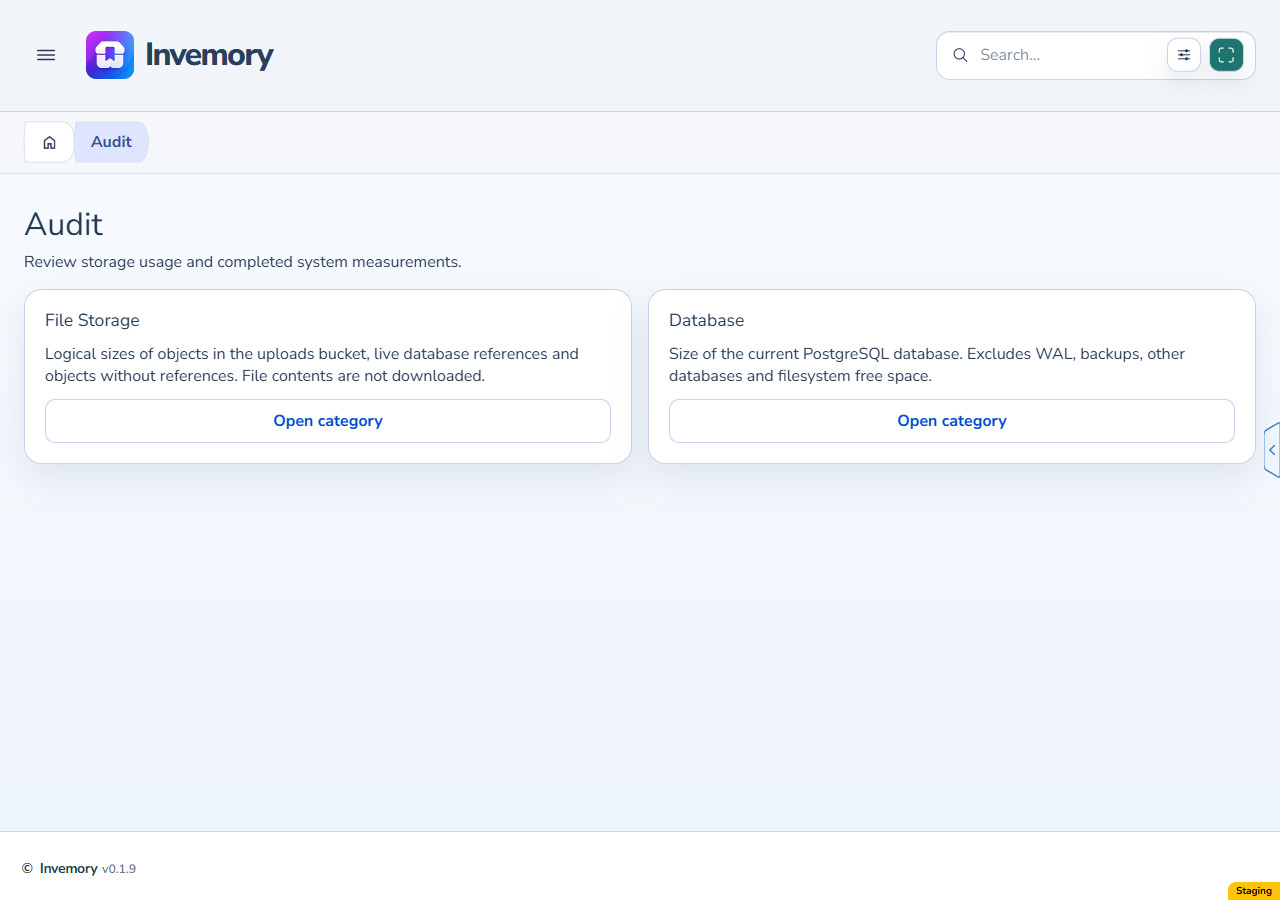
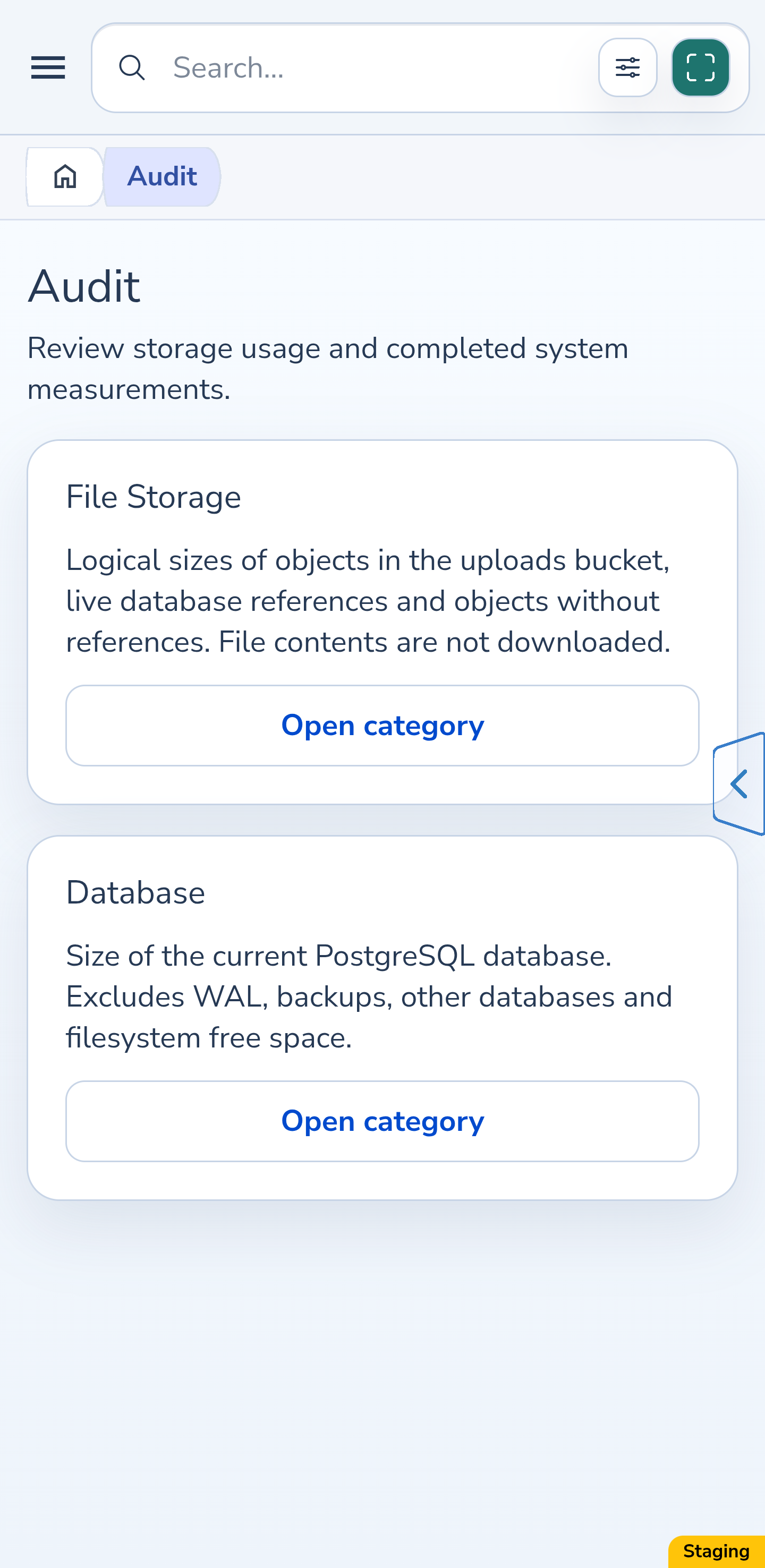
Expand Administration in the main menu and select Audit. On your phone, first open the menu with the three-line button. On a wide website, use the sidebar.
The overview contains File Storage and Database. Select Open category beside the check you need. Return to the overview through Audit in the menu or breadcrumb.
Website
Android
2. Check whether a measurement has been saved
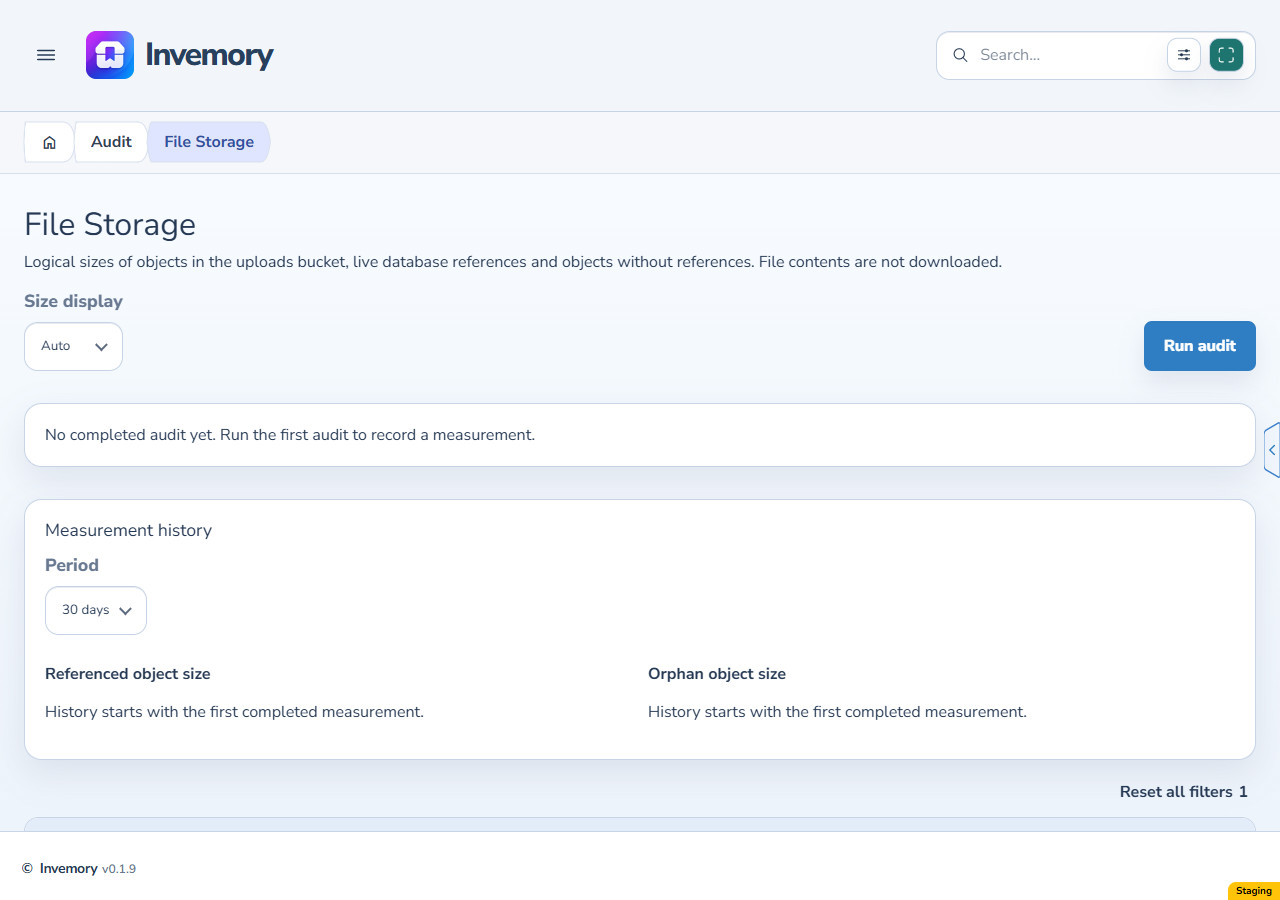
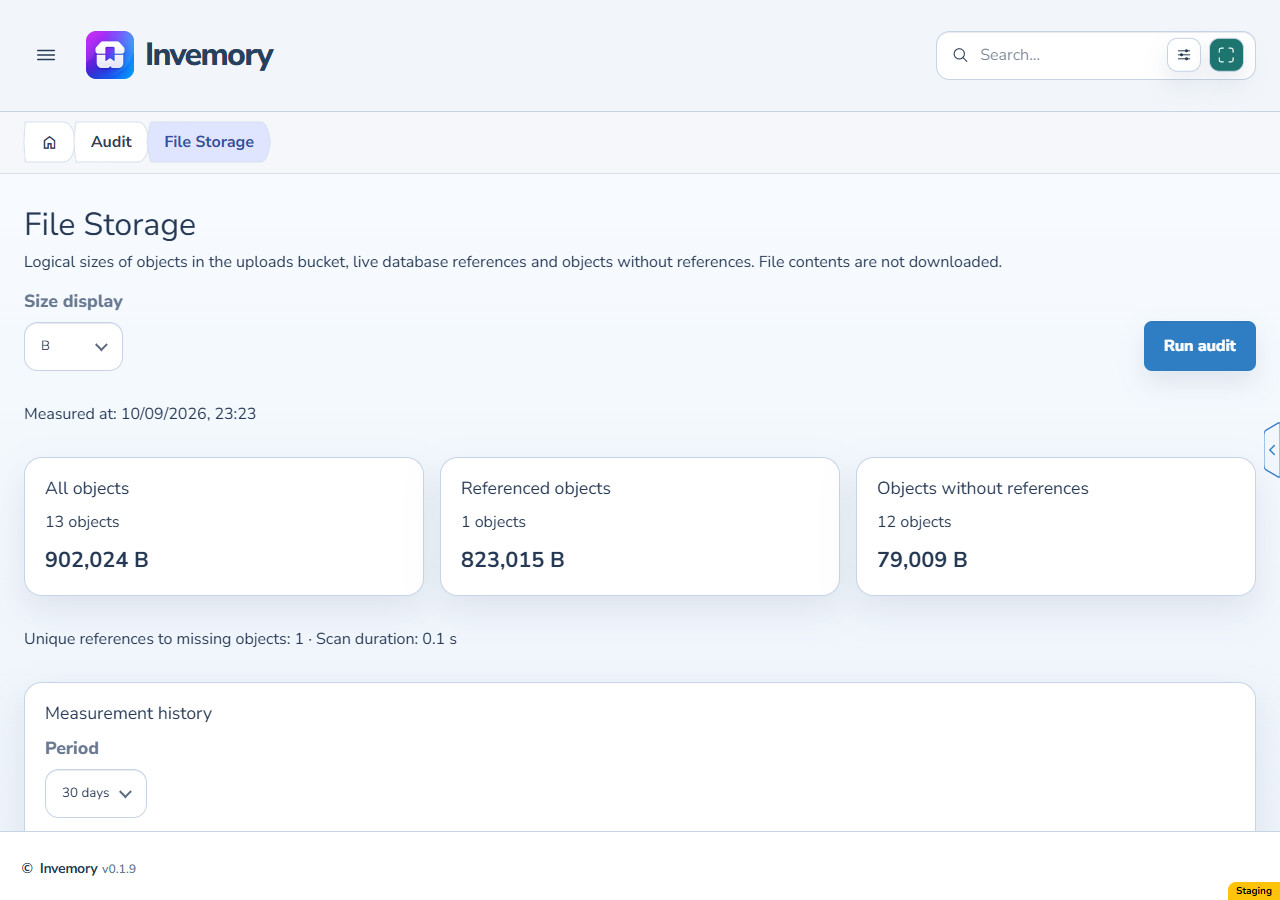
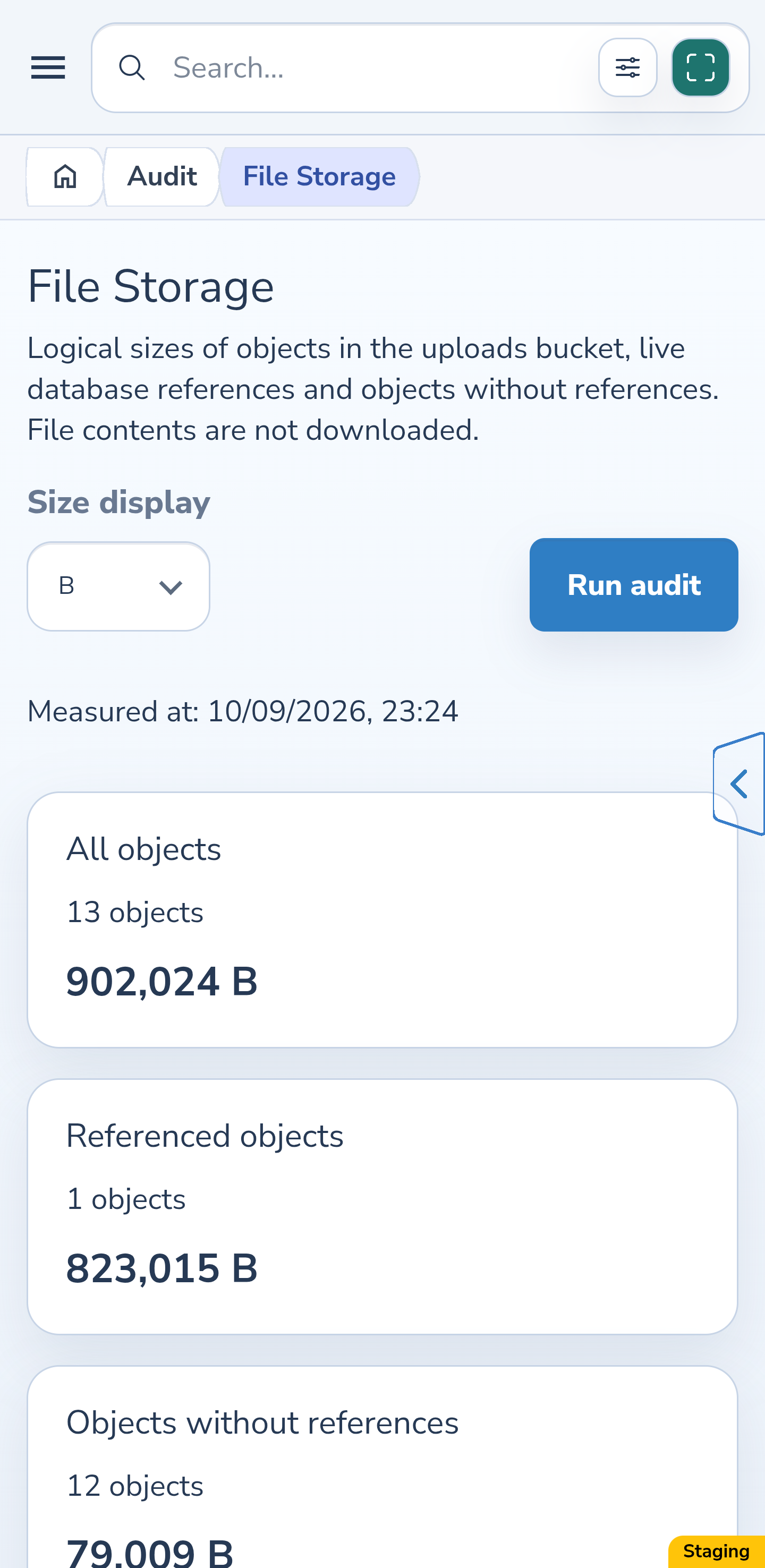
Opening the page displays the last successful result. It does not start a new check. Look at Measured at first: the figures describe the state at that time.
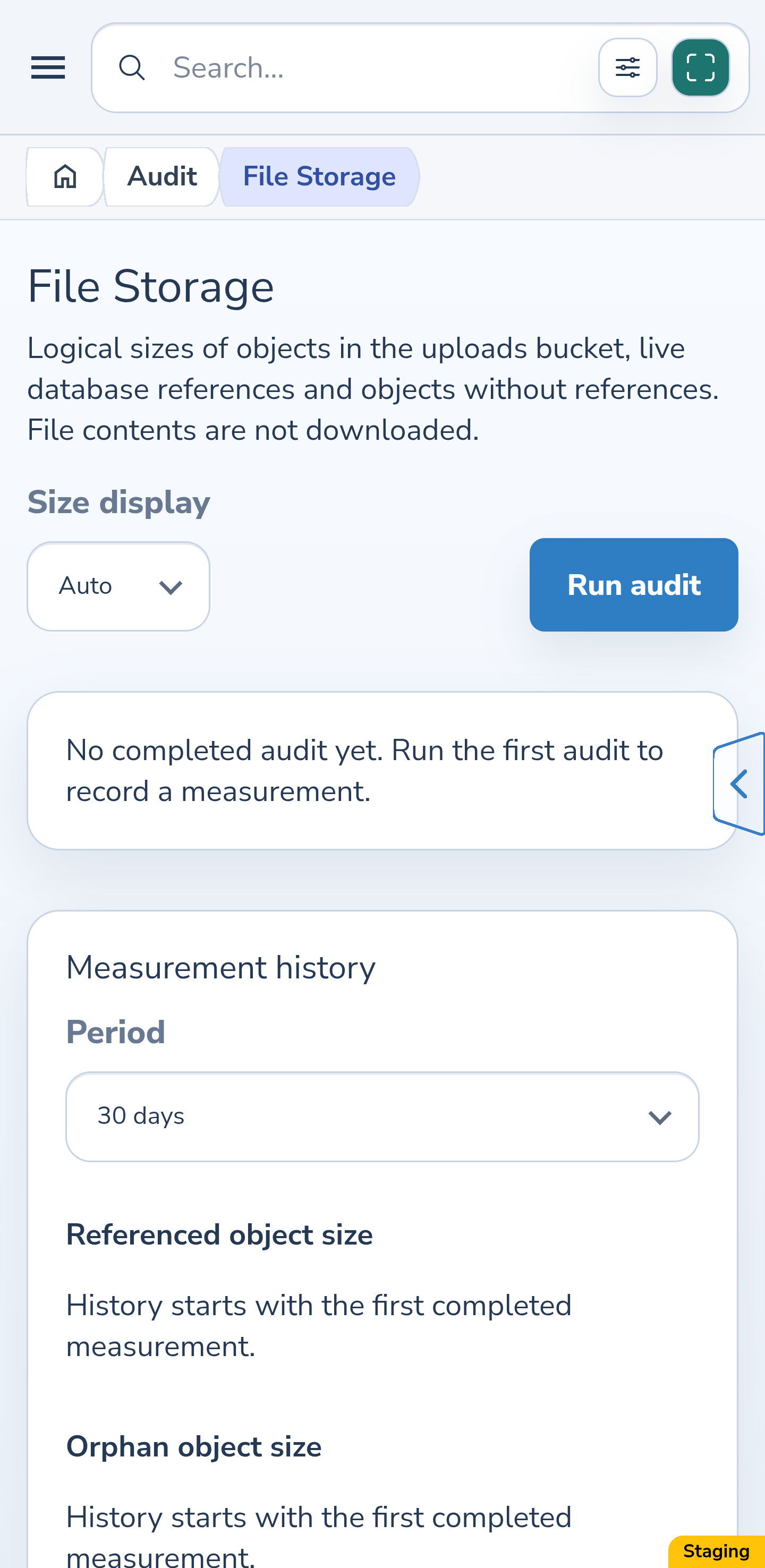
Before the first successful check, the page says that no completed audit exists yet. This means there is no measurement; it does not confirm zero storage usage. Select Run audit and wait for completion to obtain a result.
Website
Android
3. Read the file storage totals
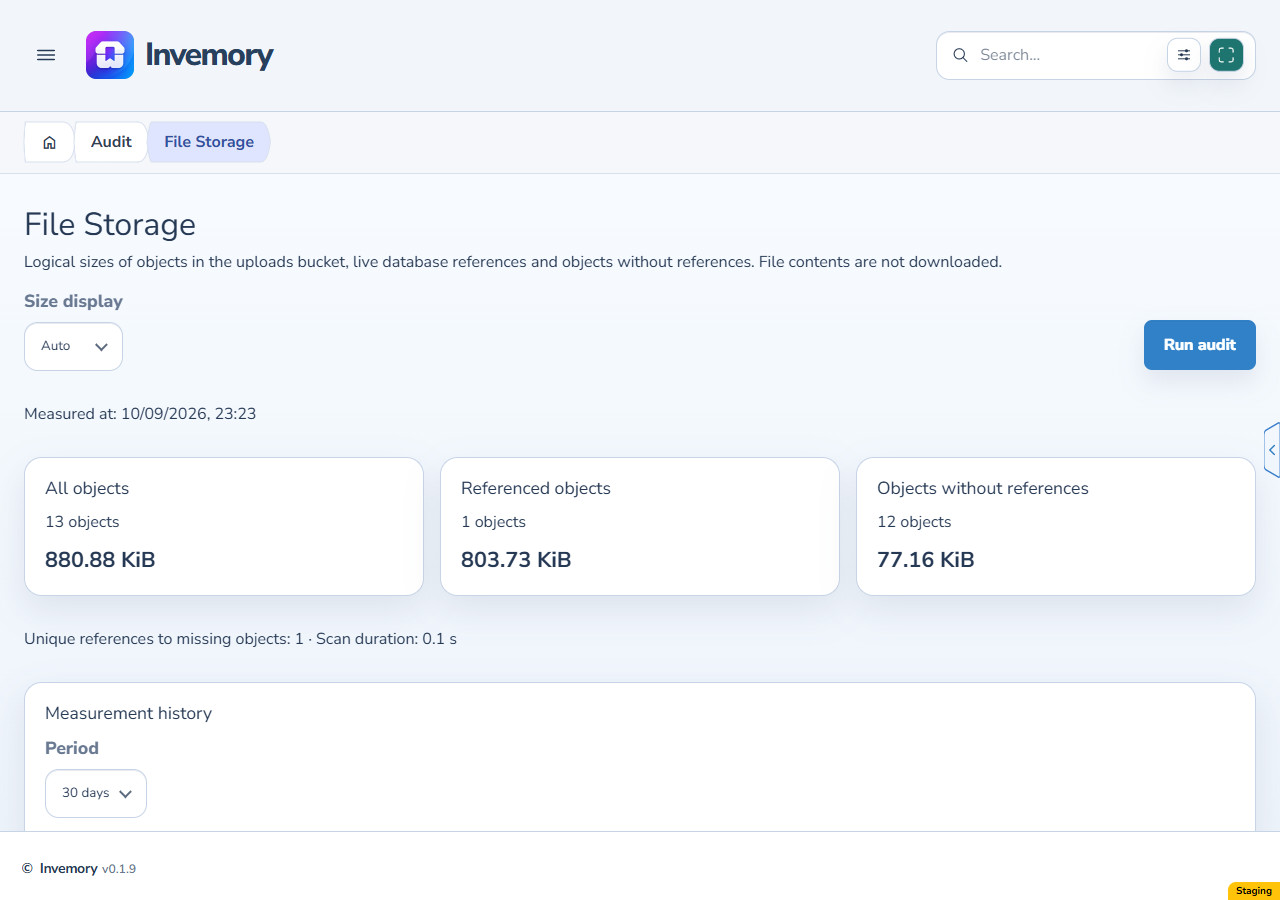
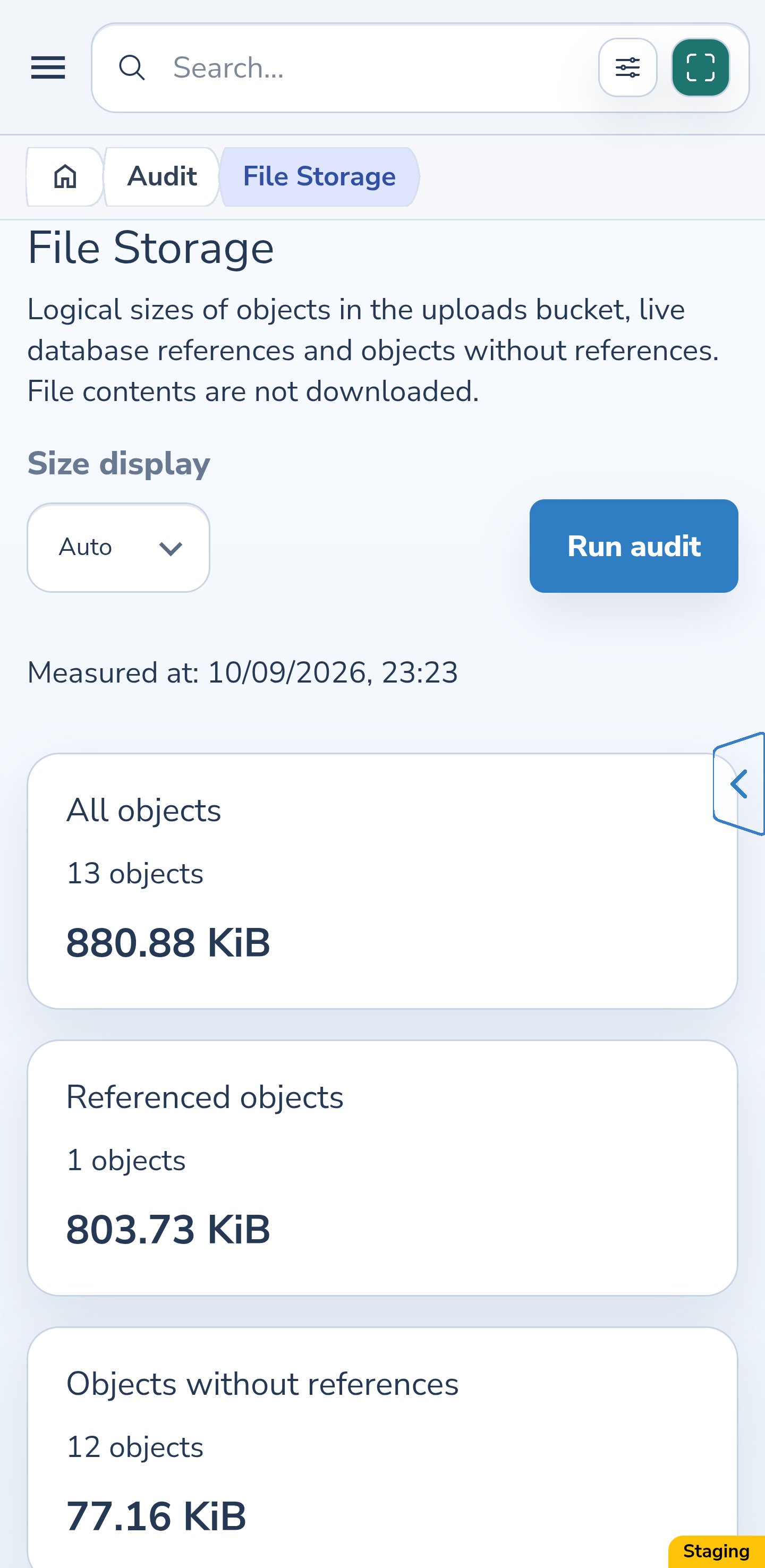
The audit counts present MinIO file objects and their logical sizes. All objects gives the number and size of present files. Referenced objects have database references; Objects without references have no references found by the audit. These two groups add up to the present total.
Unique references to missing objects is a separate figure for keys mentioned in the database but absent from storage. They are excluded from present-file counts and sizes. Scan duration describes the completed run. File totals do not measure the storage server’s occupied disk space.
Website
Android
Android
4. Compare saved measurements
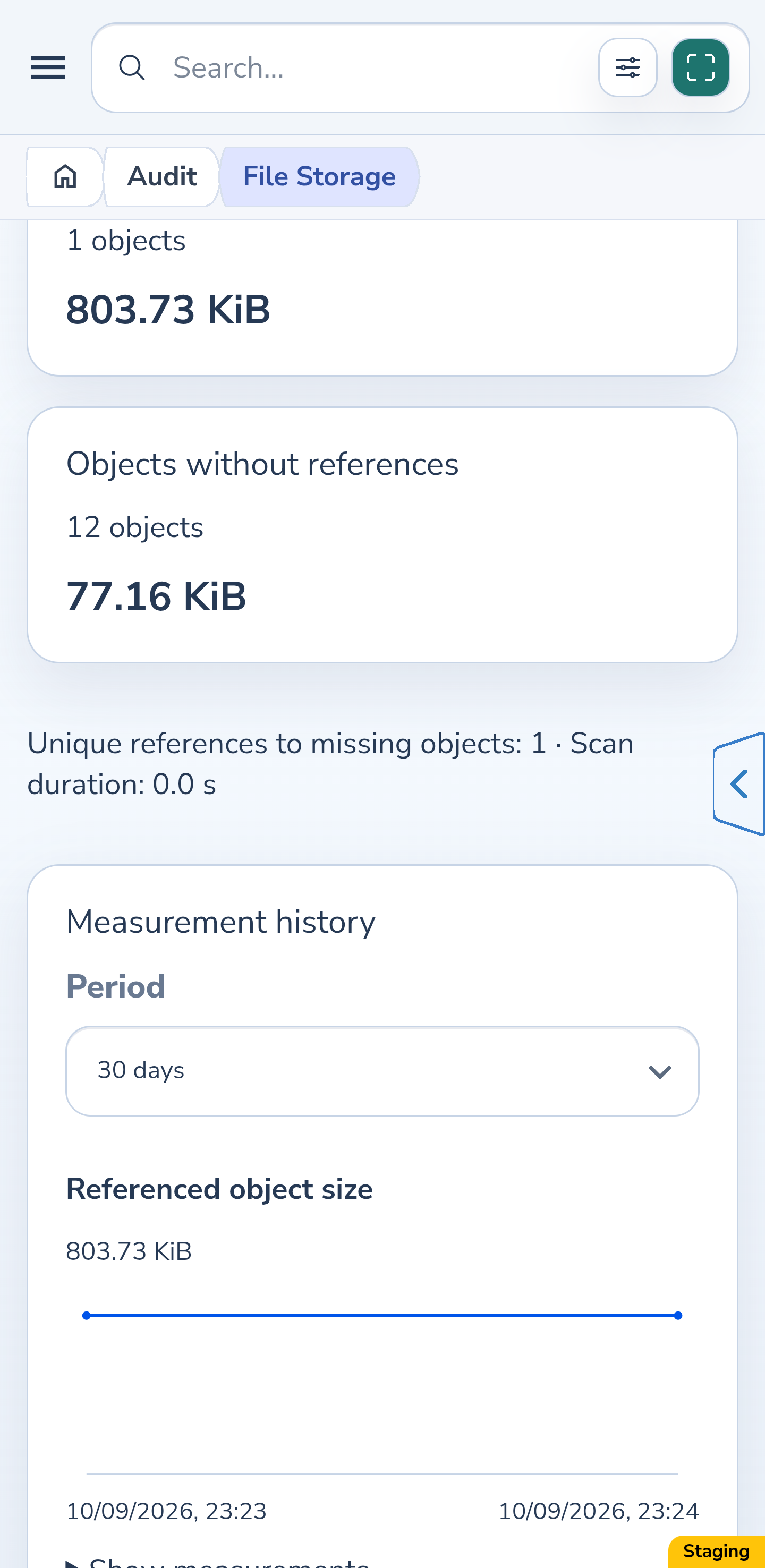
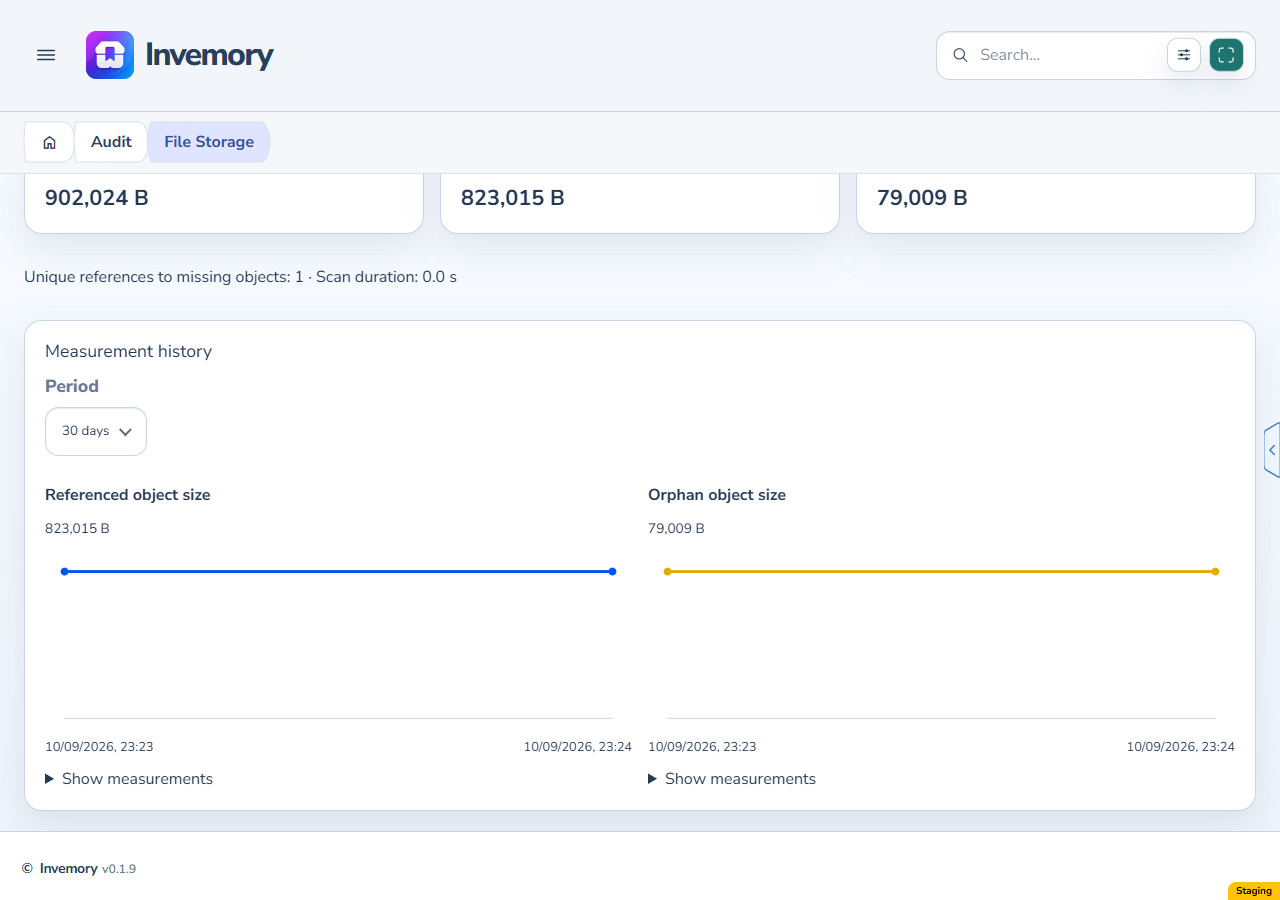
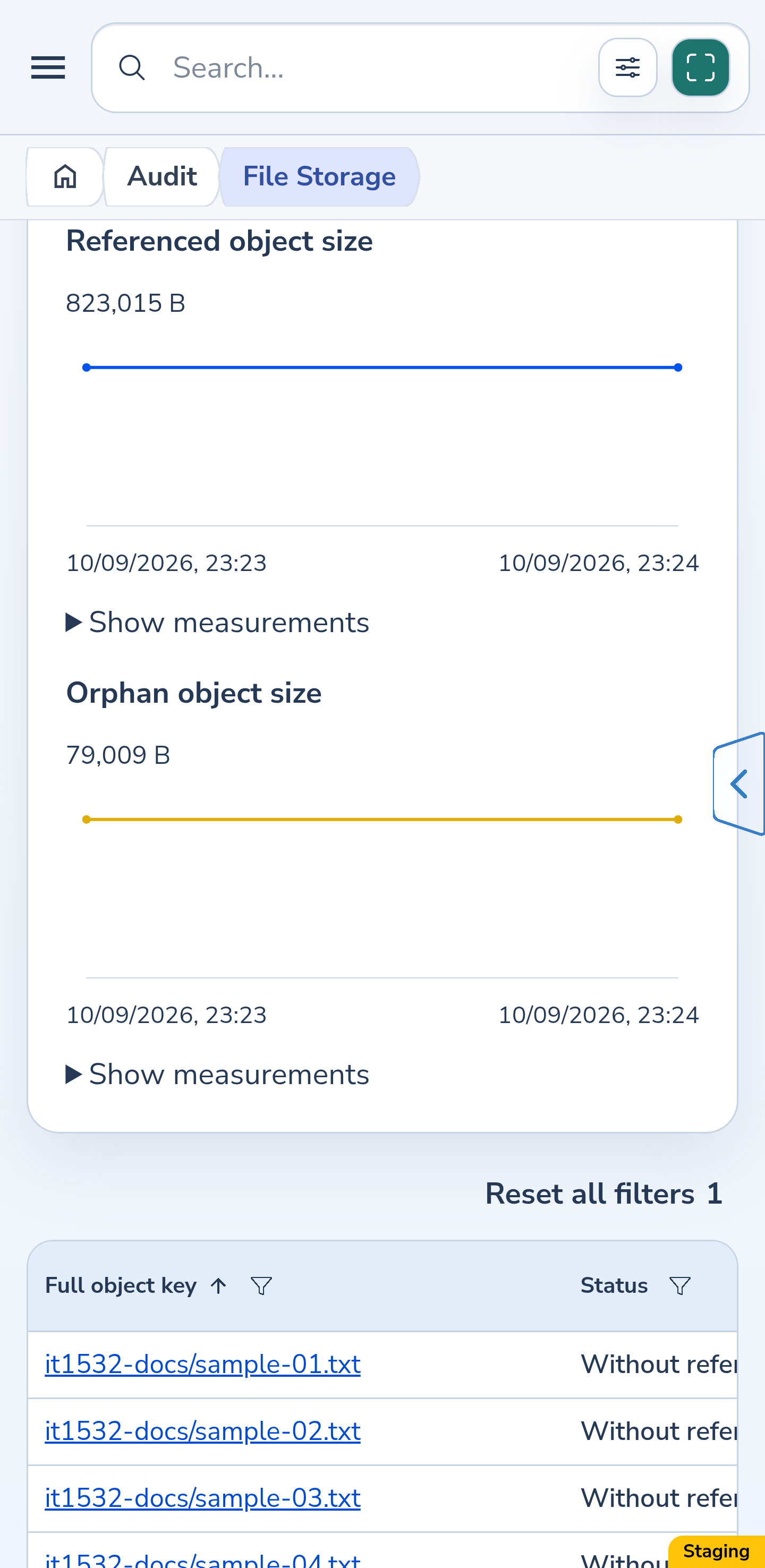
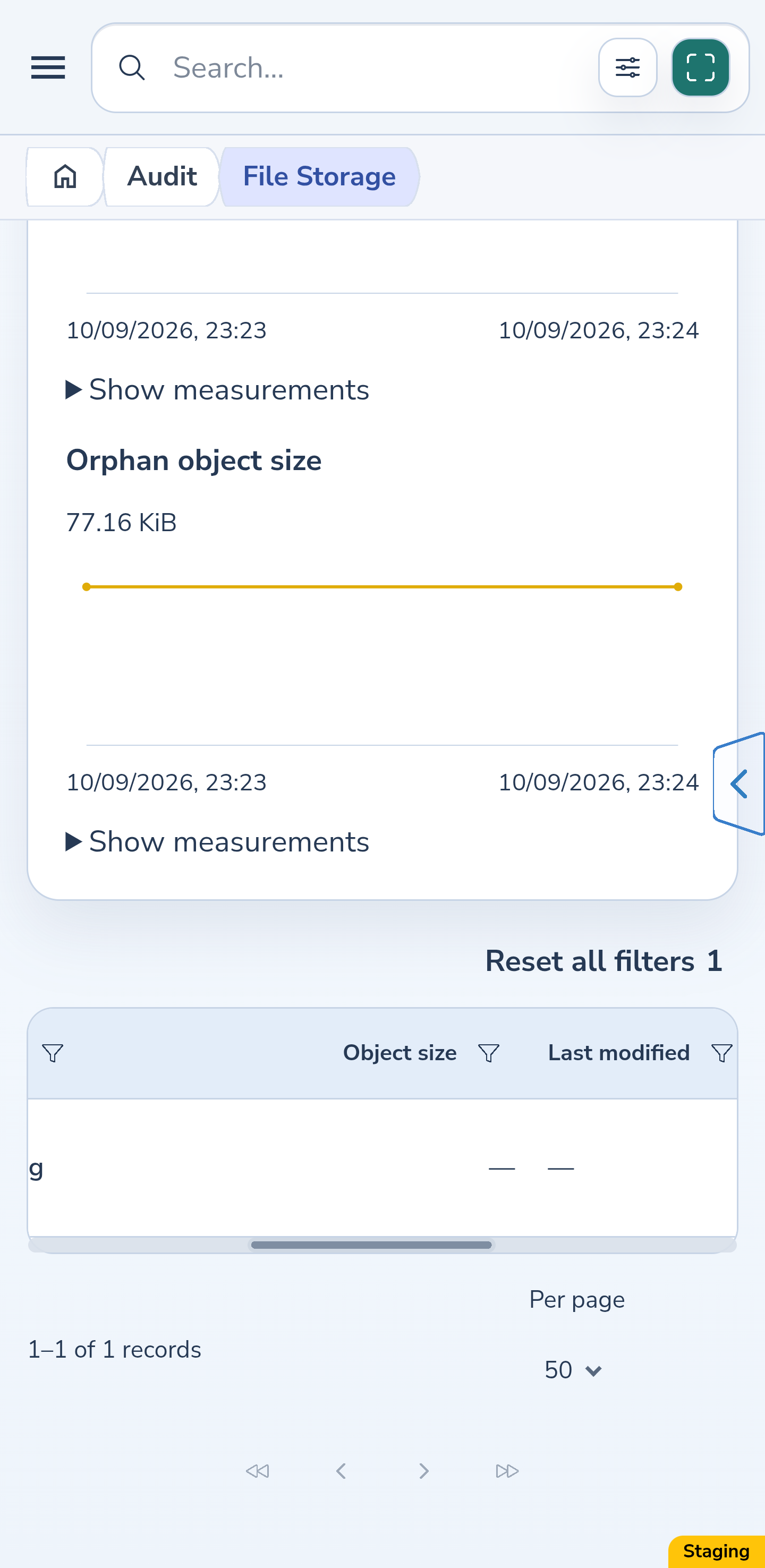
In Measurement history, choose a Period: 7 days, 30 days, 90 days, 1 year, or All history. Separate charts show referenced and orphan object sizes at the dates of completed checks.
Select Show measurements below a chart to read its dates and values in a table. A single saved measurement appears as a point. Changing the period reads saved history; the object table below always shows the latest inventory.
Website
Android
5. Choose a convenient size unit
Under Size display, choose Auto, B, KiB, MiB, or GiB. Auto selects a readable unit for each value. KiB, MiB, and GiB use steps of 1024: one KiB equals 1024 bytes.
The choice changes how totals, table values, and charts are displayed. It does not run an audit or change the underlying values. Size filters and sorting still use bytes. In a large fixed unit, a very small nonzero size can appear as “< 0.01”; an unknown size appears as a dash.
6. Find and sort the objects you need
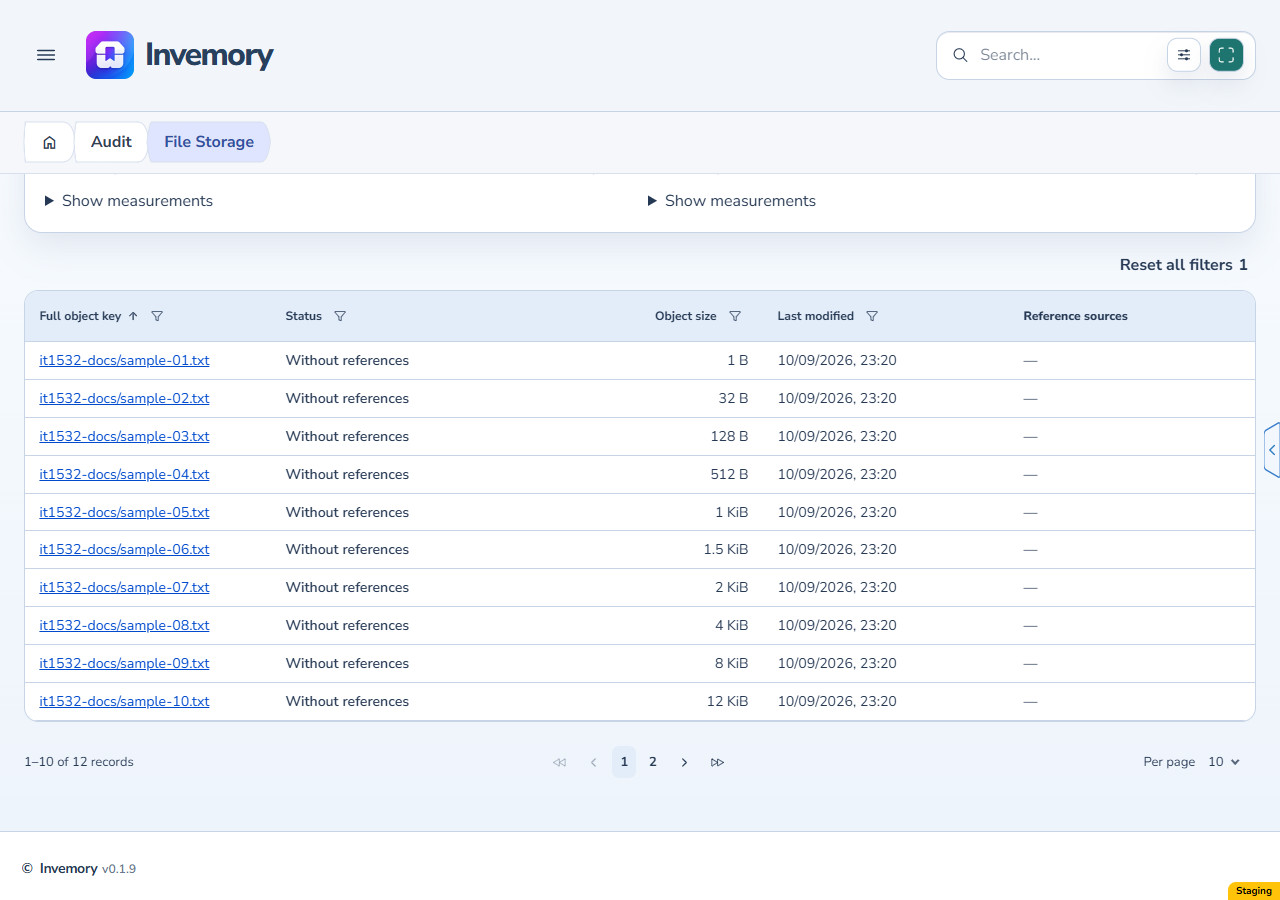
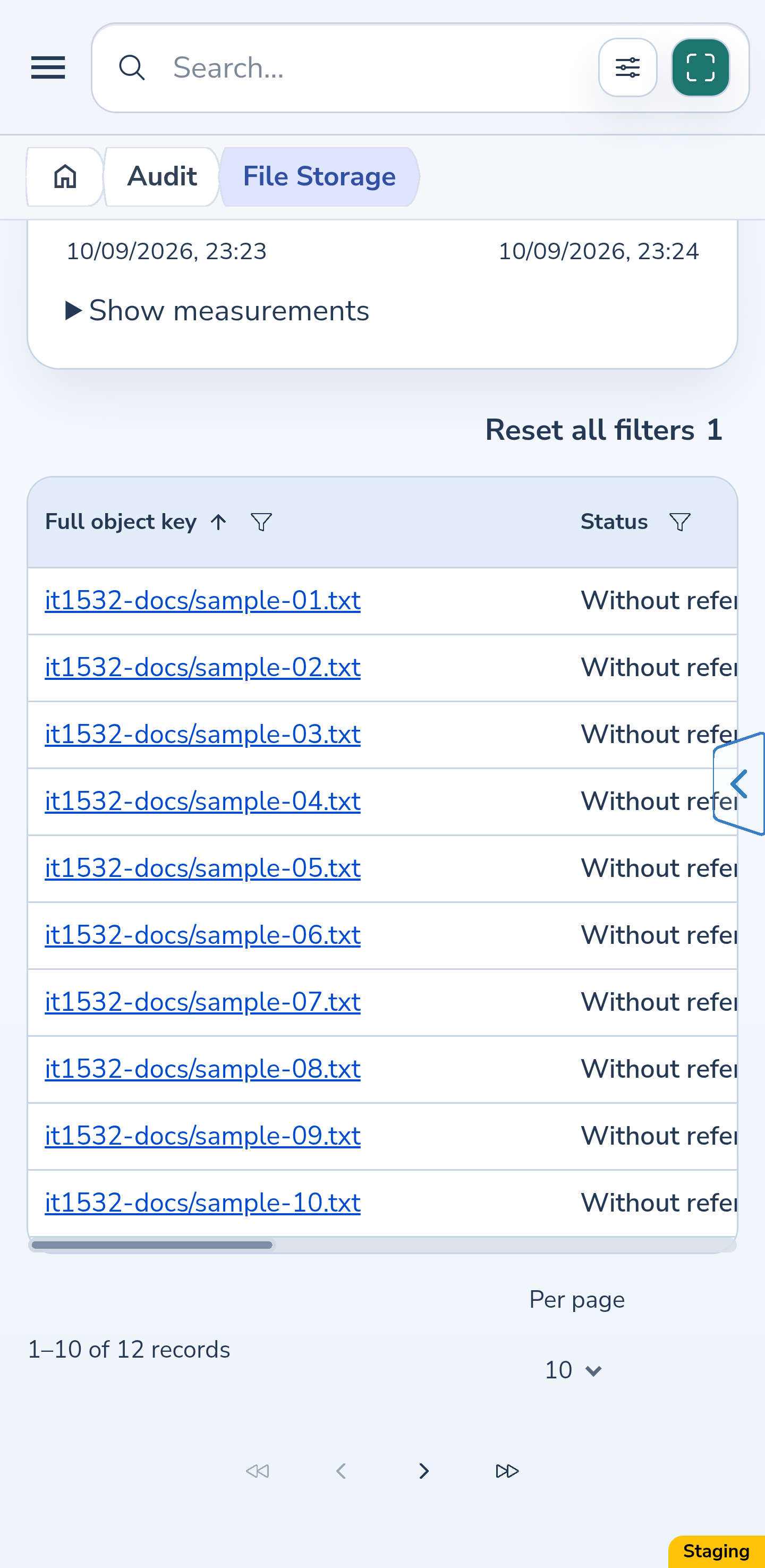
Scroll to Latest object inventory. The table initially shows objects without references. Open the Status column filter, choose All, Referenced, Without references, or Missing, then select Apply.
Full object key filters by key text. Object size, bytes sets minimum and maximum byte values. Last modified filters by dates: both selected days are included in your profile timezone, or your device timezone when none is set. Enter nonnegative whole-byte values and a valid date range.
Select the key, status, size, or date headers to change the order. The full filtered result is sorted before it is split into pages. Browse subsequent pages or change the number of rows per page. On Android, scroll the wide table horizontally to reach other columns. If there are no matches, use Reset filters; an empty filtered table does not mean storage is empty.
Website
Android
7. Check references and download a present file
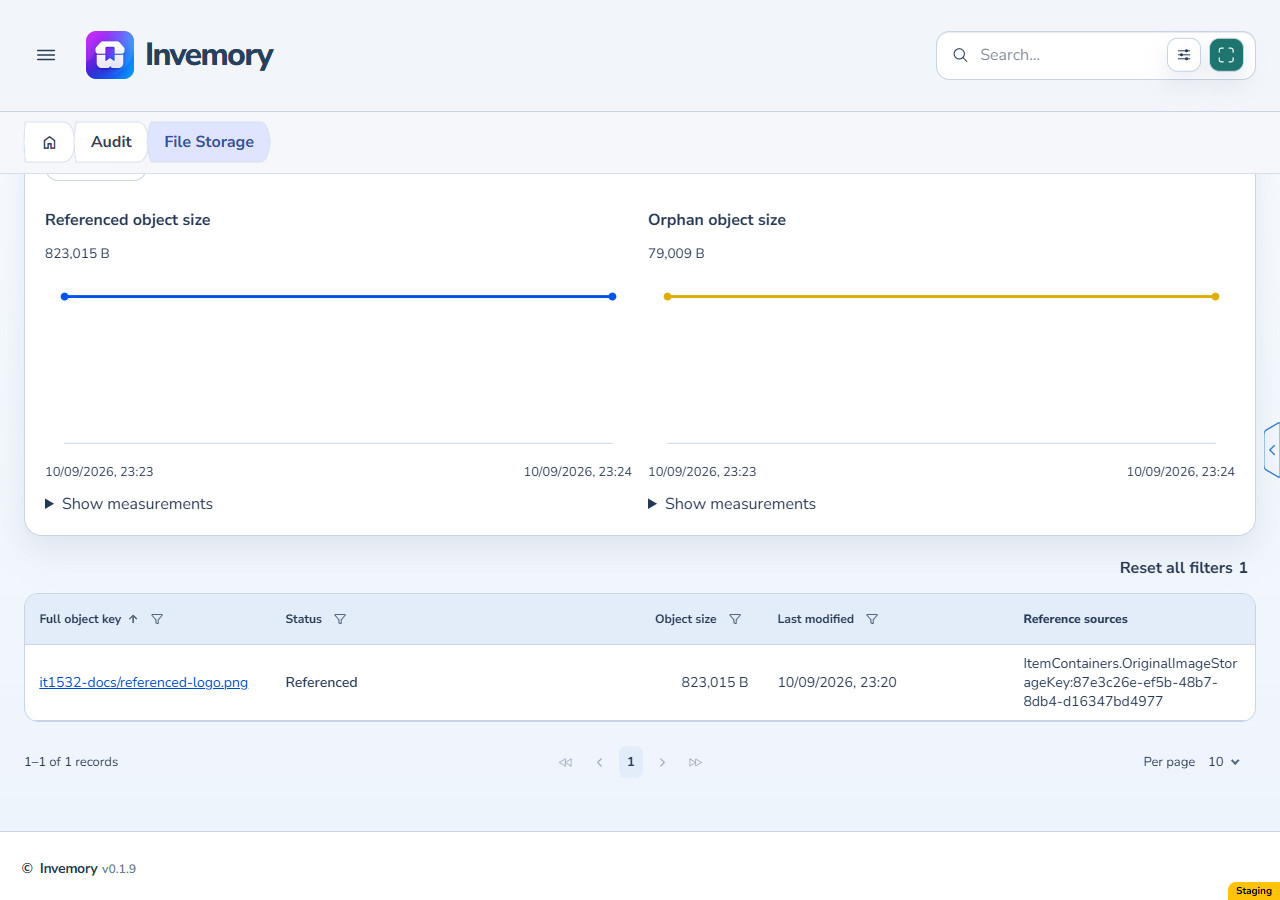
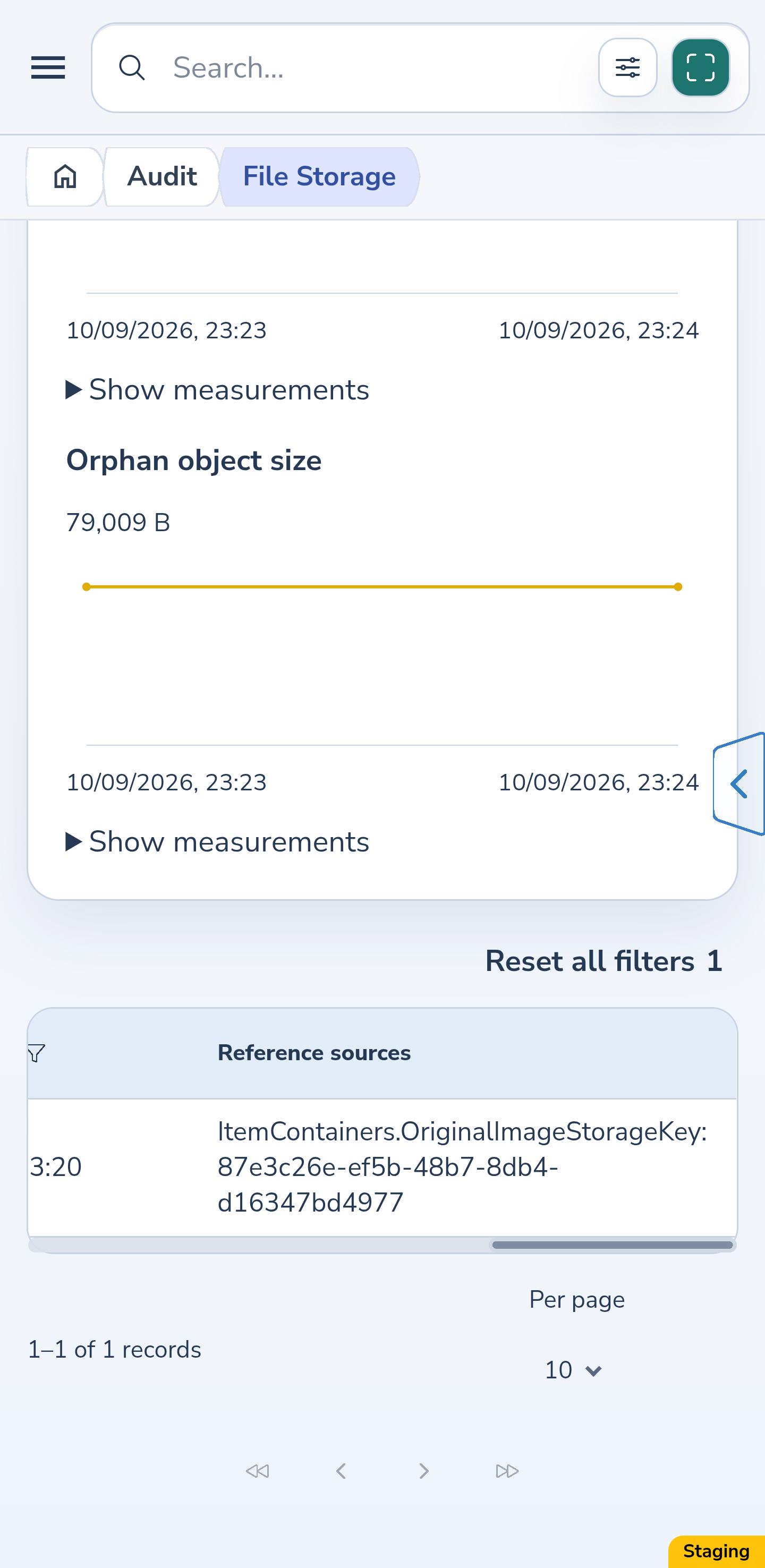
Choose Referenced and read Reference sources beside the relevant key. Each source identifies the table, field, and record ID that references the file. Historical records and saved templates can also contain references, so a file may remain referenced after its current photo has changed.
Select a present object’s full key to download that exact file. On the website, your browser handles saving: it may offer a destination picker or use its usual download flow according to its capabilities and settings. Android opens the system document picker; choose a destination and confirm saving. Downloading does not start a new audit.
Website
Android
8. Inspect references to missing files
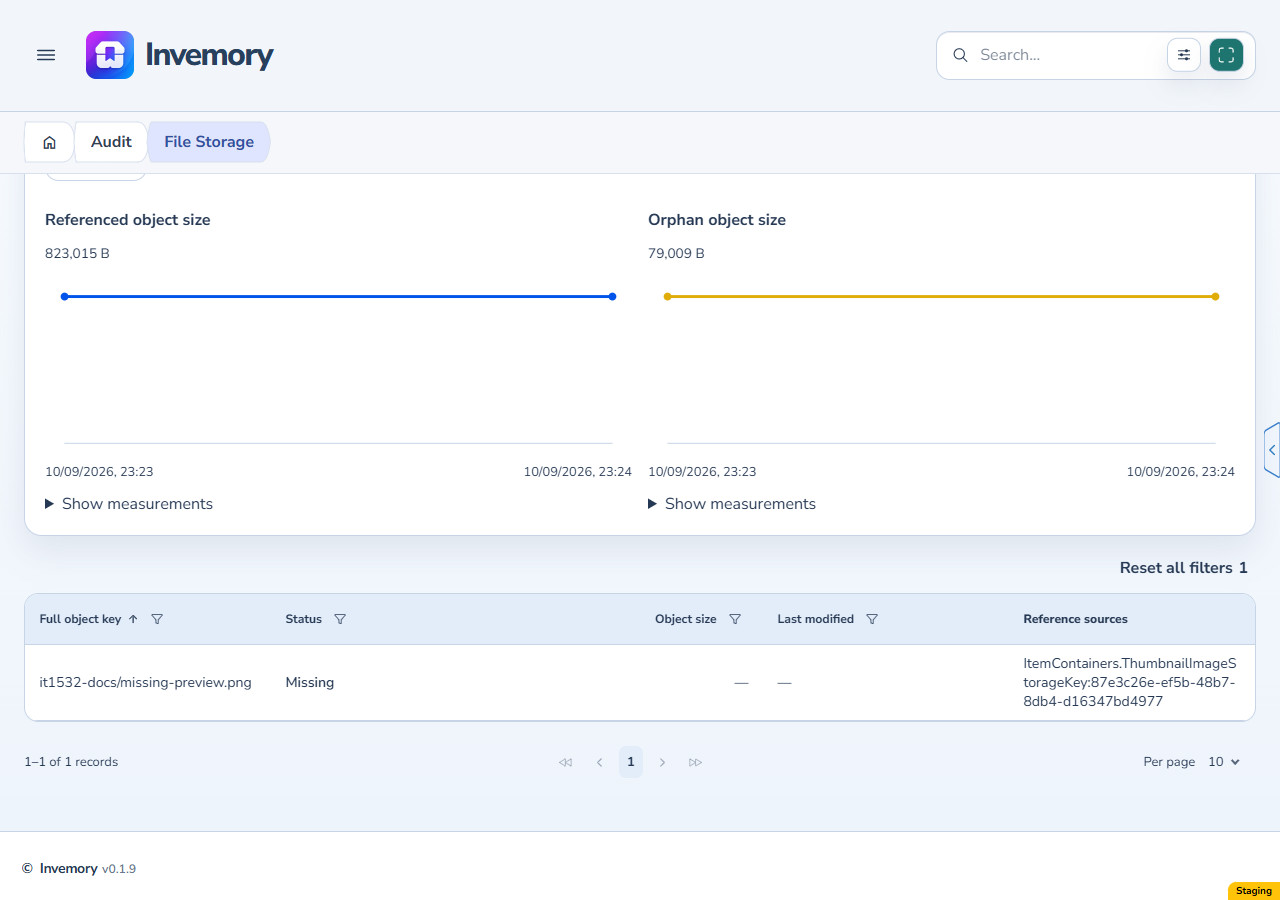
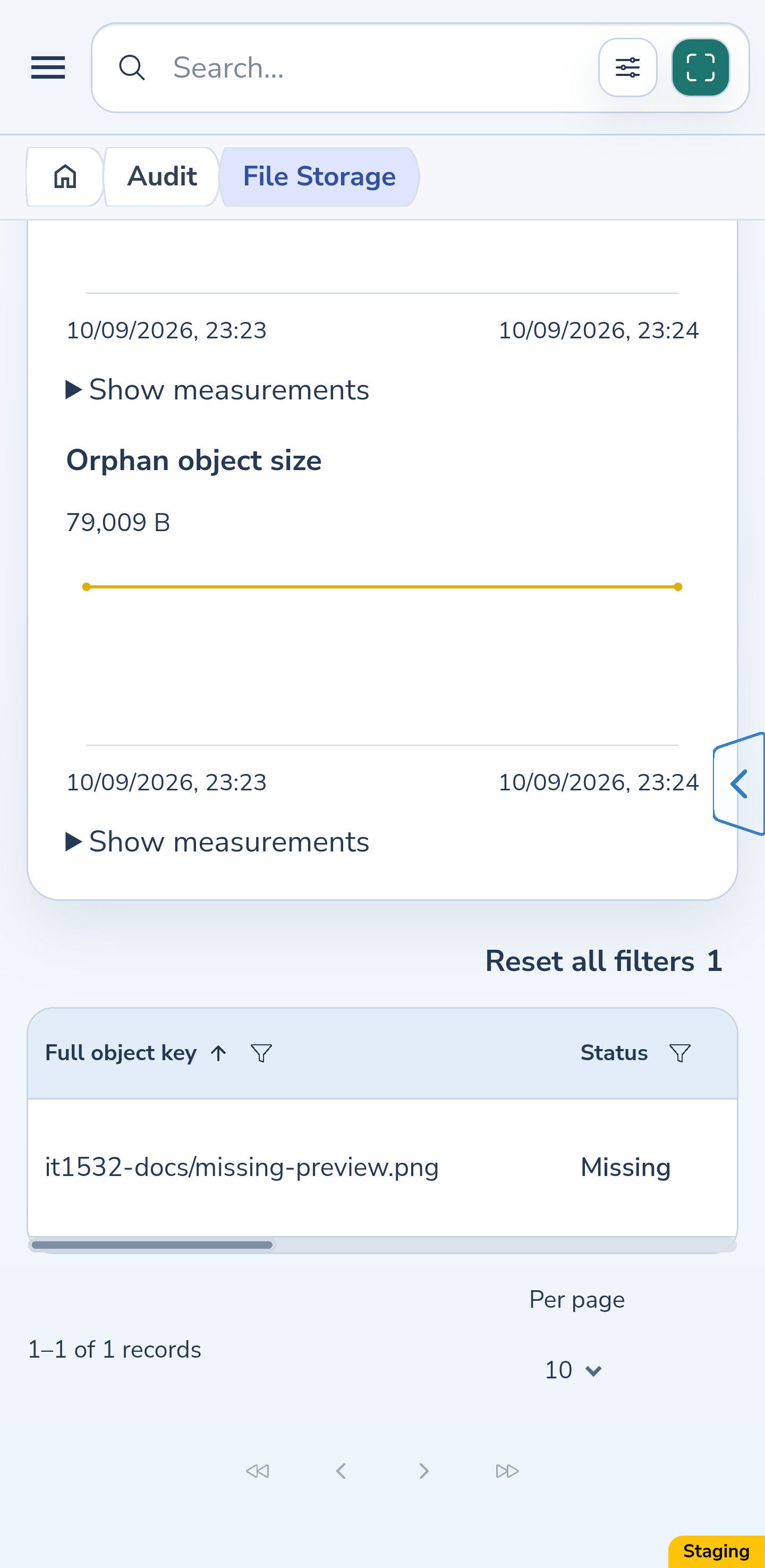
In the Status filter, choose Missing and select Apply. This shows referenced keys whose objects were not found during the latest audit.
Their size and modification date are unknown and appear as dashes. The key is plain text and cannot be downloaded. Read Reference sources to identify the records that mention the missing file.
Website
Android
Android
9. Run a fresh check when you need current figures
On File Storage, select Run audit once and wait for completion. After a successful check, compare Measured at, the totals, history, and refreshed inventory.
A full audit may take time. While Audit running… is shown, wait for completion: no progress percentage is estimated and the run button is unavailable. If the app reports that the audit did not complete, any previously successful result stays visible and is not a fresh measurement. Select Retry audit on this open page: the retry uses the same run.
Reloading the page reads the saved result again. Changing the history period, size unit, filters, sorting, or table page does not start a new audit either.
Website
Android
10. Check physical database size
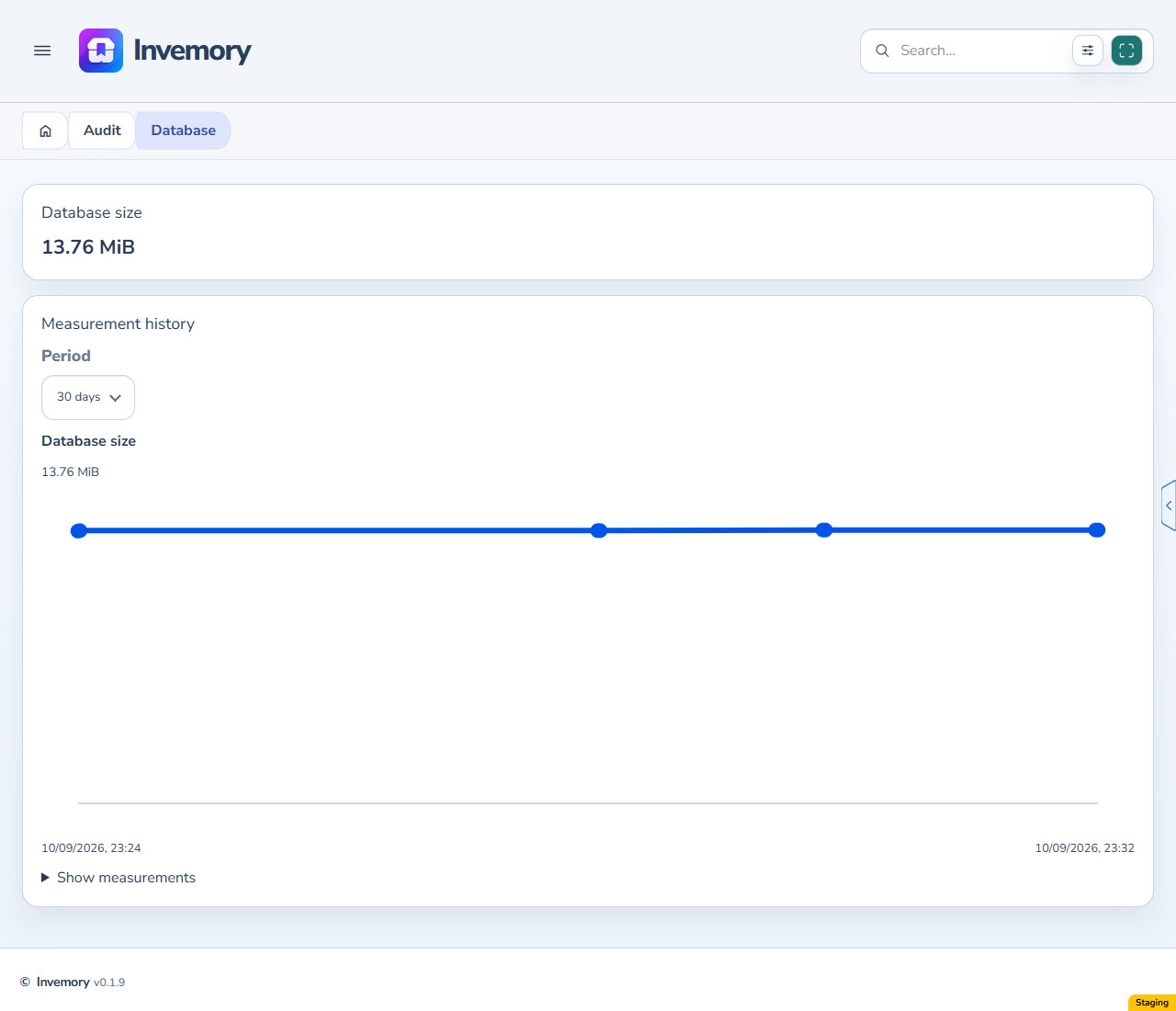
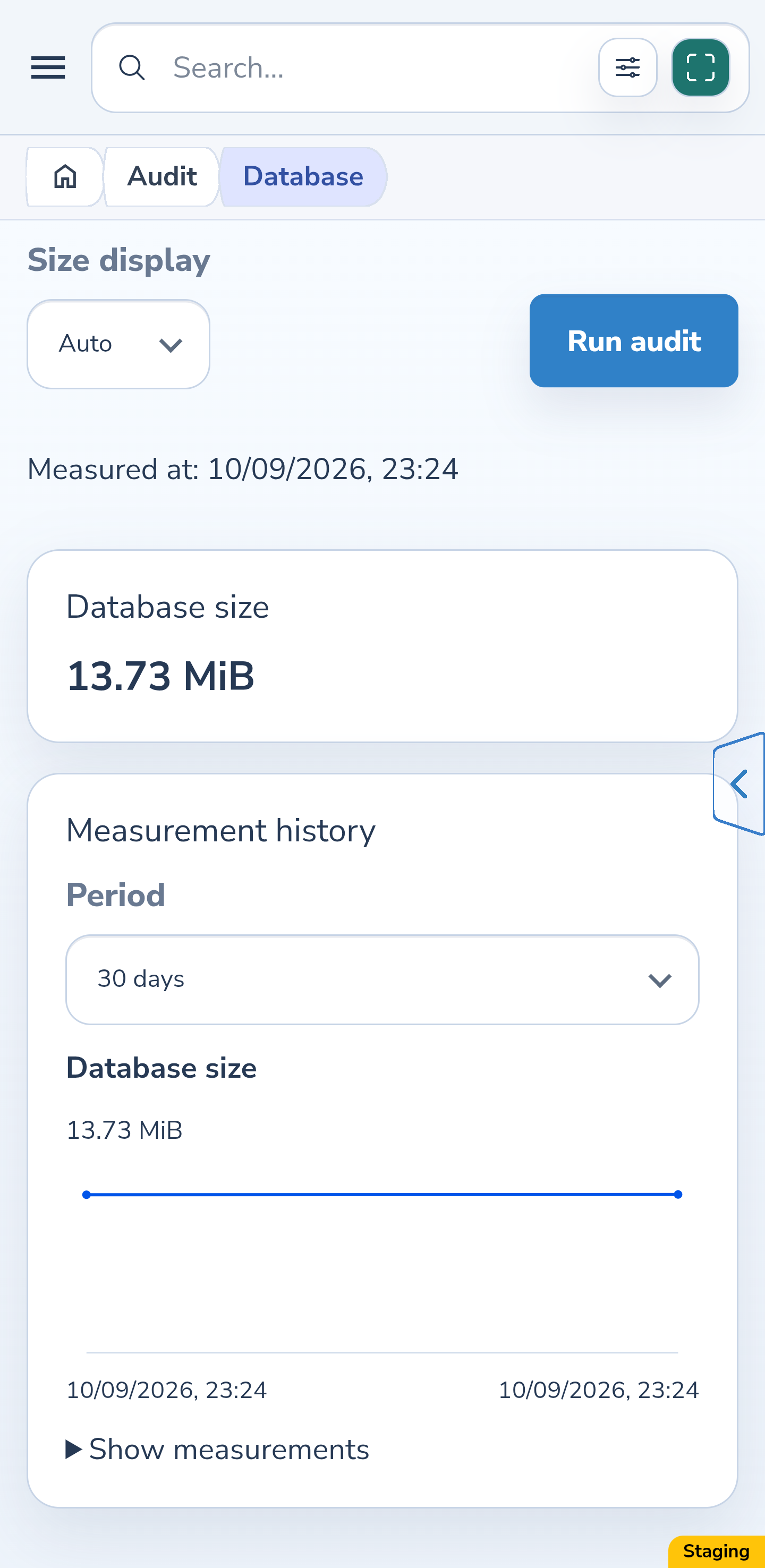
Return to Audit and open Database. Database size shows the physical size of the entire current PostgreSQL database at the measurement time, rather than only your account’s data.
It excludes WAL, backups, other databases, and free disk space. It measures something different from the logical size of stored file objects. Select Run audit on this page for a fresh measurement; choose a history period and size unit to compare saved results.
Website
Android
The result
You can now check when an audit was measured and what it includes, find file reference sources, download a present object, and measure the database separately.
Useful to know
- Check measurement times before comparing figures: file storage and database audits have separate results.
- Without references describes what the audit found at its measurement time. It is not permission to delete an object. Storage cleanup is outside this guide.
- Language, date format, and timezone are profile preferences. The timezone also matters for calendar filter boundaries.
Common questions
Why can the table have more rows than All objects?
With All selected, the table includes present objects and separate missing referenced keys. All objects counts present files only. Each missing key is counted once, even when several records reference it.
Can a history period show an older list of files?
The period changes the charts and tables of saved measurements. Object inventory belongs to the latest completed file audit, not a date selected in history.
When do measurements appear without a manual run?
An external environment scheduler can run checks. Their timing and availability depend on its configuration. Use the actual saved measurement time to judge freshness, or run an audit manually when needed.
You can now check when an audit was measured and what it includes, find file reference sources, download a present object, and measure the database separately.
Open Invemory audits