
Guides
Change standard color schemes as an administrator
An administrator can update Invemory’s standard Light and Dark schemes for everyone using them on the website, Android and public pages. This guide explains how to check changes before publication and respond when another person has changed the scheme or the connection fails.
Last checked:
What you need
- Sign in to an Invemory account that already has the administrator role.
- Use the website or installed Android app connected to the same environment. Coordinate changes to shared colors with the people responsible for that environment before publication.
1. Open the standard schemes
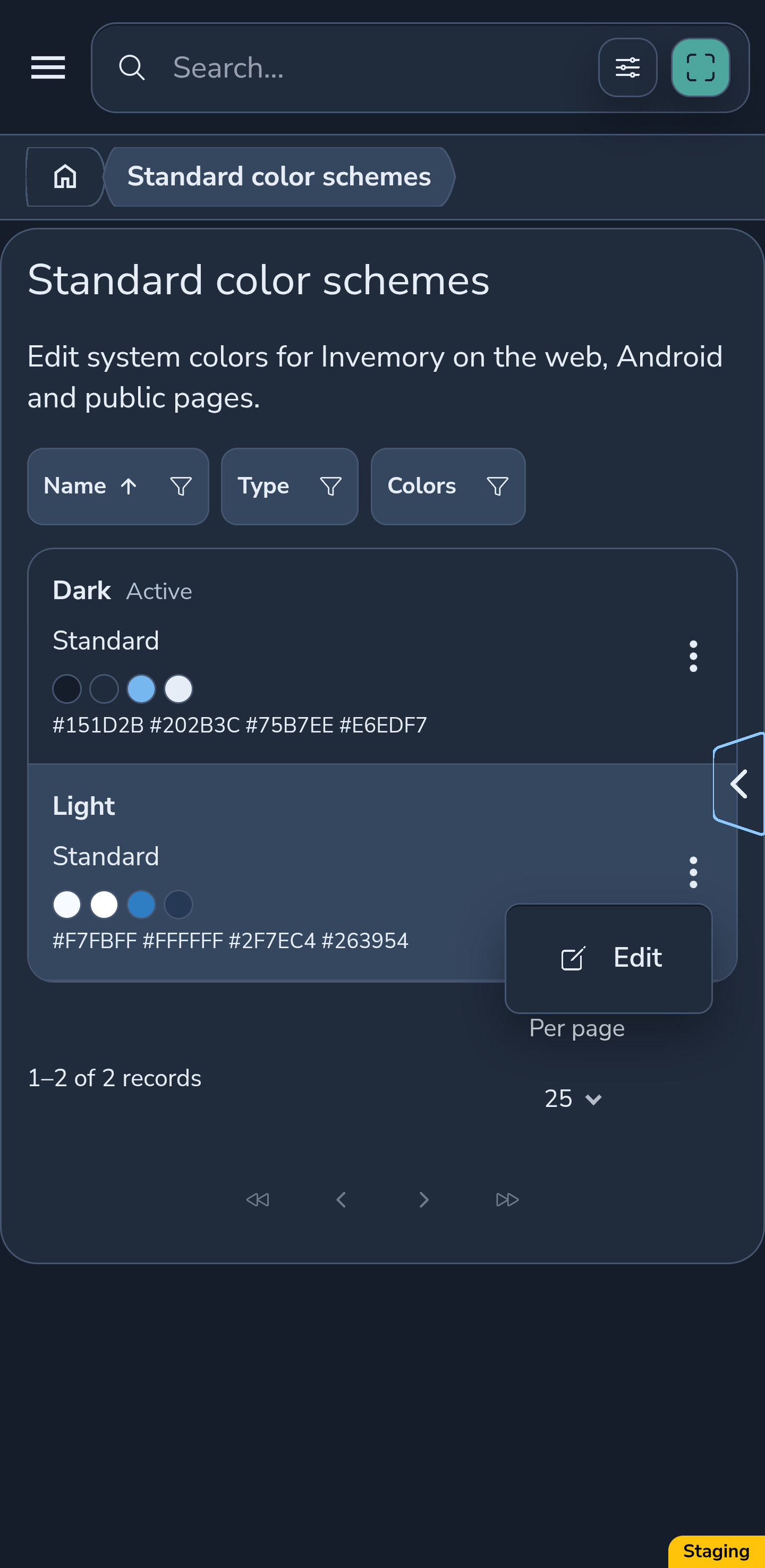
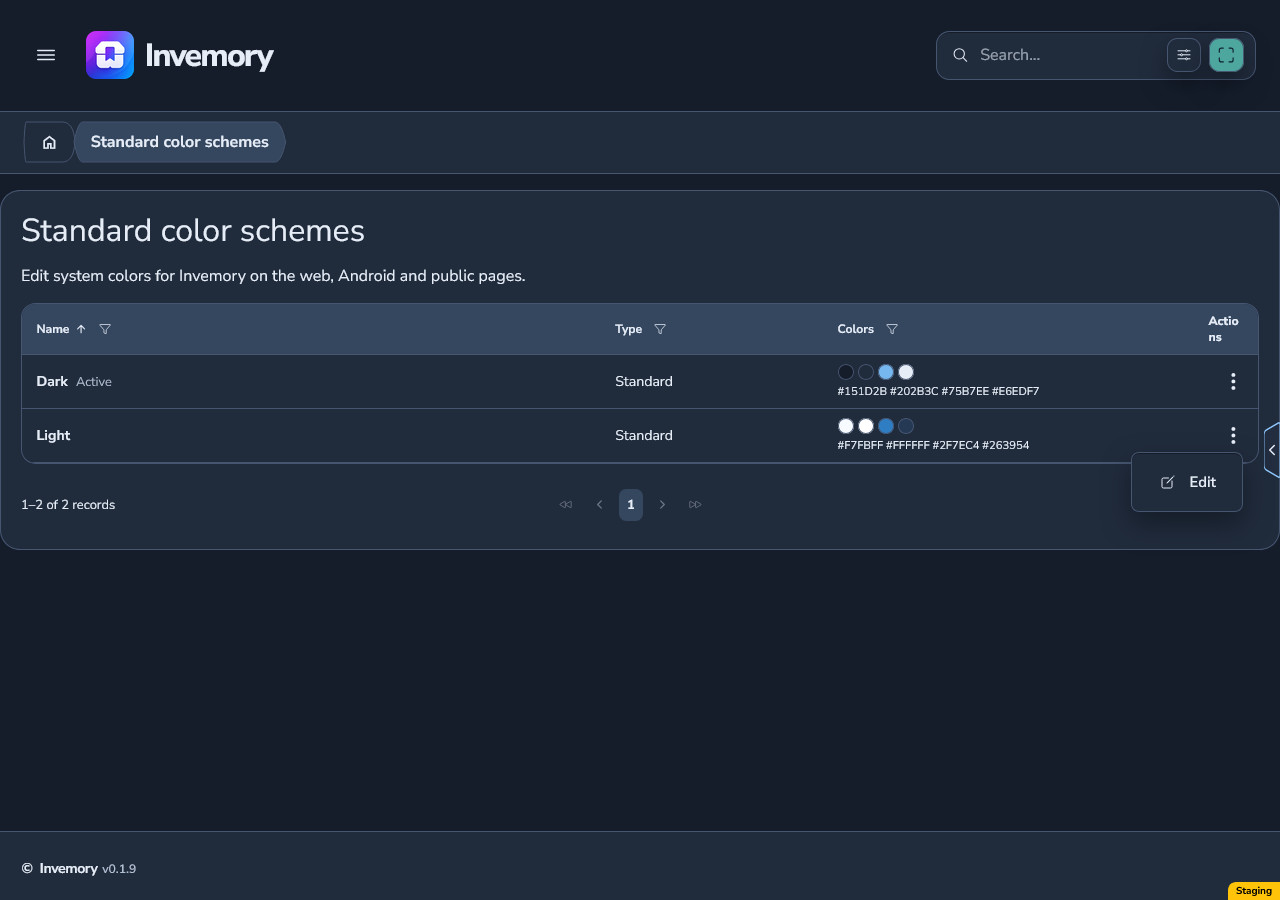
Expand Administration in the main menu and choose Standard color schemes. On a phone, open the main menu first; on the wide website, use the sidebar.
The list contains two standards: Light and Dark. Their menus offer Edit. You cannot create, clone or delete standards from this list. Users create personal palettes through Profile → Appearance.
Android
Website
2. Edit Light with a local preview
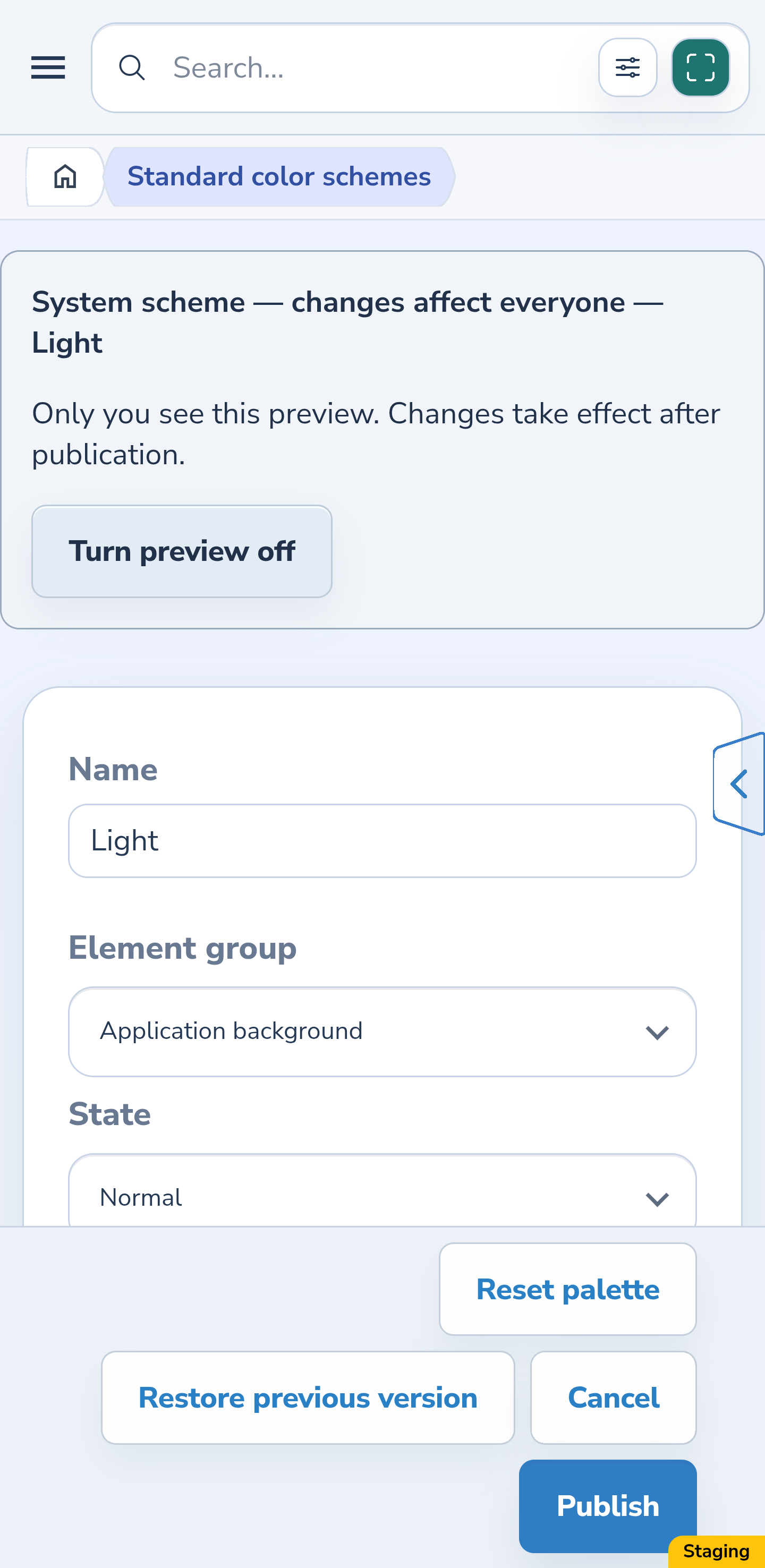
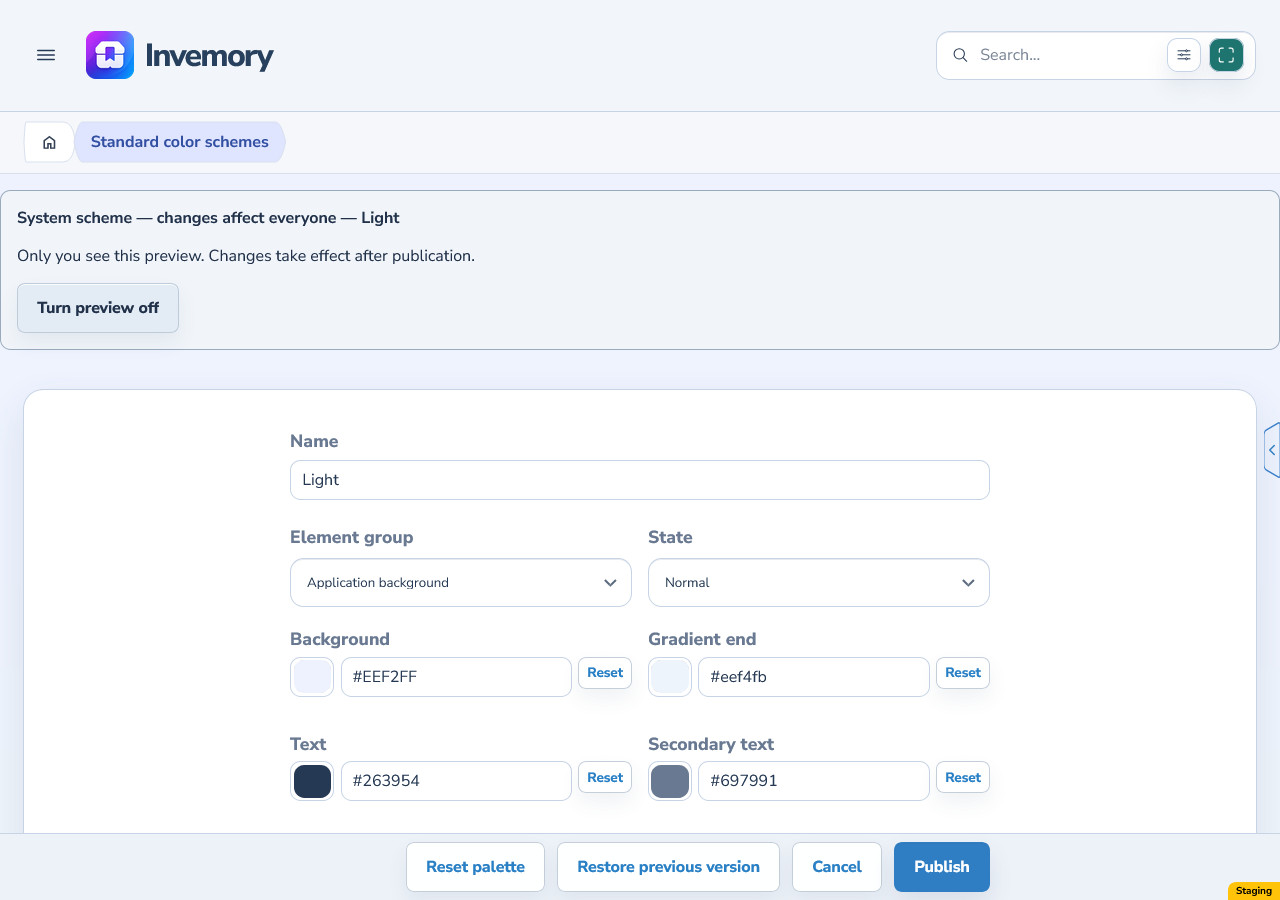
Choose Edit beside Light. “System scheme — changes affect everyone” remains visible in the editor. The standard’s name and base type cannot be changed.
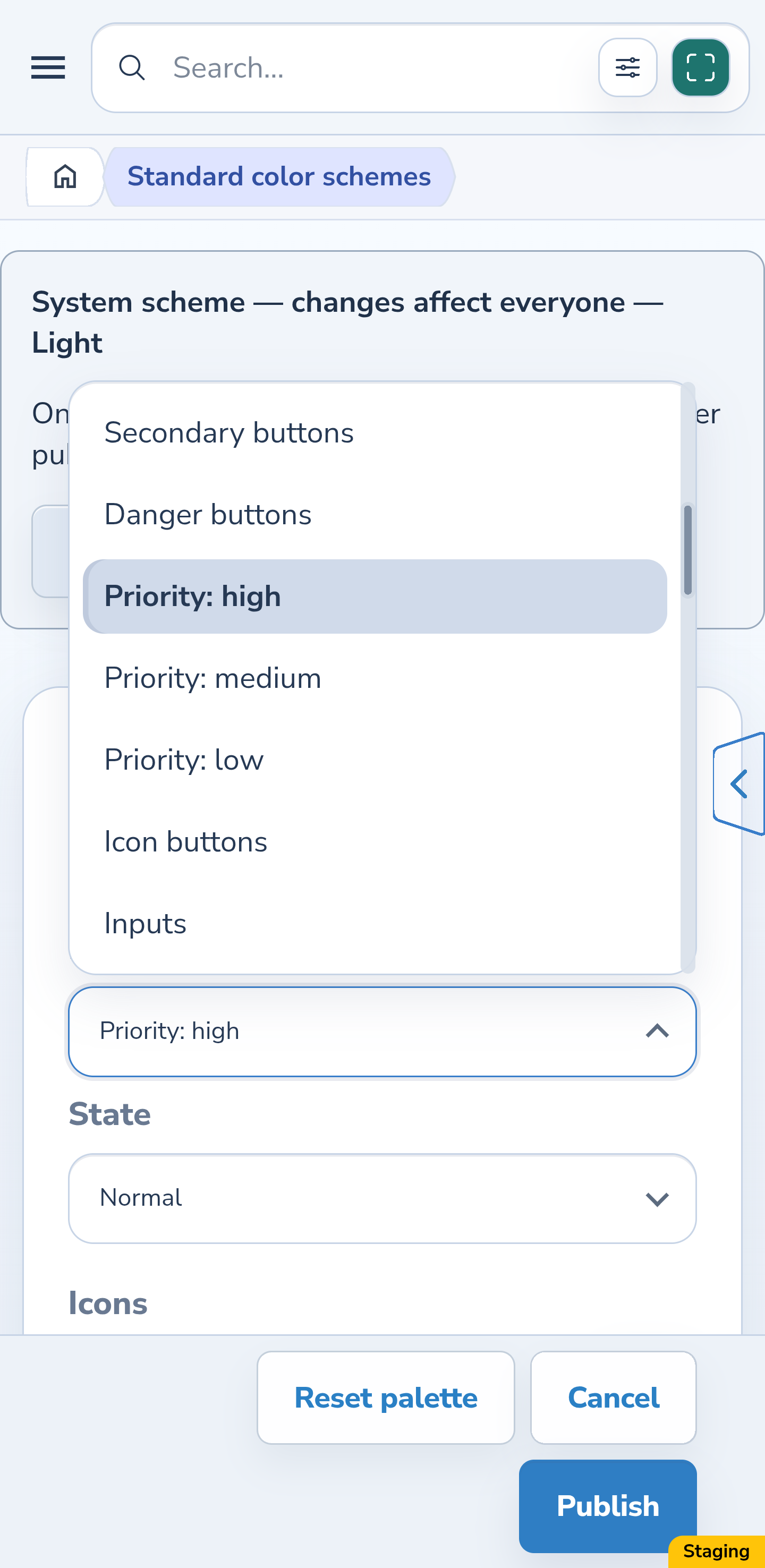
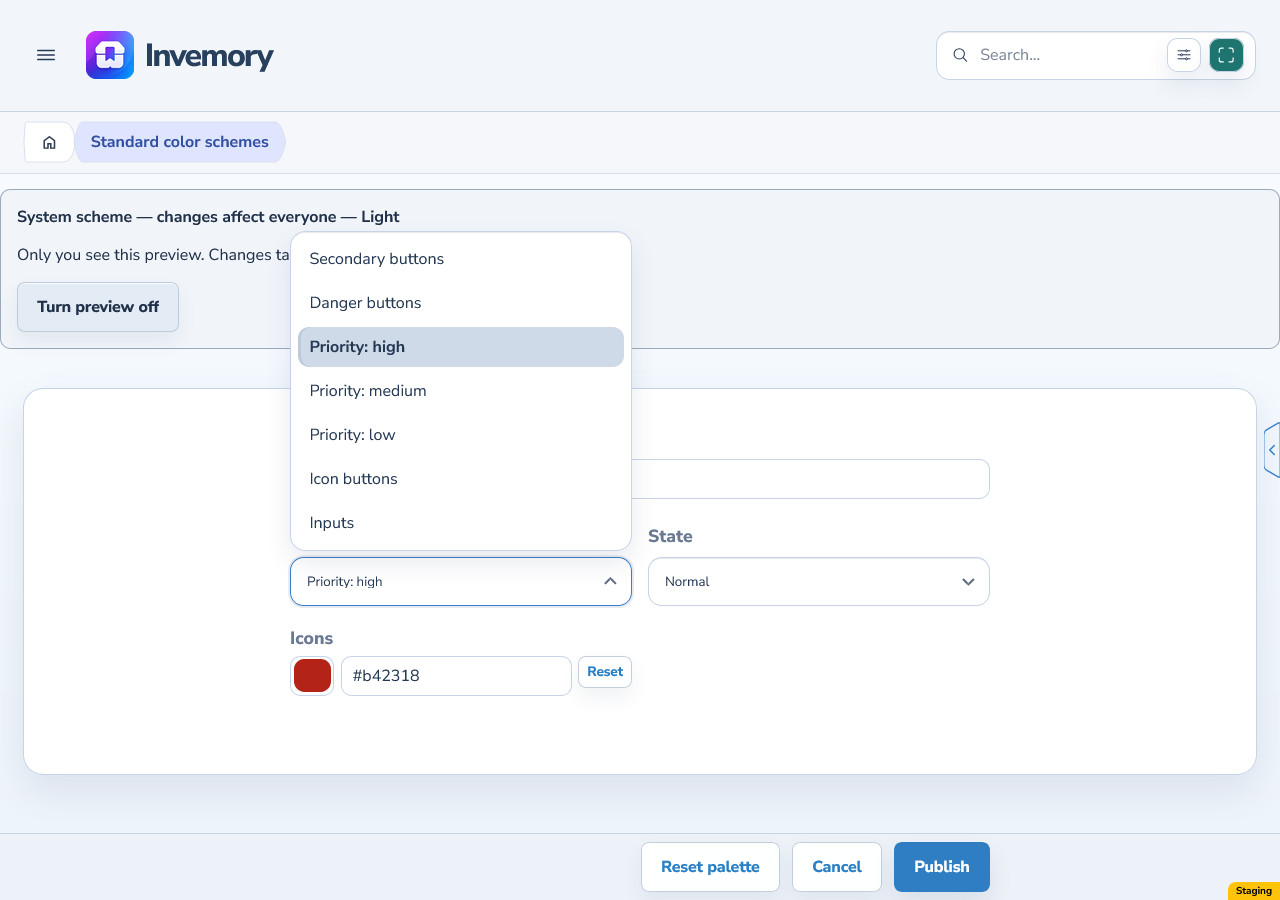
Choose an Element group and State, then change the available color fields using the color control or a #RRGGBB or #RRGGBBAA code. The available groups, states and color fields match the personal editor. Only you see the preview; other users have not received these edits.
Priority: high, Priority: medium and Priority: low offer Normal → Icons. Text below fields offers Normal → Text; both photo indicators offer Background, Icons and Border for Normal and Selected. Main photo outline offers Selected → Border. Change only the fields available for the selected combination.
Android
Website
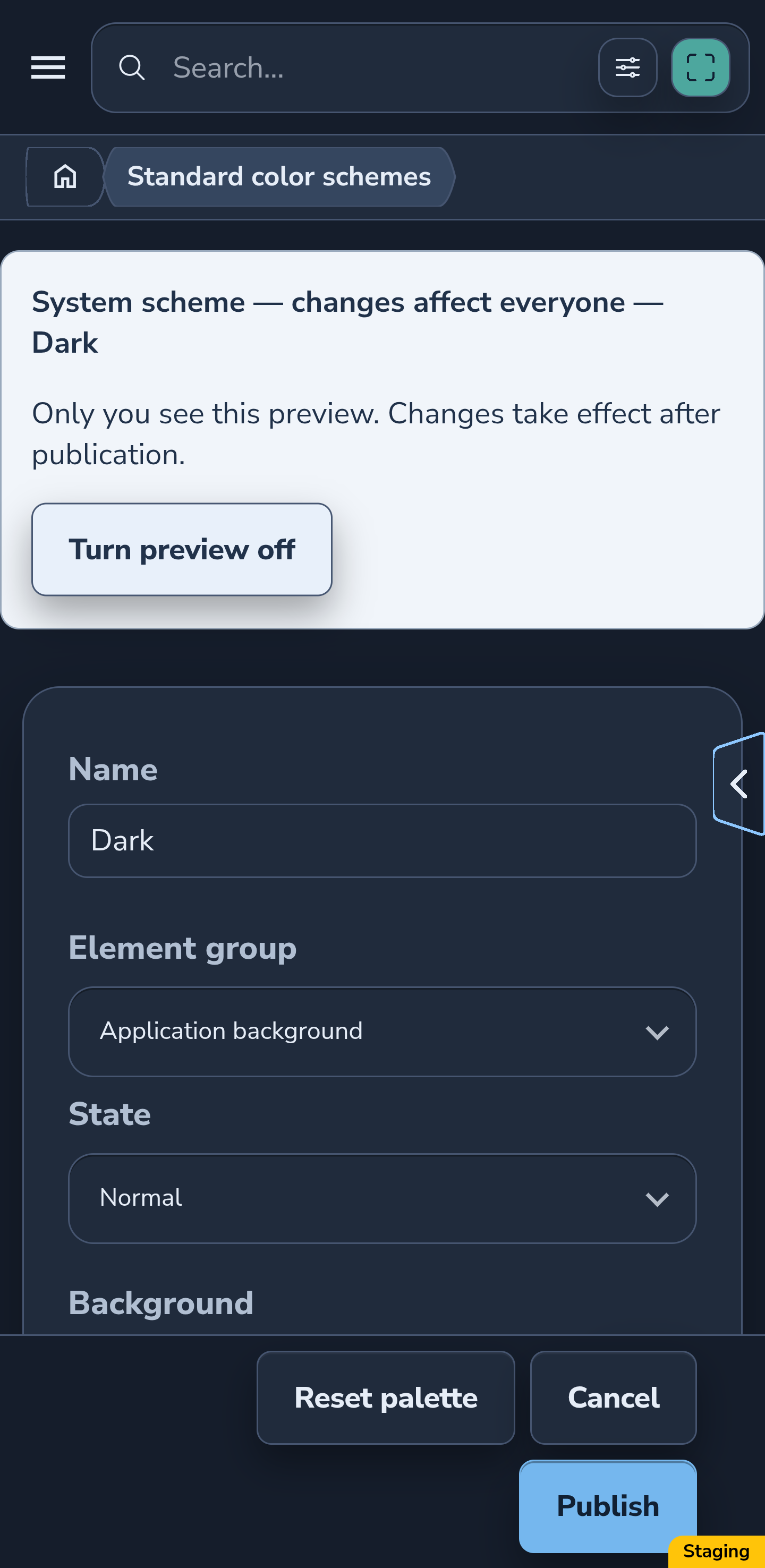
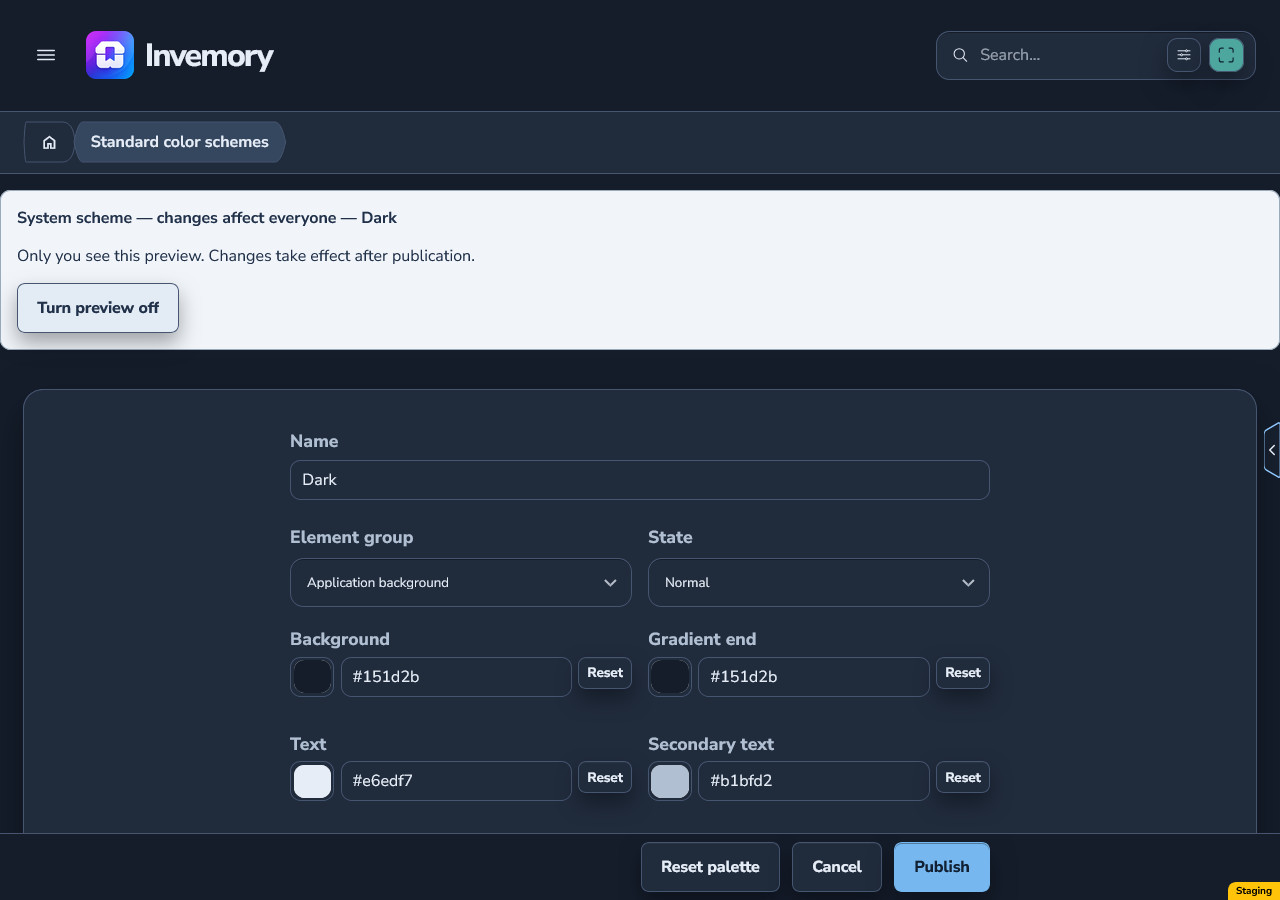
3. Compare Dark and turn the preview off
To check a dark base, return to the list and choose Edit beside Dark. Check text, icon and border contrast separately against a dark background.
Turn preview off restores your current appearance while retaining editor changes; Turn preview on shows the draft again. Cancel lets you leave without publishing: with unsaved edits, No keeps the editor open and Yes discards them. Device-specific quick access handle transparency is not configured in the administrator editor.
Android
Website
4. Confirm publication for everyone using the standard
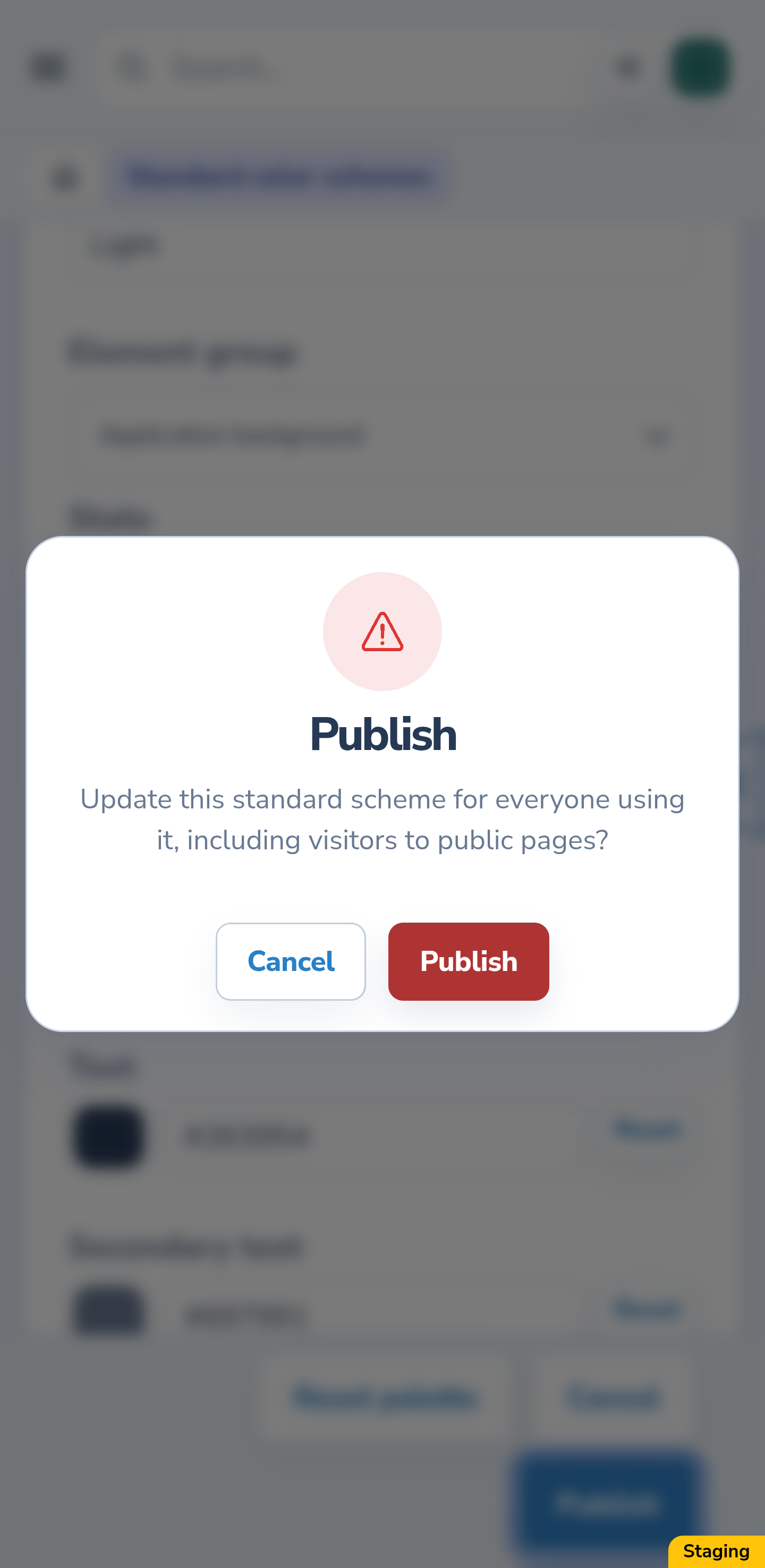
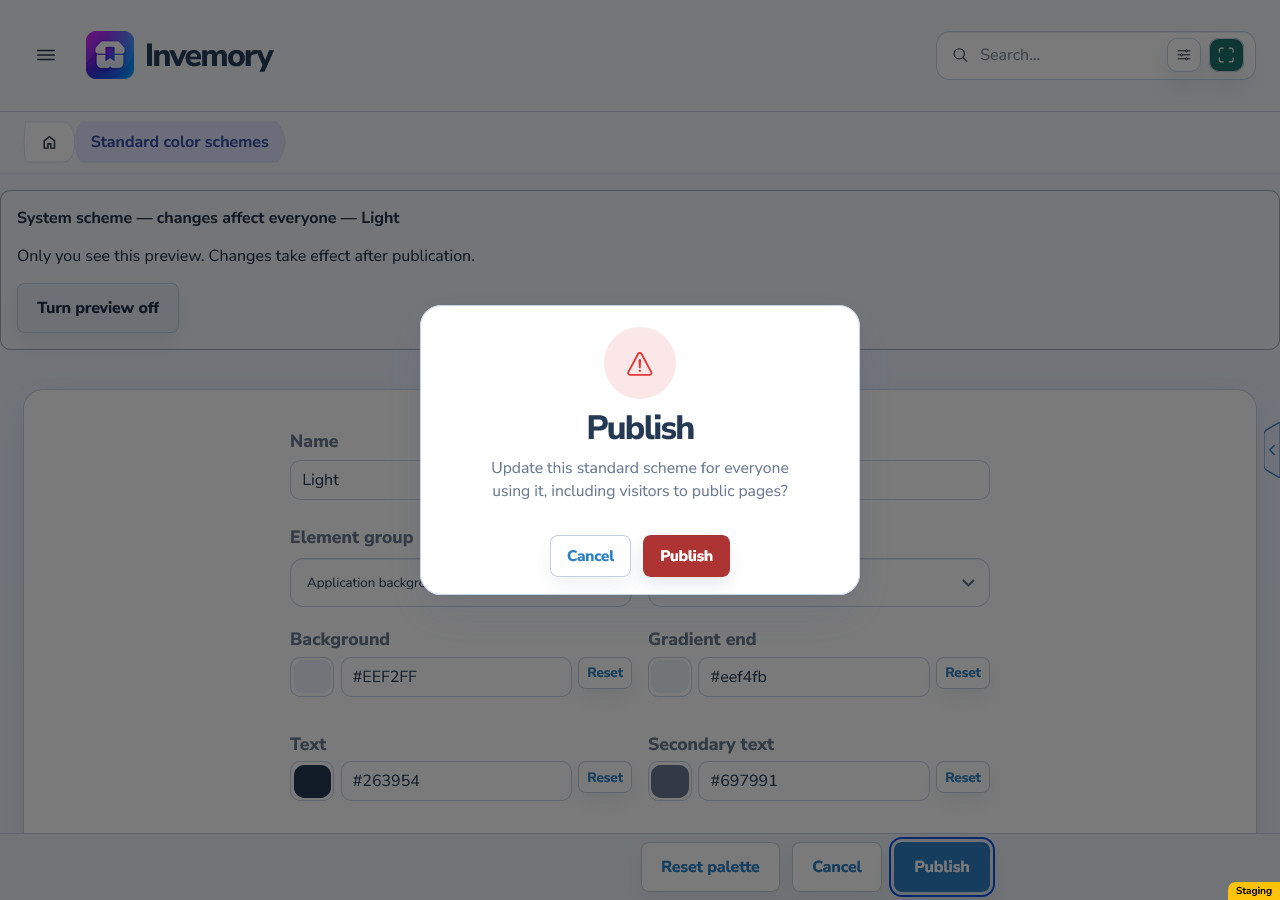
After checking the colors, choose Publish. Read the confirmation: the update affects everyone using this standard, including visitors to public pages. Cancel closes the confirmation and keeps your editor changes; Publish confirms the shared update.
Wait for a successful return to the list. An open dialog or a pressed button alone does not confirm success. Reopen the standard after publication and check its current colors.
Android
Website
5. Check the published result
The new standard colors are used by people who selected the corresponding Light or Dark scheme; system mode uses a standard according to the operating system setting. Check the result in another session and on a public page after refreshing it.
Updates take effect when the current schemes are fetched; they do not make every open screen switch instantly. Users’ saved personal colors remain independent. Updating a standard does not overwrite their personal palette values.
Android
Website
6. Restore the immediately previous publication
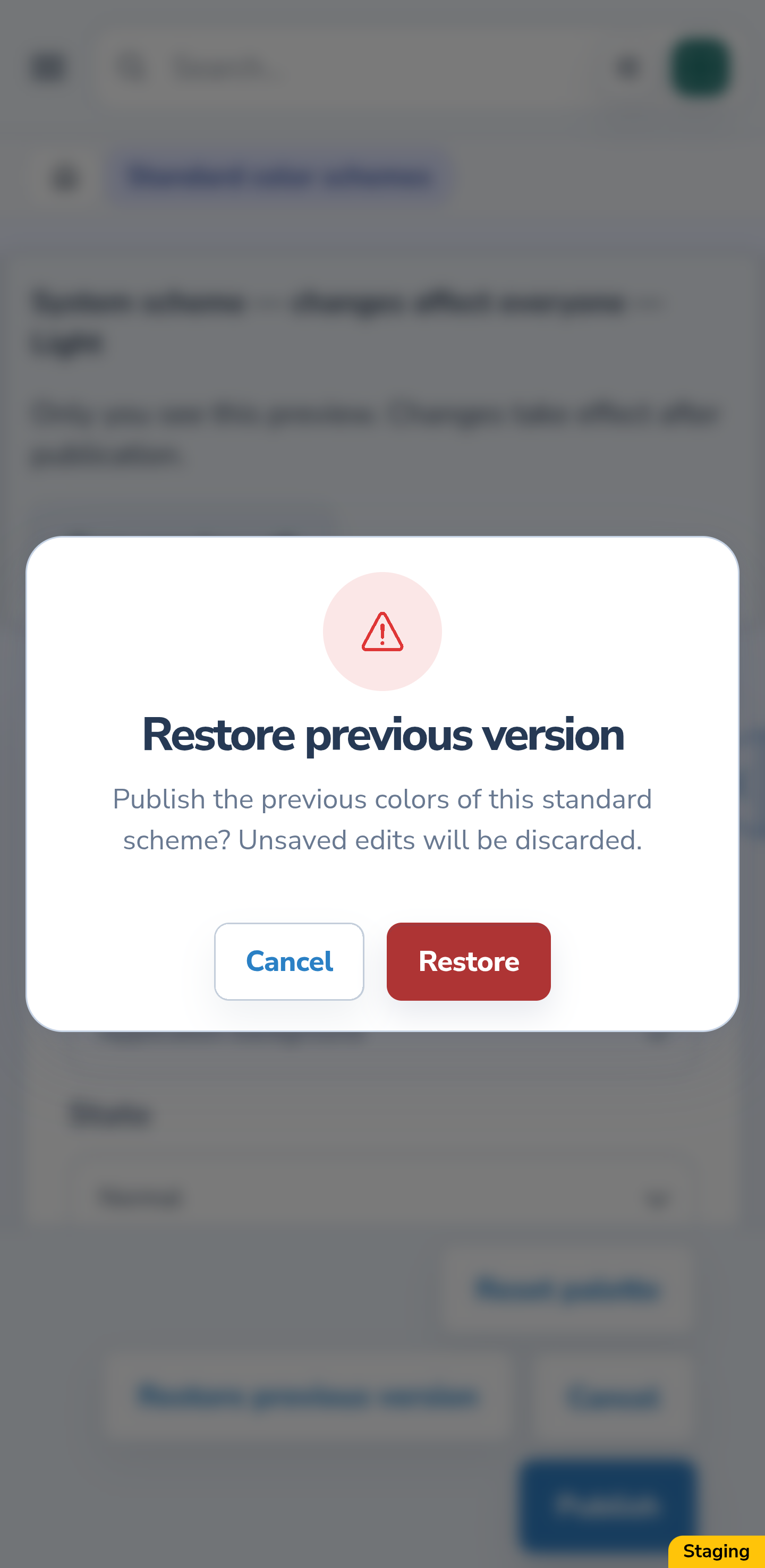
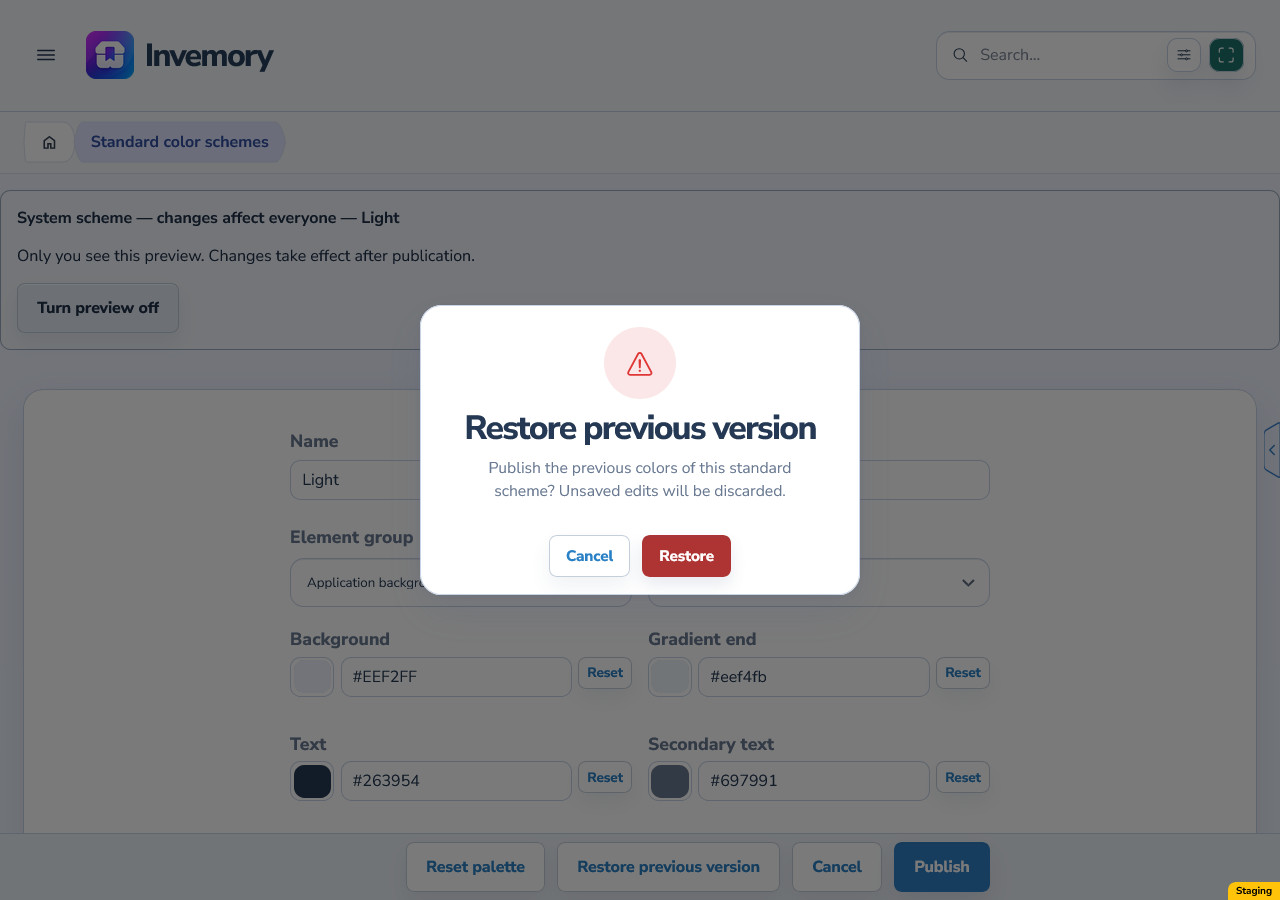
When Restore previous version is available, choose it and read the confirmation. Restore publishes this standard’s immediately previous colors and discards current unsaved edits. Cancel keeps those edits in the editor.
After success, reopen the standard and check its colors. This restores the previous publication, not the original factory colors. There is no choice of any older version here.
Android
Website
7. Resolve a conflict with another publication
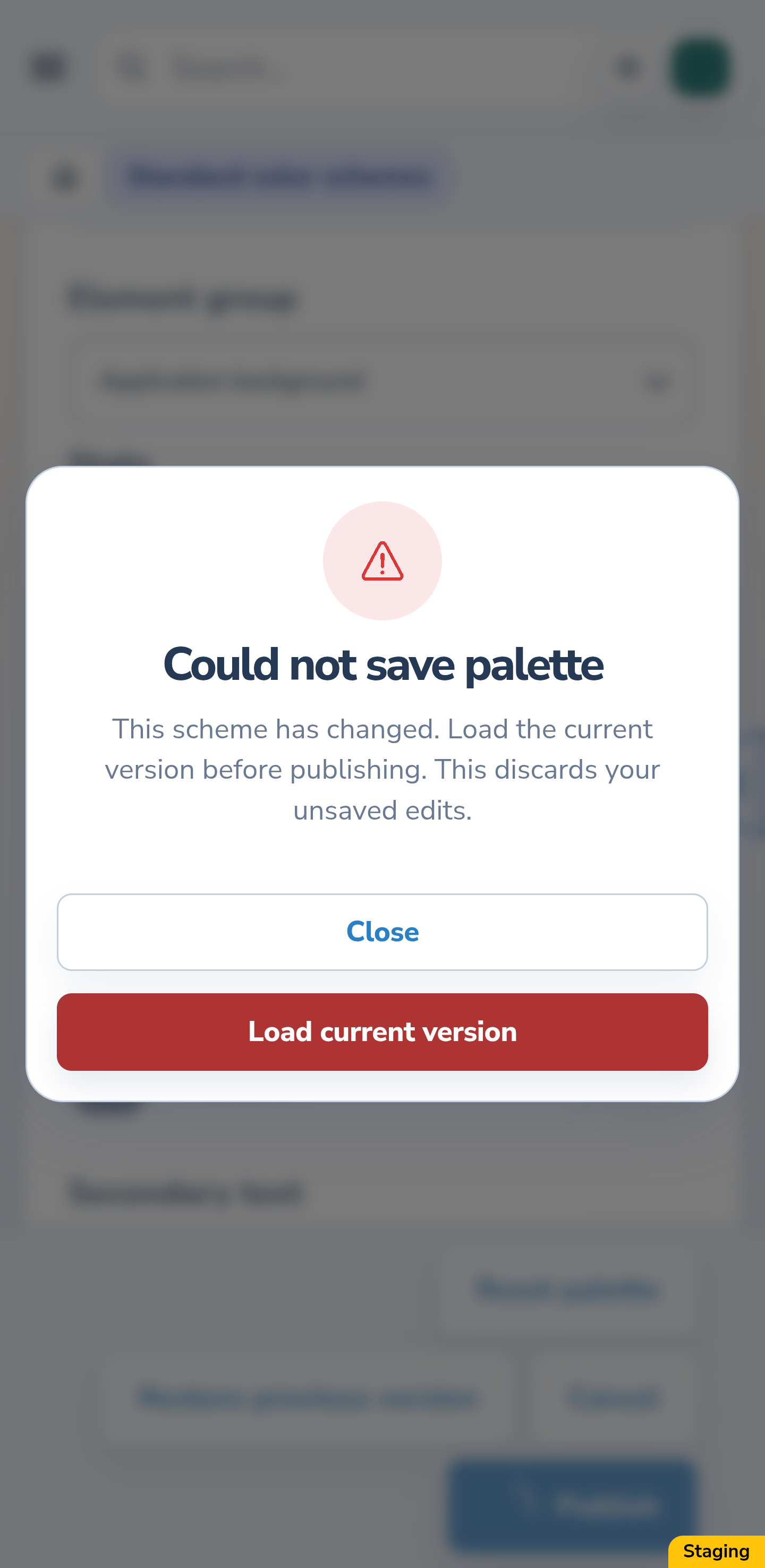
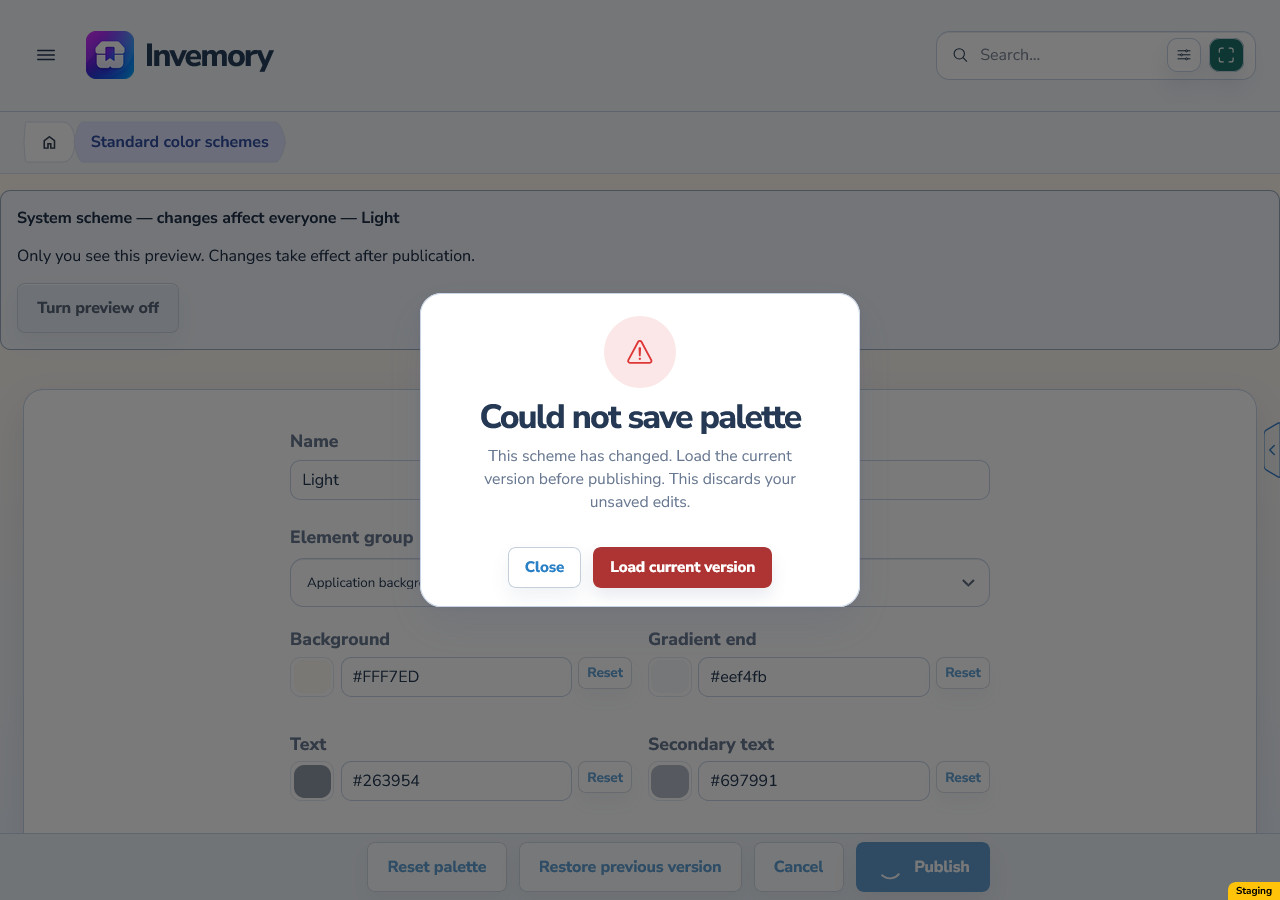
If another administrator publishes the same standard while your editor is open, your publication may receive a message that the scheme has changed. Close keeps your draft in the editor without publishing it.
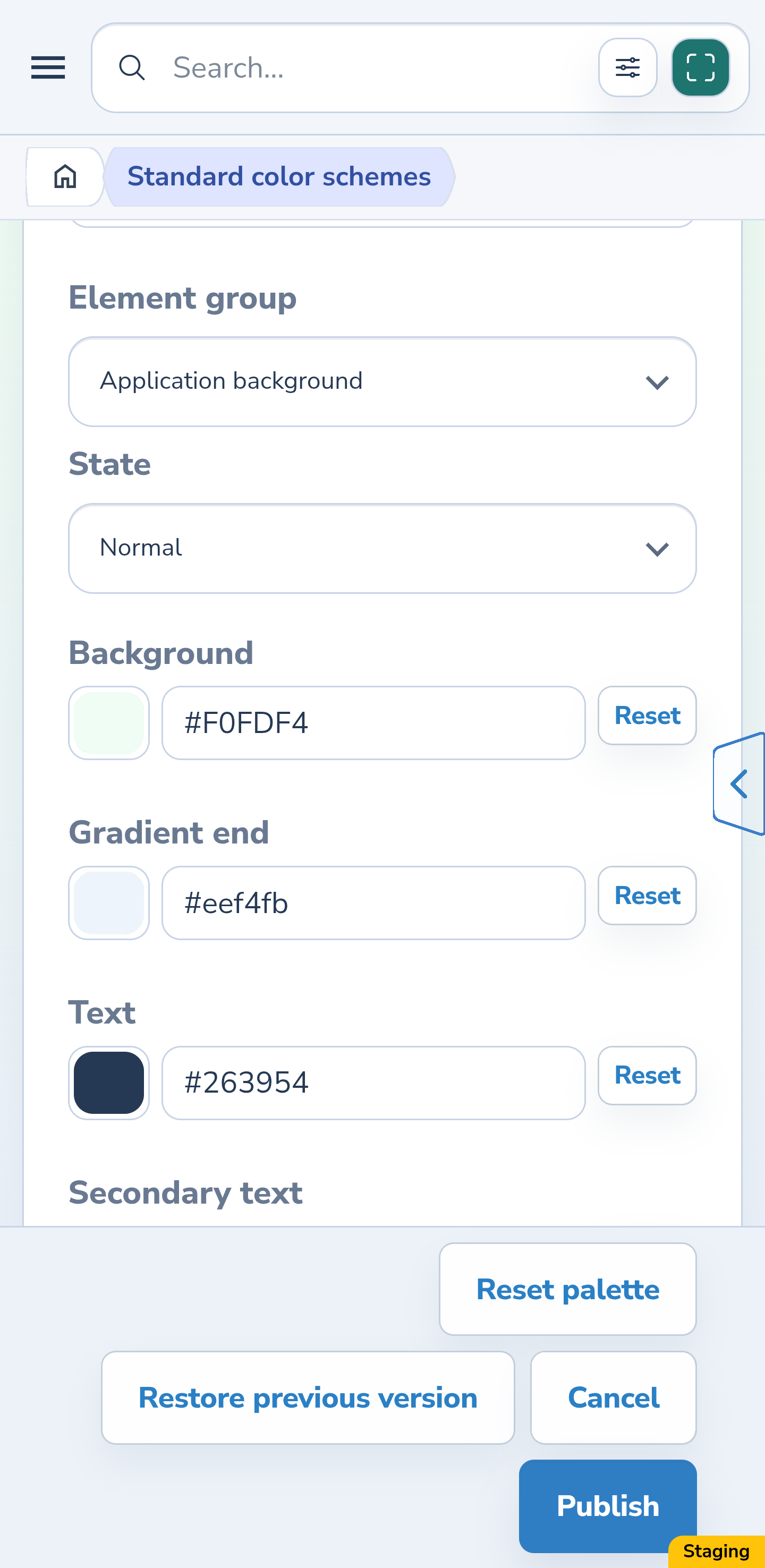
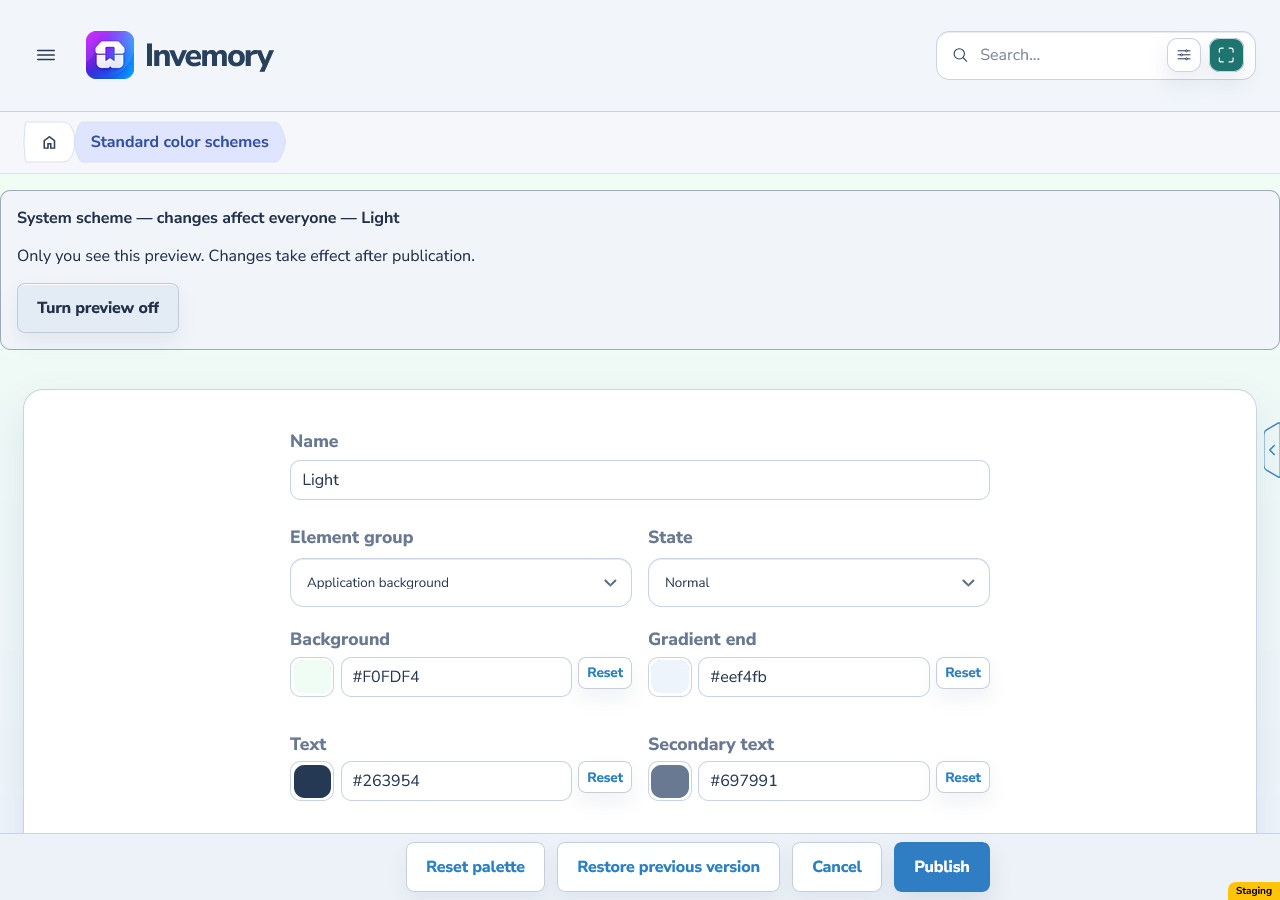
Load current version discards unsaved edits and opens the current values. First make a note of any edits you want to repeat. After loading, check the new colors, make the changes you still need and confirm publication again.
Android
Website
Android
Website
8. Keep your draft when the connection fails
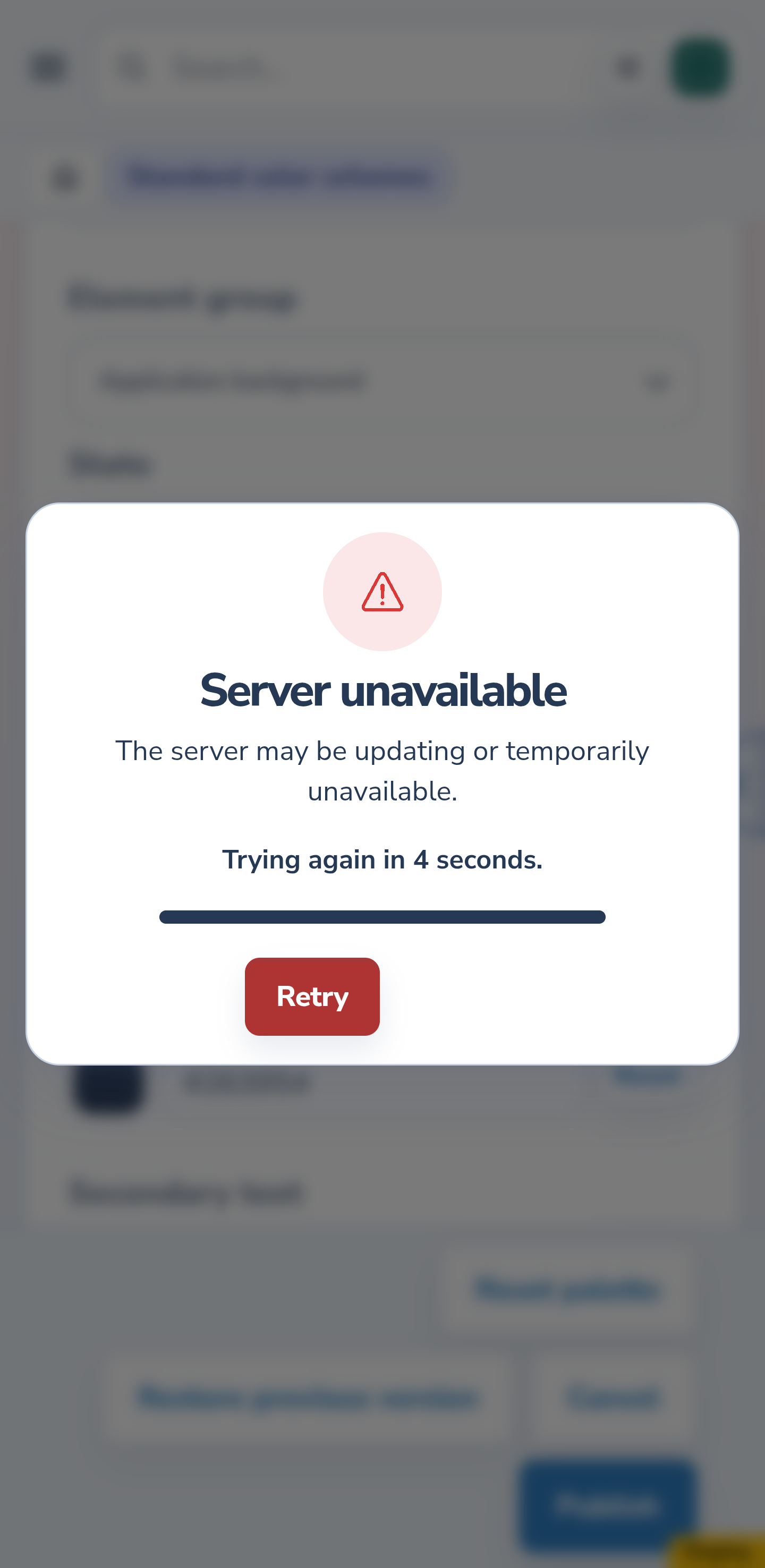
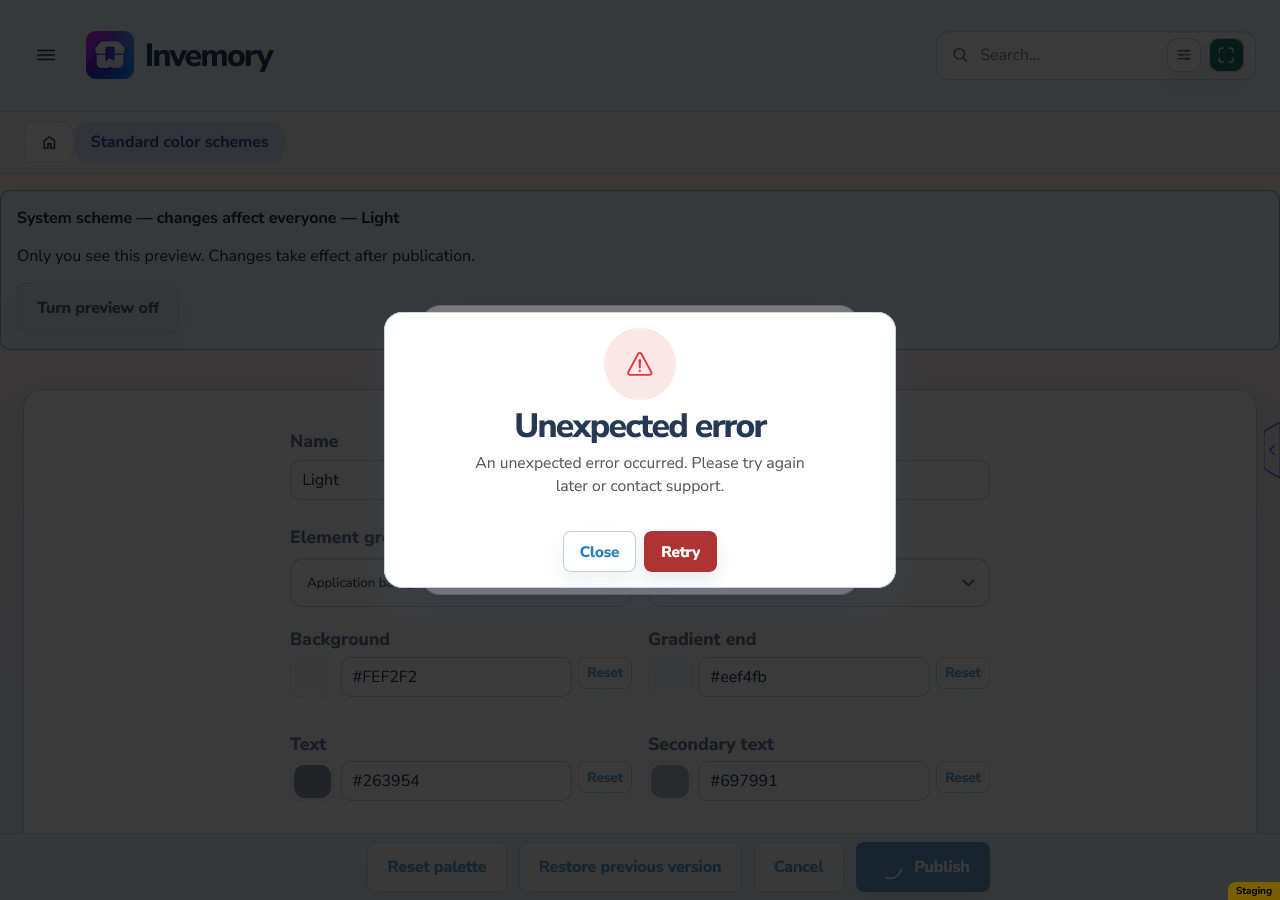
If publication fails because of the connection, read the message and restore network access. Your changes remain in the editor. Check the current standard once the connection returns before confirming another update.
An already open session can retain the last available colors. This does not guarantee a fresh website load or a first Android launch without a connection. Treat the draft as unpublished until success has been confirmed.
Android
Website
The result
You can check standard colors locally, confirm their publication and restore the previous publication. A conflict or failure gives you the opportunity to check the current state before trying again.
Useful to know
- Before publication, check normal and selected states, light and dark backgrounds, and priority and photo readability.
- Reset and Reset palette change draft colors; a shared update still requires publication. They do not replace Restore previous version.
- Publishing Light does not update Dark: check and publish each separately.
Common questions
Can other people see my preview?
No. The preview is local. A standard update takes effect after successful confirmed publication and retrieval of the current scheme by the user.
Can I restore any older version?
No. You can restore the immediately previous publication. There is no list of all older versions.
Will users’ personal palettes change?
Their saved colors are not overwritten. The updated standard is used by people who selected it or the corresponding system mode.
You can check standard colors locally, confirm their publication and restore the previous publication. A conflict or failure gives you the opportunity to check the current state before trying again.
Open standard color schemes