Guides
How to add and edit items
An item card records a belonging or supply in a particular container. Start with its name, quantity and unit. Photos, codes, expiration details and a price can be added separately.
Last checked:
What you need
- Sign in to your account.
- Open the container where the item belongs. Create the container first if it does not exist yet.
1. Add an item in the right place
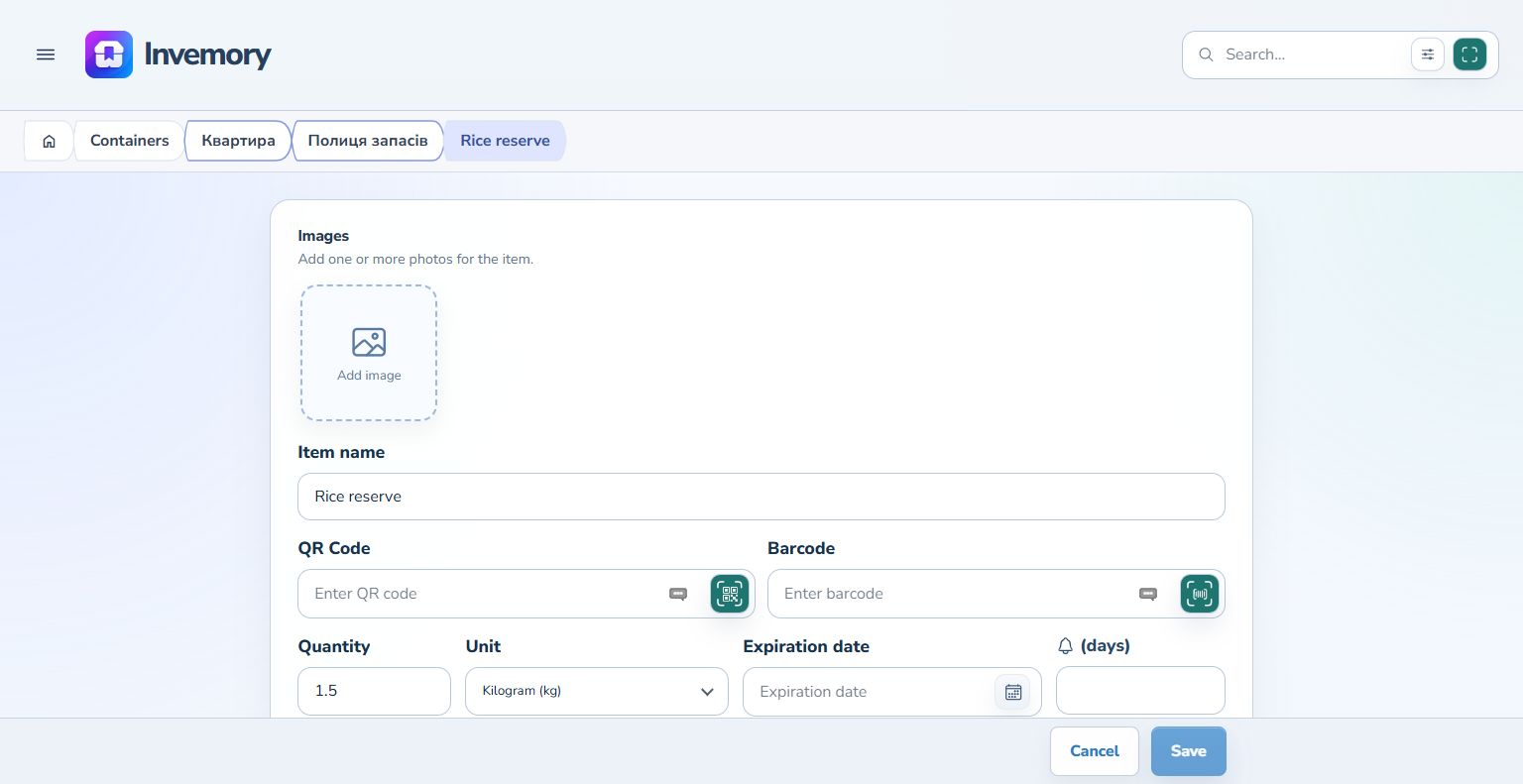
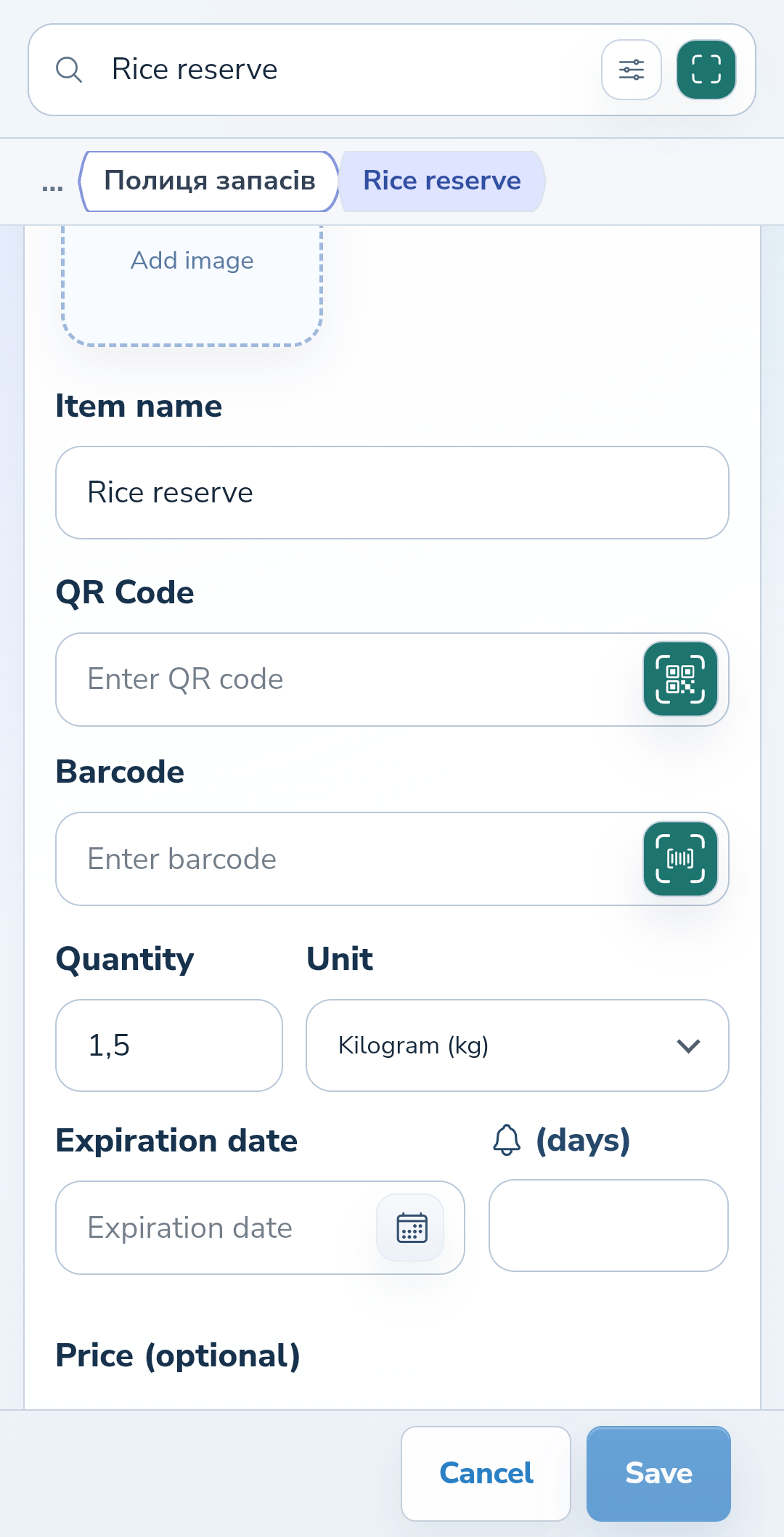
In the container, select the plus button beside Items. Enter a recognizable name, such as “Rice reserve”, set the quantity and choose a unit from the list. A rice supply might contain 1.5 kilograms. The quantity field accepts fractional values. On your phone, scroll through the form; Cancel and Save stay at the bottom.
Website
Android
2. Save and check the card
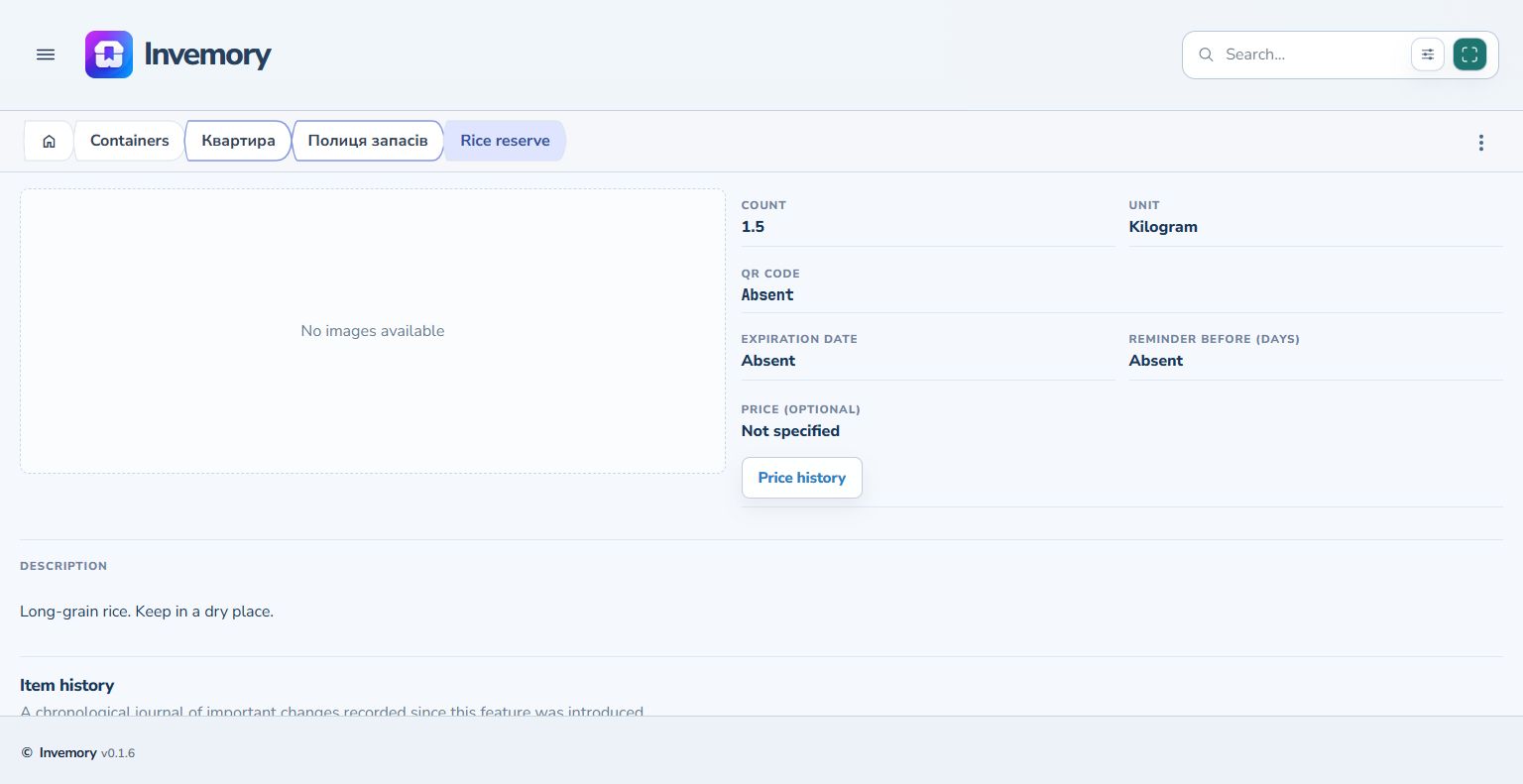
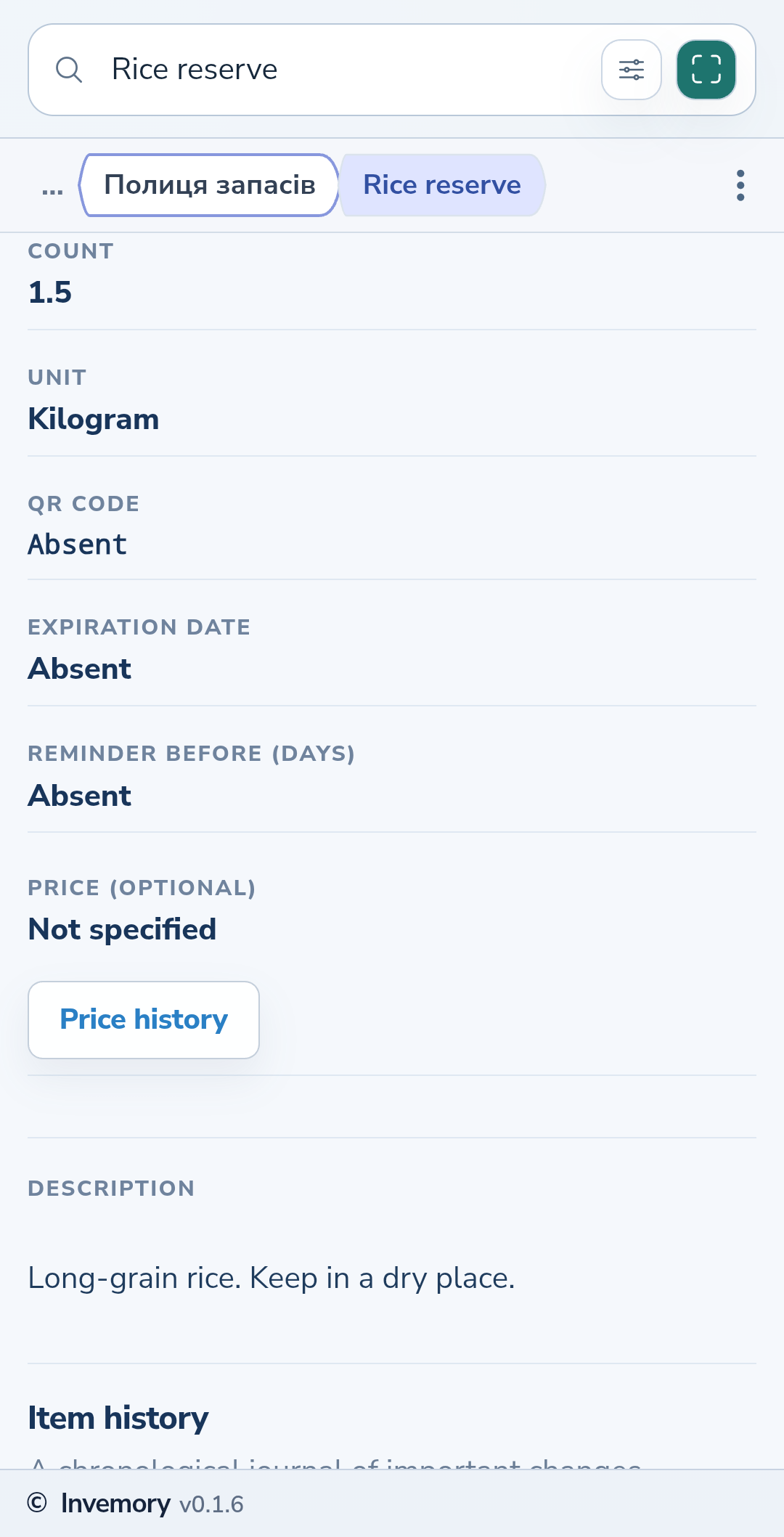
Select Save, then open the item in the container list. Check its quantity, unit and description. The path at the top takes you back to the container. If you have not added a photo or another optional value, the card indicates that the information is absent.
Website
Android
3. Update the name, description or quantity
Open the item's three-dot menu and choose Edit. Change the relevant fields, add useful details such as storage instructions to the description, and save. Check the result when you return to the card. Use Cancel to leave the previous data in place.
4. Keep the record when stock runs out
A quantity of zero keeps the record so you can update it after restocking. To find this item in search, choose Unavailable or All. Available excludes items whose quantity is zero.
5. Expand stock with the same name
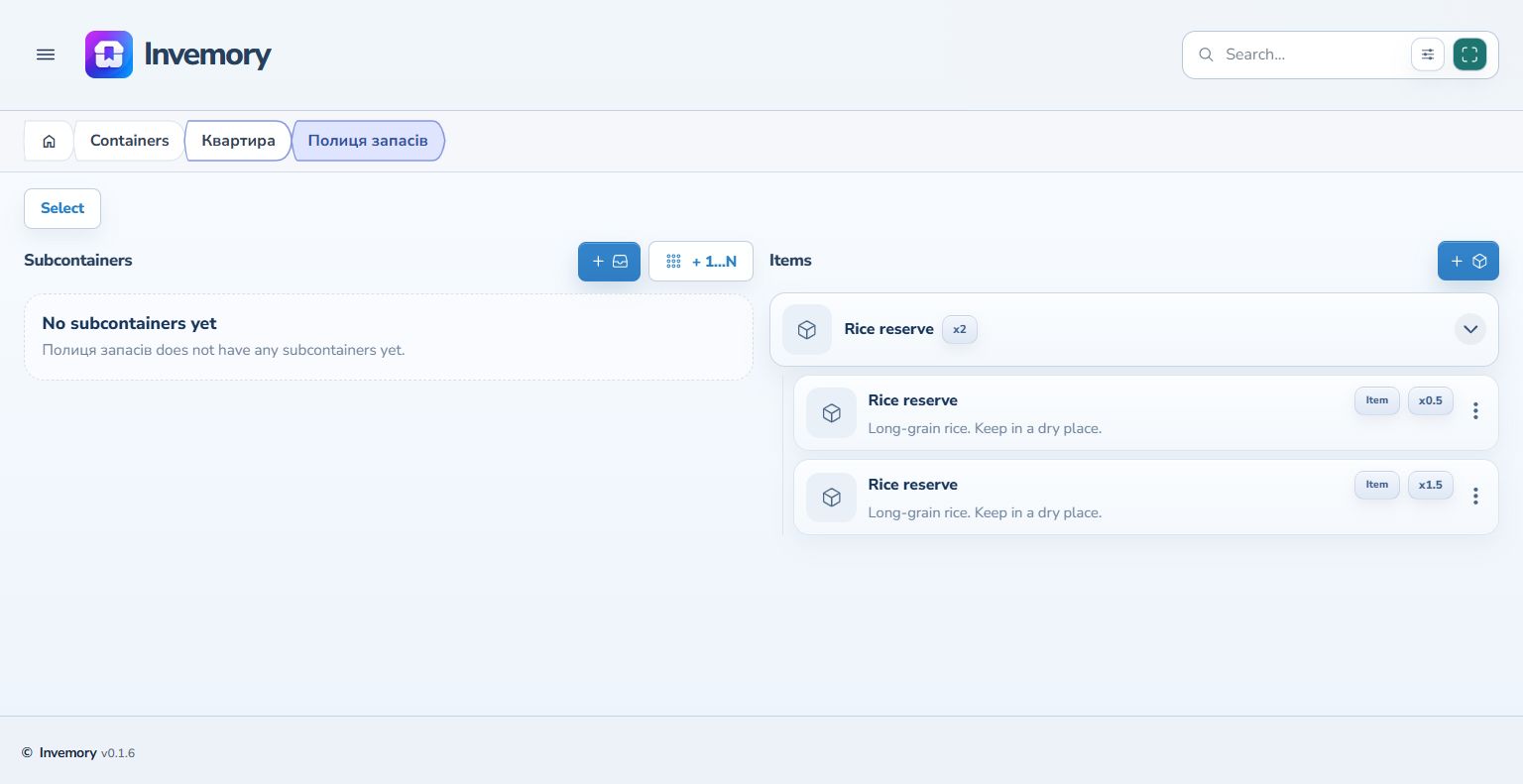
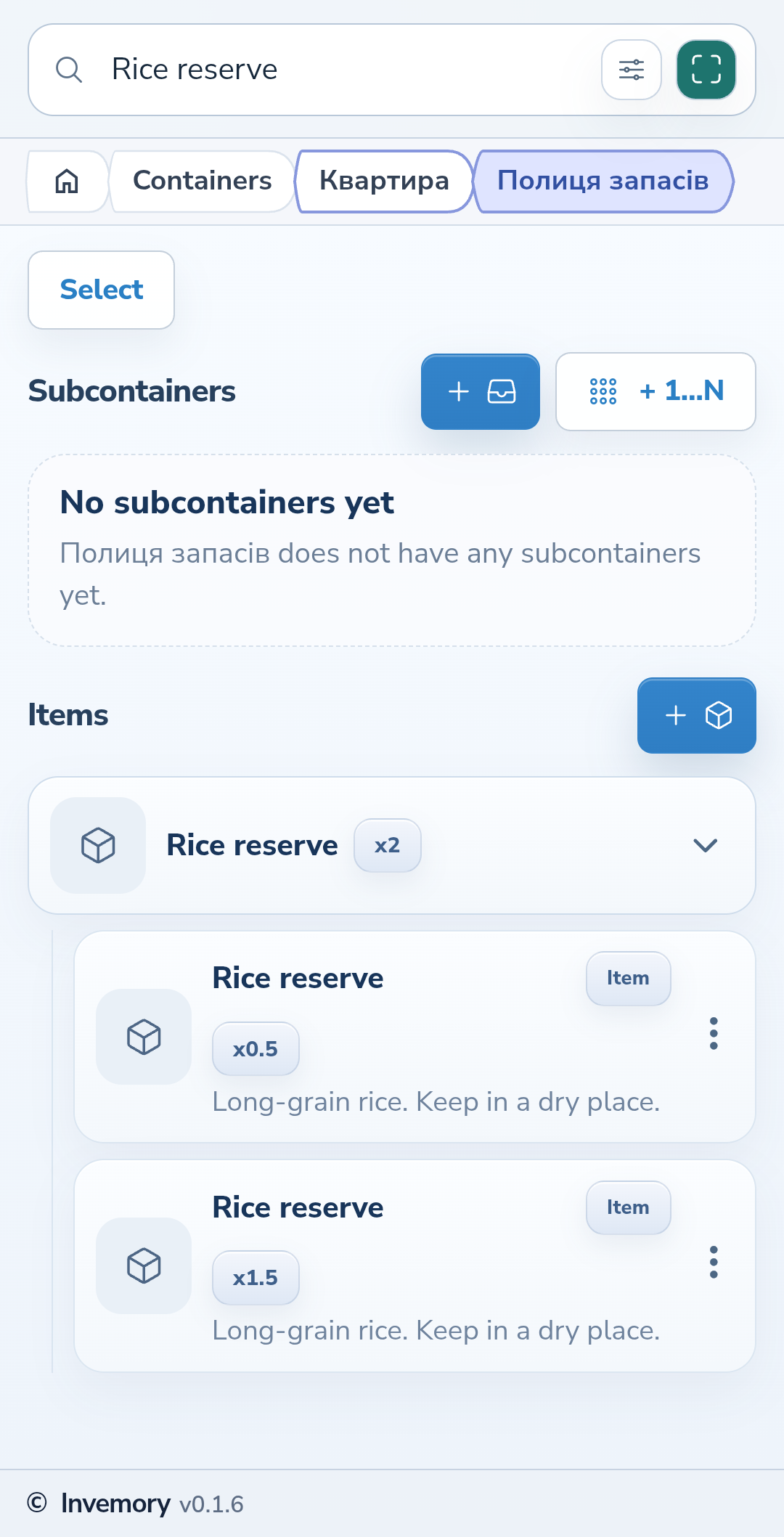
Several items with the same name in a container appear as a group. Select the arrow to see and open each record separately. In this example, 0.5 kg and 1.5 kg of rice share the x2 badge. It is the sum of their quantities; the item cards remain separate.
Website
Android
The result
The item is saved in the correct container with an up-to-date quantity and description.
Useful to know
- Use different names when supplies should be distinguishable in the collapsed list.
- The same name works well for several supplies measured in the same unit.
- Changing the interface language does not translate your item names or descriptions.
Common questions
Do I have to add a photo and price?
No. Save the item without them and add them later through Edit.
The item is saved in the correct container with an up-to-date quantity and description.
Add an item to a container