Guides
How to record an item’s price
Record a price for one item unit to see the value of your stock while editing. The owner edits the price; shared-container participants can see the current price when their access allows it.
Last checked:
What you need
- Add the currency you need to your working currencies in profile settings.
- Open an item you own or the form for adding an item.
1. Enter a price for one unit
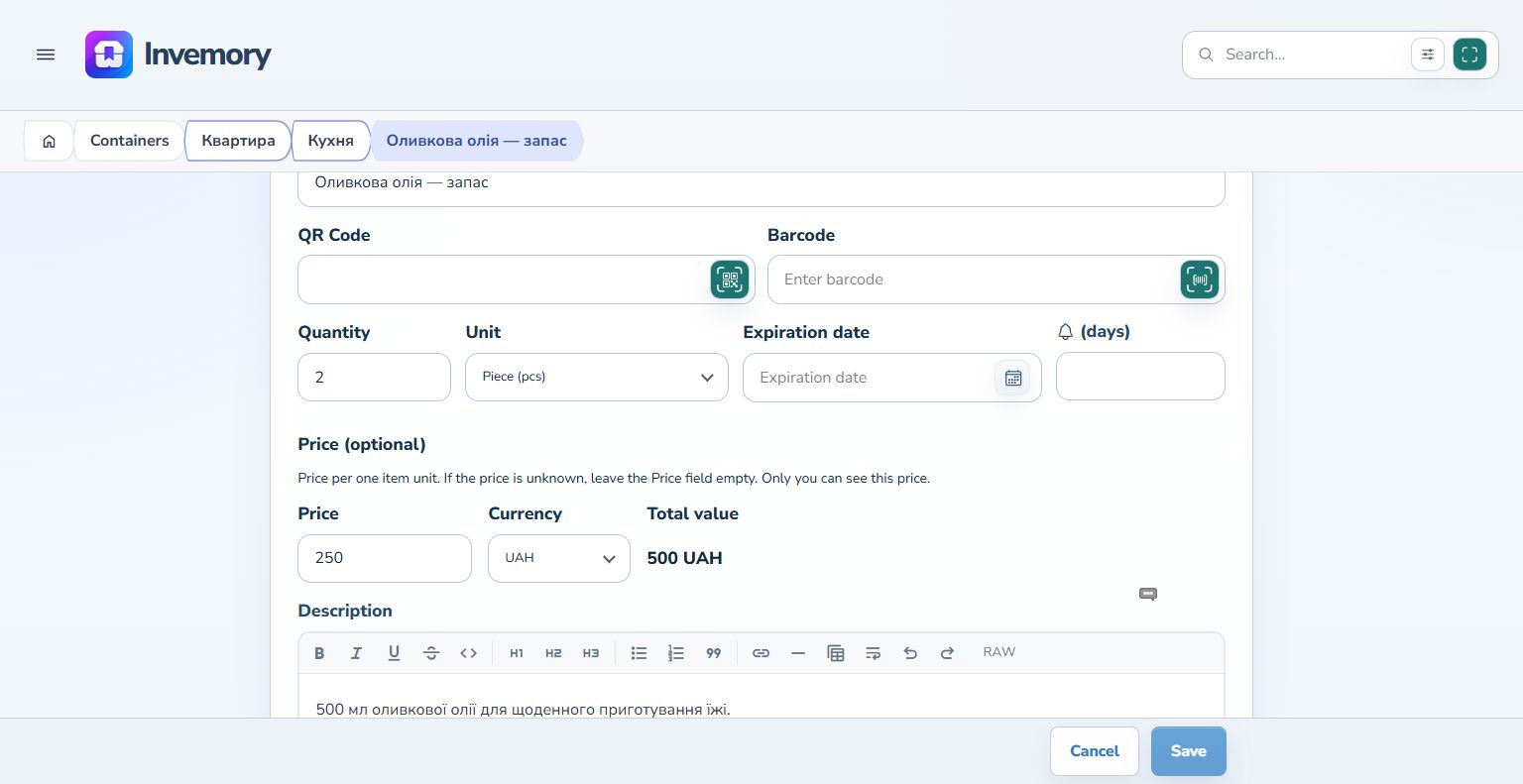
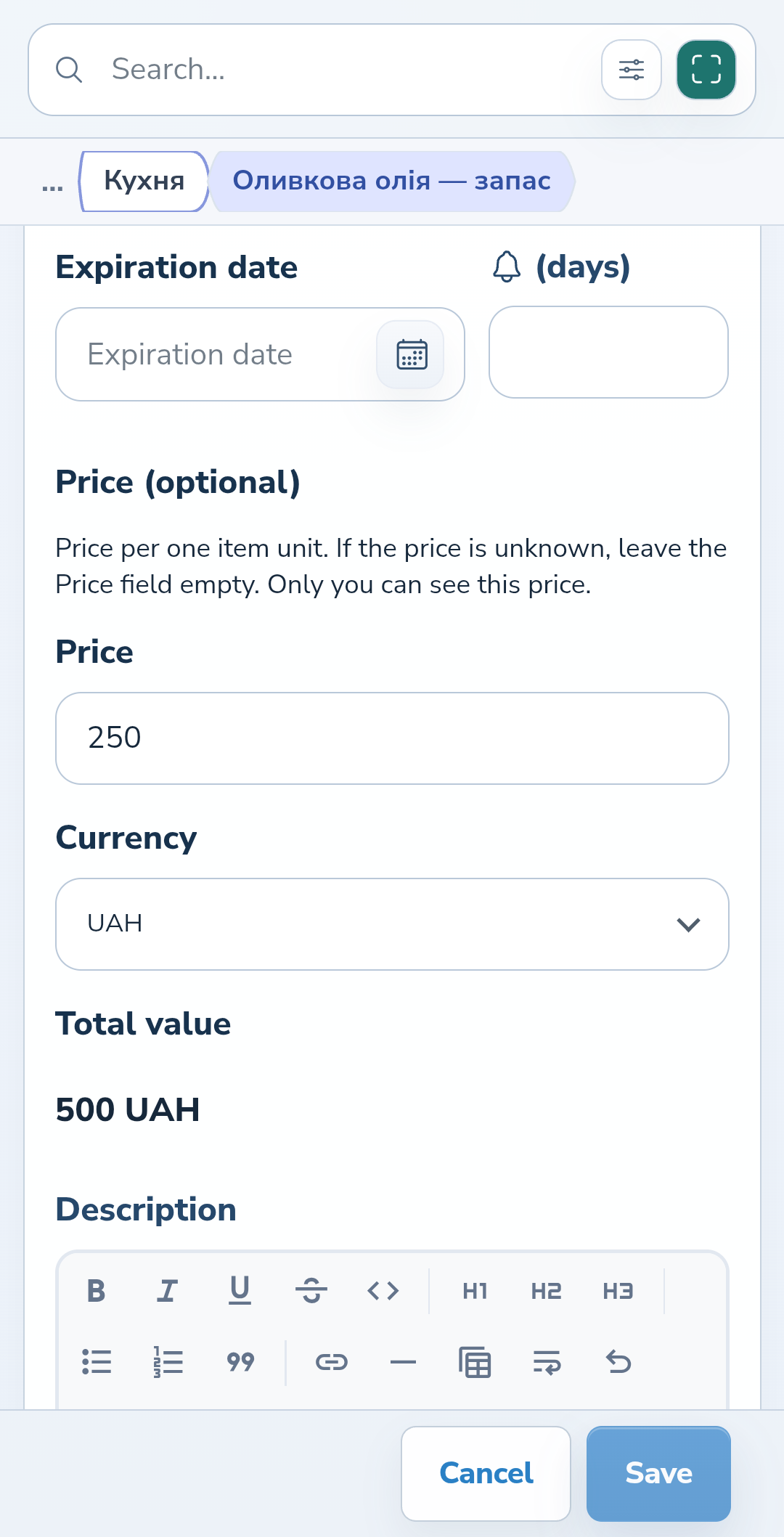
Open the item menu → Edit. In the optional price section, enter the amount in Price and choose a currency. Use the item’s unit as your basis: for pieces, enter the price of one piece, rather than the whole quantity.
Website
Android
2. Check the value of your stock
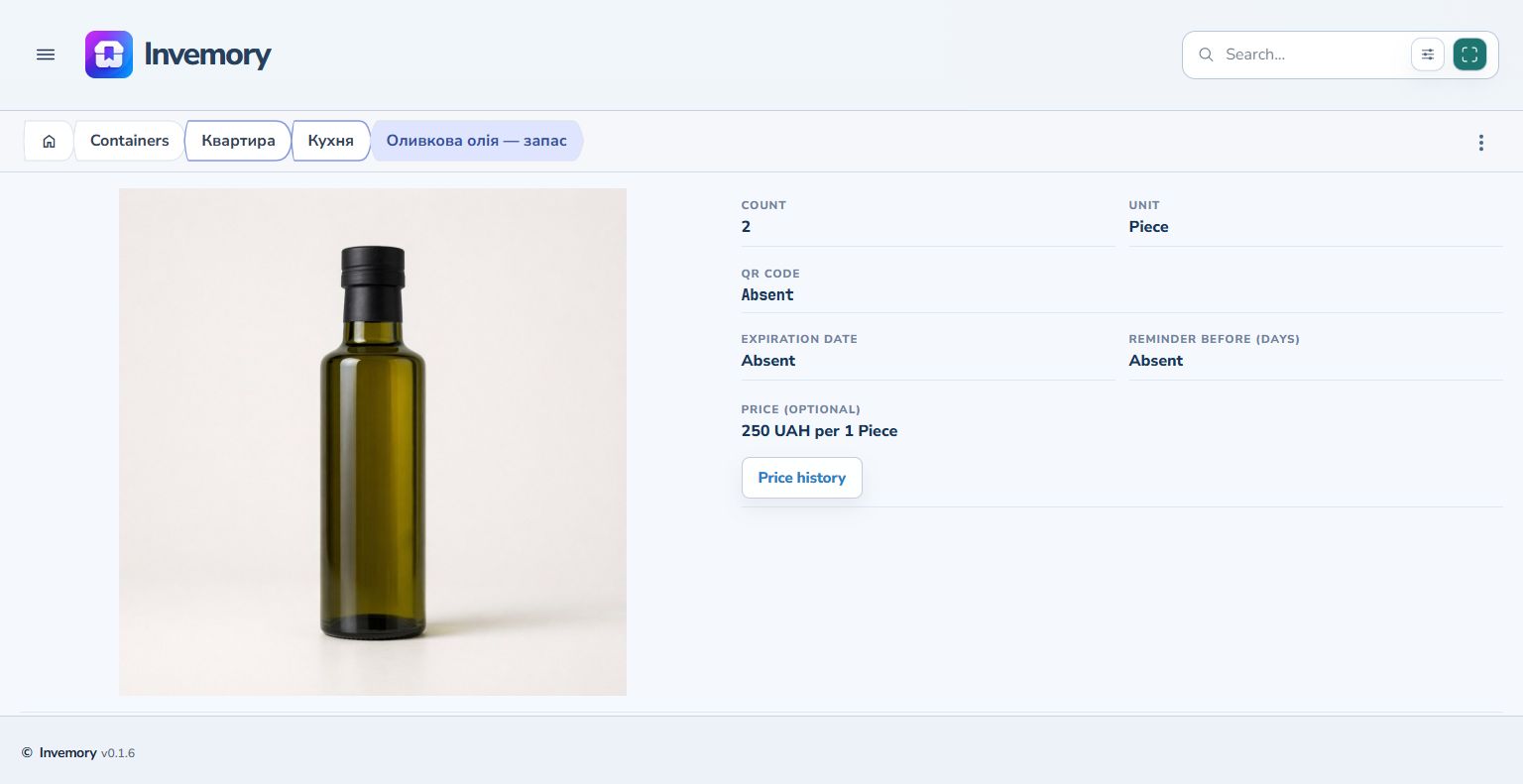
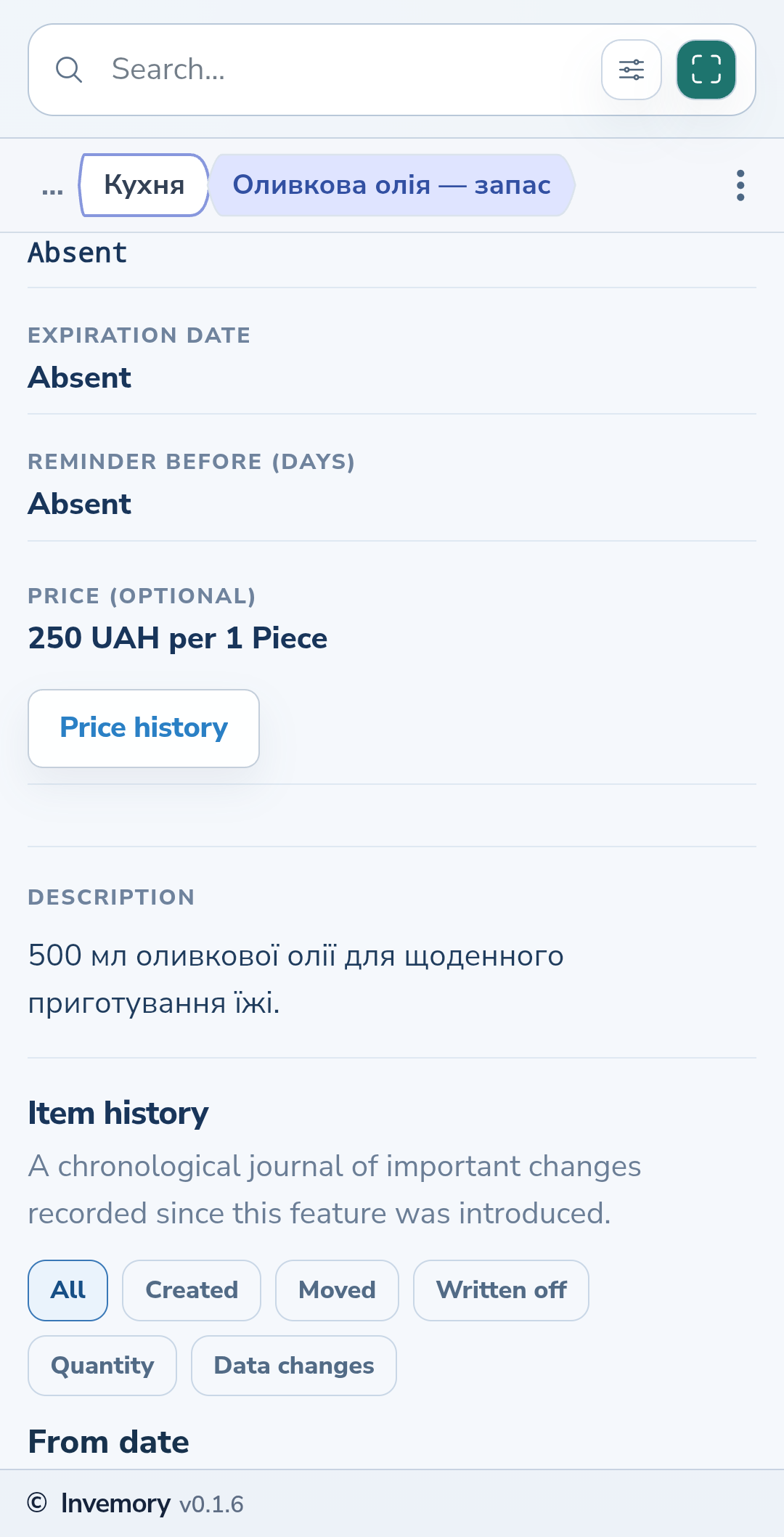
Total value is calculated from quantity and unit price. For example, 2 pieces at 250 UAH each give 500 UAH. Check the quantity, unit and currency, then select Save. The item’s details show the saved unit price.
Website
Android
3. Leave an unknown price empty
If the price is unknown or no longer needed, empty Price and save the item. Its details indicate that no price is specified. The item remains in your inventory; zero is not a substitute for an unknown price.
The result
The item has a current price in the chosen currency, or clearly shows that no price is specified.
Useful to know
- Changing your working currencies does not convert saved amounts.
- You can use a comma or a dot for a decimal amount.
- Open Price history in the item’s details to see changes separately.
Common questions
Can someone with shared access see the price?
Shared-container participants can see the current price and product-group history when their plan allows price-history reads. Public views do not show this data.
The item has a current price in the chosen currency, or clearly shows that no price is specified.
Open my items