
Guides
How to view an item's price history
Price history helps you recall prices for a product group. Owners see their own records, while eligible shared-container participants see the authorized shared history without private stock details.
Last checked:
What you need
- Open the details of an item you own.
1. Expand the price history
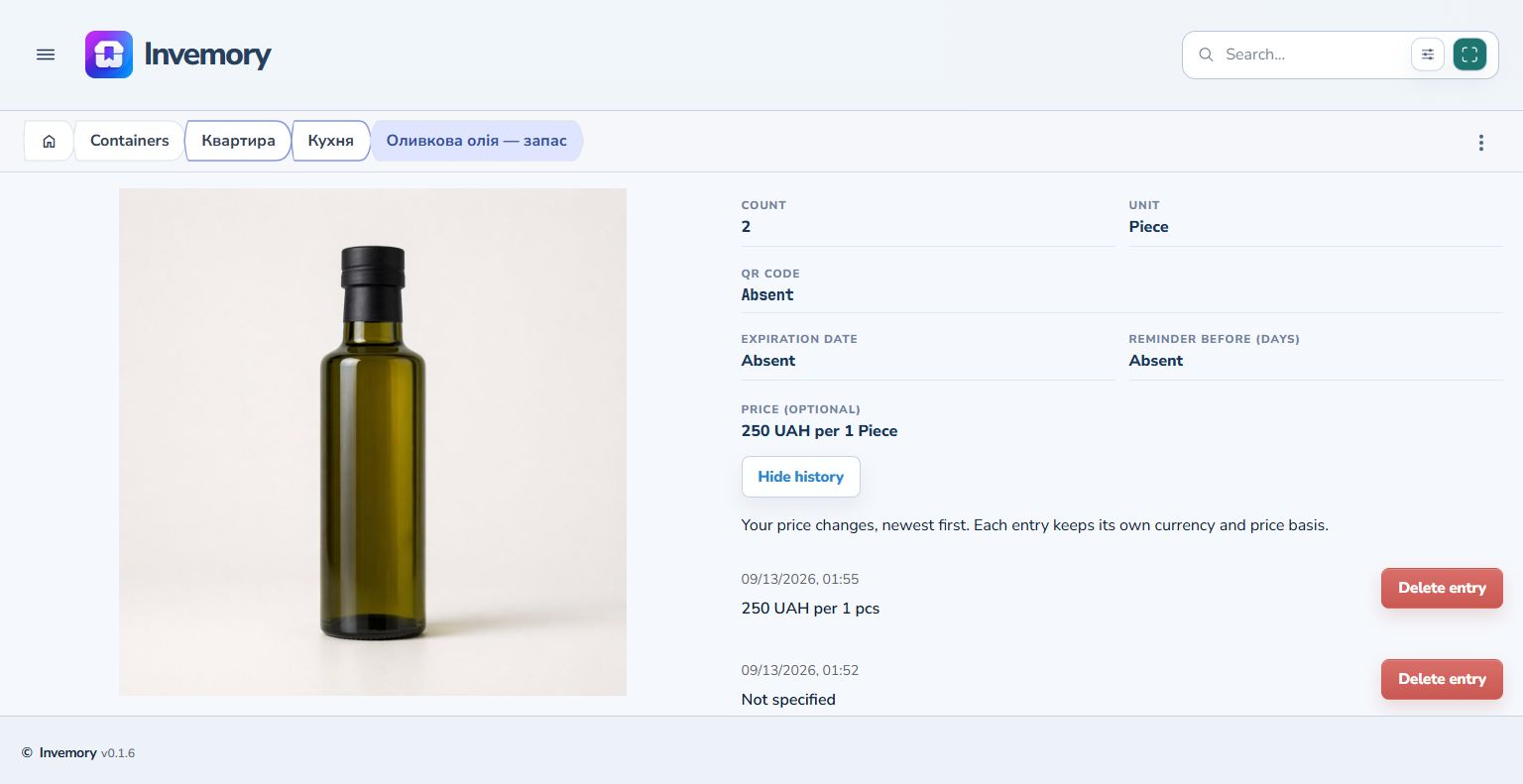
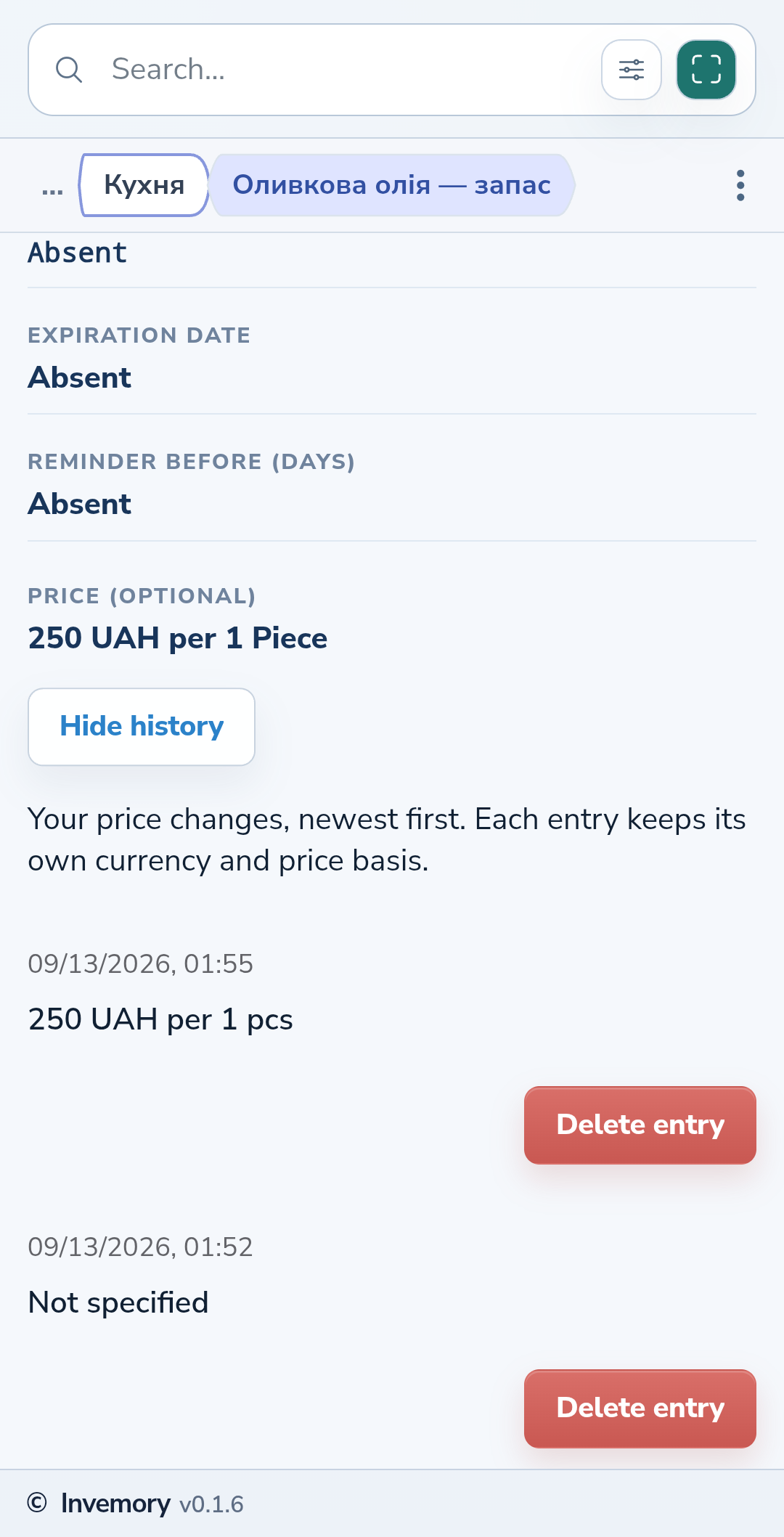
Select “Price history” below the current price. The newest entries appear first. Check each entry's date, amount, currency and the number of units covered by that price. “Not specified” records that the price was cleared.
Website
Android
2. Compare matching units and currencies
Older entries retain their own currency and price basis. A price for one piece and a price for several units are not directly comparable. Invemory does not automatically convert these entries. When more entries are available, use the button at the bottom of the list to load them.
3. Correct prices in the purchase journal
Price history is read-only. To correct an incorrect price, open the matching purchase-journal entry and edit it while the acquired stock is still unplaced.
The result
You can see when you changed a price, which currency it used and what correcting the history will change.
Useful to know
- New prices are recorded when buying through the basket; the item editor does not change them.
- Price history is separate from the item's journal of movements and other changes.
Common questions
Can other users see this history?
Eligible shared-container participants can see each entry's date, price and author. Quantity, location path, shop and other private details stay hidden, and public views do not show the history.
You can see when you changed a price, which currency it used and what correcting the history will change.
Open inventory