
Guides
How to organize storage locations
A container in Invemory represents a place where you keep things: an apartment, room, shelf, drawer or box. Match the structure to your space so the path in the app tells you where to look for an item.
Last checked:
What you need
- Sign in to your account.
- Choose a few main locations. You can add more detail later.
1. Add a main location
Open the menu → Inventory → Containers. Select the add-container button, enter a name such as Apartment or Garage, and select Save. The location appears in the top-level list.
2. Divide it into useful areas
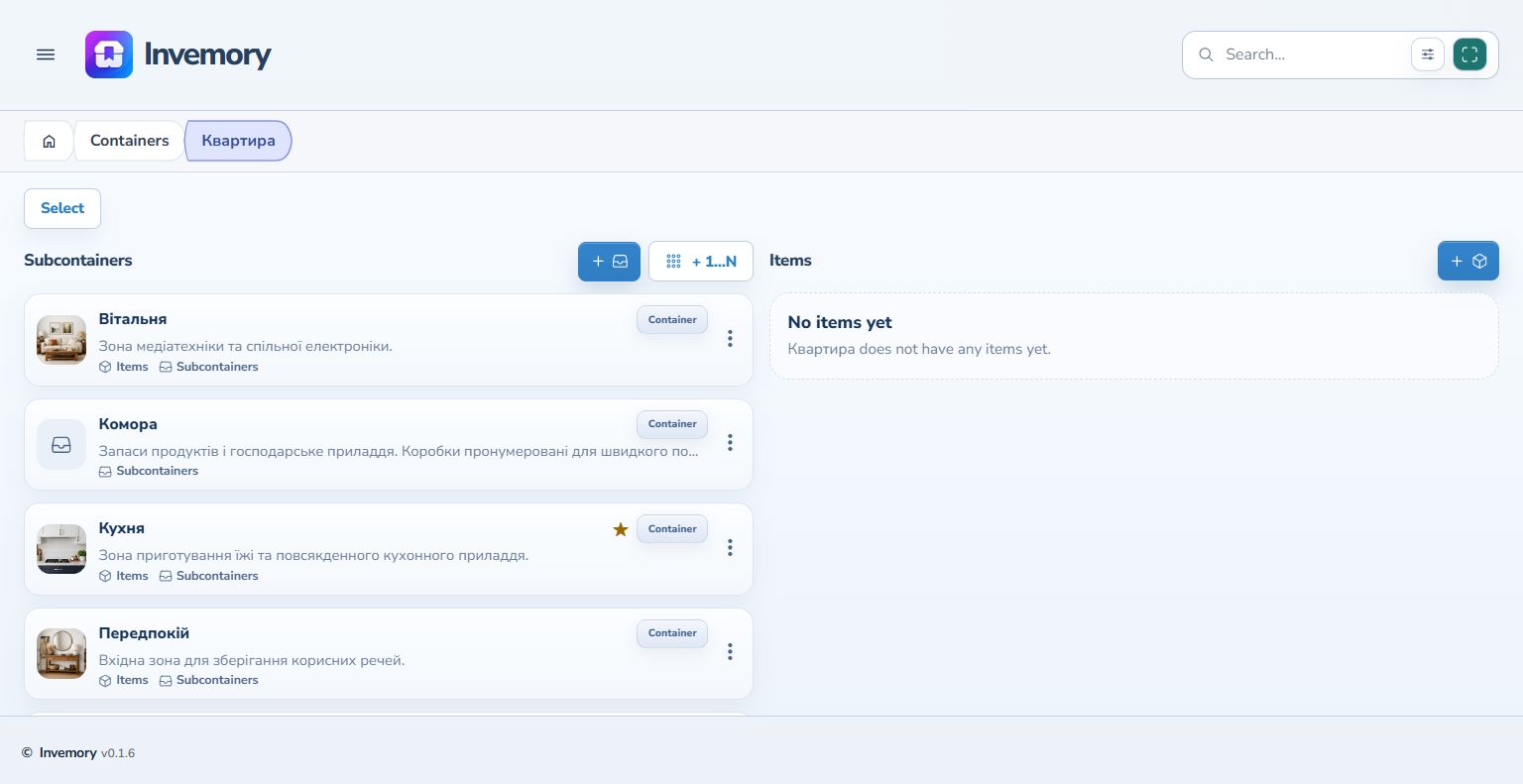
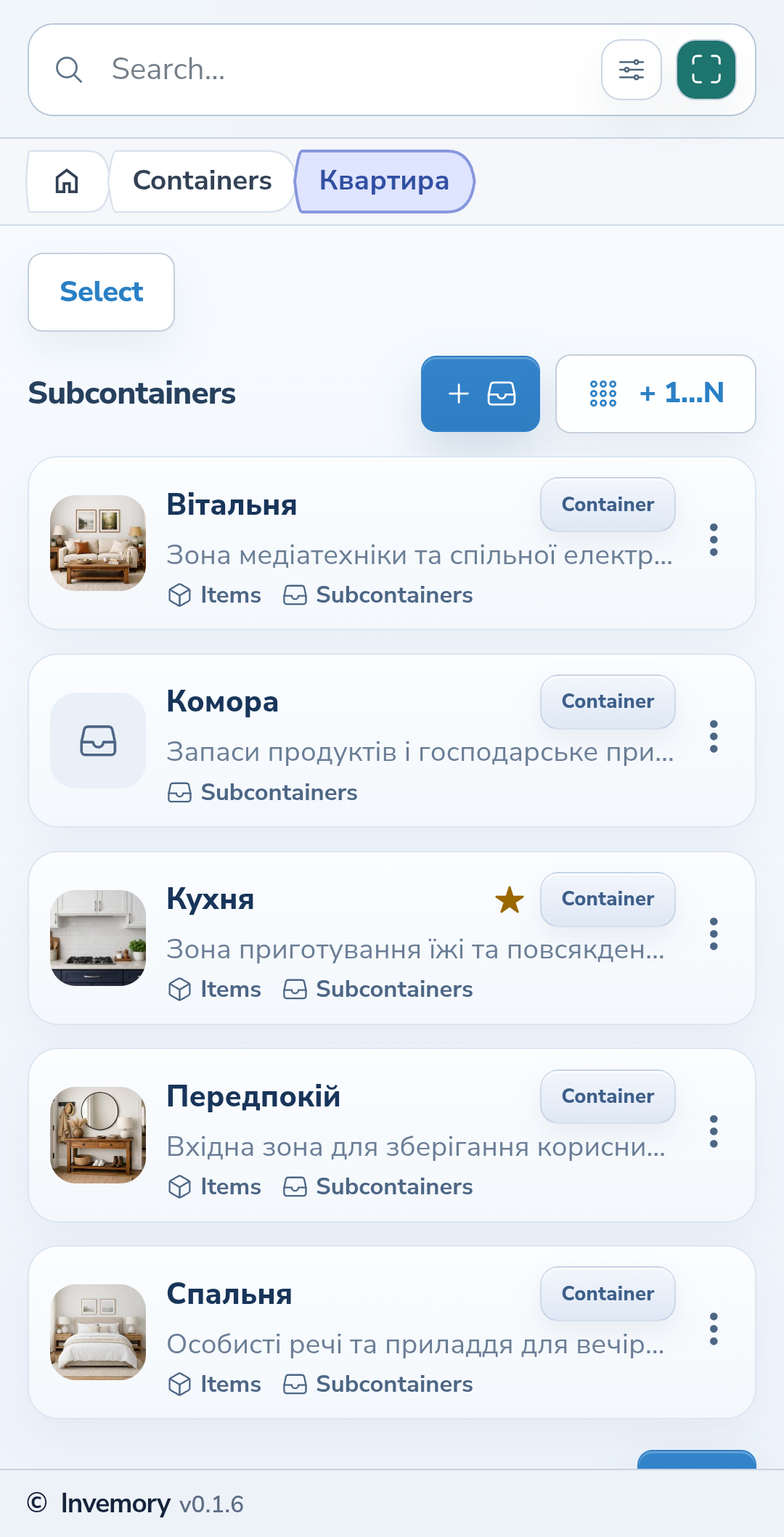
Open the container. In Subcontainers, select the add button and create a room, shelf or box. Repeat wherever another level helps: for example, Apartment → Kitchen → Top Drawer.
Website
Android
3. Write a useful description
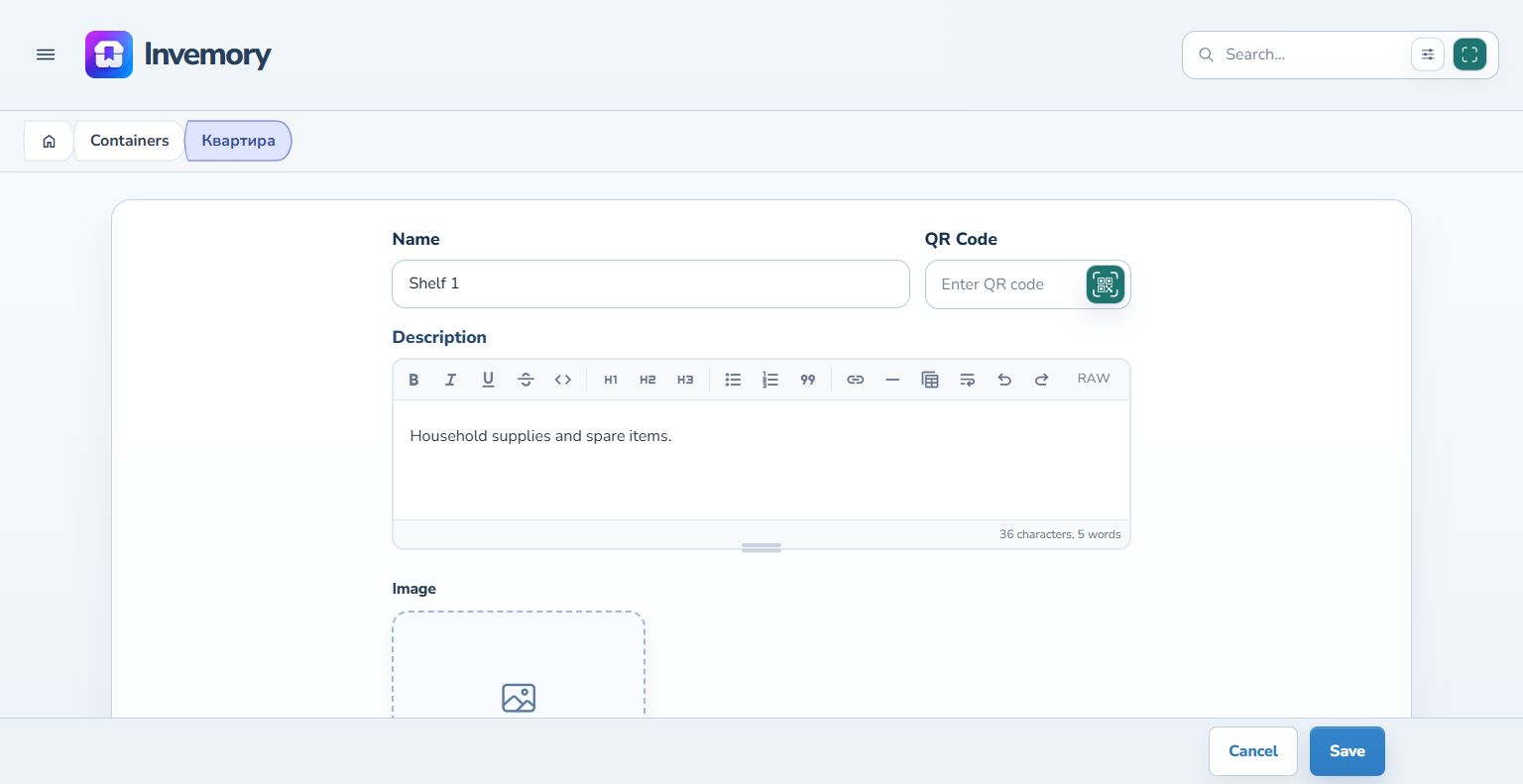
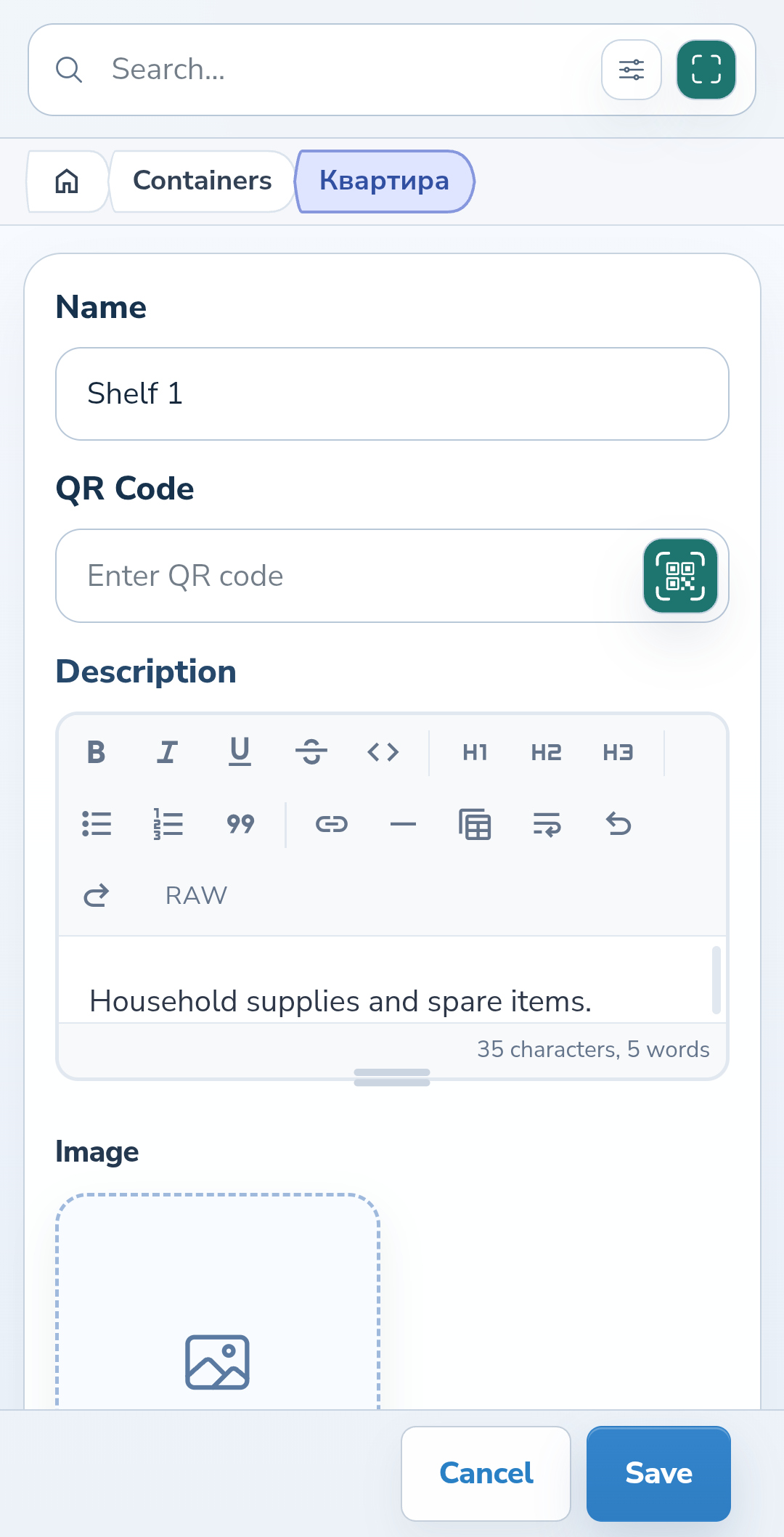
In the list, open the three-dot menu beside the location and select Edit. Briefly explain what belongs here or how to recognize the place. For example: Food supplies and household essentials. Save your changes.
Website
Android
4. Read the content indicators
Indicators on a card distinguish an empty container from a location with items or subcontainers. Inside the container, these are separate lists: an empty item list does not mean there are no nested locations.
5. Follow the path back
The path above the content shows where you are. Select an earlier container name to open it, or Containers to return to the top-level list. You can jump directly to the level you need.
6. Switch between nearby locations
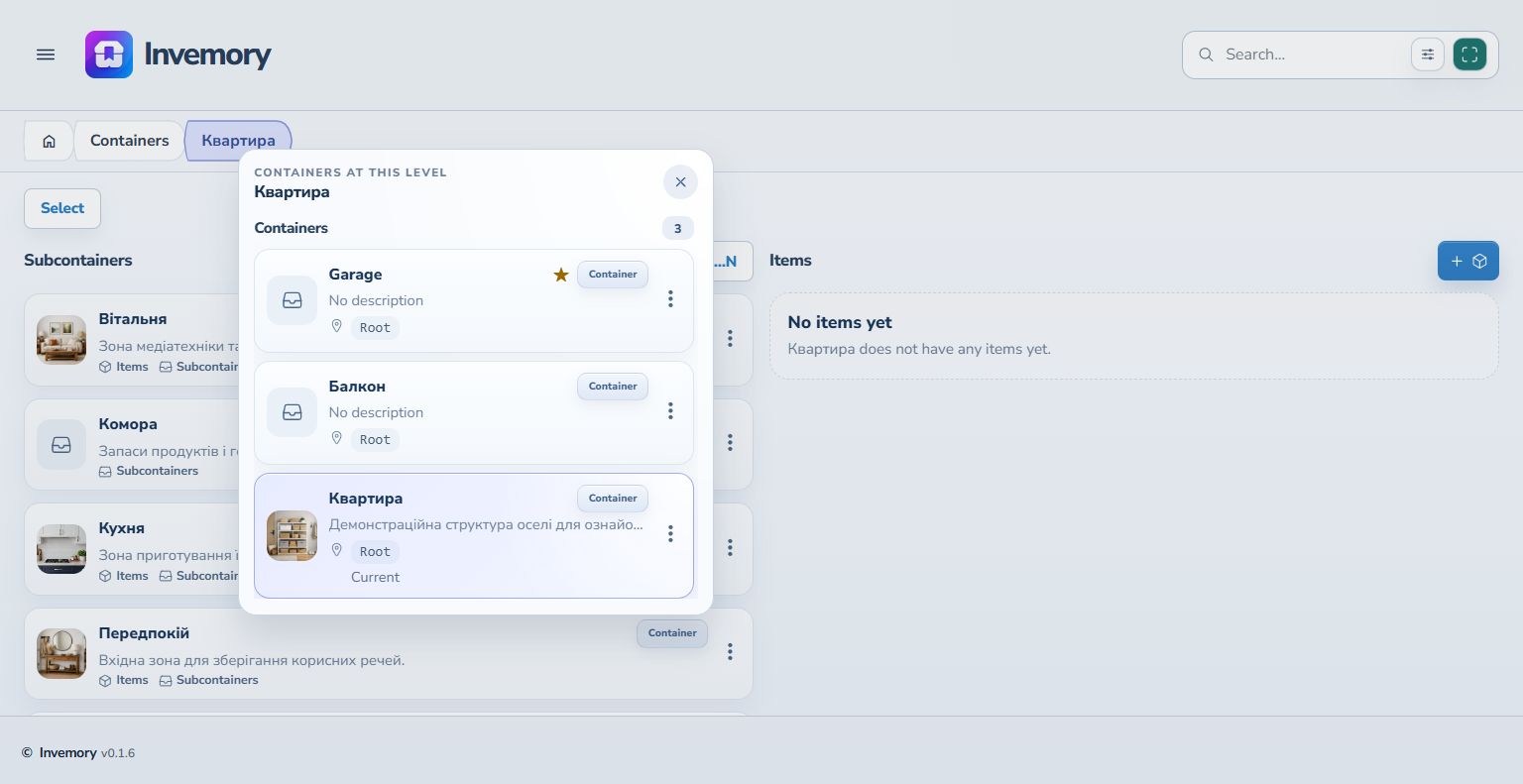
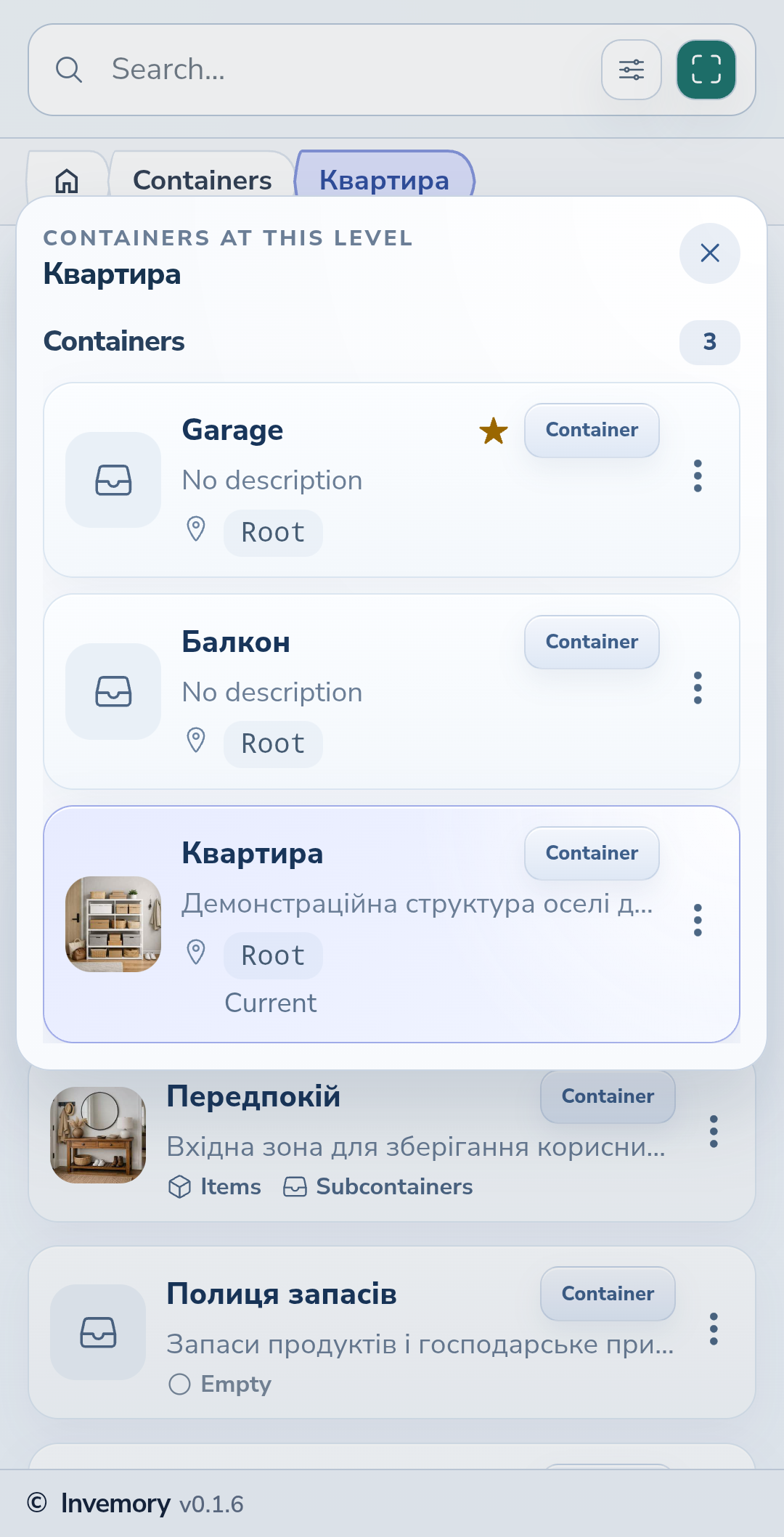
On the website, press a container name in the path and hold the mouse button for about half a second. On Android, hold your finger on the name instead. A panel lists containers at that level and marks the current one. Select another container to open it.
Website
Android
The result
You can place your items in recognizable locations, with nested containers representing real rooms, shelves and boxes.
Useful to know
- Add a level only when it helps you find things.
- Use the same names you use for these places at home.
- For a series of similar boxes, use the separate numbered-container action.
Common questions
Can a container hold both items and other containers?
Yes. Its page has separate sections for items and subcontainers.
You can place your items in recognizable locations, with nested containers representing real rooms, shelves and boxes.
Open my containers