
Guides
How to move an item or container
When you put a belonging somewhere else, update its location in Invemory. Moving changes the location of the existing record, so you do not need to create the item again.
Last checked:
What you need
- Sign in to your account.
- Prepare an item or container and a destination container in your own inventory.
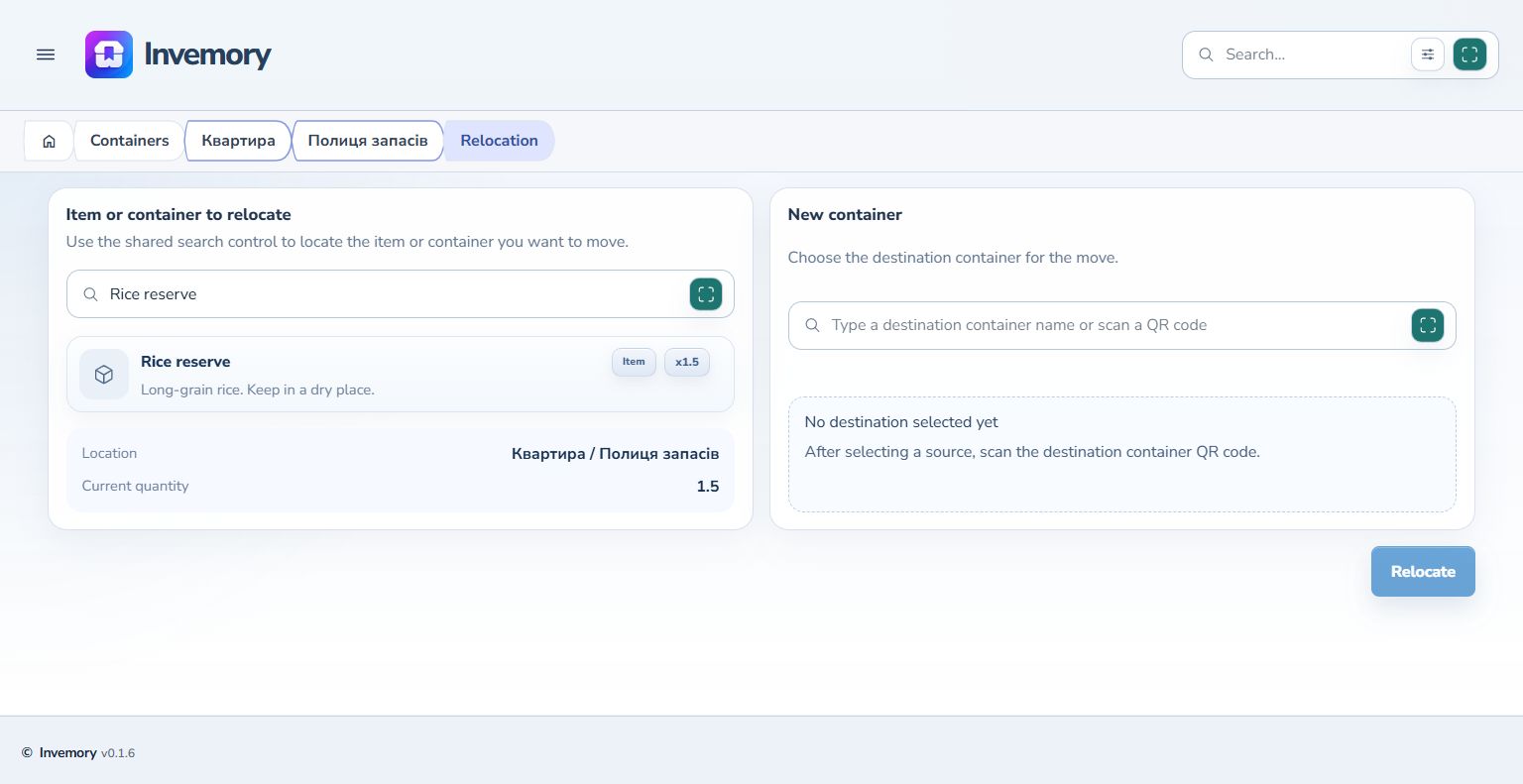
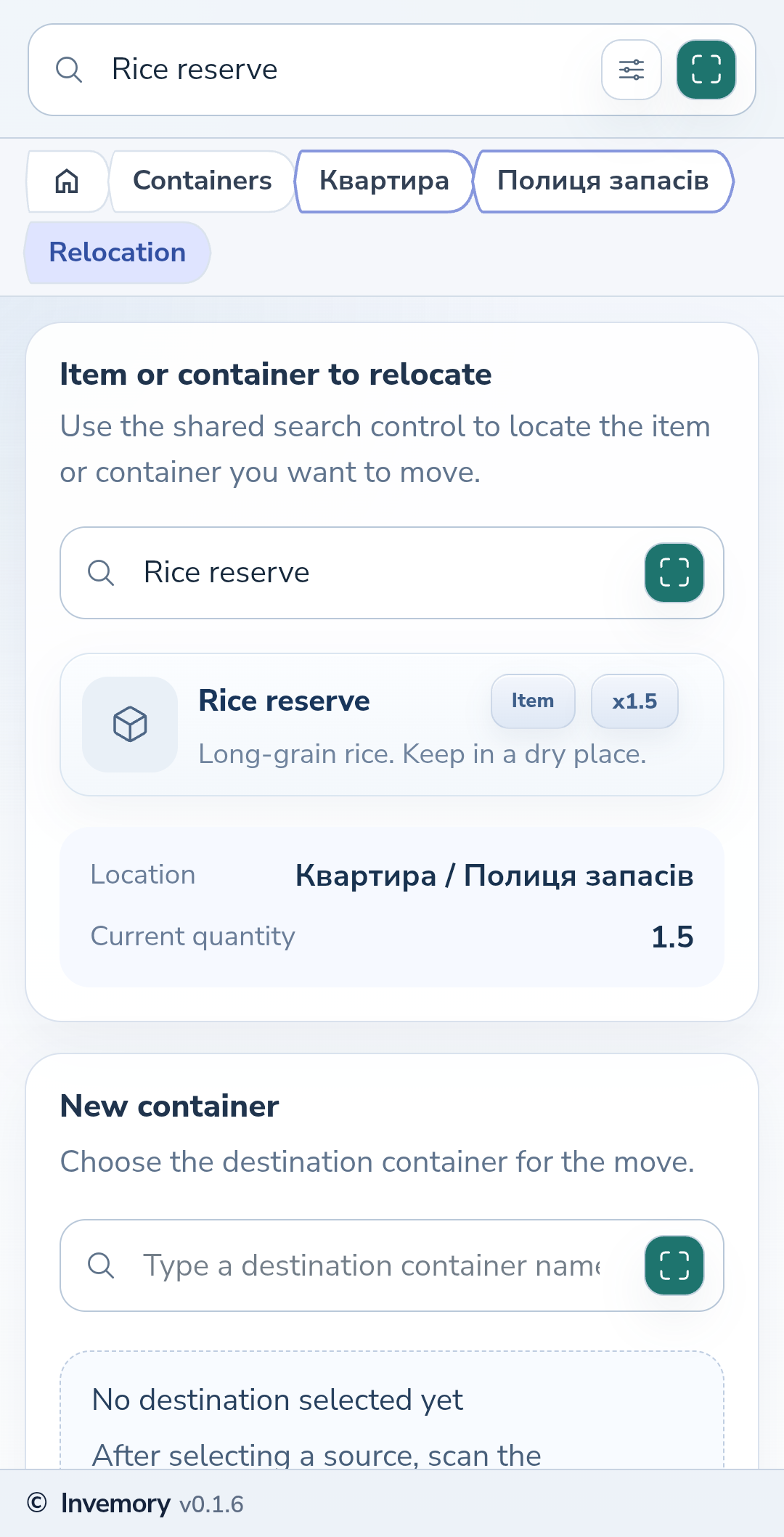
1. Choose what to move
Open the item card, open its three-dot menu and choose Move. The form already has that item selected. Alternatively, open Transfers from the main menu, enter a name in the source search and select the matching result. Check the name and current path before continuing.
Website
Android
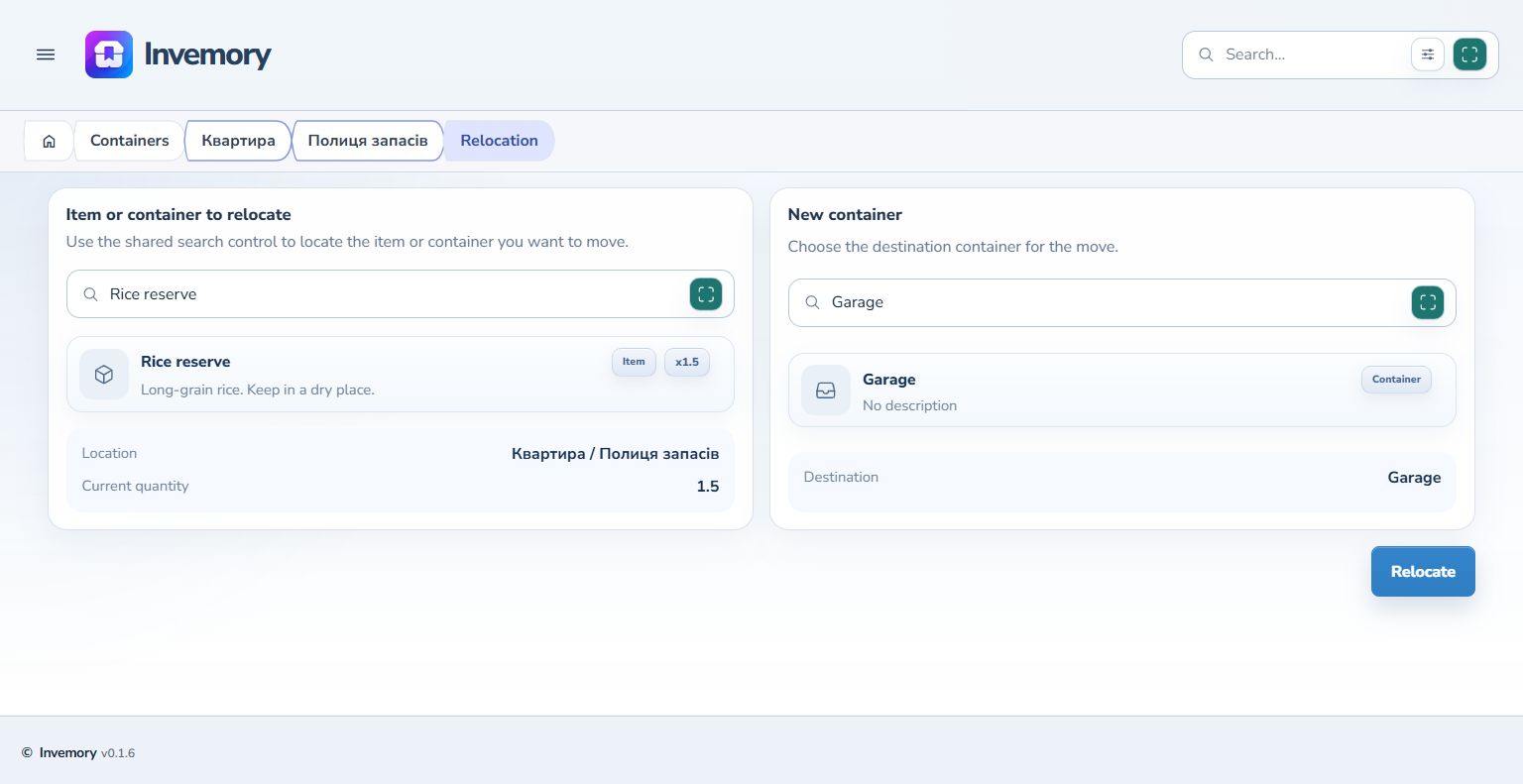
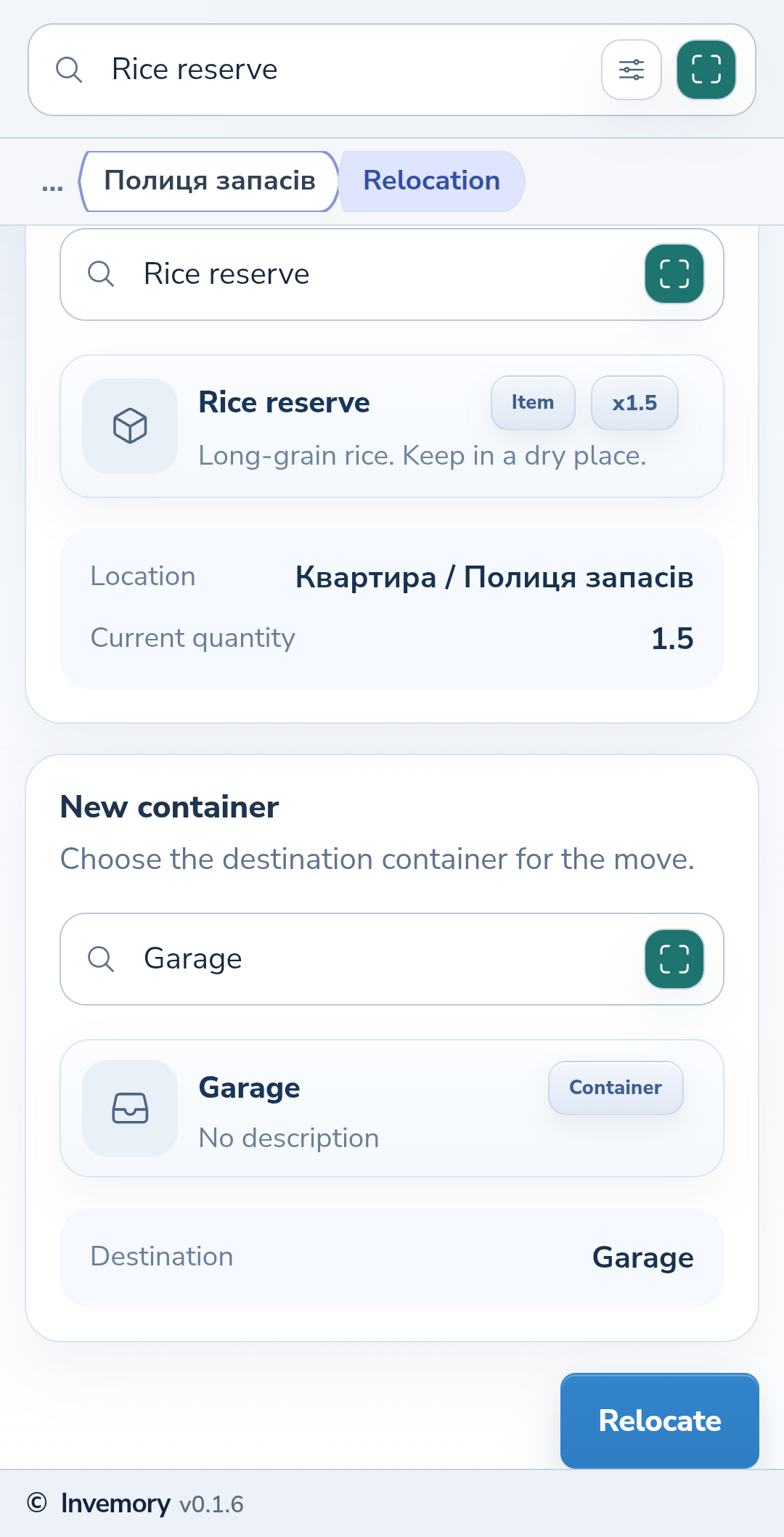
2. Find the new location
In New container, enter the new location’s name. Select the correct container in the search results: typing its name alone does not select it. Check the destination path. On the phone, scroll down to this section below the source.
Website
Android
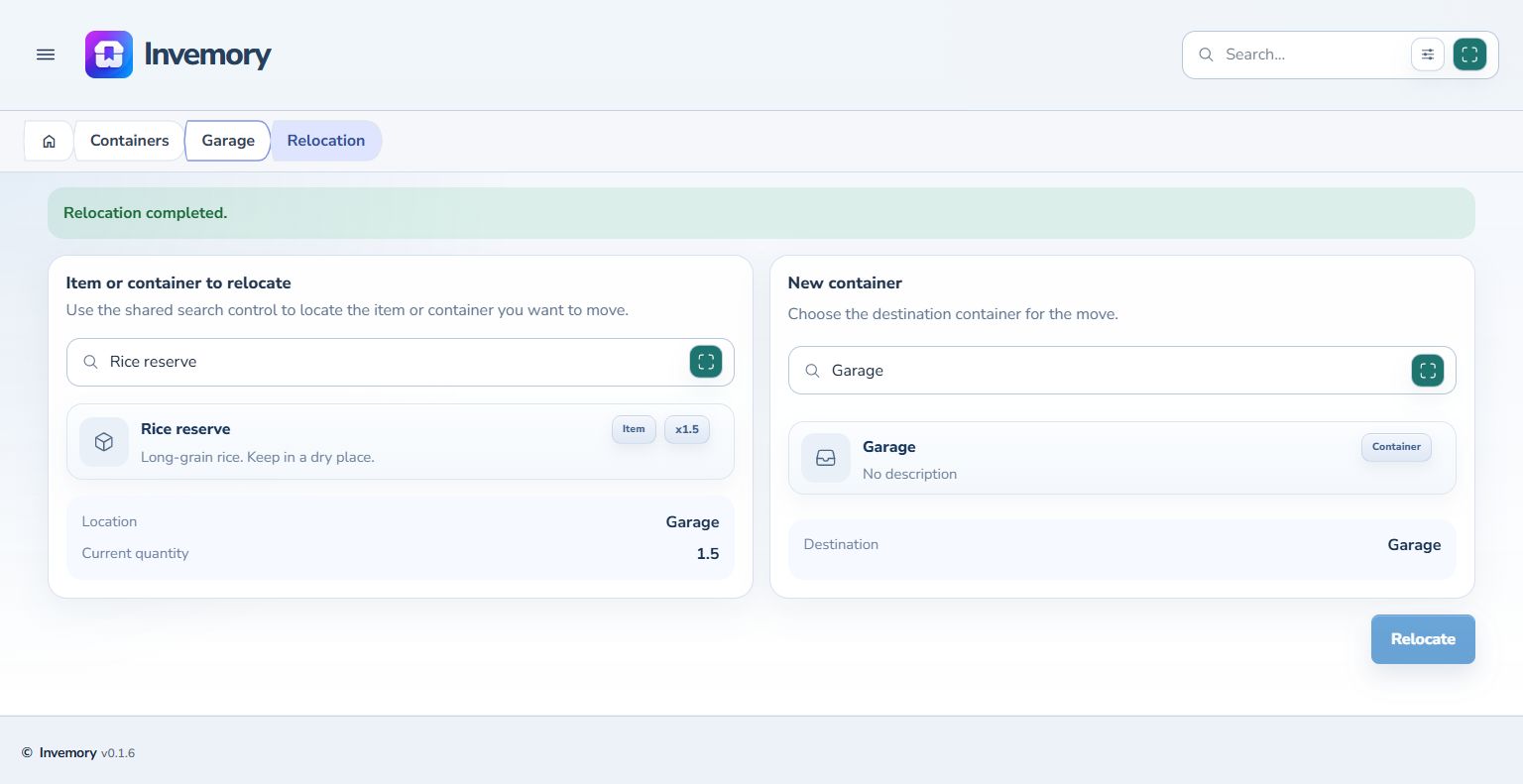
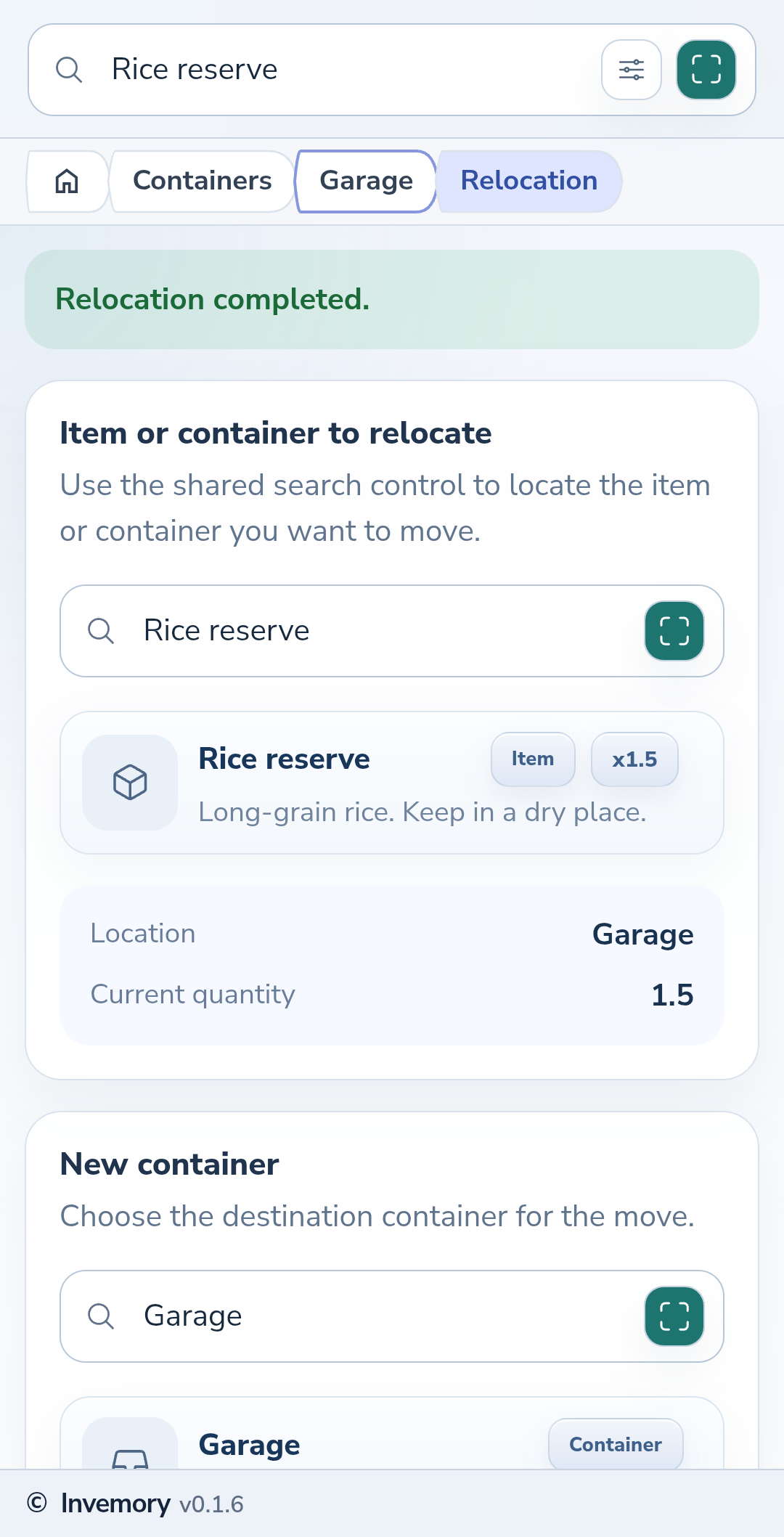
3. Confirm and check the result
Press Relocate and wait for completion. If you started from item details, the item card opens in its new container. Check the path at the top. The move event in the item journal shows the previous and new locations. When you start from Transfers, the success message and updated location remain in the form.
Website
Android
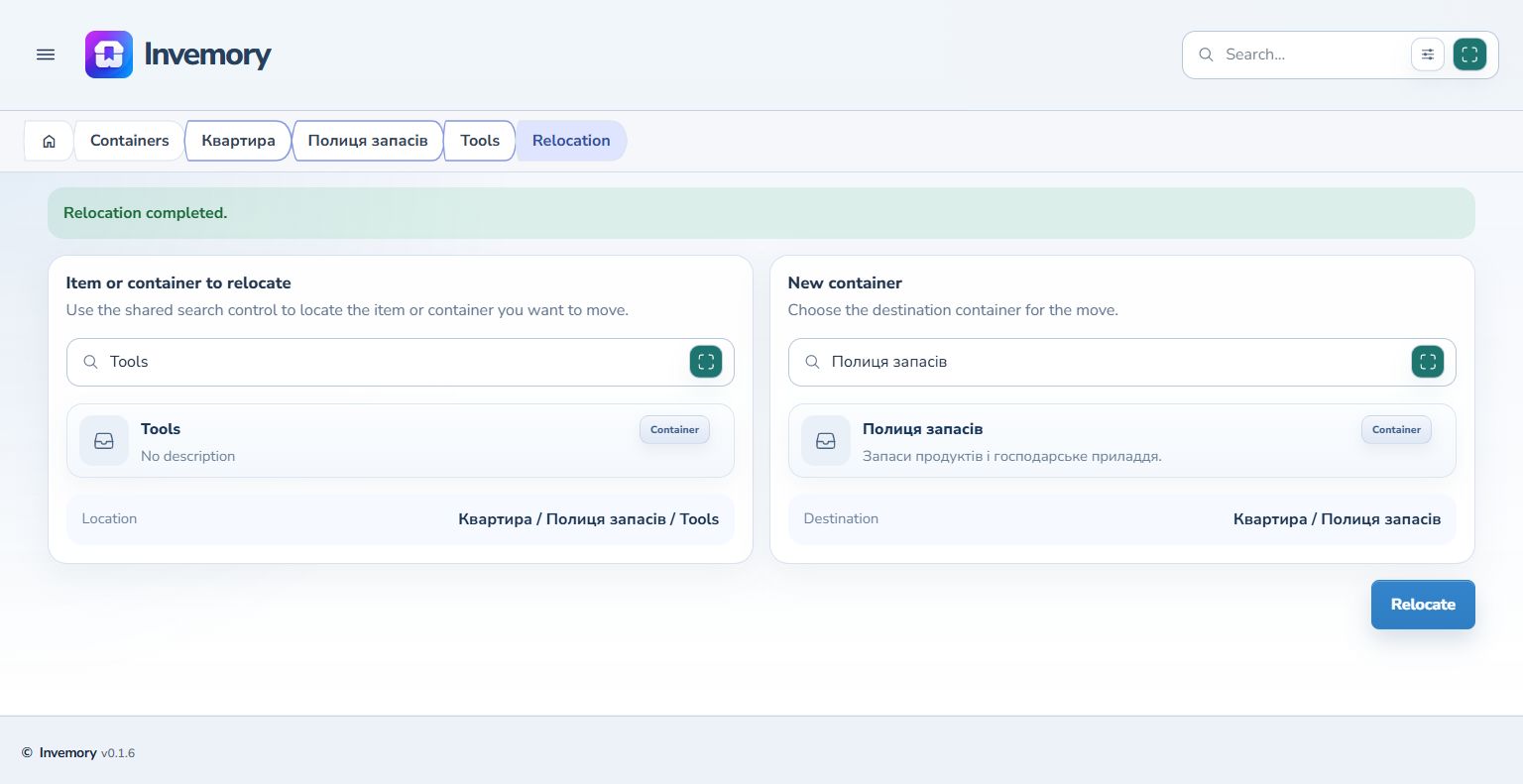
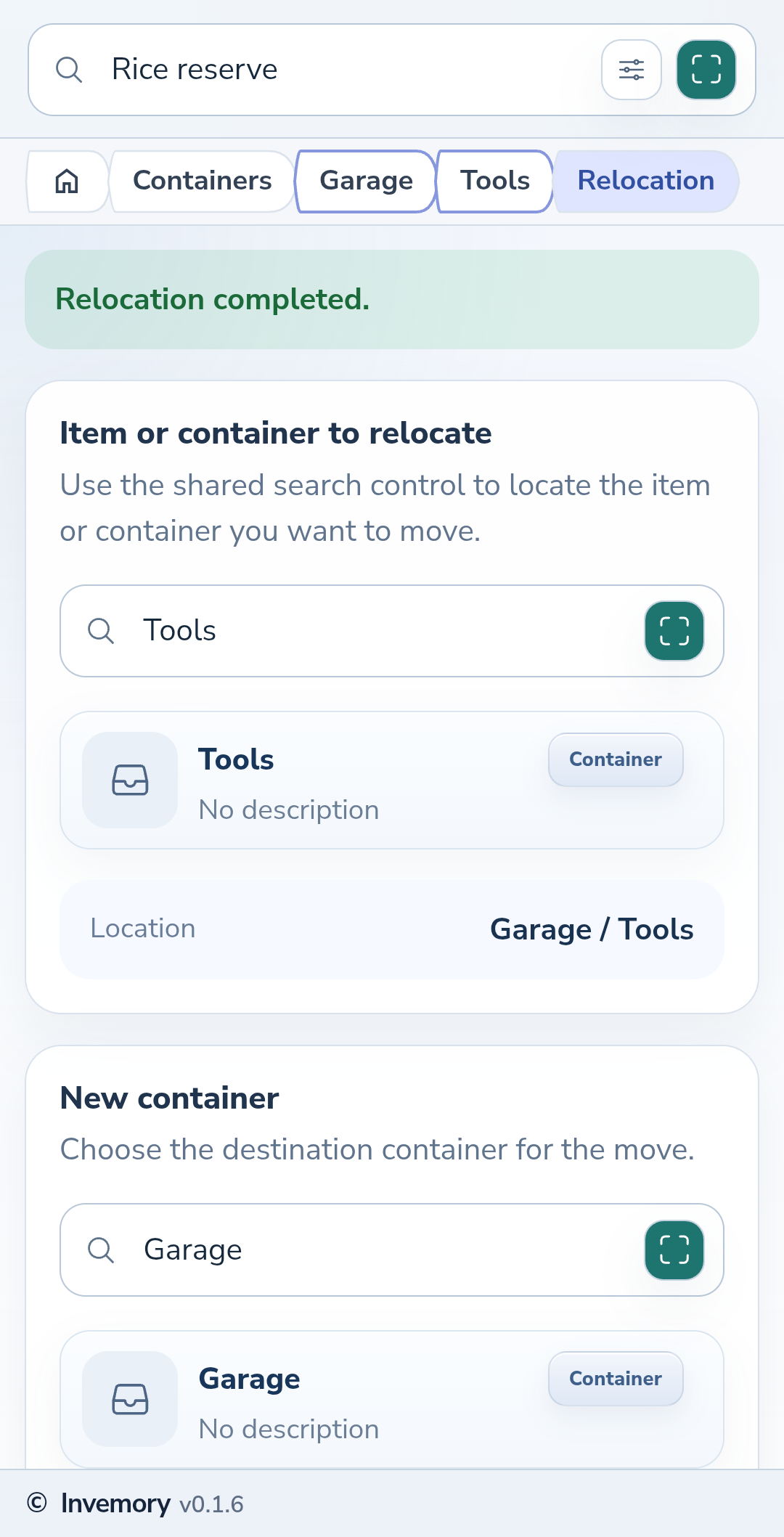
4. Move a container the same way
Open Transfers from the main menu and find the container in the source search. Select it, find a different destination container and press Relocate. The success message and updated path show its new location. In this workflow, the result remains in the relocation form.
Website
Android
The result
The item or container has a new storage location that you can check in the application’s path.
Useful to know
- Use the full path to distinguish containers with the same name.
- To abandon the move, leave the form before pressing Relocate.
- Choose a different destination container; a container cannot be moved into itself.
Common questions
How is moving different from copying?
Moving changes the location of an existing item. Copying creates a separate record that you then save.
The item or container has a new storage location that you can check in the application’s path.
Move an item or container