
Guides
How to write off used or unavailable belongings
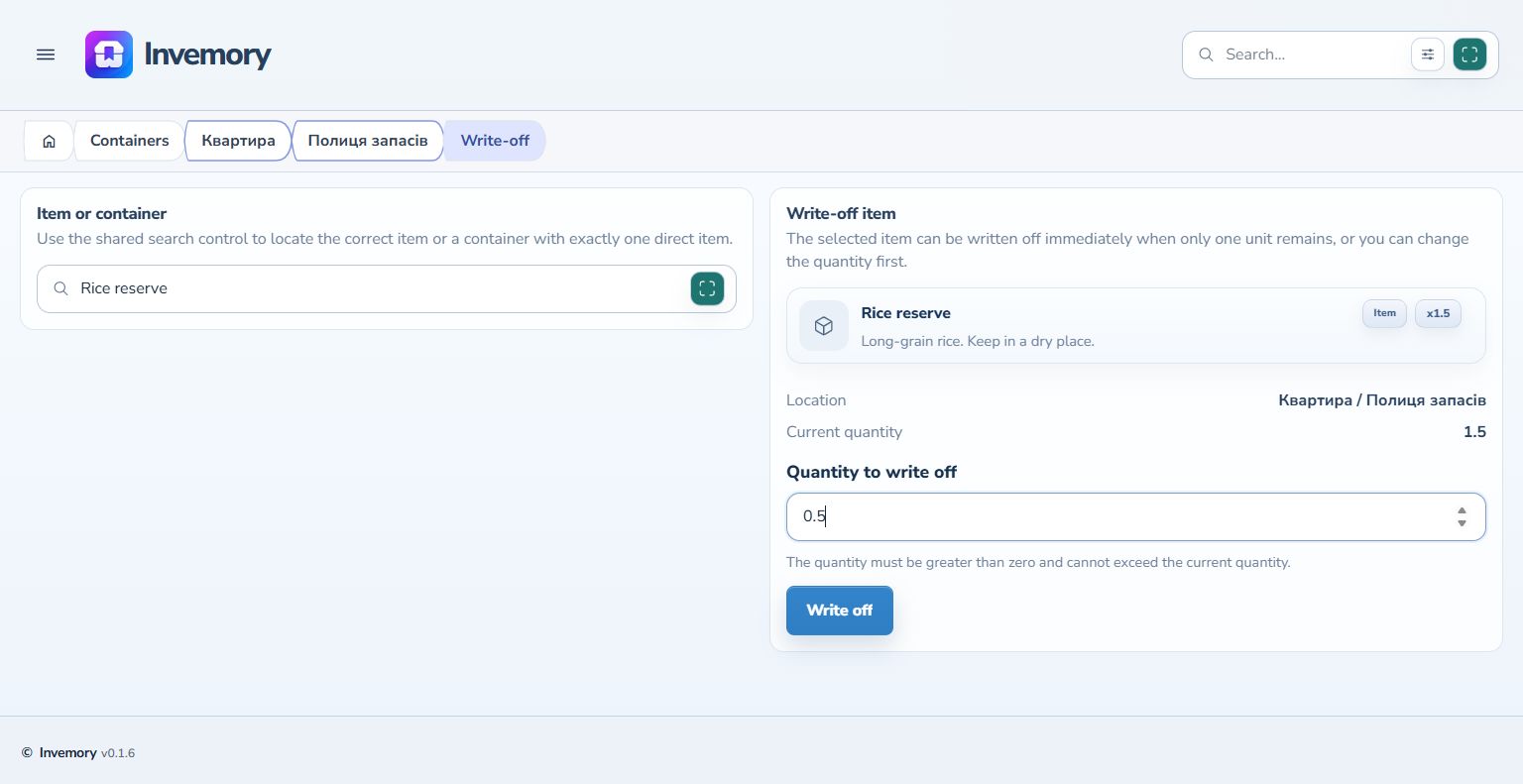
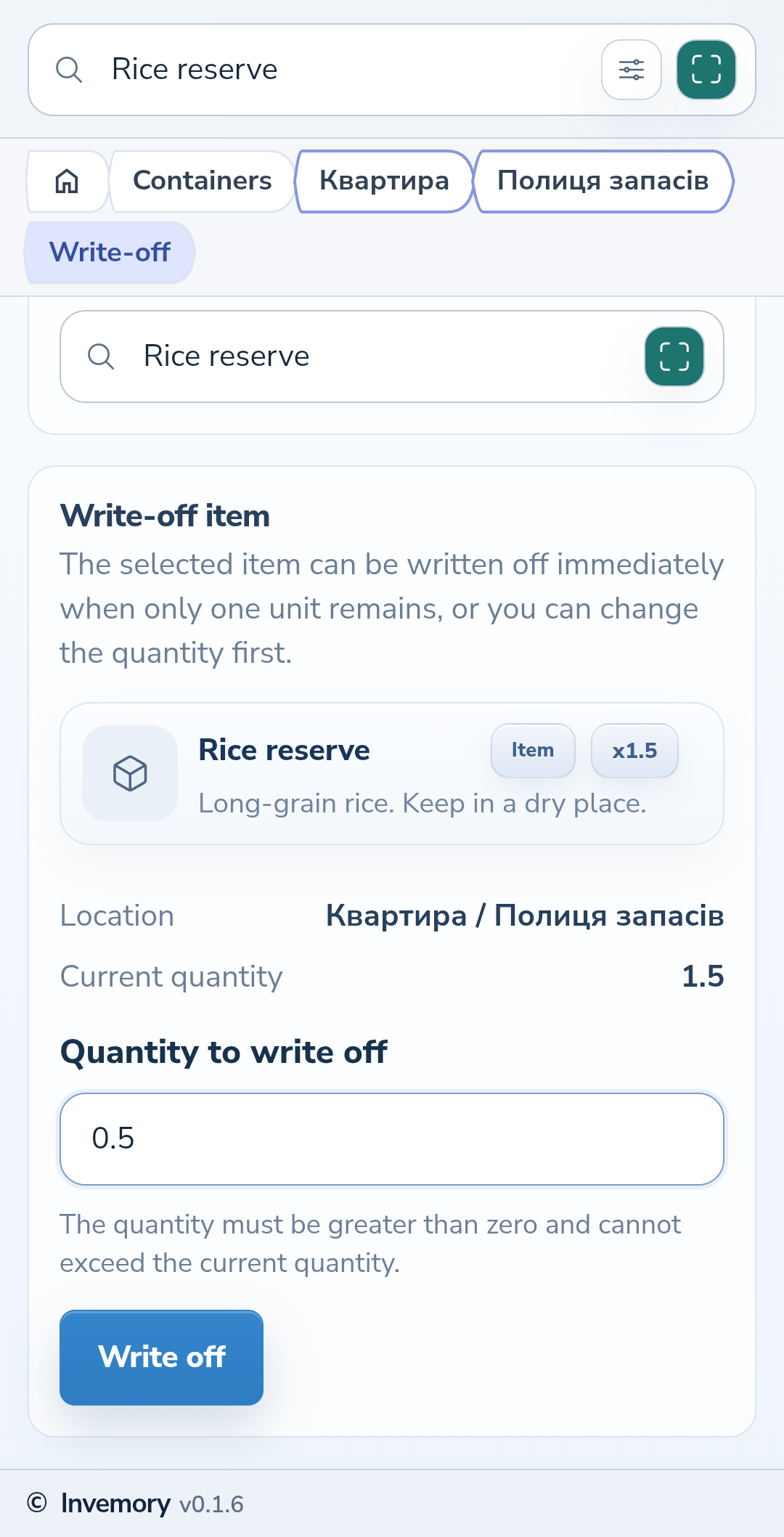
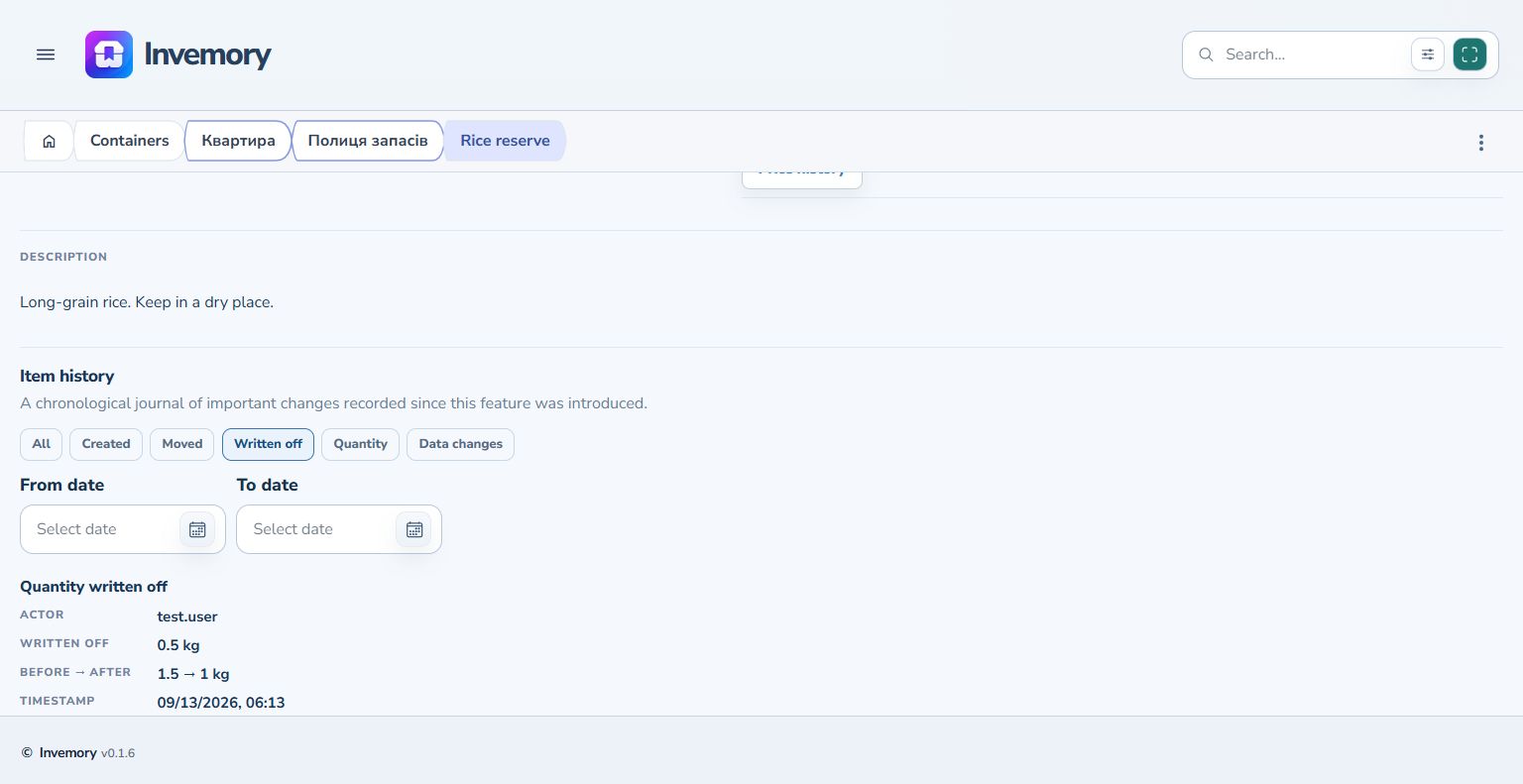
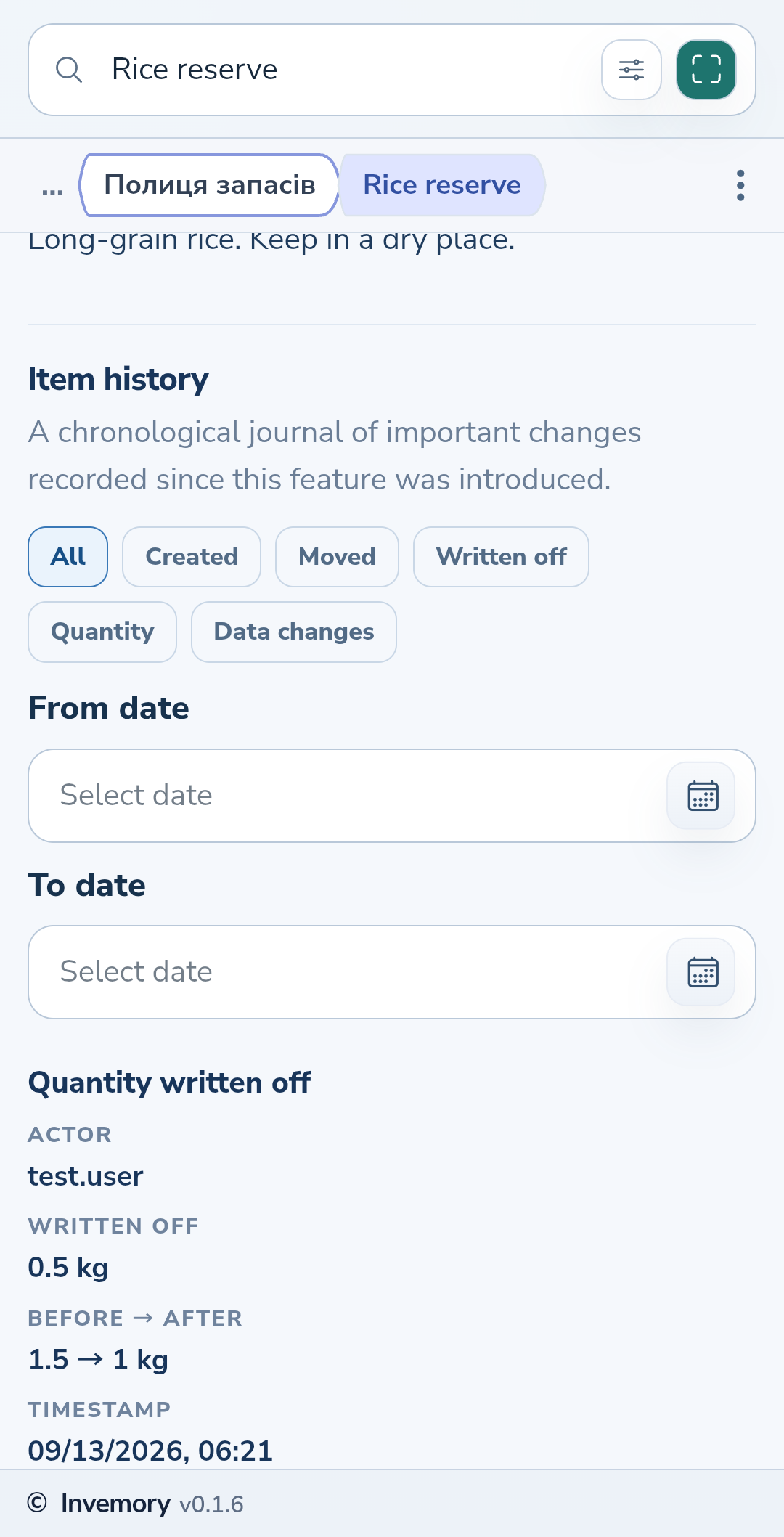
When you use part of a supply or it is no longer available, a write-off reduces its quantity. This example writes off 0.5 kg from 1.5 kg and checks the remaining 1 kg.
Last checked:
What you need
- Sign in to your account.
- Prepare an item with a positive quantity.
1. Choose the item and quantity
Open the item details, its three-dot menu and Write off. Alternatively, open Write-off from the main menu, search by name and select the correct record. Check the name, location and current quantity. Enter the amount used in Quantity to write off. On the phone, scroll down to reach this field.
Website
Android
2. Correct an amount above the balance
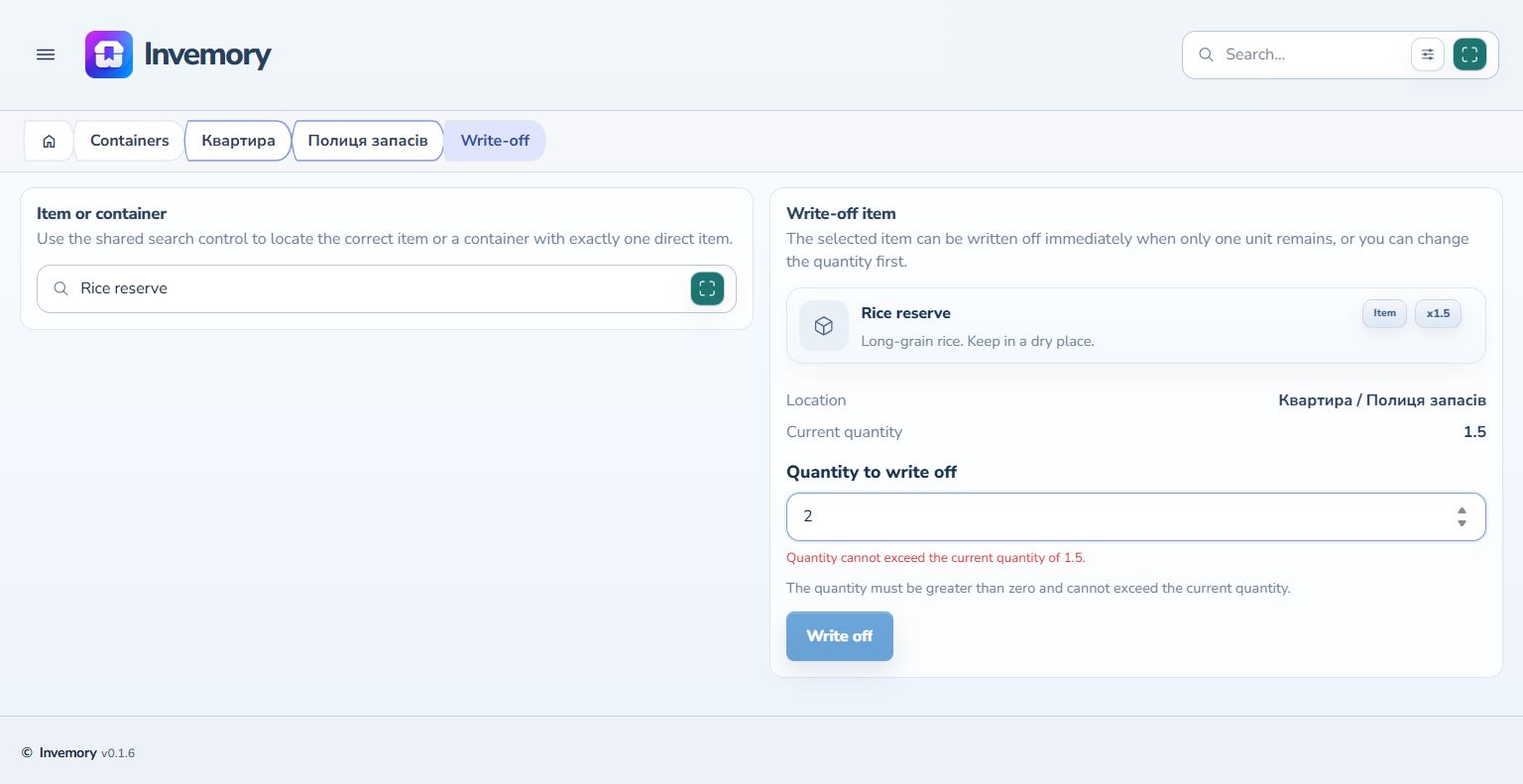
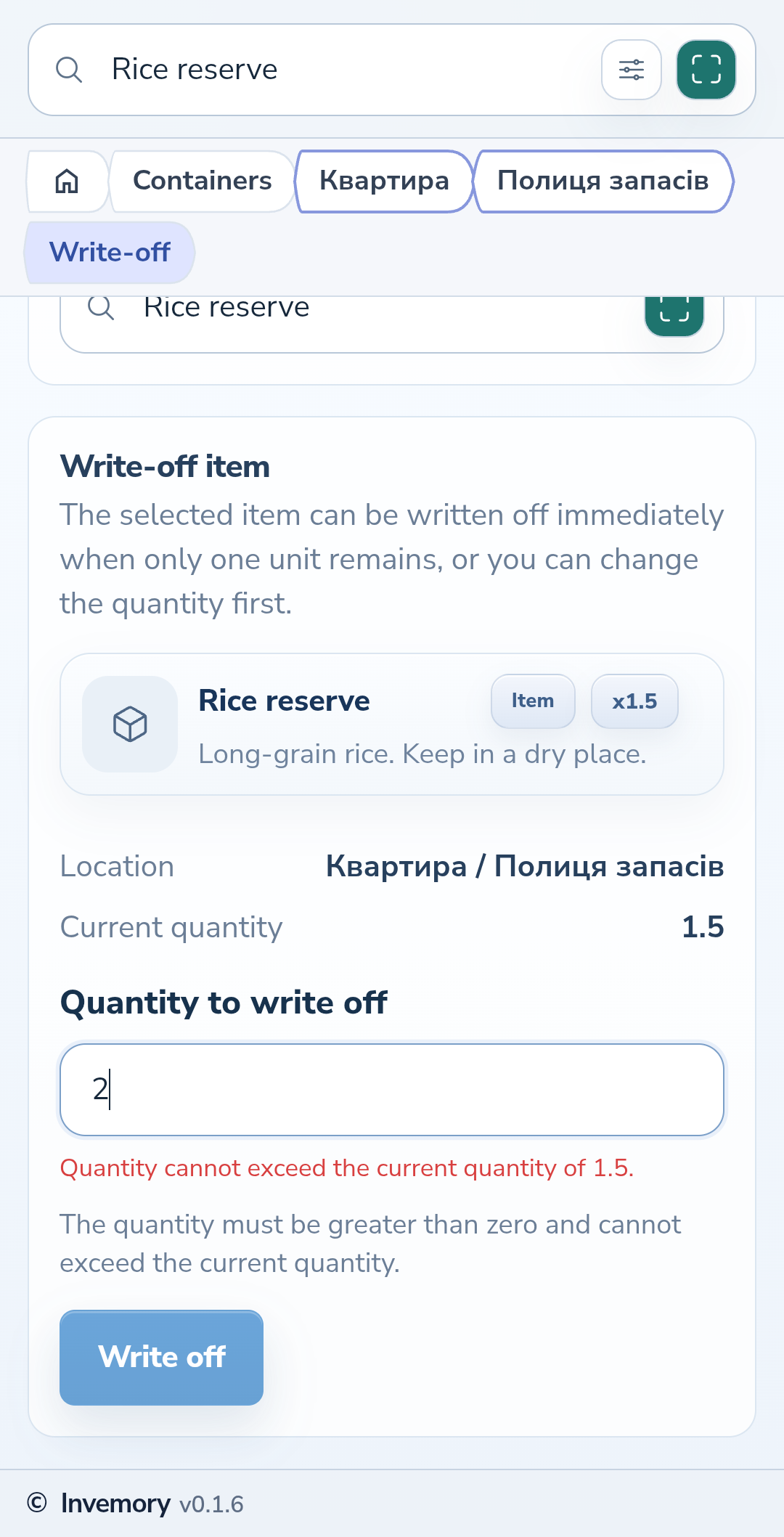
You cannot write off more than the available quantity. For example, entering 2 when 1.5 remains displays an error and disables Write off. Replace it with the required positive amount, no greater than the current balance.
Website
Android
3. Confirm and check the balance
Choose Write off and wait for completion. Starting from item details returns you to the item. Starting from the main menu keeps the success message and updated quantity in the form; open the item by selecting its card. Find the write-off event in the item history to check the amount removed and the before-and-after quantities.
Website
Android
The result
The balance decreases by the amount written off, and the item history records the change.
Useful to know
- Check the location when search returns several records with the same name.
- In the example, 1.5 − 0.5 = 1. Enter the amount to remove, rather than the intended remaining balance.
Common questions
Can I write off a partial quantity?
Yes. The example uses 0.5 kg, which is subtracted from the current quantity.
The balance decreases by the amount written off, and the item history records the change.
Open write-off