
Guides
Quickly switch between Invemory sections
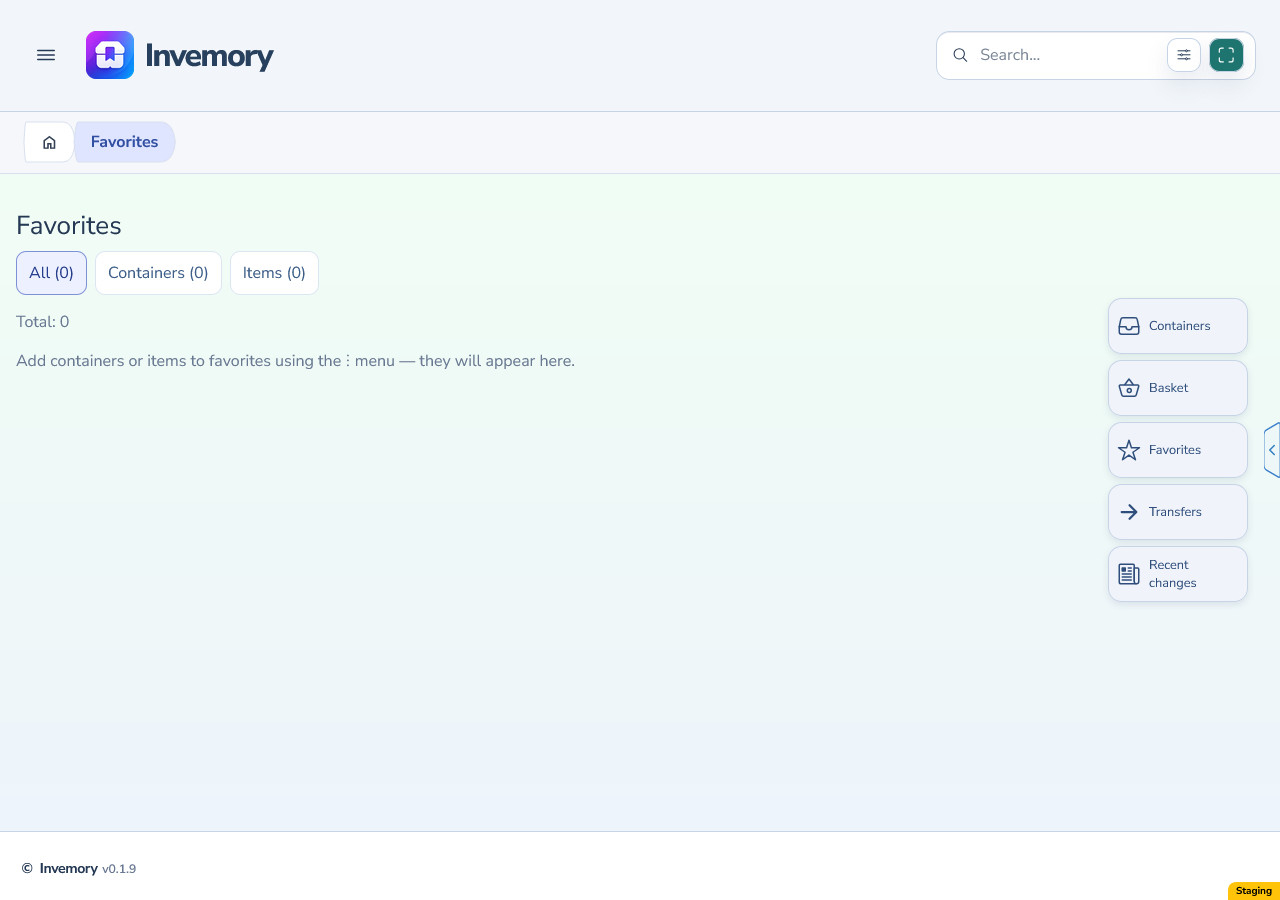
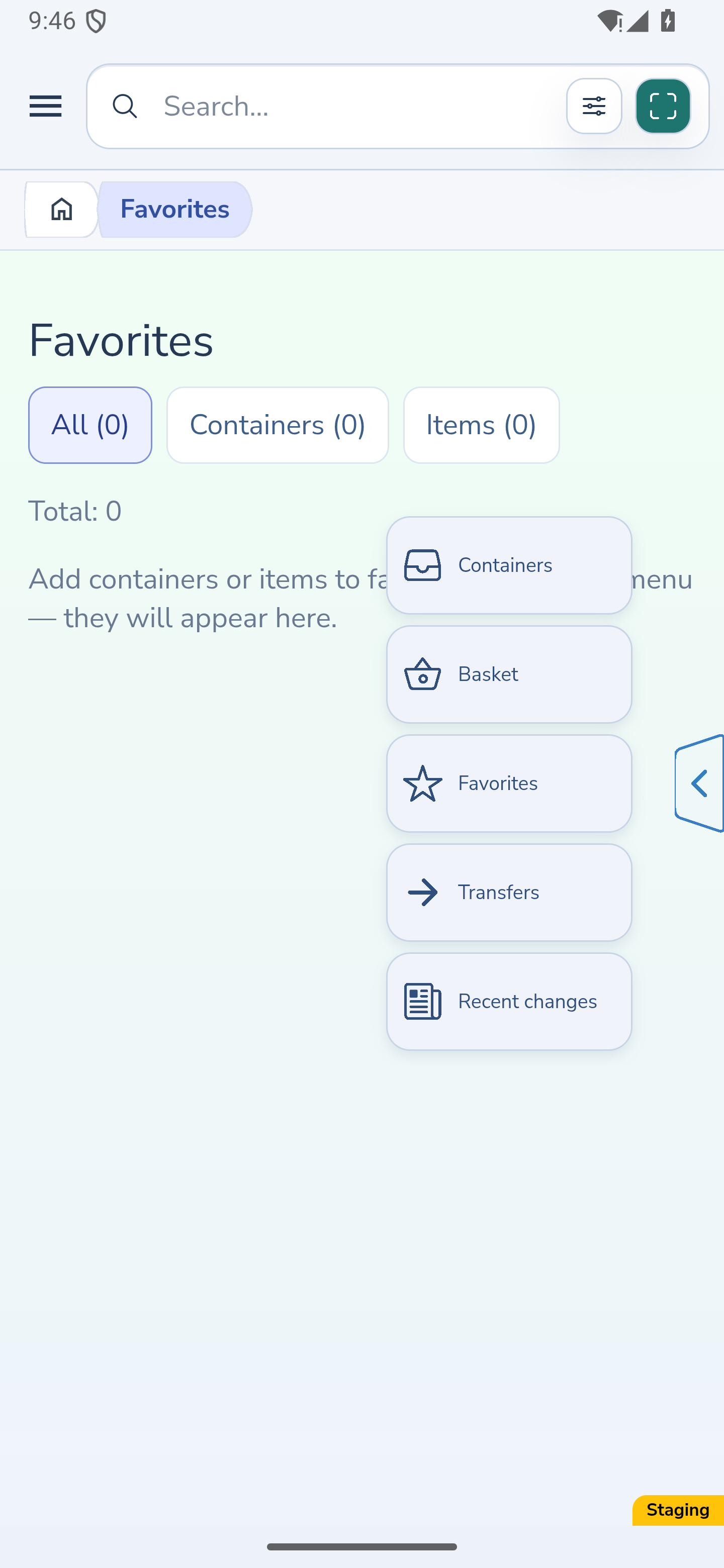
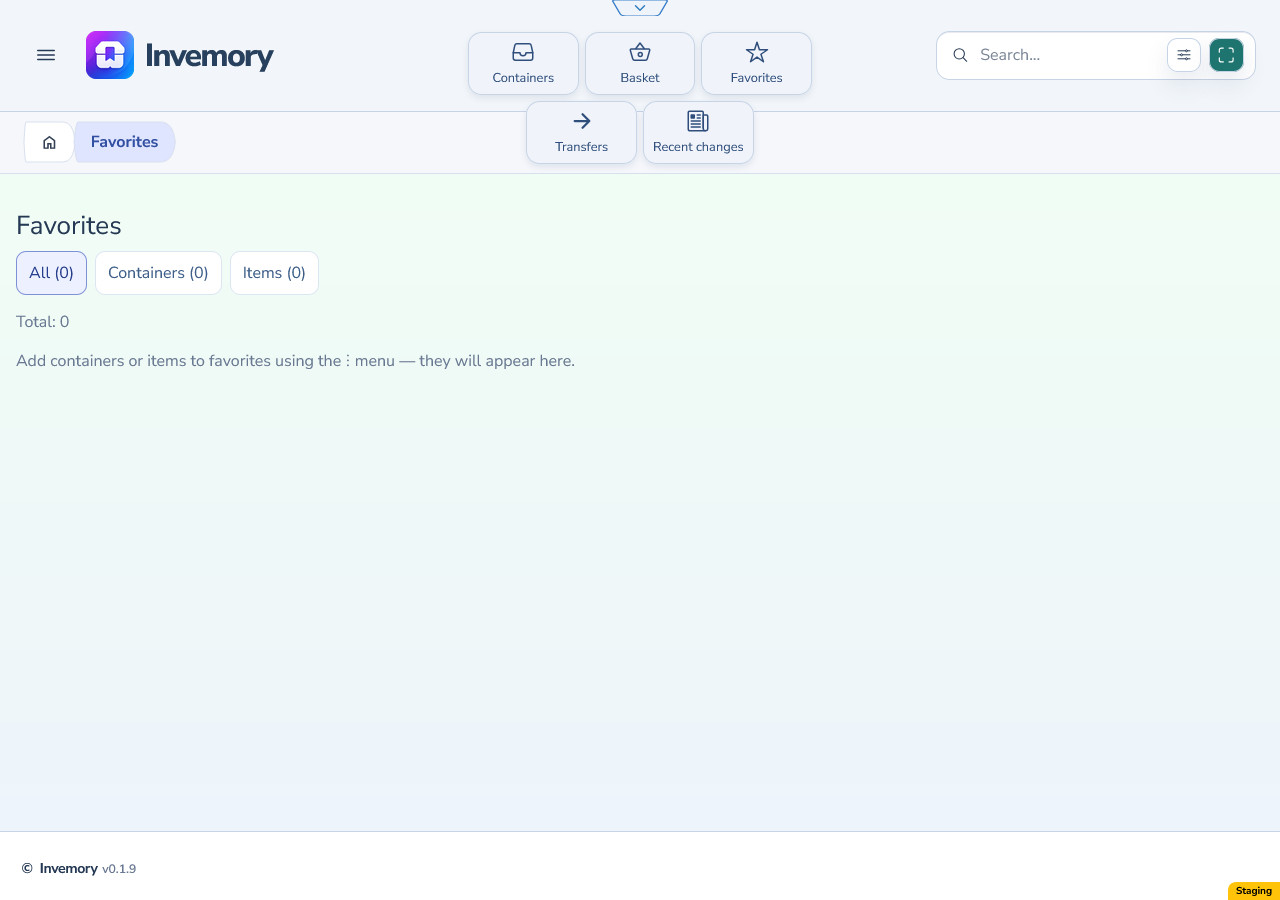
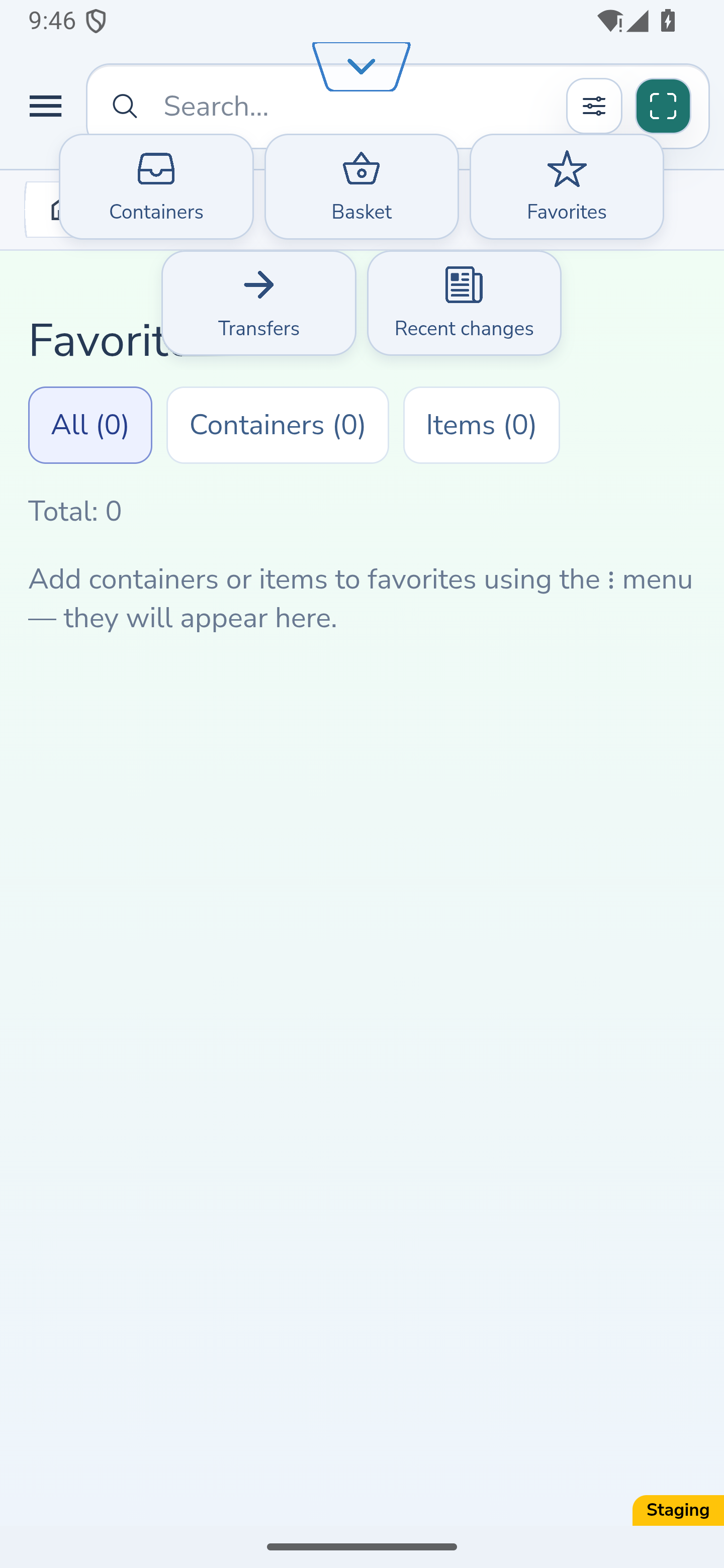
Keep common sections within reach without opening the full menu each time. The edge handle gives you five shortcuts on the website and Android.
Last checked:
What you need
- Sign in to your Invemory account.
1. Open the quick panel
Click or tap the handle at the screen edge. The fixed order is Containers, Basket, Favorites, Transfers and Recent changes. The main menu remains available.
On the website, focus the handle and press Enter or Space. Use Tab to move through the shortcuts.
Website
Android
2. Choose a section and close the panel
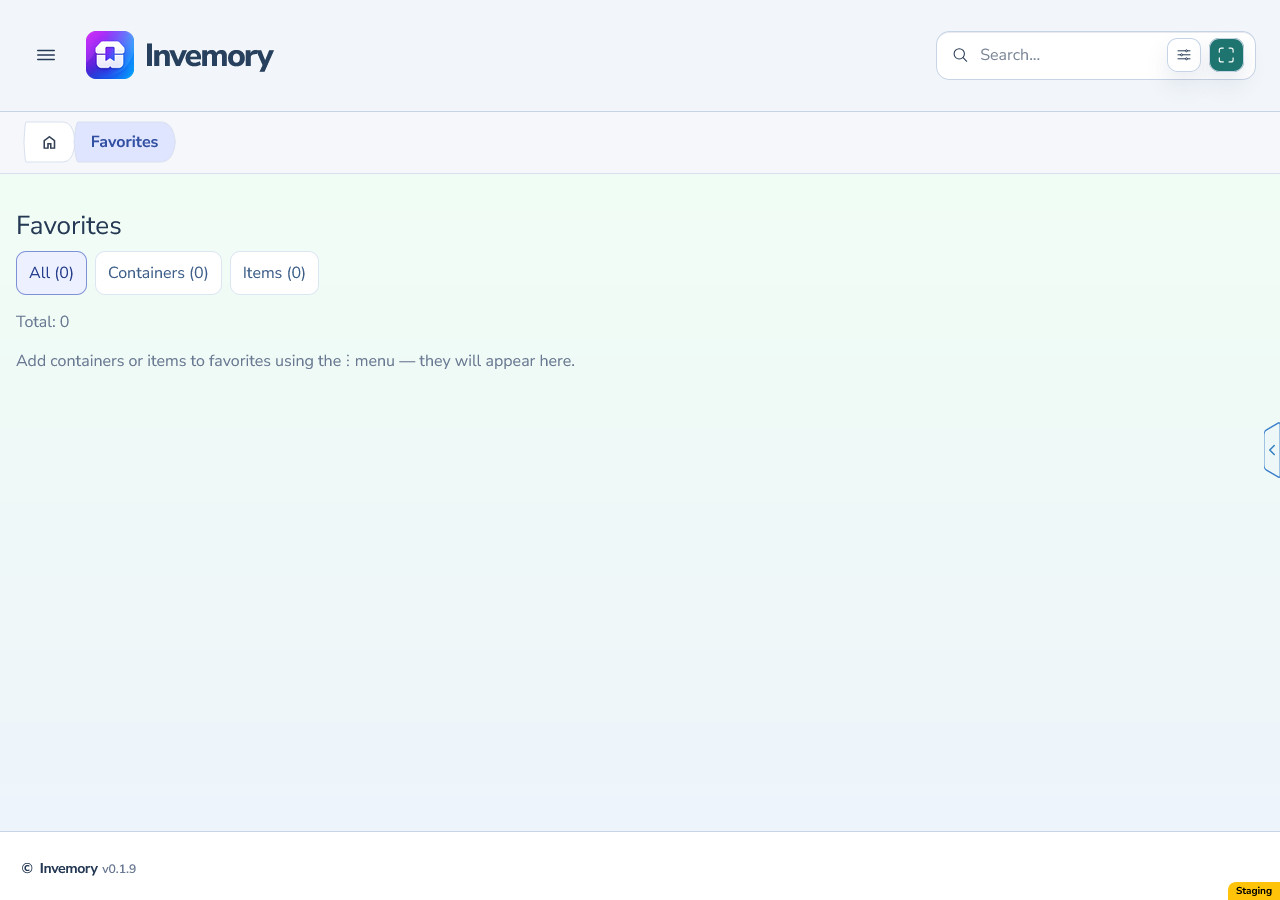
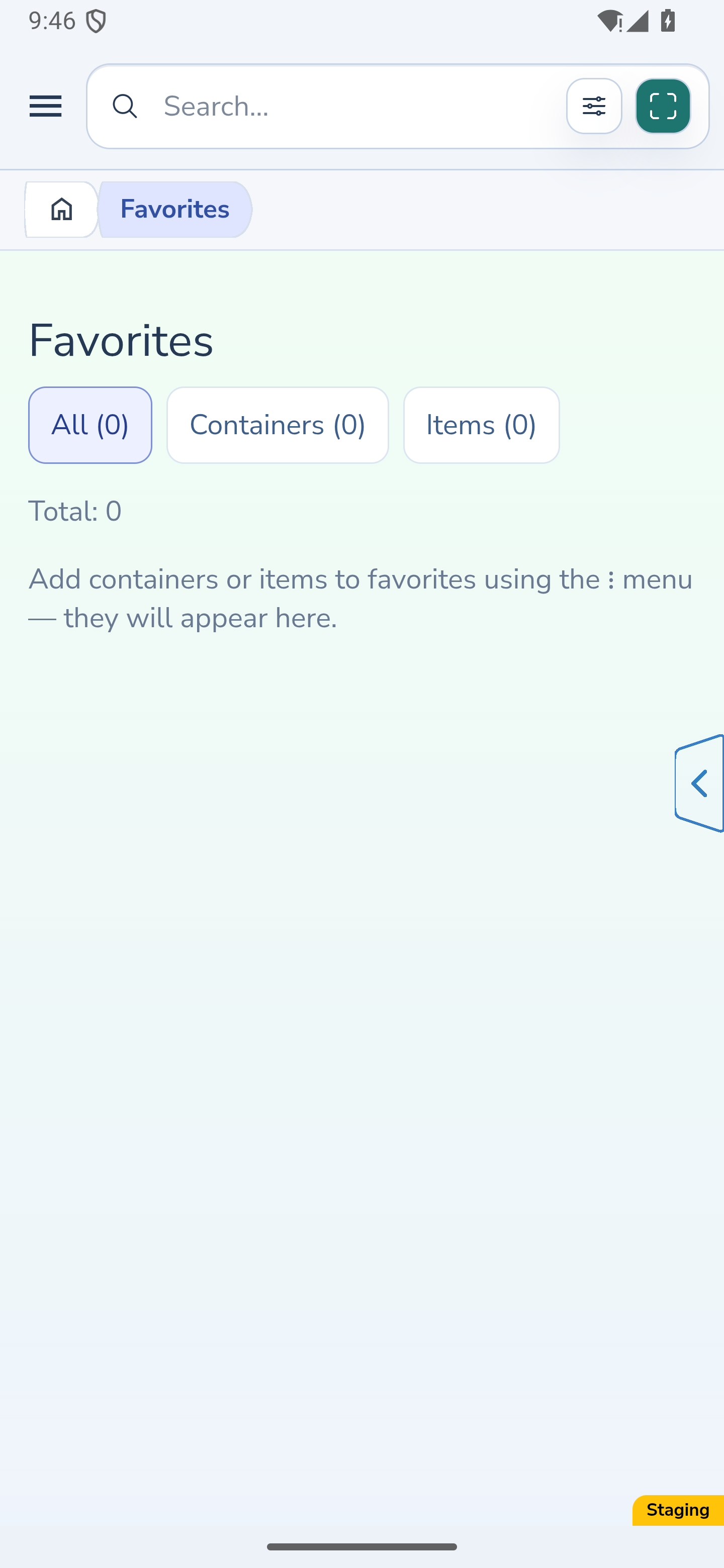
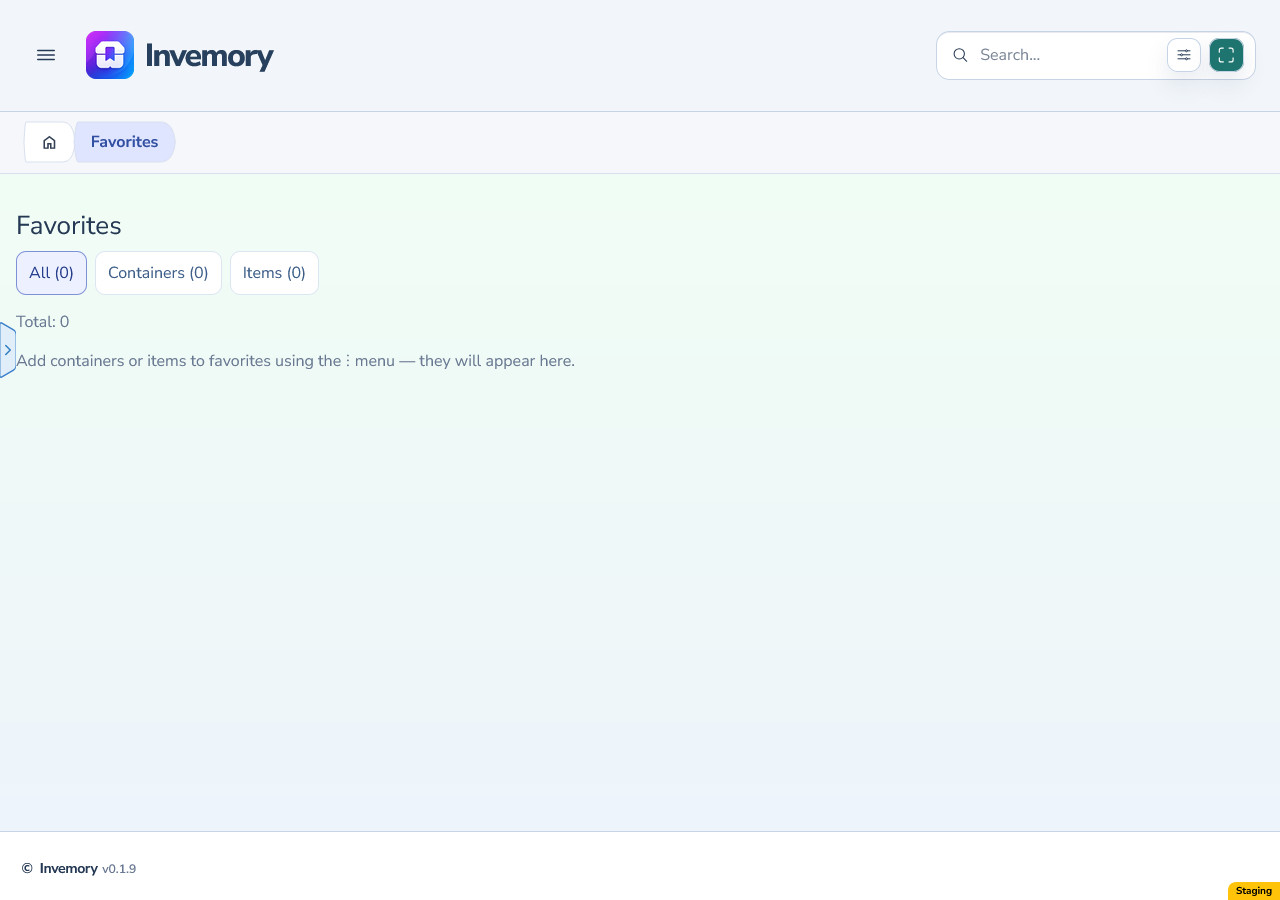
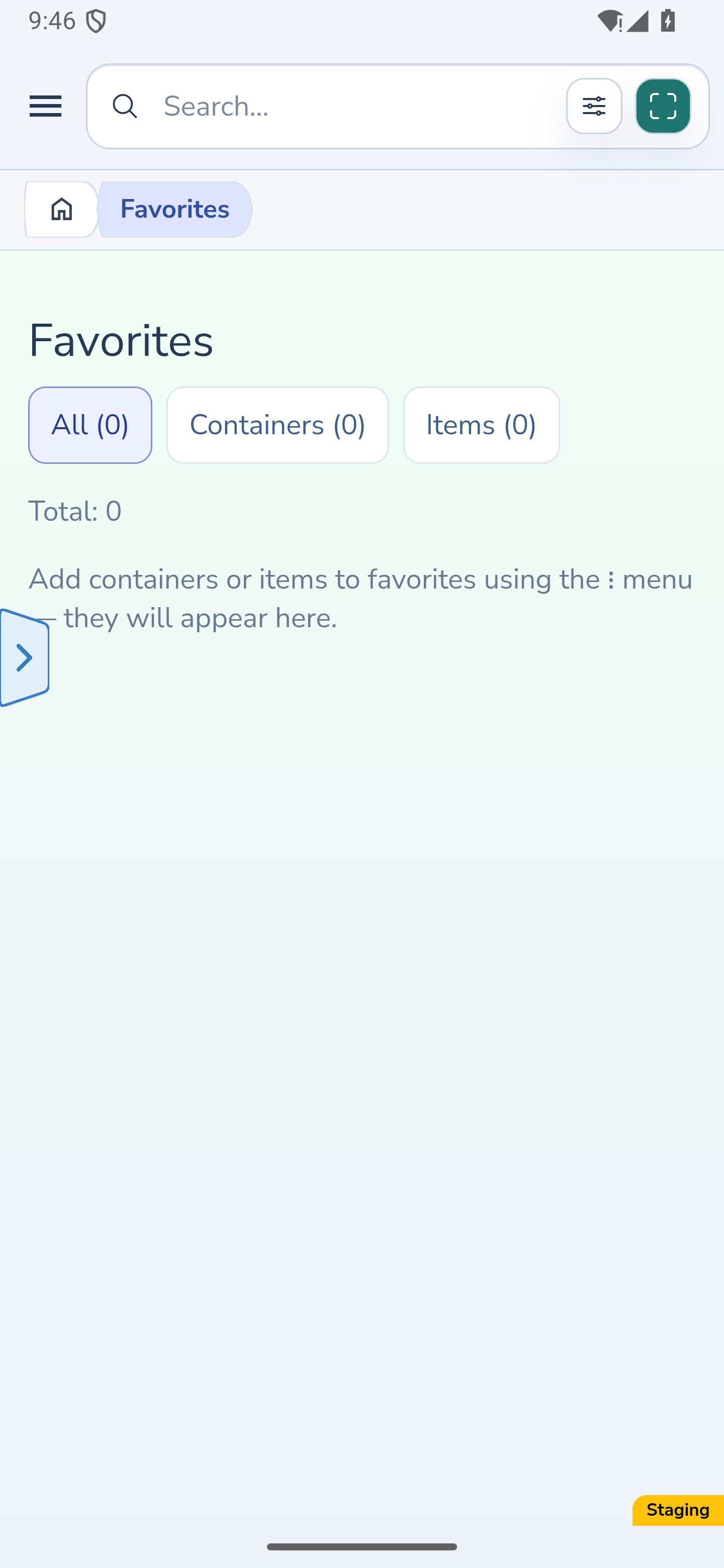
Select a shortcut to open its section; the panel closes. Selecting the current section closes it without adding another history entry. The example shows a genuinely empty Favorites list, separate from the populated examples in the Favorites guide.
Click or tap outside the shortcut buttons to close the panel without navigating. On the website you can press Escape; on Android use Back. Closing without navigation returns focus to the handle.
Existing editor guards still apply: No keeps an unsaved draft, while Yes leaves and discards it. A competing modal dialog prevents the quick panel from opening.
Website
Android
3. Hold and drag the handle
Hold the handle until dragging starts, then move it to the left, right, top or bottom edge and release. Its trapezoid is emphasized during dragging without a rectangular outline around the larger touch area.
The position is remembered locally for your account in this browser or app. It is not synchronized to another device.
Website
Android
4. Choose a comfortable edge
A side position opens a vertical panel; the top or bottom position opens three buttons above two. The panel opens inward and leaves the handle accessible.
On the website, Alt plus an arrow key selects an edge. Choose a position that leaves your current controls easy to use.
Website
Android
5. Adjust transparency on this device
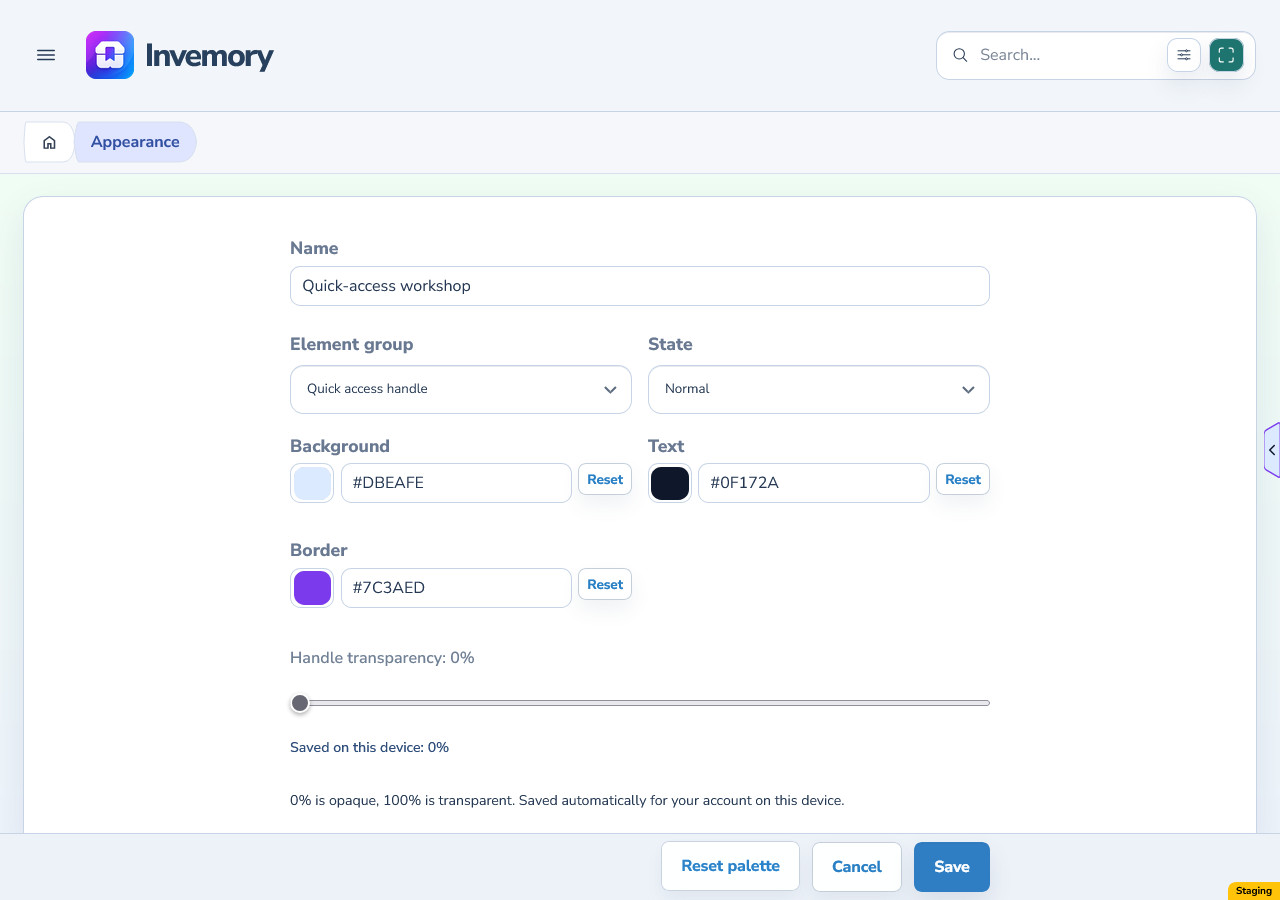
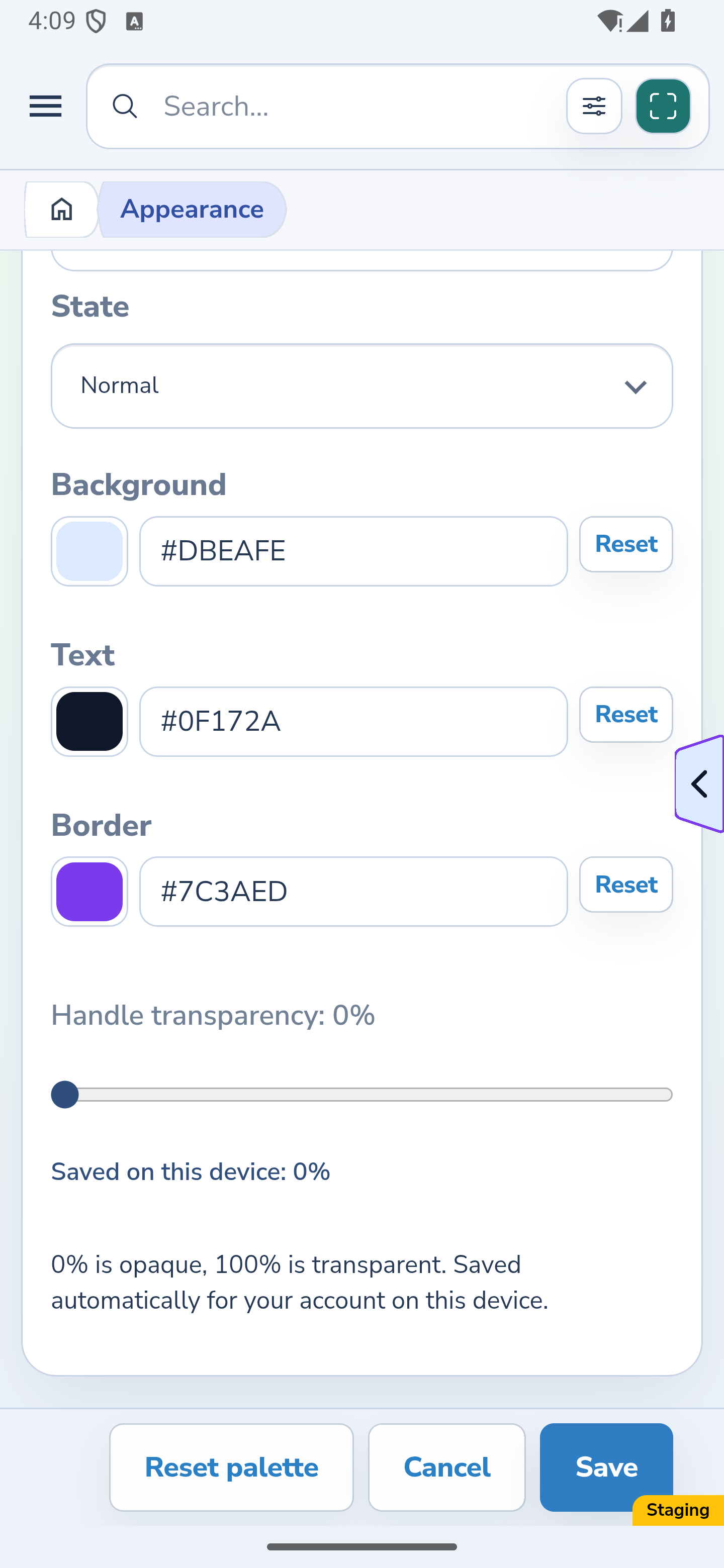
Open Profile → Appearance. Use your own editable palette, or choose Clone on a standard palette to open an editable copy. Then choose Quick access handle. Change Handle transparency and release the control; the saving status confirms the percentage saved on this device.
0% adds no device transparency and preserves the Background color's own transparency; 100% makes the handle fill transparent. This changes the handle fill; the arrow and border use their own palette colors. Arrow and border colors may also include their own transparency. The separate transparency setting is saved independently of palette Save or Cancel. The illustration shows a 0% example. See Appearance for palette color editing.
Website
Android
The result
You can reach the five sections quickly and keep the handle at a convenient edge.
Useful to know
- The main menu remains available for destinations outside the five shortcuts.
- Position and transparency belong to your account on this device; set another device separately.
Common questions
Can I change the five shortcuts or their order?
The five shortcuts have a fixed order. Use the main menu for other sections.
Does closing the palette editor undo transparency?
The device transparency control saves separately from palette Save and Cancel.
You can reach the five sections quickly and keep the handle at a convenient edge.
Open Invemory