
Guides
Ask a contact to buy for you and receive the purchase into your inventory
When someone else buys an item for you, share that specific shopping request in Invemory. The buyer records the actual purchase and confirms the hand-over; you then place the received item in your container. This example purchases one drill out of the two requested.
Last checked:
What you need
- Both participants have Invemory accounts and access to the basket.
- The requester has a manual shopping request and has added the buyer as a trusted contact. The contact only needs to be in the requester’s list; adding each other is unnecessary.
- The buyer has an available monthly purchase allowance. Placement requires a container the requester may add items to; their own container is used in this example.
- If you enter a price, add the required currency to the buyer’s working currencies in Settings; this example uses UAH. You can also record a purchase without a price.
1. Start with a personal manual shopping request
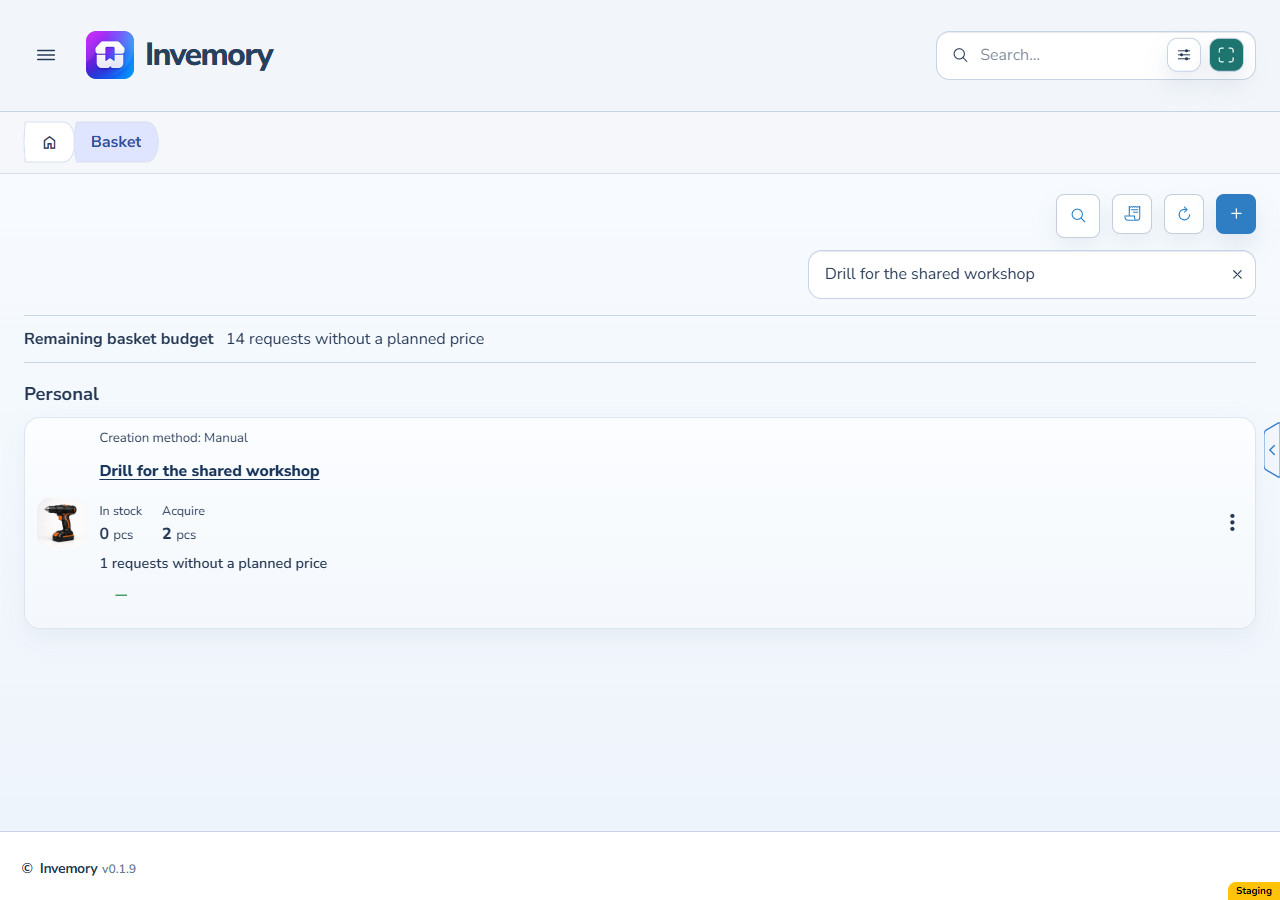
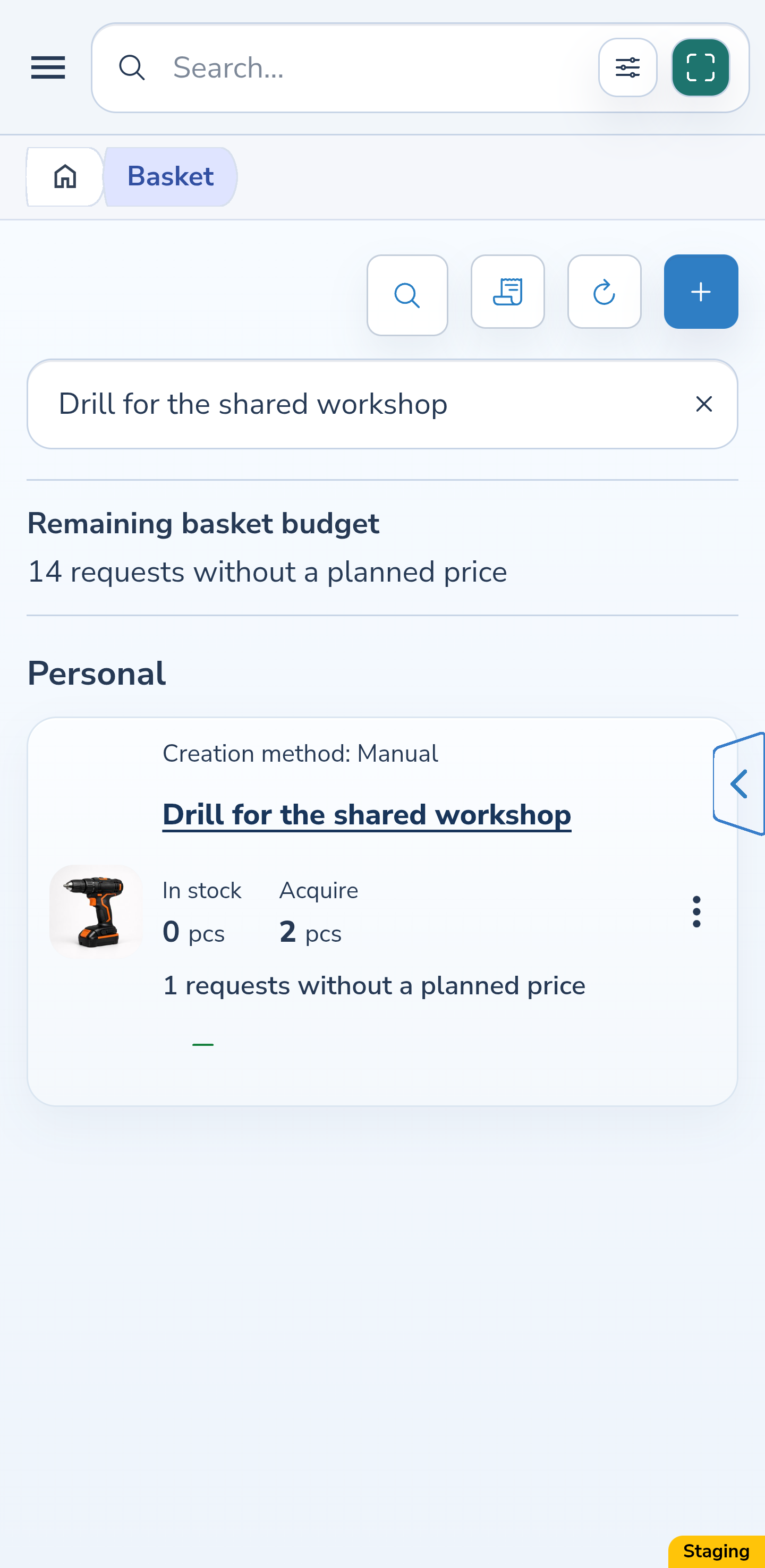
In “Basket”, find the manual shopping request under “Personal”. The example requests 2 drills. A new manual request is private, even when created from an existing item in your inventory. A request describes what to buy; a purchase record appears after acquisition.
Website
Android
2. Choose the buyer in the request’s access settings
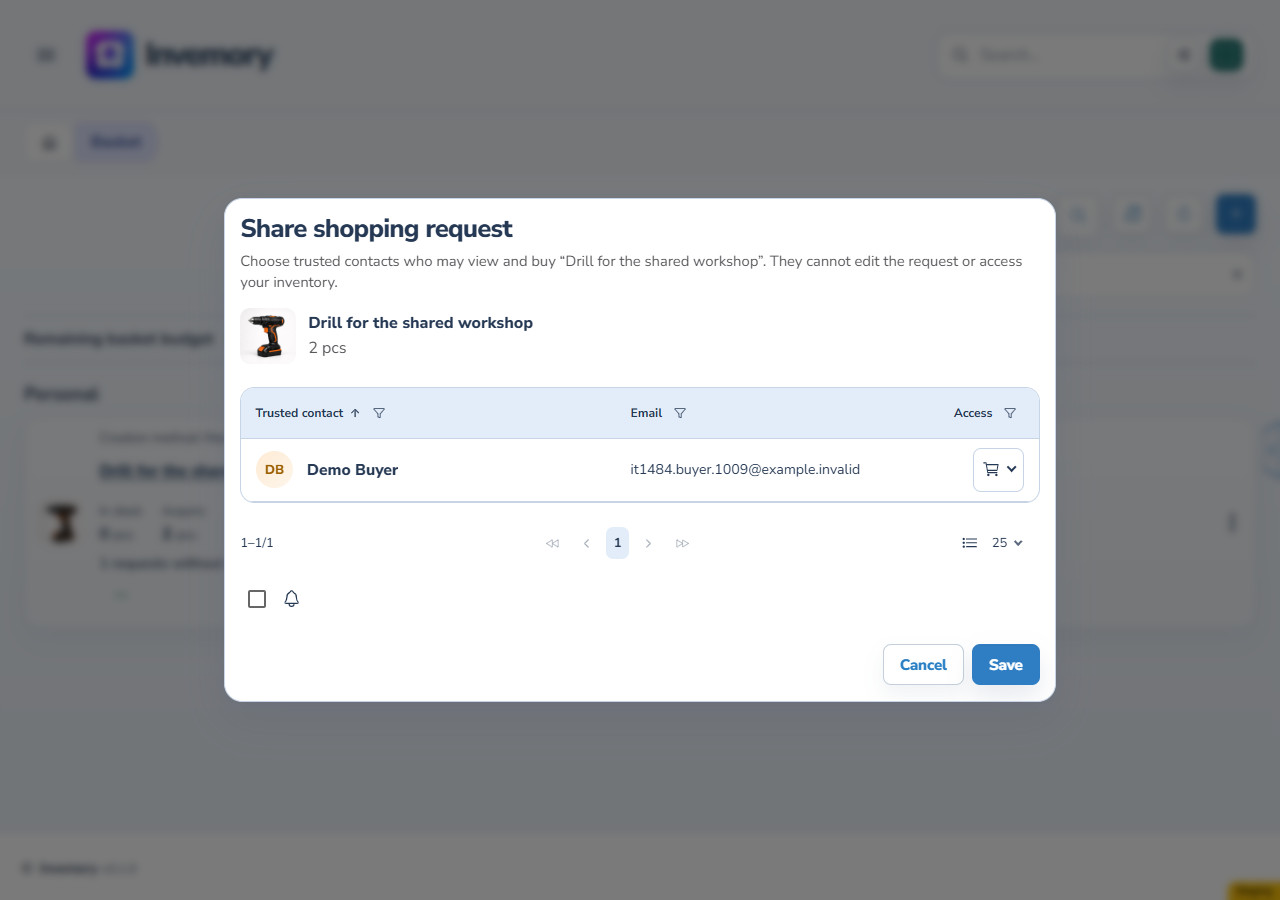
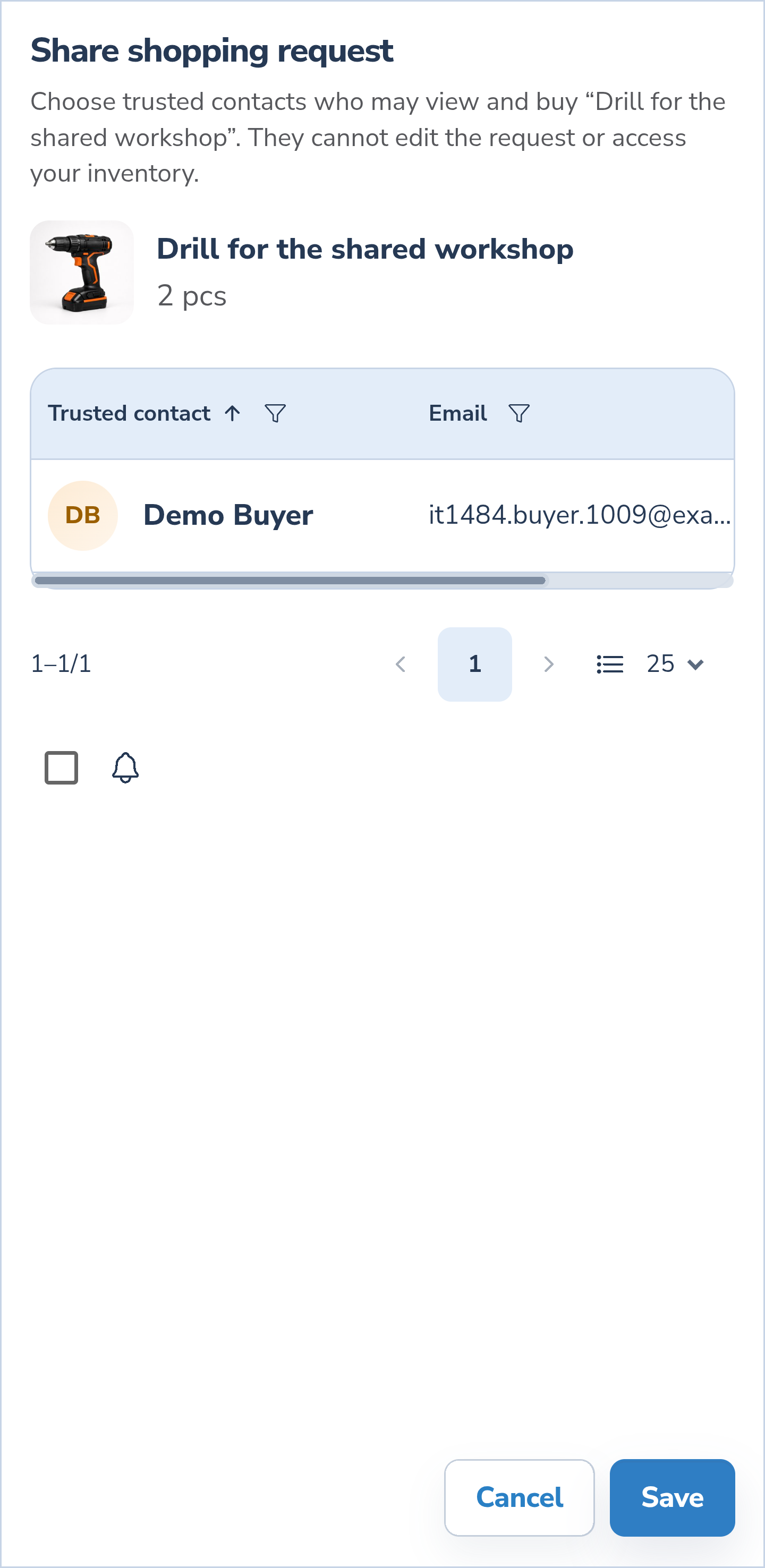
Open the request’s three-dot menu and select “Share”. Check the item name and quantity. In the “Access” column, choose “View and buy” instead of “None” for the intended contact. This is still a draft. The bell checkbox “Notify affected contacts” starts off; enable it if you want to request a notification about the change.
Website
Android
3. Find the right contact row
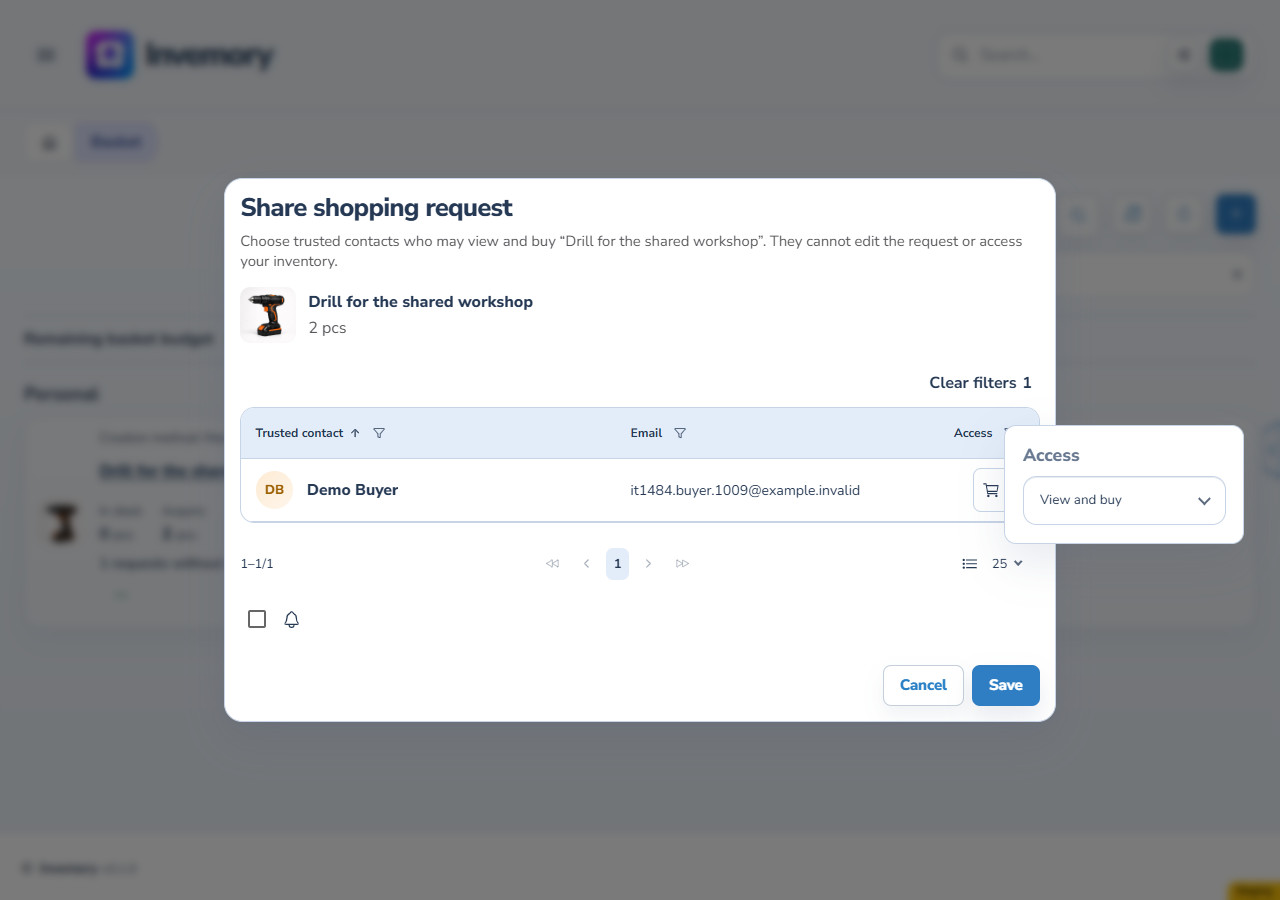
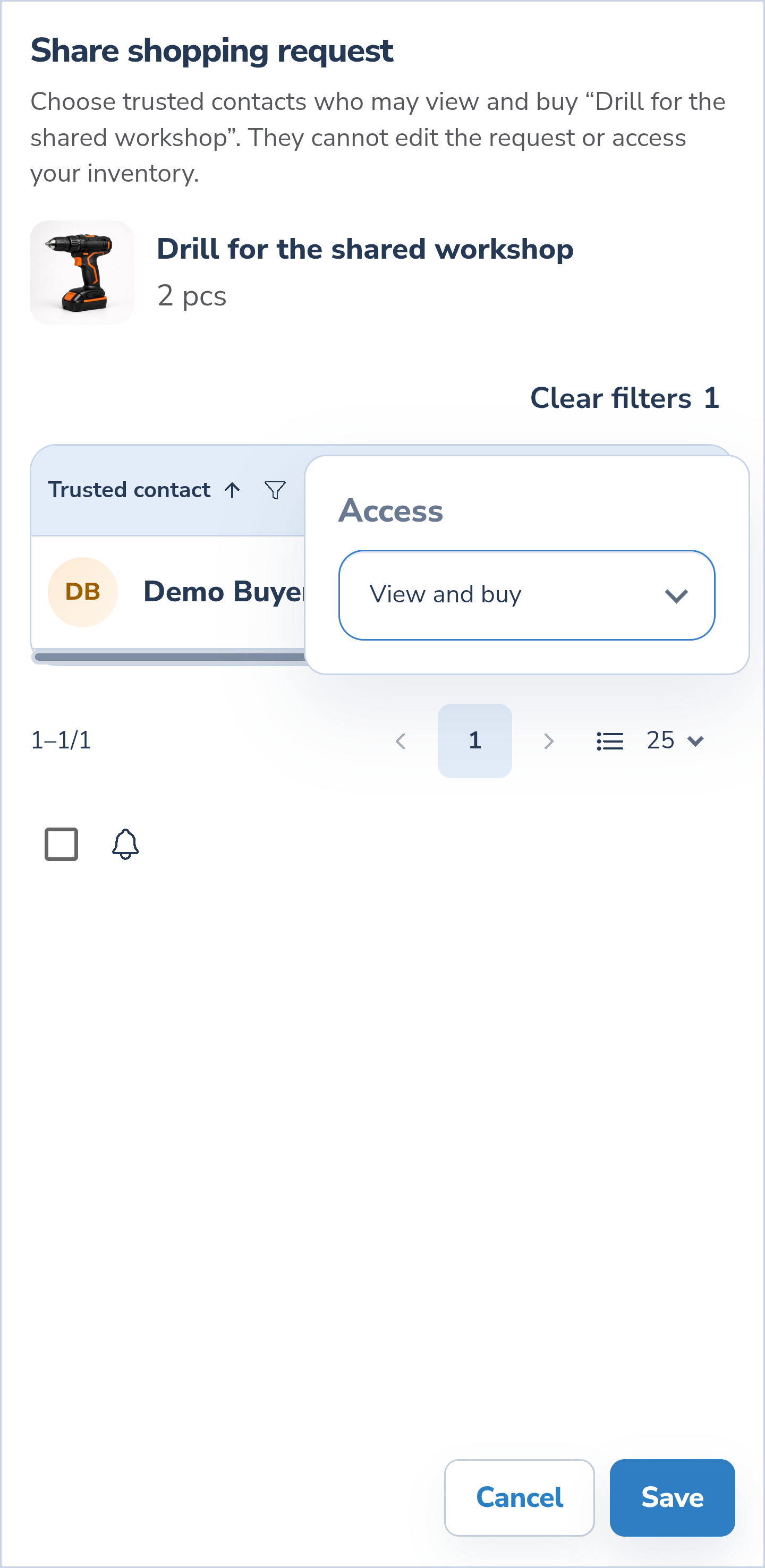
The table has “Trusted contact”, “Email” and “Access” columns. Select a column heading to change the sort direction, or its filter icon to filter rows. The illustration applies the “View and buy” access filter. On Android, swipe horizontally within the table when you need to reach another column.
Website
Android
4. Clear a filter or discard the draft
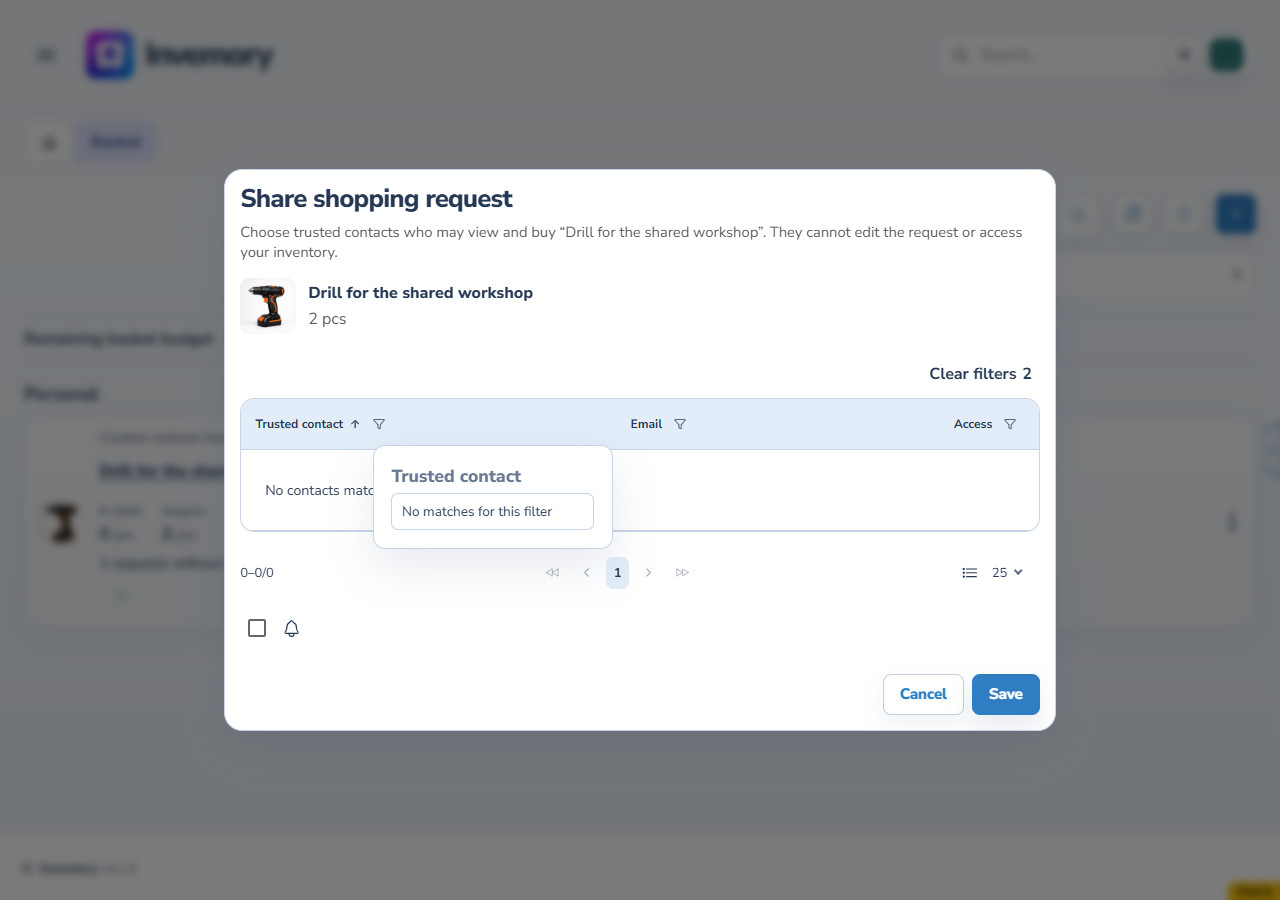
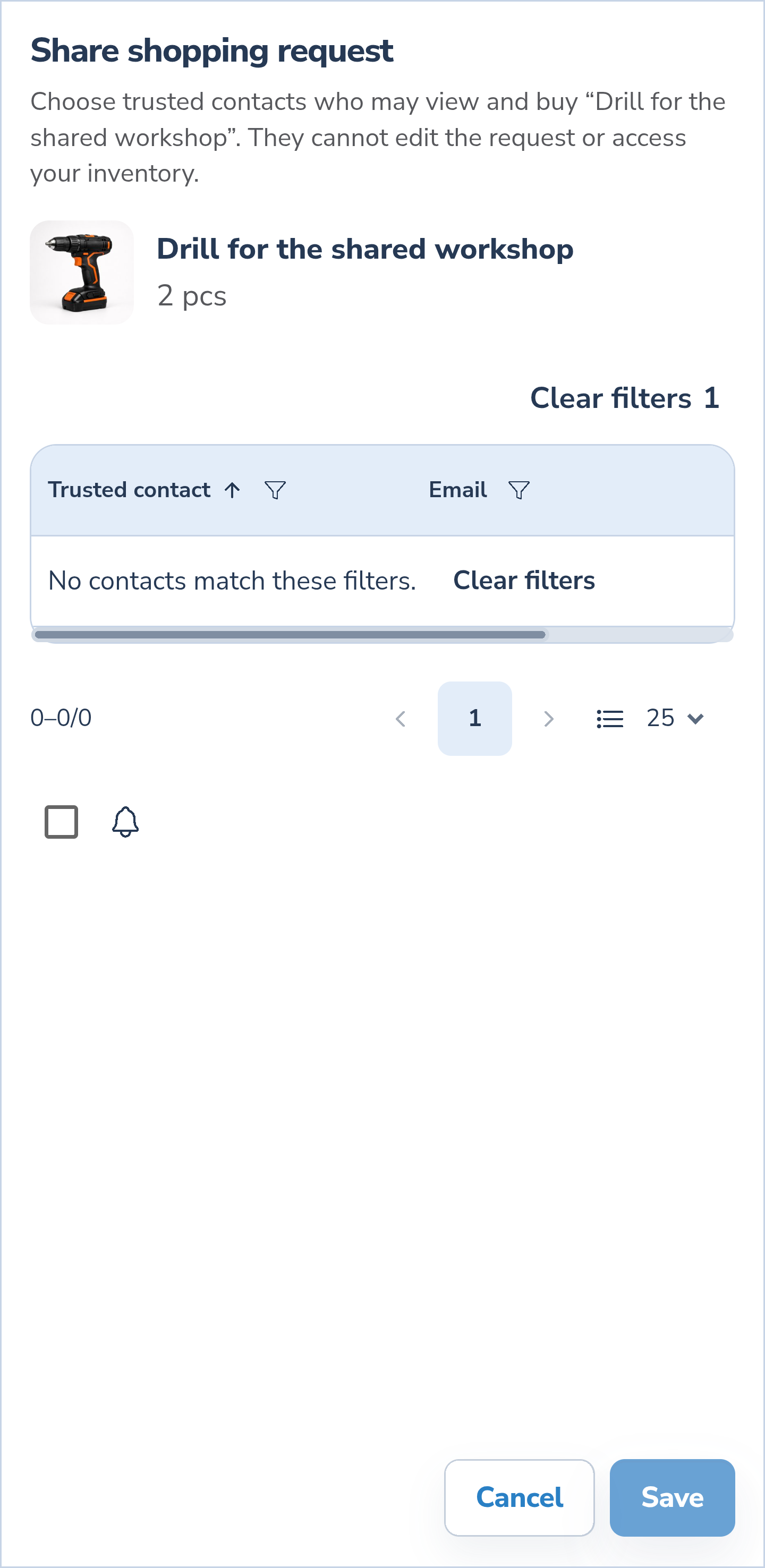
If there are no rows, check the filters and use “Clear filters”. An empty filtered result does not mean the contact was deleted or access revoked. To leave without saving access changes, select “Cancel” and confirm that you want to discard changes. In this example, reopening the dialog shows the contact’s access as “None” again.
Website
Android
5. Save access and check “Shared”
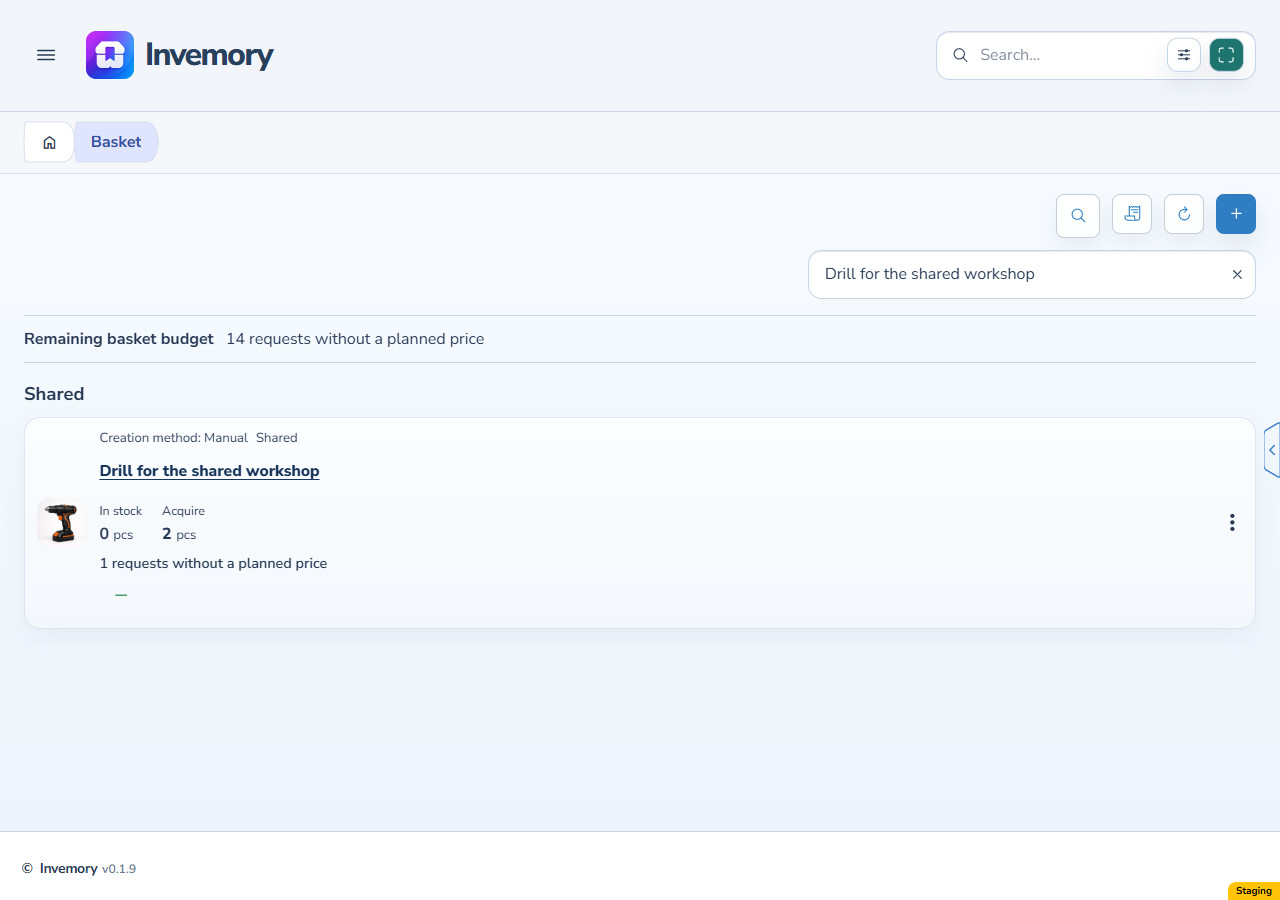
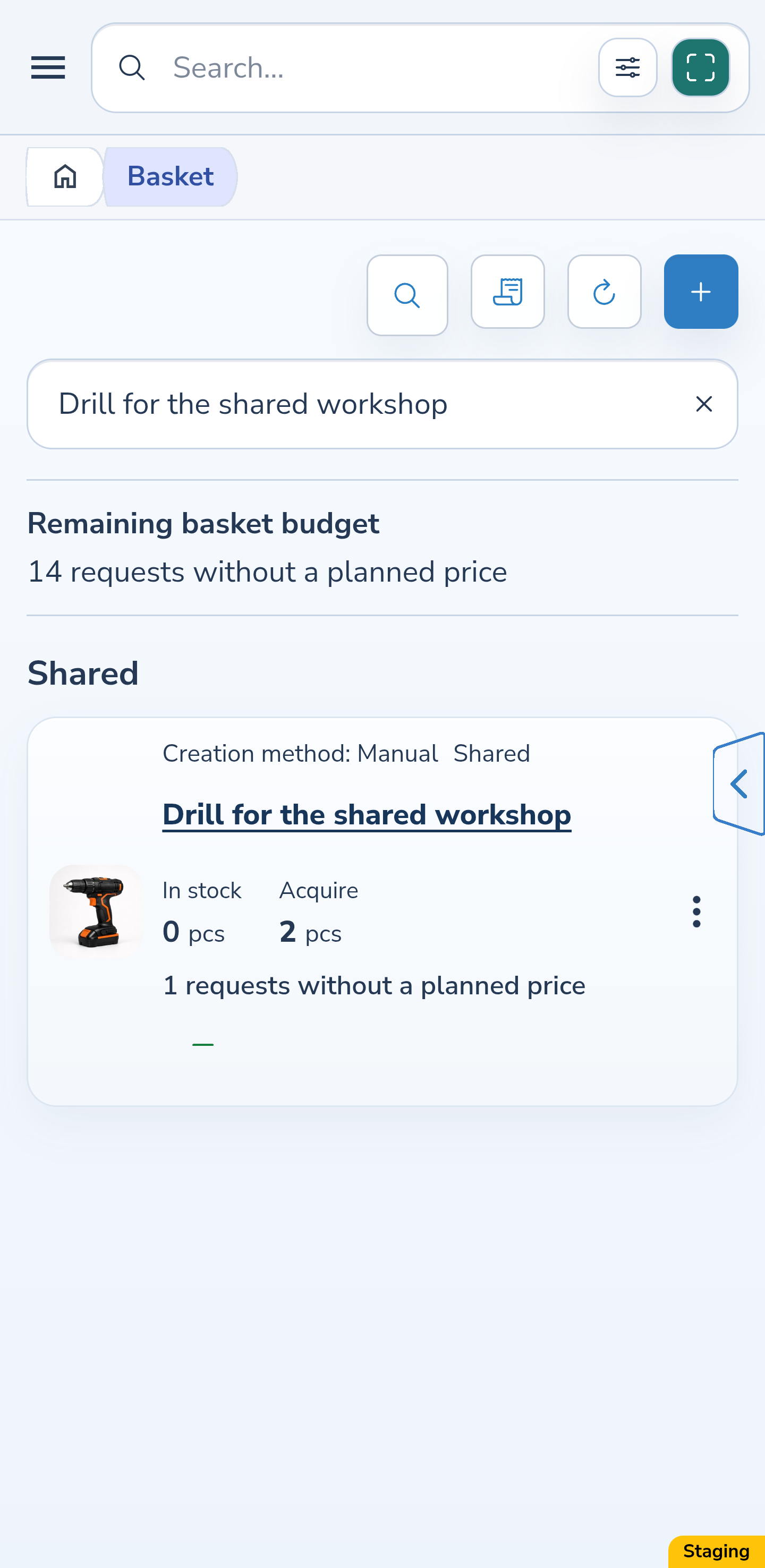
Select “View and buy” for the buyer again and choose “Save”. Your own request now appears under “Shared” with a shared-access marker. As the owner, you continue to manage the request and its access.
Website
Android
6. Open the request in the buyer’s basket
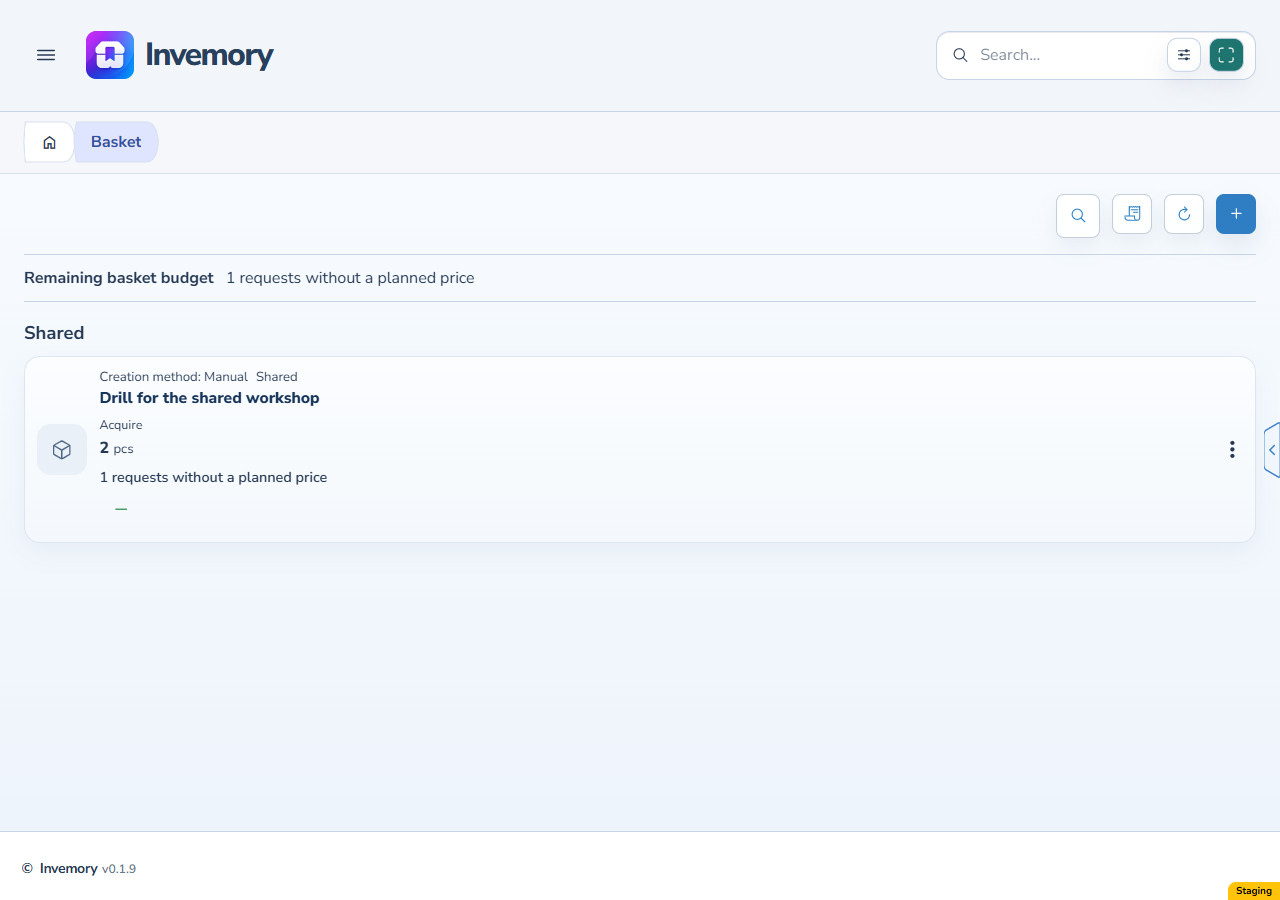
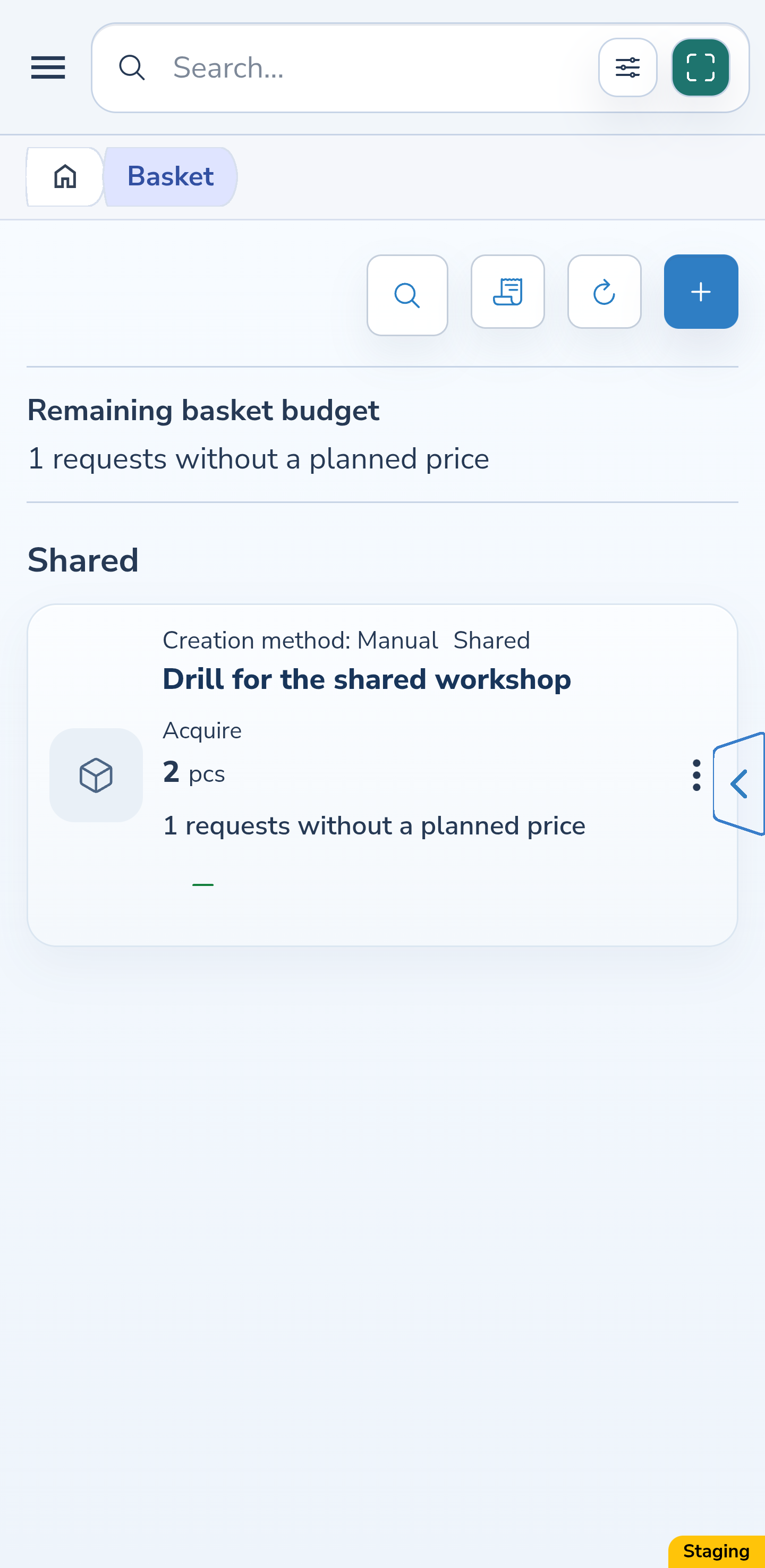
The buyer signs in to their own account and opens “Basket” → “Shared”. They can view the request and select “Acquire”. They cannot edit or cancel someone else’s request, change its access, or browse the requester’s private inventory.
Website
Android
7. Record the quantity actually purchased
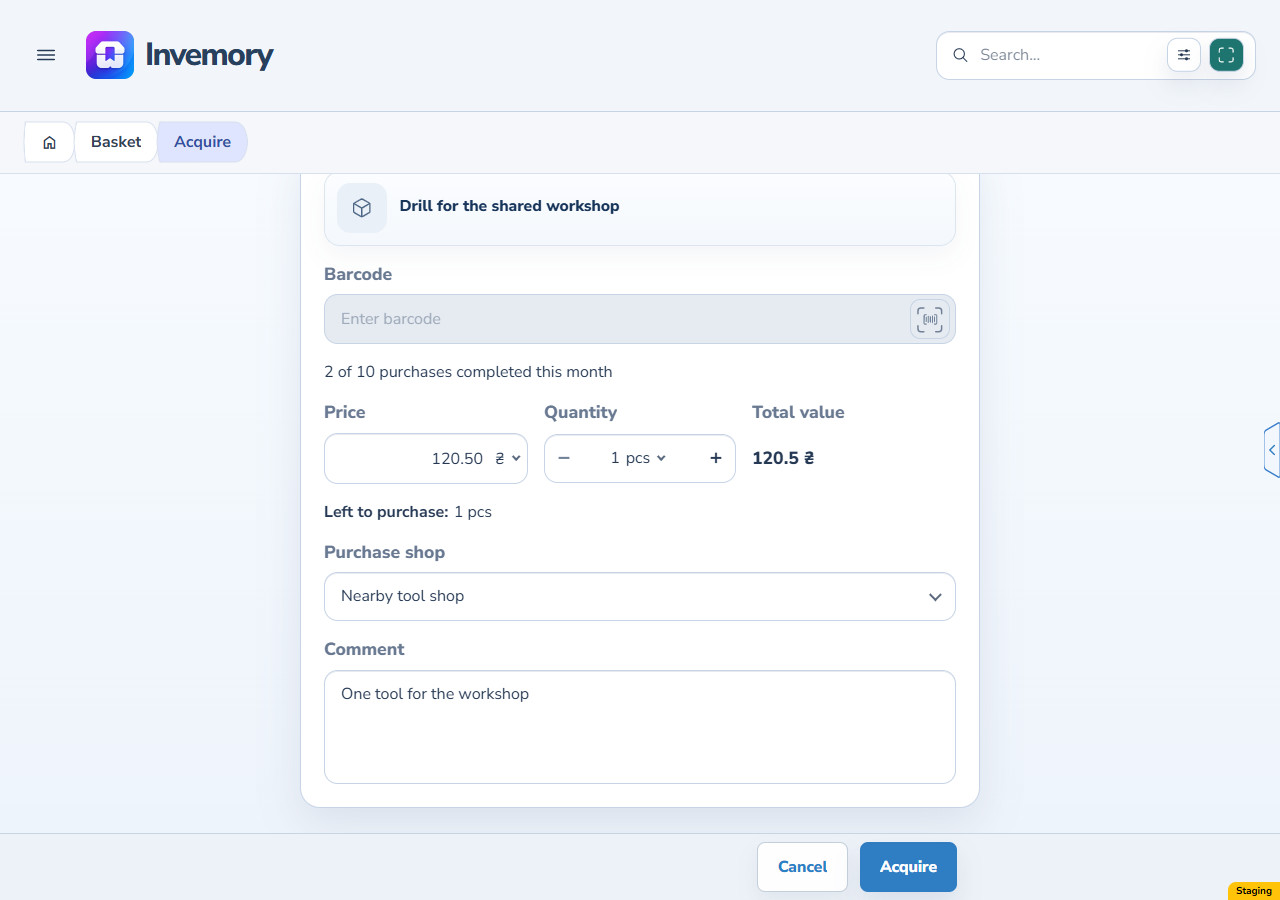
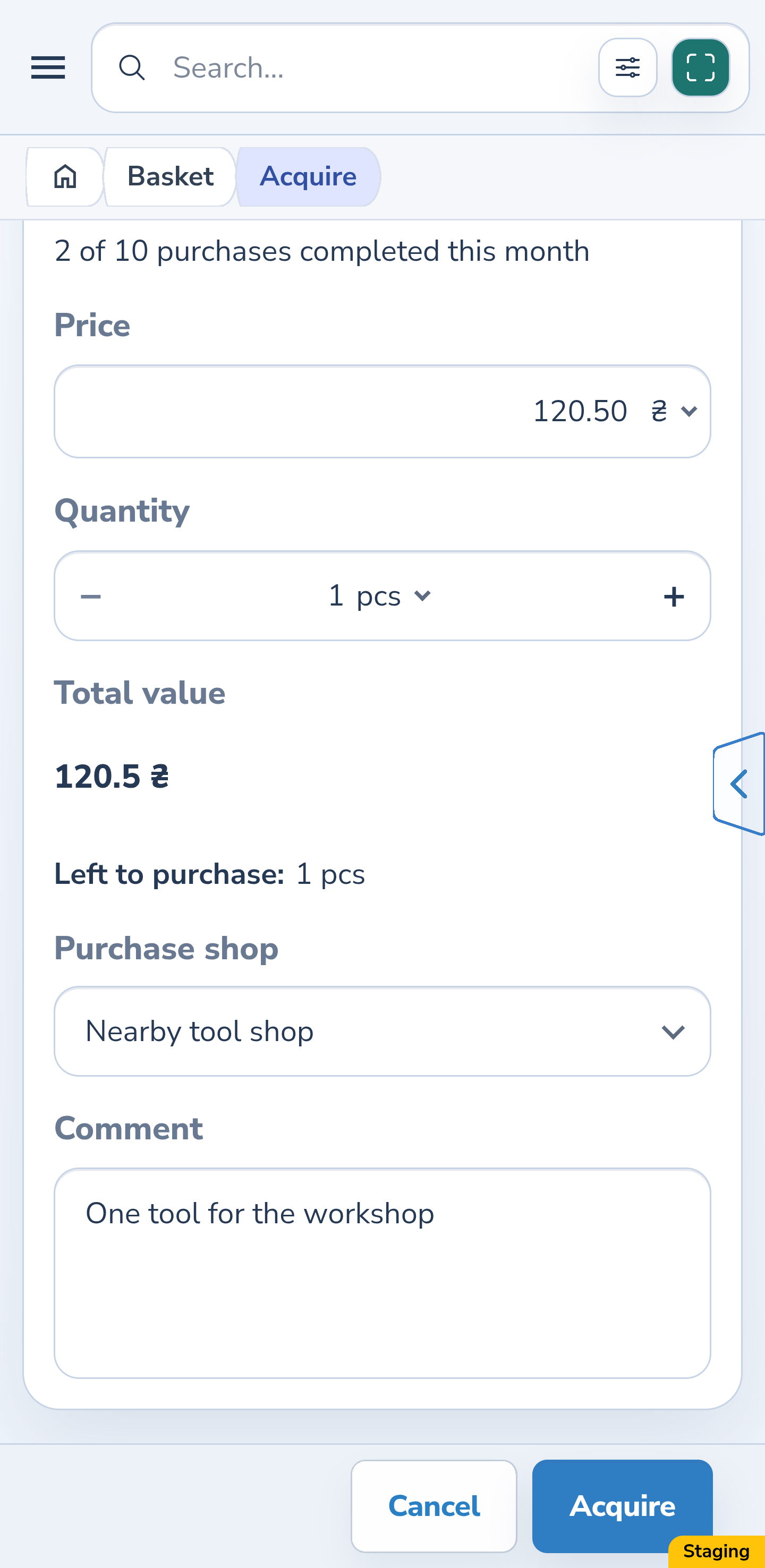
Select “Acquire” and enter the actual quantity. Here it is 1 piece at 120.50 UAH, leaving 1 to buy. If needed, enter the price, choose a currency and shop, and add a comment. The barcode field is unavailable when buying someone else’s request. Check the details and select “Acquire” to record the purchase.
Website
Android
8. Find the purchase awaiting hand-over
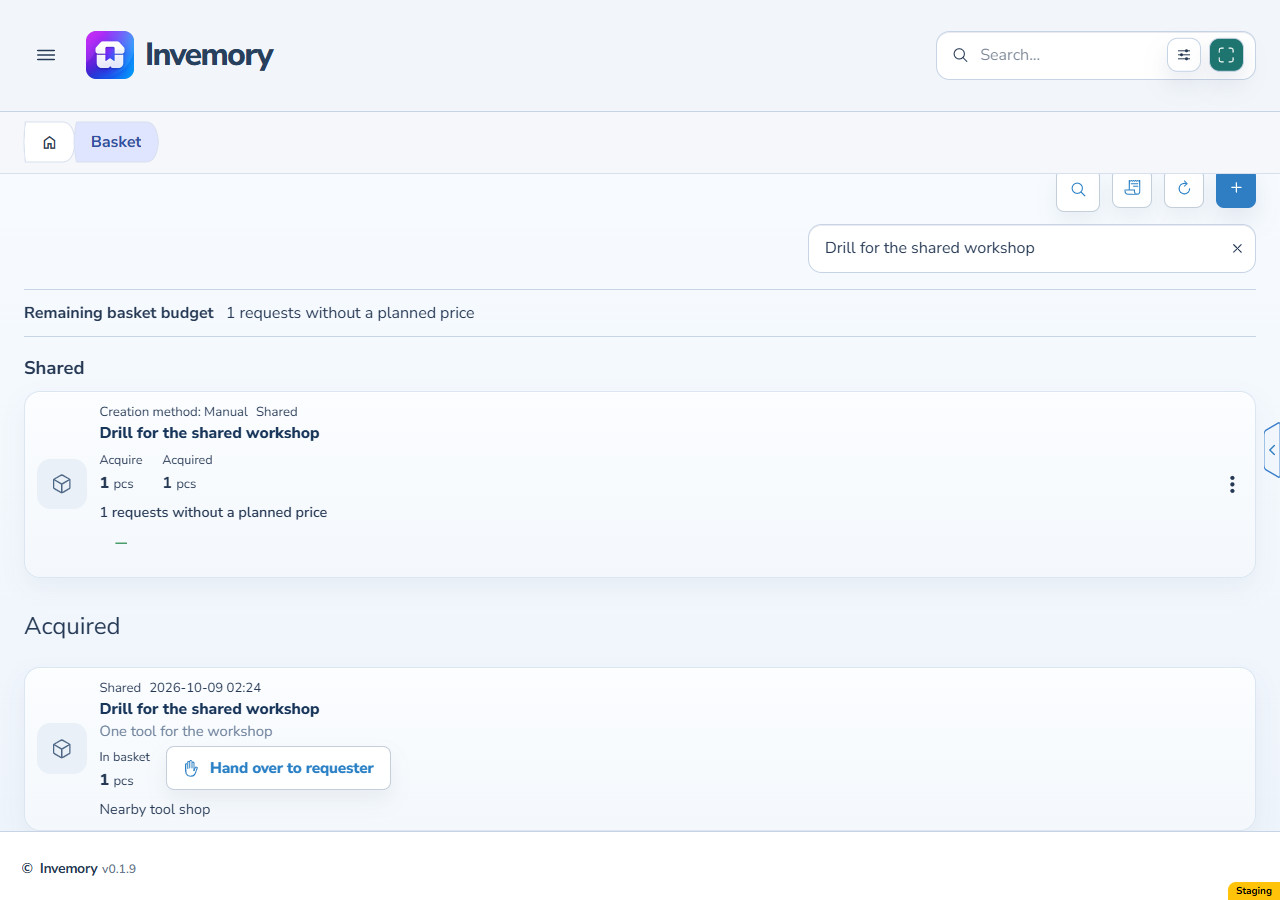
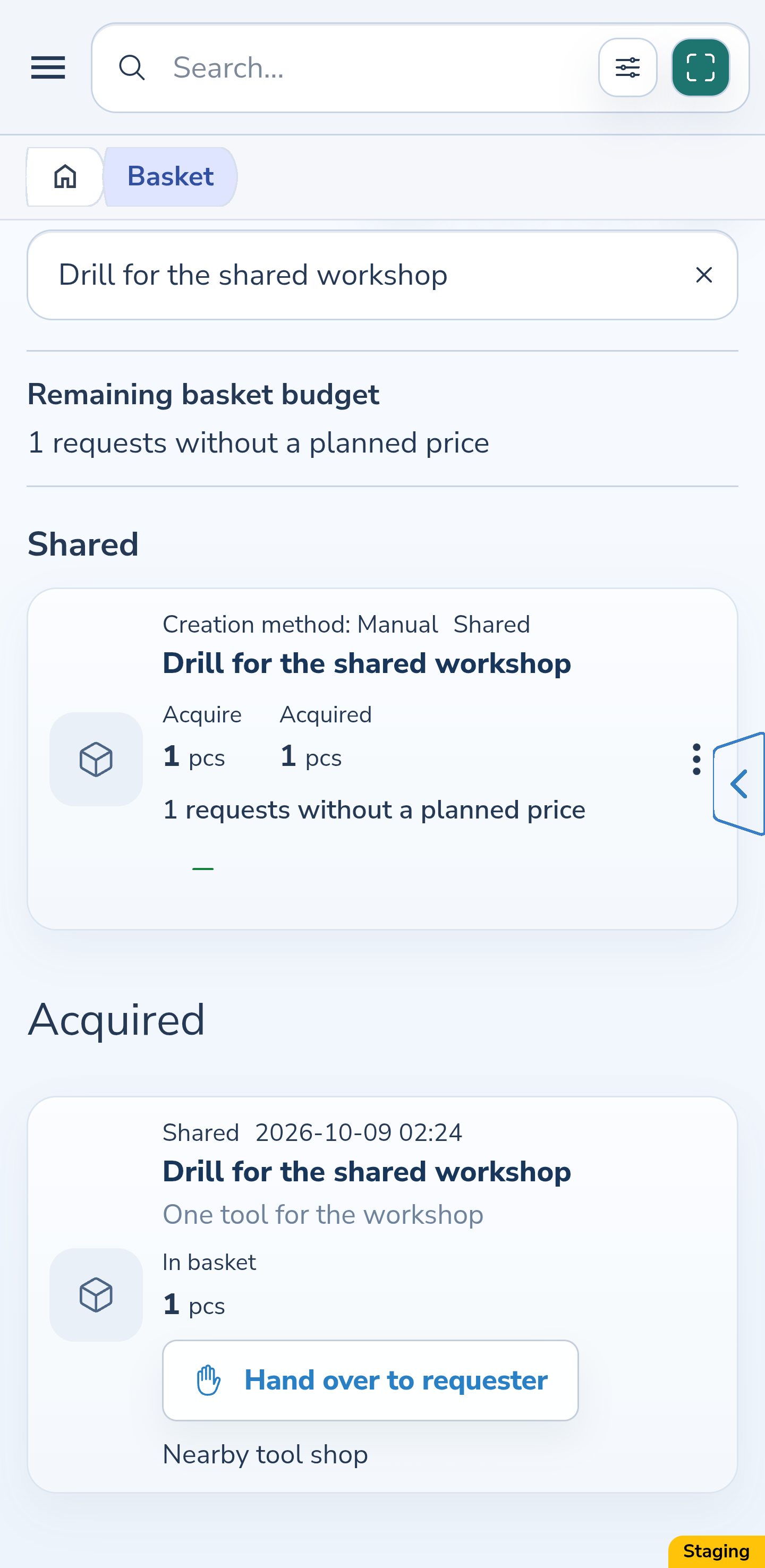
After saving, the buyer’s basket contains a separate purchase record for 1 piece. This is not yet stock in the requester’s container. “Hand over to requester” is available for this purchase; the requester cannot place it before hand-over.
Website
Android
9. Hand over the entire recorded purchase
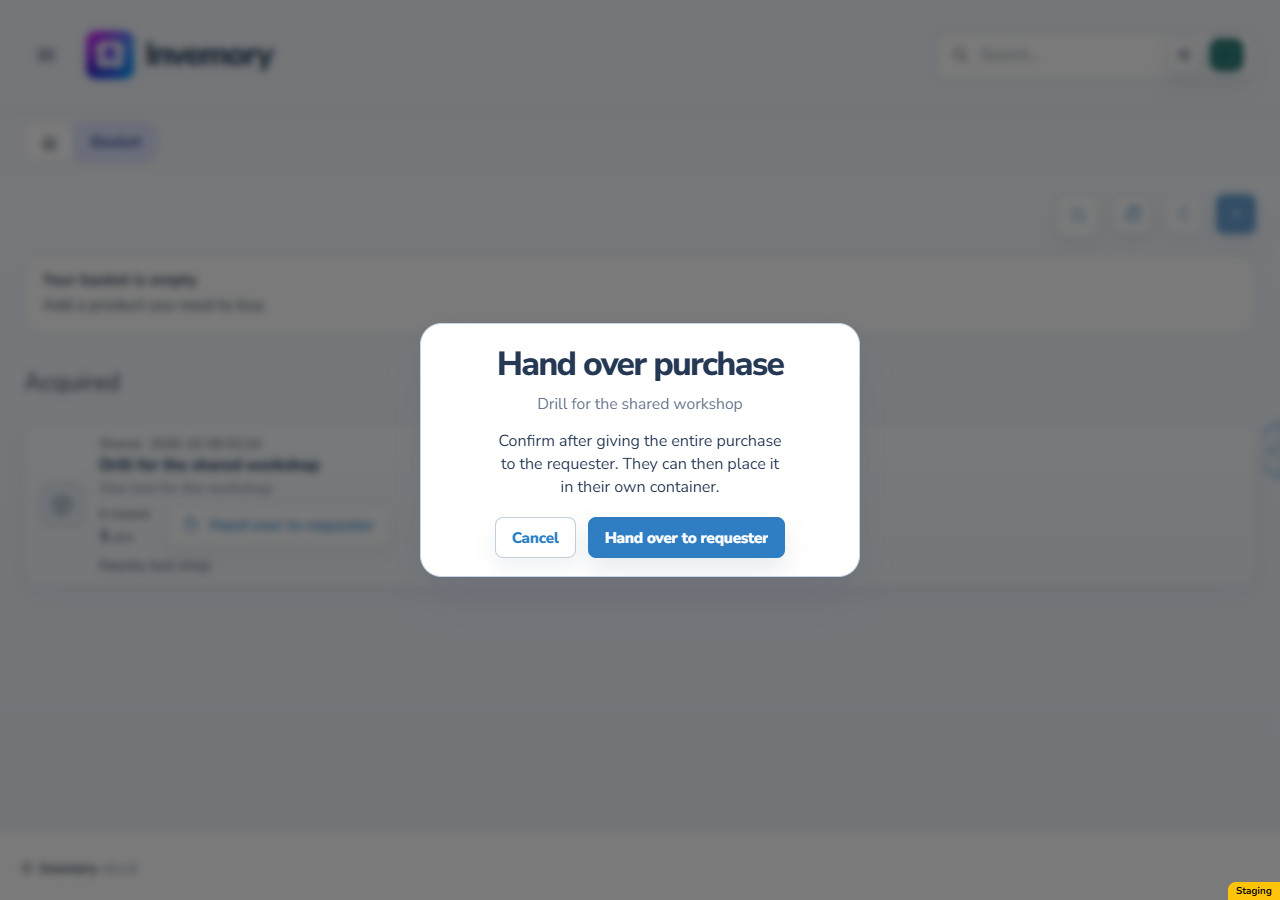
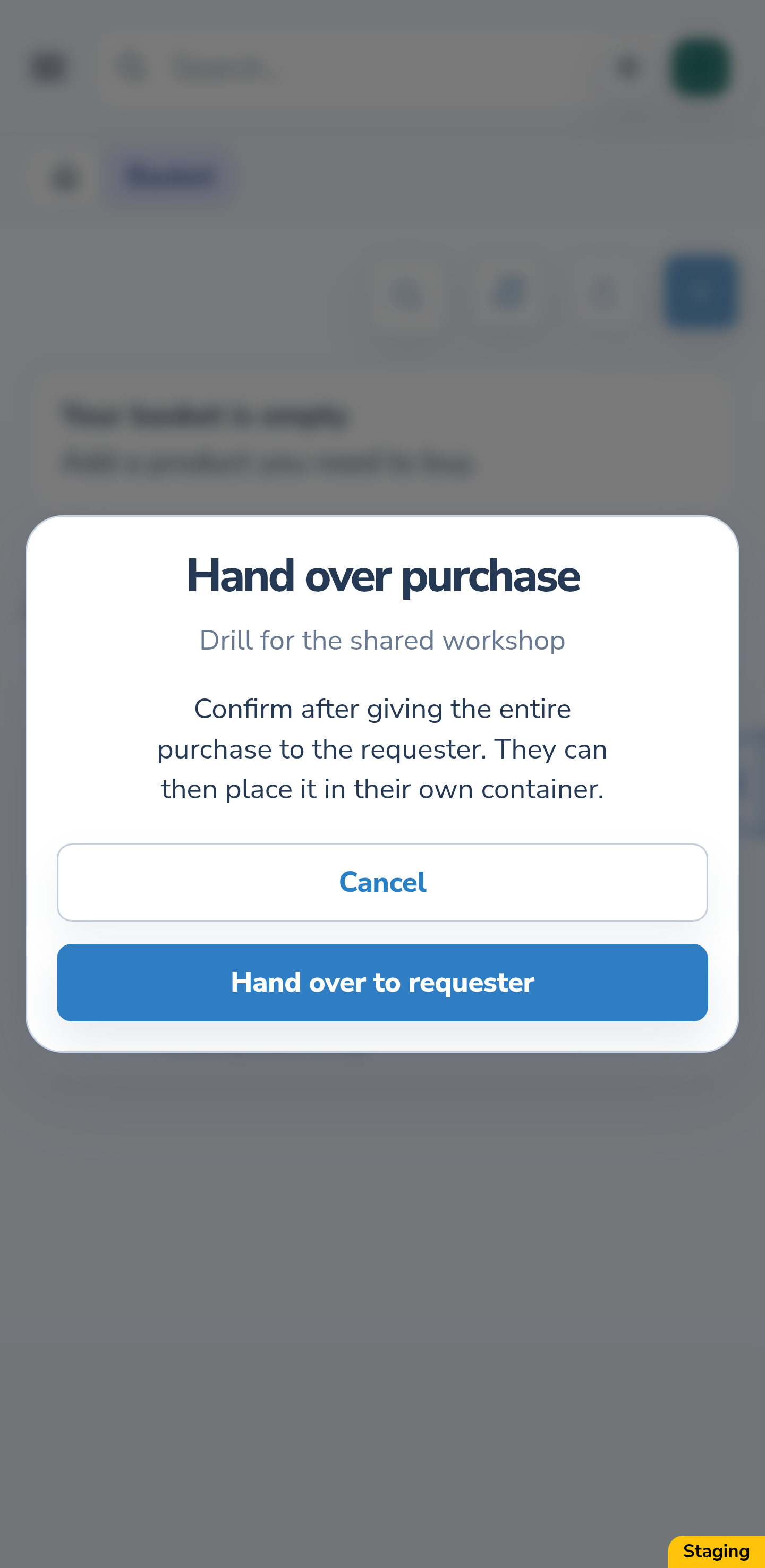
The requester can return to “Share”, choose “None” for the buyer and save access. The remaining request becomes personal and disappears from the buyer’s “Shared” section, while the purchased piece remains available for hand-over. After physically giving the item to the requester, select “Hand over to requester” and confirm the entire purchase. Here that is 1 piece; there is no quantity selection for a partial hand-over.
Website
Android
10. Check the received purchase as the requester
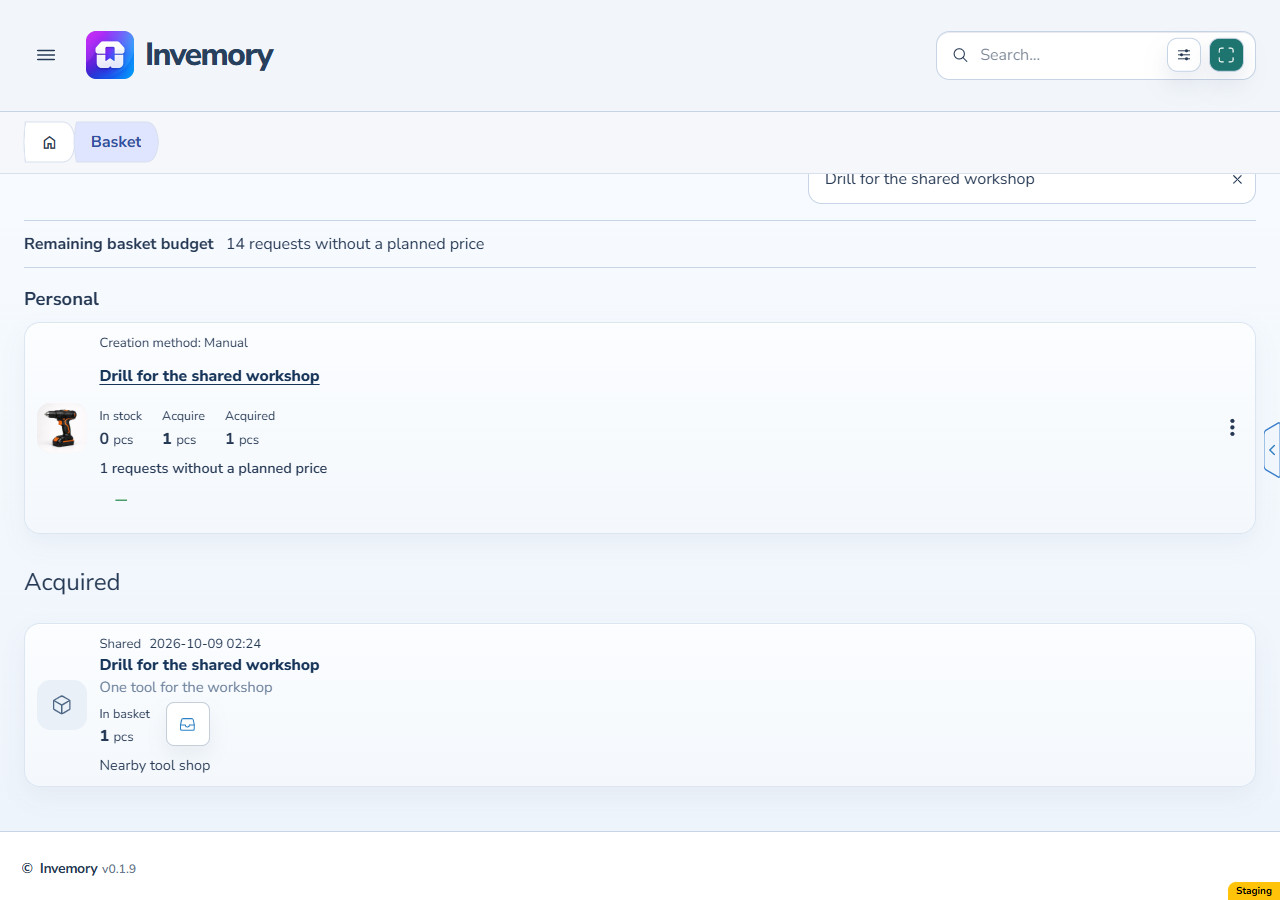
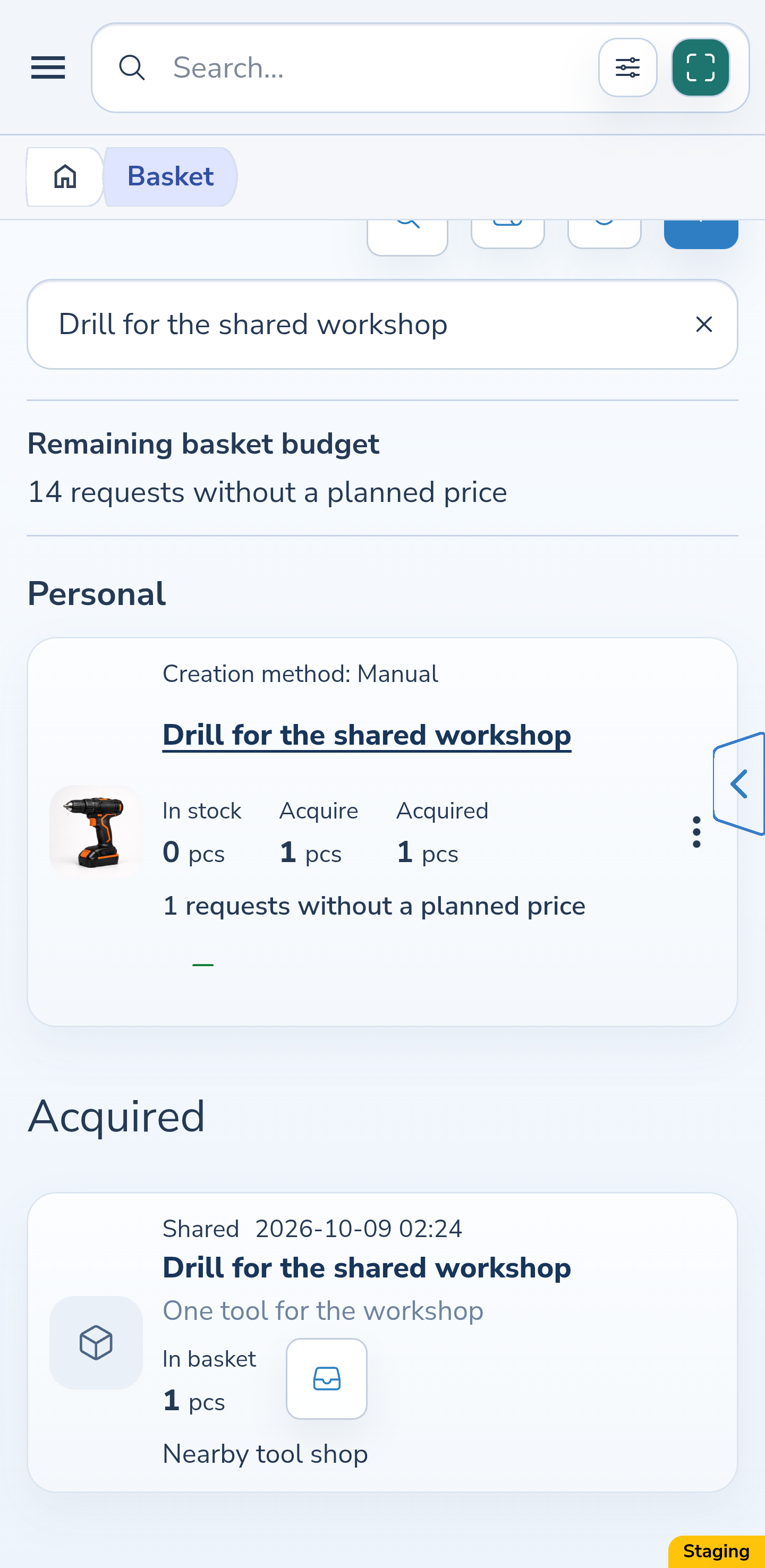
After confirmation, the purchase leaves the buyer’s active list and appears in the requester’s basket. The requester sees the purchased quantity of 1 piece and can choose “Place”. The remaining request for 1 more piece is separate.
Website
Android
11. Place the item in an allowed container
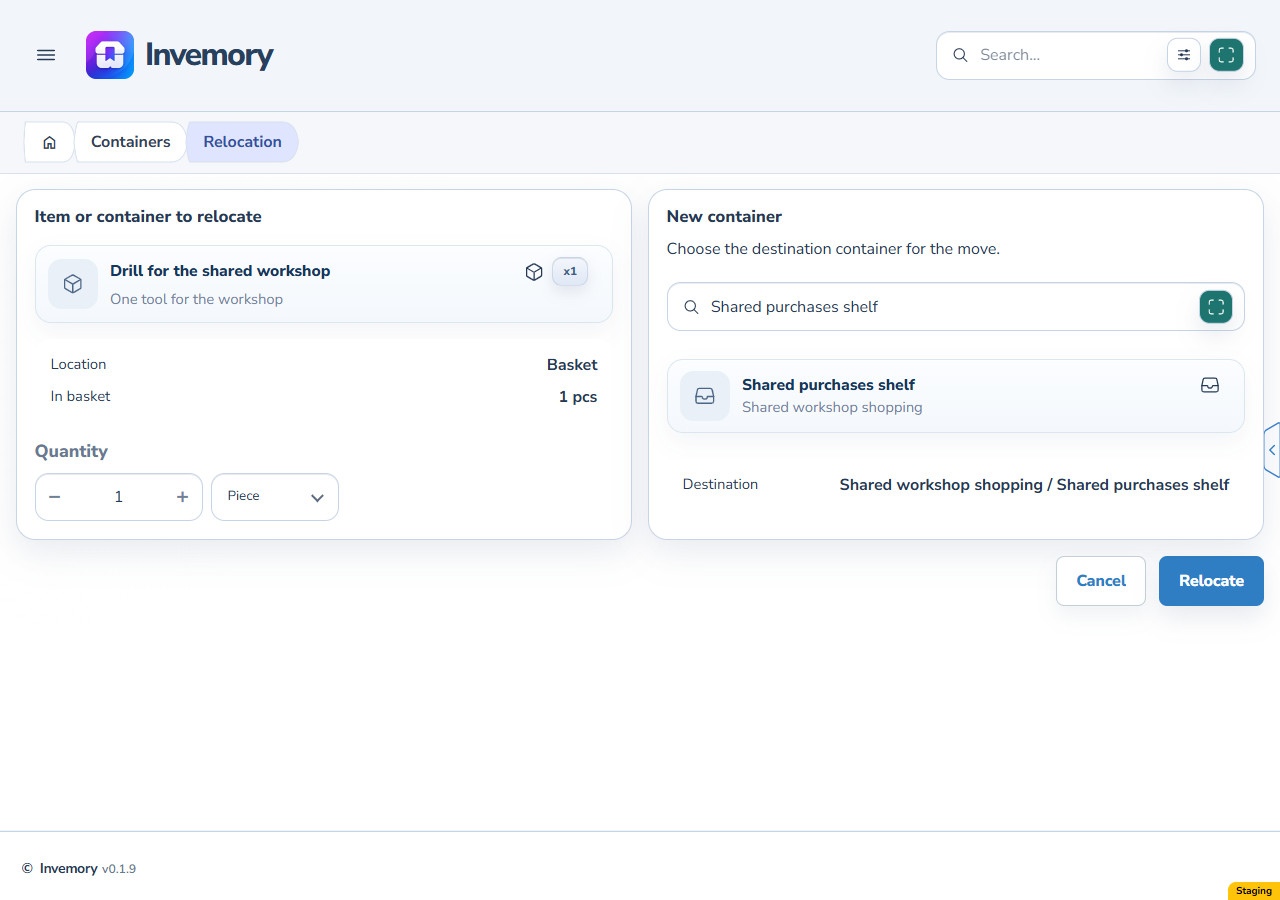
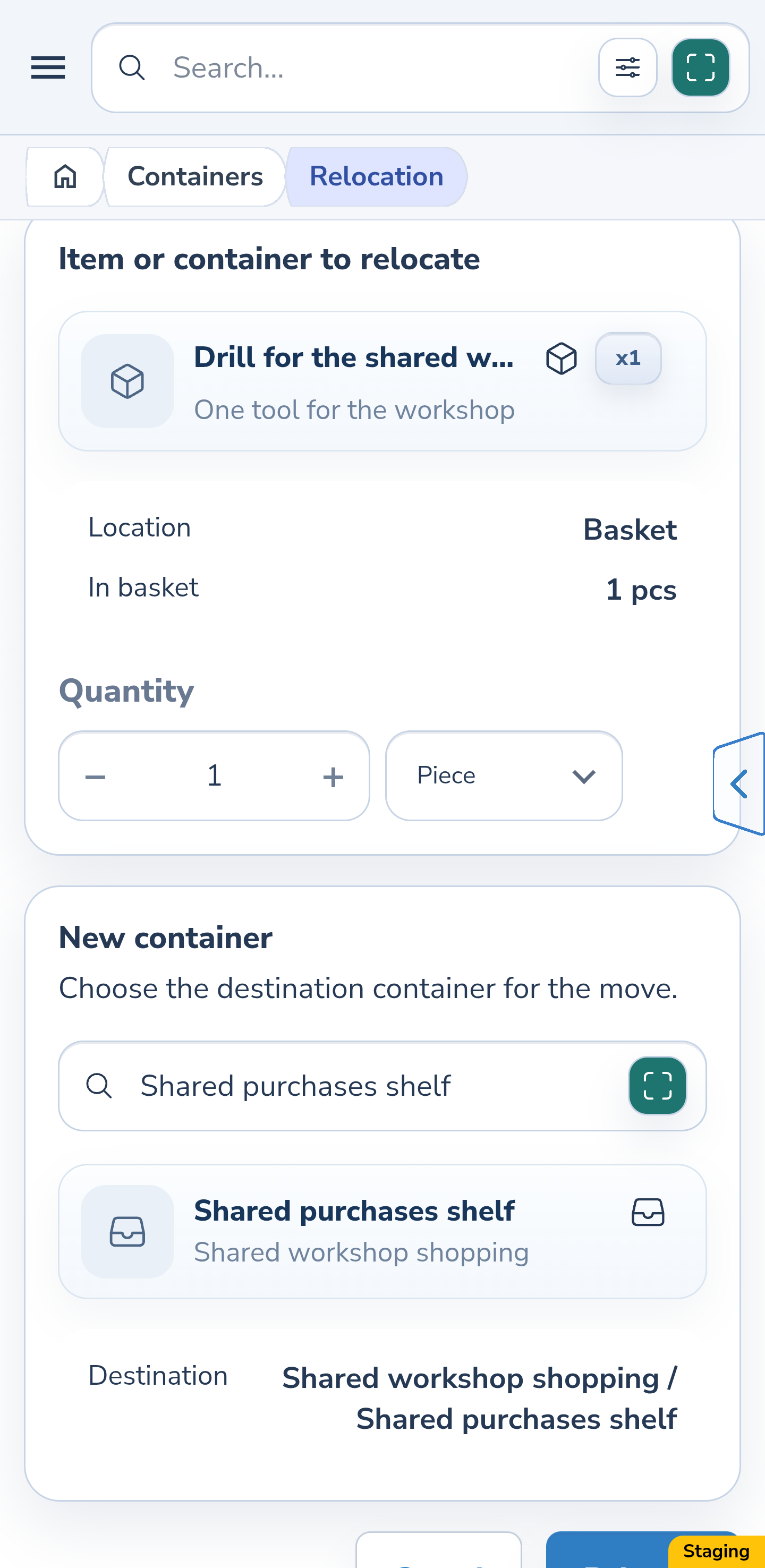
Select “Place”, choose a container available to you and check the quantity. The example selects “Shared purchases shelf” and 1 piece. Choose “Relocate” in the form to add that piece to the container’s stock. After successful placement, it is no longer awaiting placement in the basket.
Website
Android
12. Check the buyer’s retained record
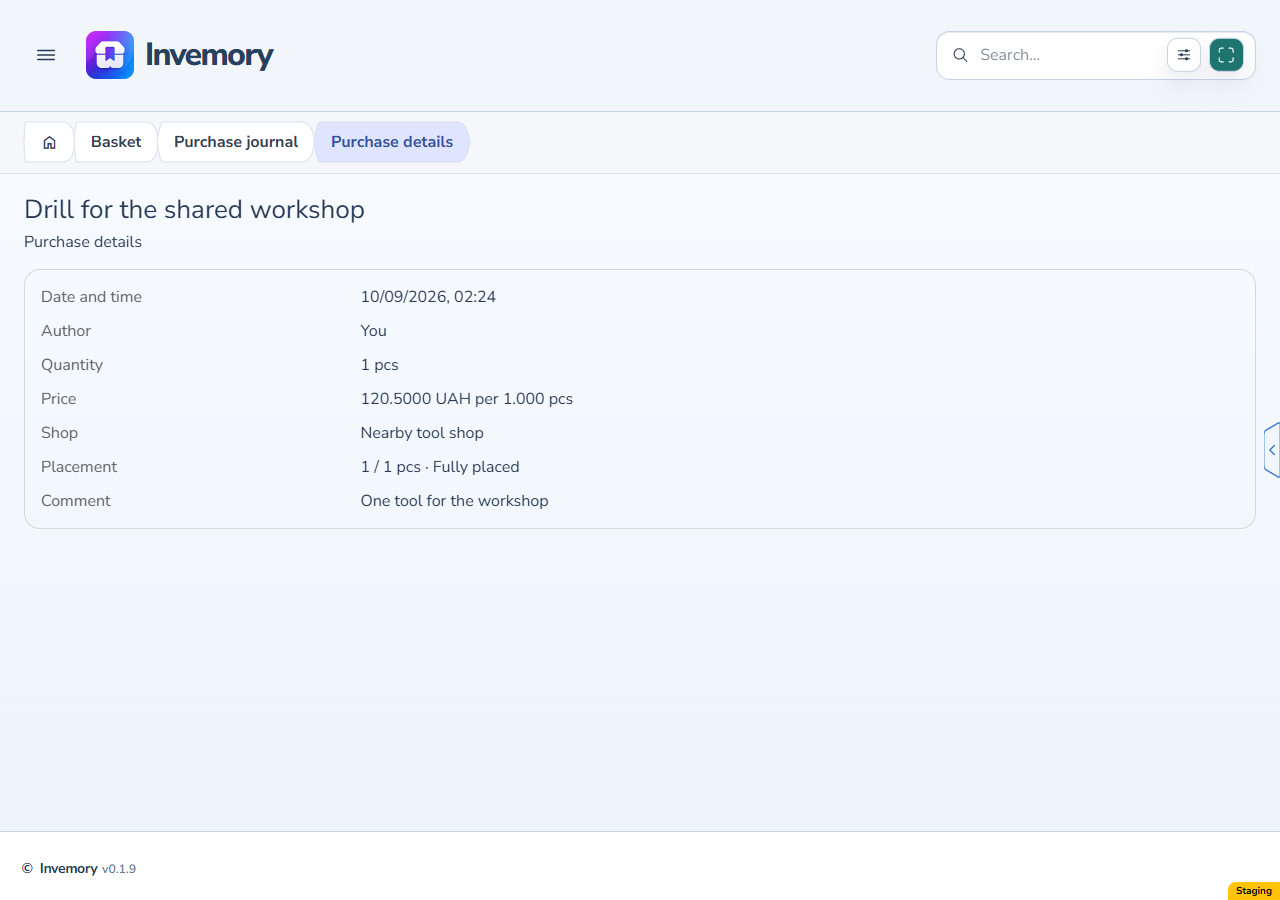
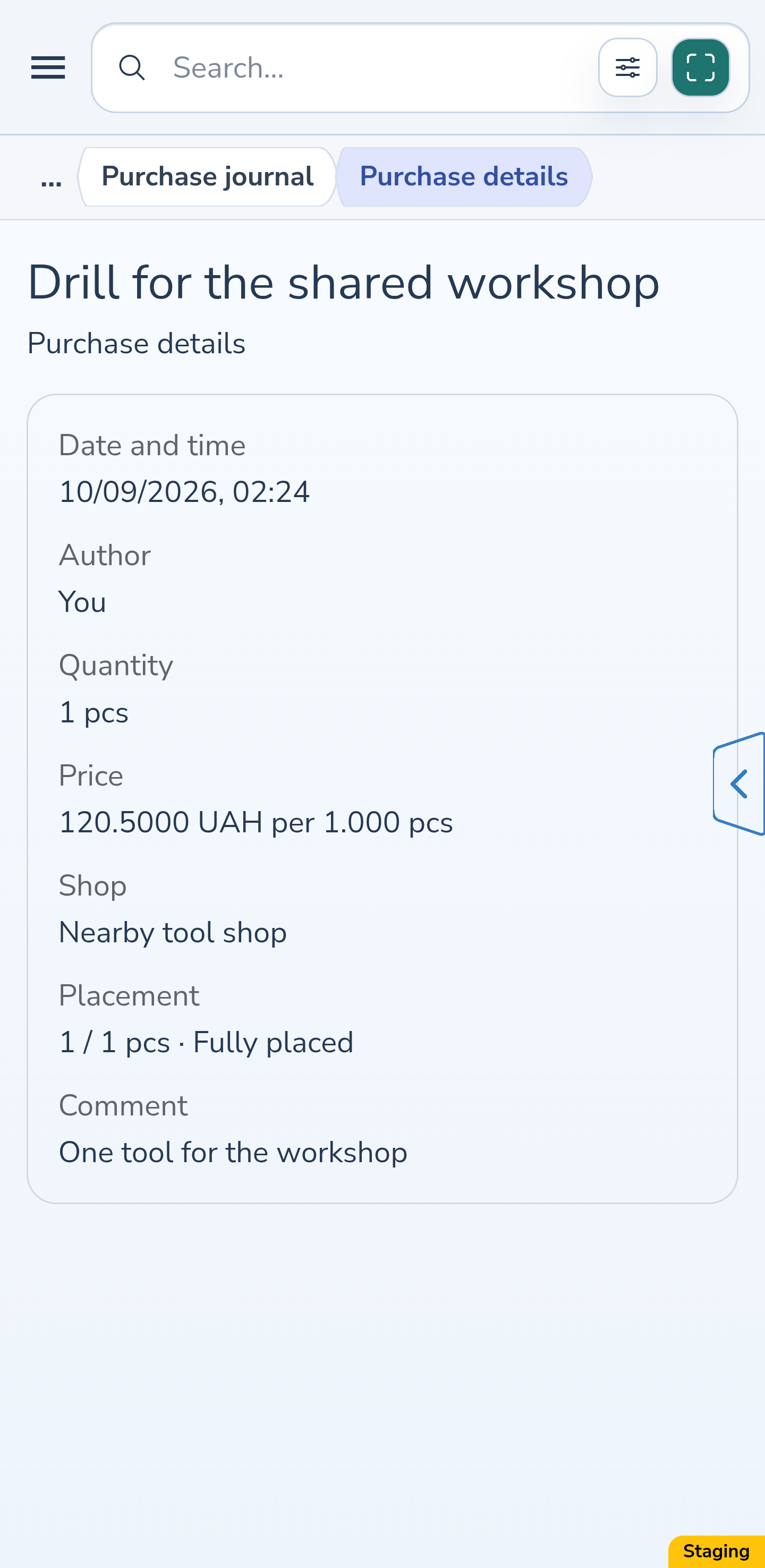
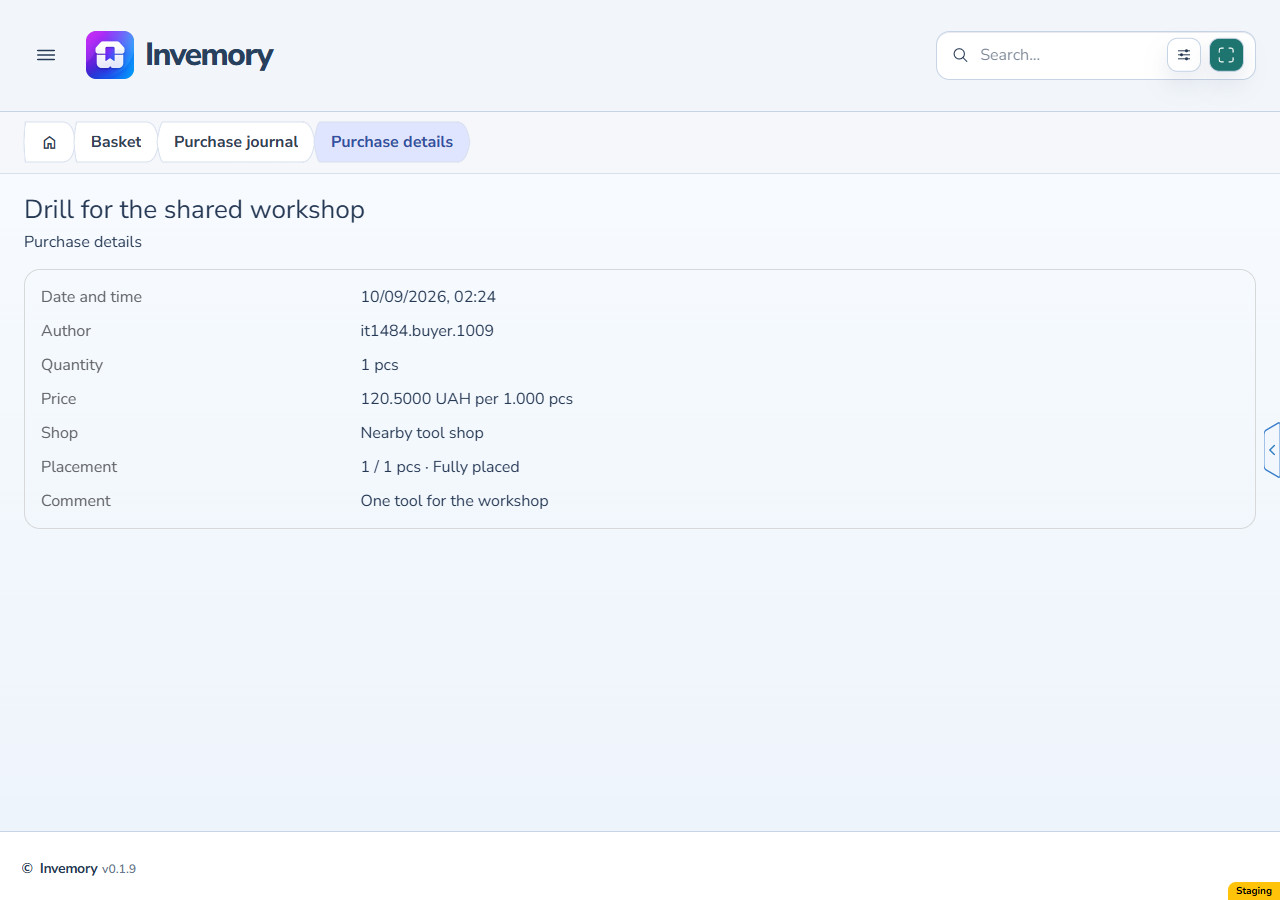
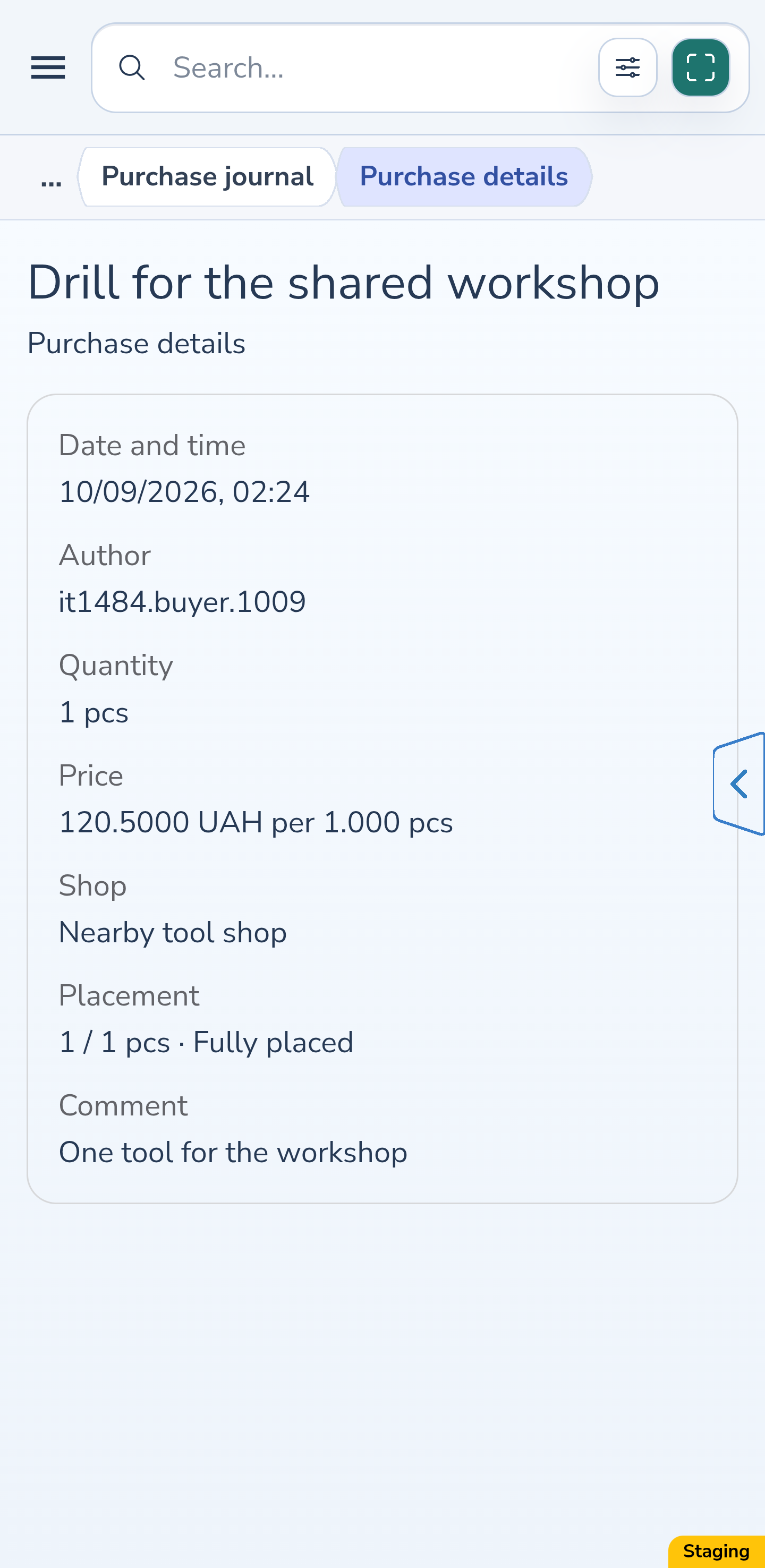
In the buyer’s basket, open “Purchase journal” and this purchase’s details. The record remains after access revocation, hand-over and placement. It shows the date, author “You”, 1 piece, price, shop, comment and placement of 1 / 1 pieces with “Fully placed” status.
Website
Android
13. Compare the same record as the requester
Open this purchase in the requester’s “Purchase journal”. The date, quantity, price, shop, comment and full placement match the buyer’s record; the buyer is shown as the author. These are details of one purchase. Revoking access to the request does not remove them from either participant’s journal.
Website
Android
The result
One drill has been purchased, handed over and placed in the requester’s container. The other remains in their personal shopping request, and both participants can find the completed purchase record.
Useful to know
- Check the contact’s access before saving: filters only change which table rows are visible.
- Recording the purchase uses the buyer’s allowance. Hand-over and placement of that purchase do not use another purchase.
- Revoking request access does not delete an existing purchase or its journal record.
- Removing the trusted contact also stops new purchases from the shared shopping request. An already recorded purchase can still be handed over and placed, and its records remain in both participants’ journals.
- The journal details do not offer purchase correction for this workflow.
Common questions
Will the contact gain access to my inventory?
No. This permission lets the contact view and buy for this specific manual shopping request. It does not open your private items or containers.
Can the buyer purchase only part of the request?
Yes. Here the buyer records 1 piece out of the 2 requested, leaving 1 to buy. Hand-over covers the whole recorded purchase, which in this example is that single piece.
Does the requester need to confirm the hand-over too?
The buyer confirms after physically handing over the entire purchase. It then appears in the requester’s basket, where the requester separately chooses a container for placement.
One drill has been purchased, handed over and placed in the requester’s container. The other remains in their personal shopping request, and both participants can find the completed purchase record.
Open the basket