
Guides
How items are grouped within a container
Several separately saved stock records in one container can appear as one expandable group. The group helps you read a total while each item keeps its own data. Using two milk bottles, this guide explains quantities, equivalent packaging and independent editing on the website and in the Android app.
Last checked:
What you need
- Sign in to Invemory and open the relevant container under Containers.
- The example requires two separate stock records in one container. Edit only items for which the action is available; the example changes capacity before the first content write-off.
1. Read the collapsed group and its totals
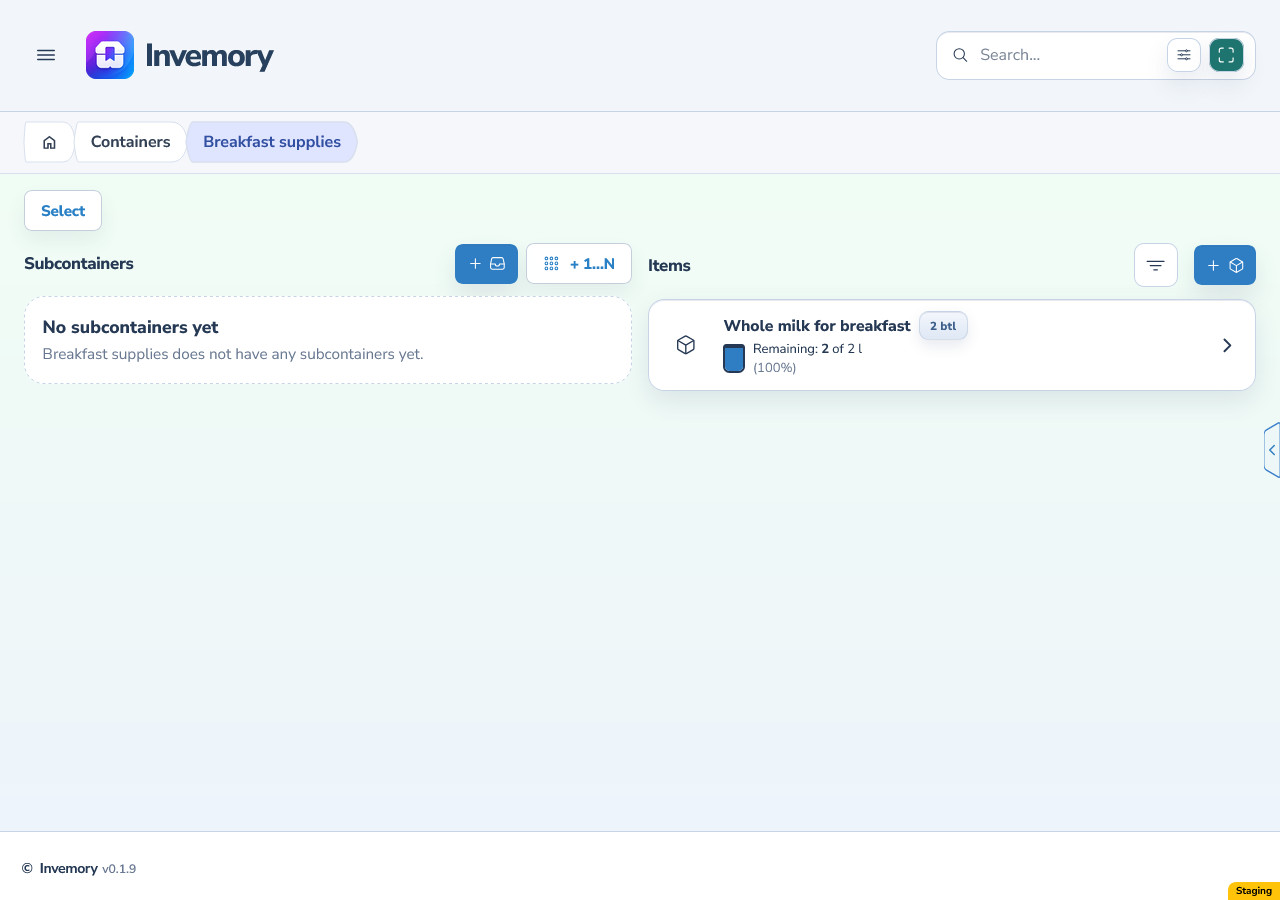
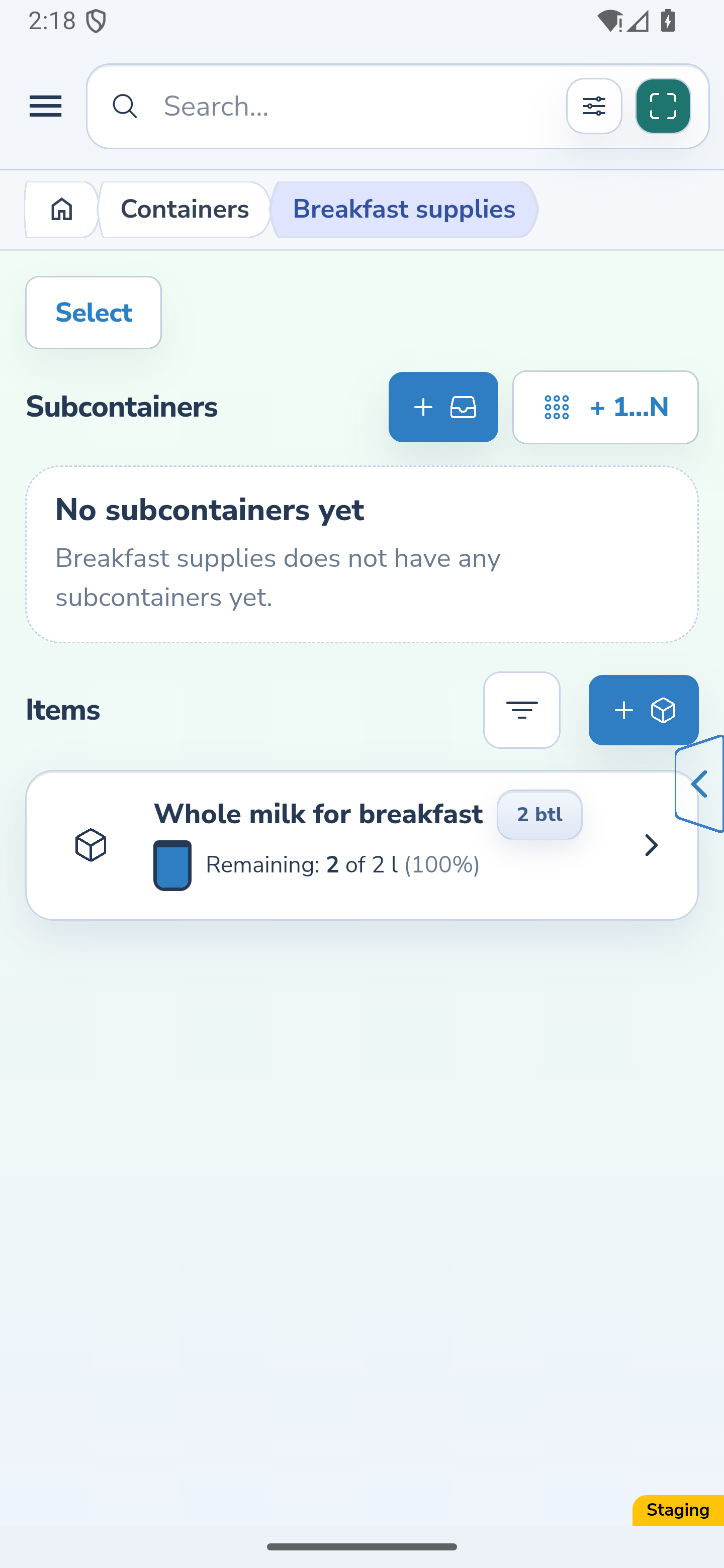
Under Items, find a row with an expansion arrow. The example has two milk bottles saved separately: one has a capacity of 1 l and the other 1000 ml. The collapsed group totals 2 bottles and 2 l of contents.
A group’s quantity sums stock quantities, rather than counting saved records. Here, two records of one bottle each total 2 bottles. Two loose stock records of 0.5 and 1.5 kg would instead total 2 kg.
The contents summary separately shows the actual remainder and full stock capacity. Compatible contents units are expressed in a common unit. If contents data is missing or the units are incompatible, no exact combined contents total is displayed. The header does not assign one capacity to every package.
Website
Android
2. Expand the group and inspect its individual items
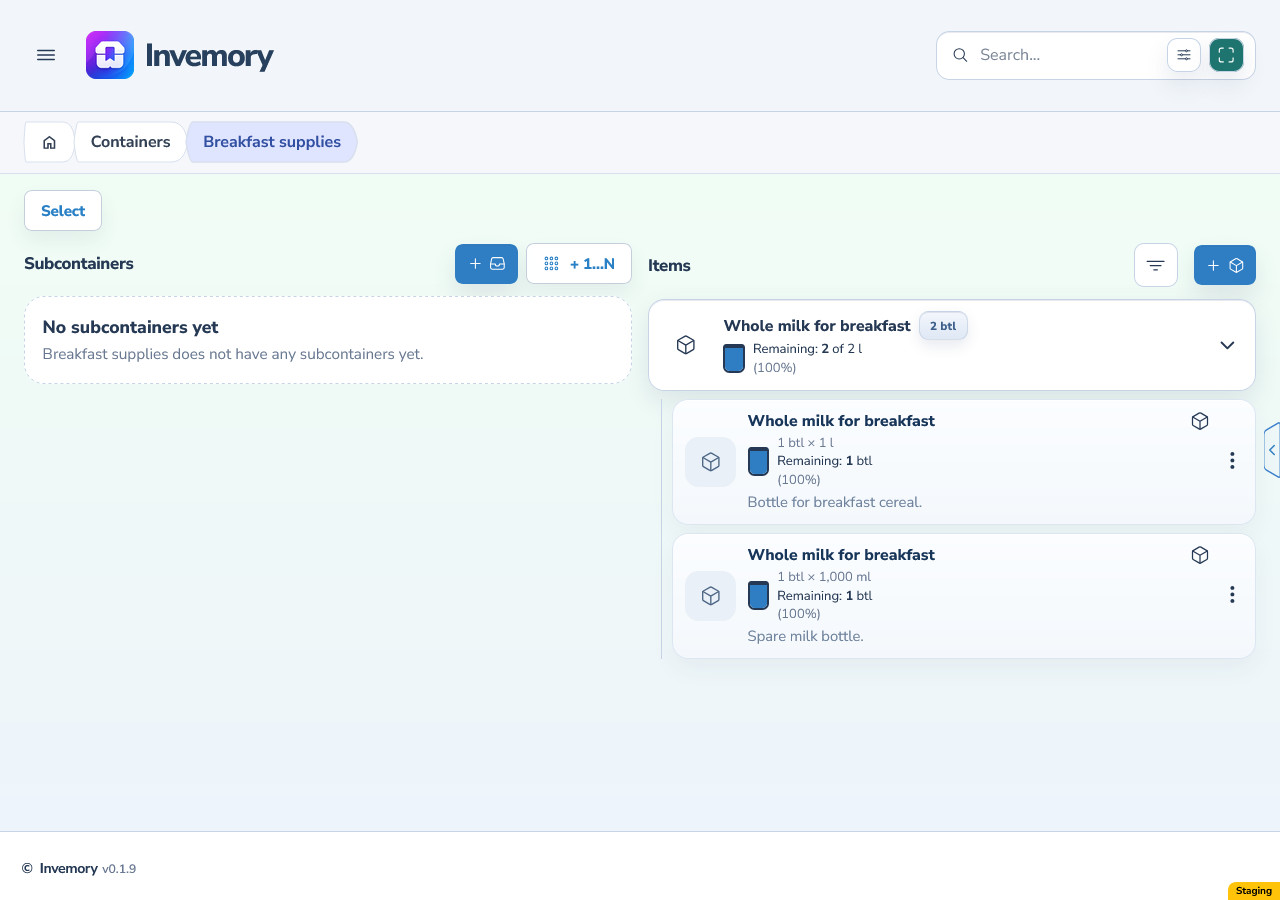
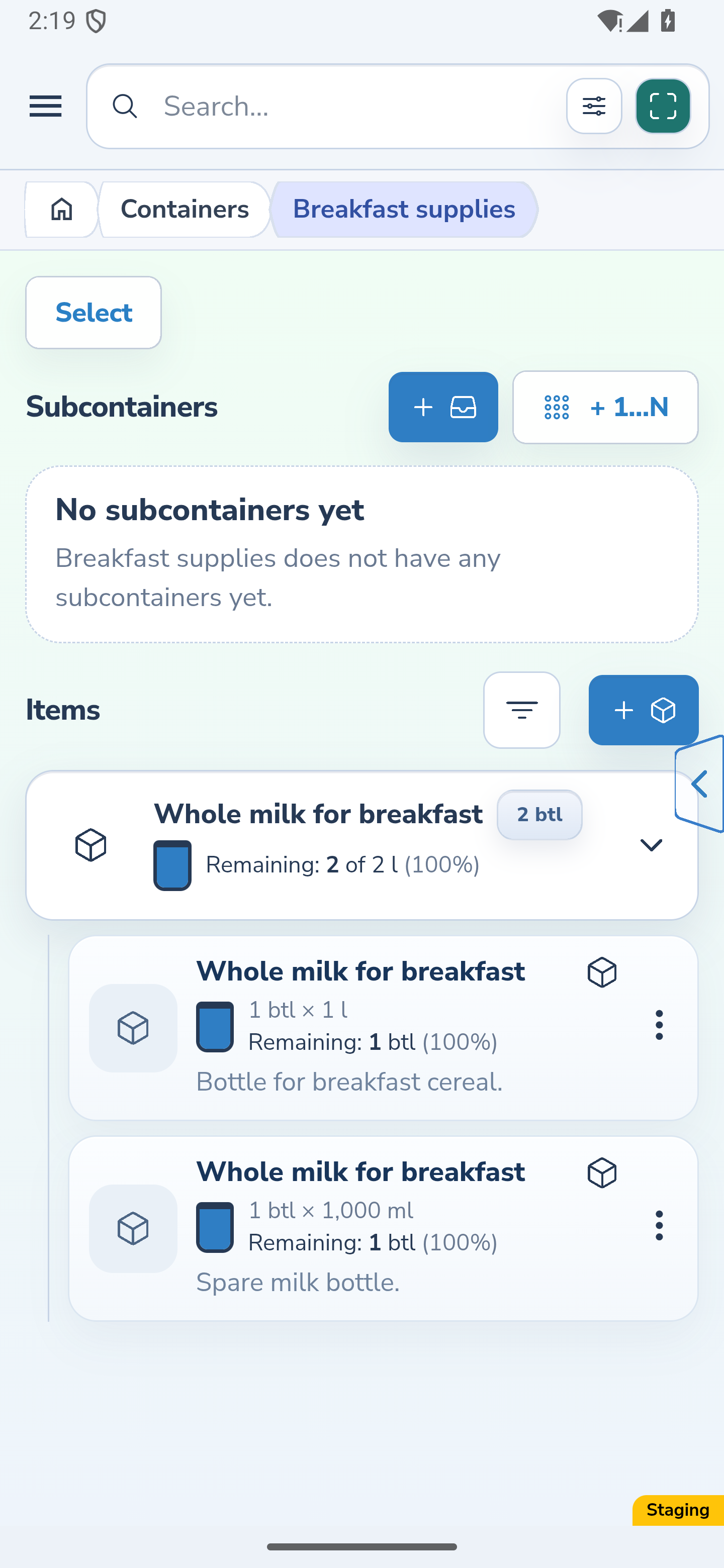
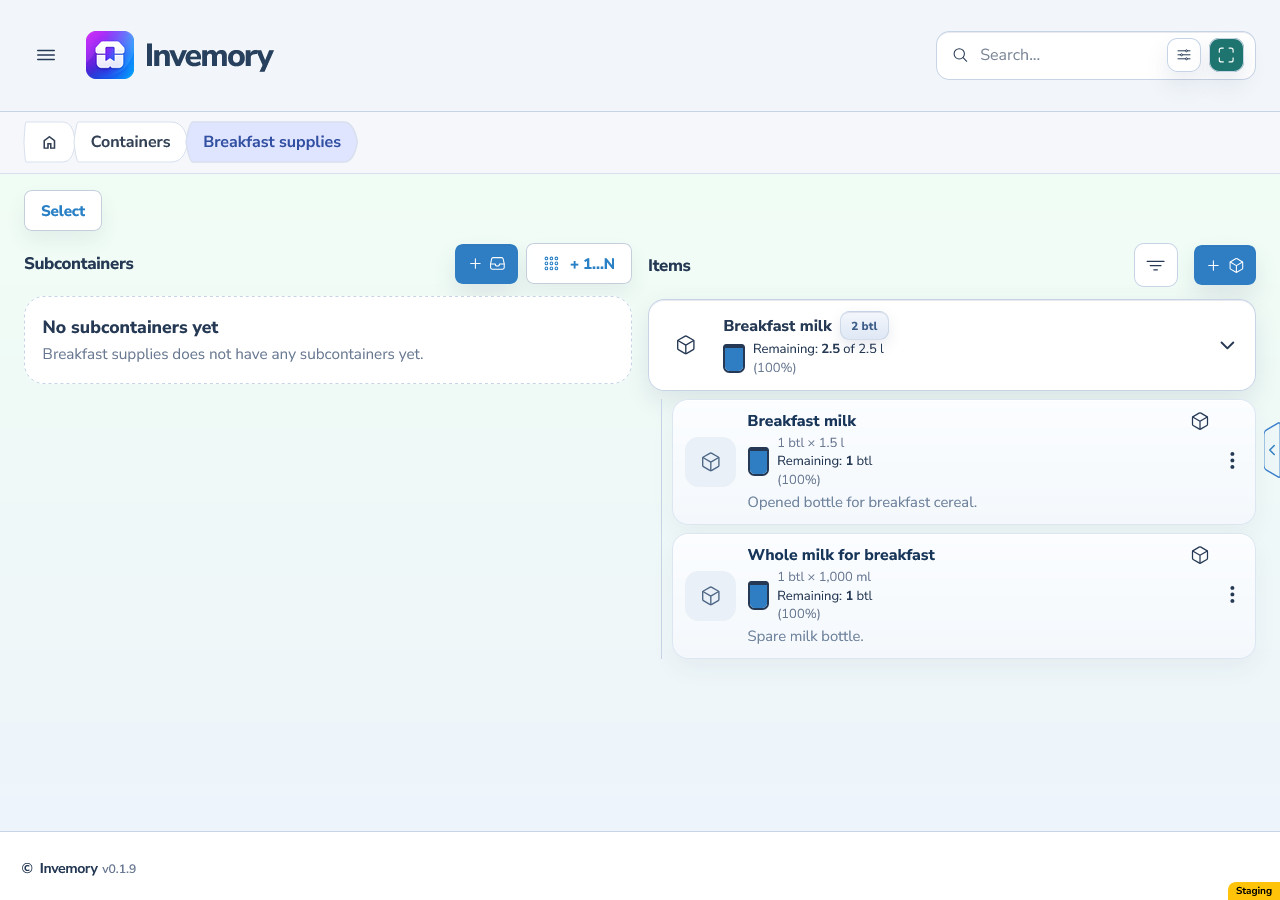
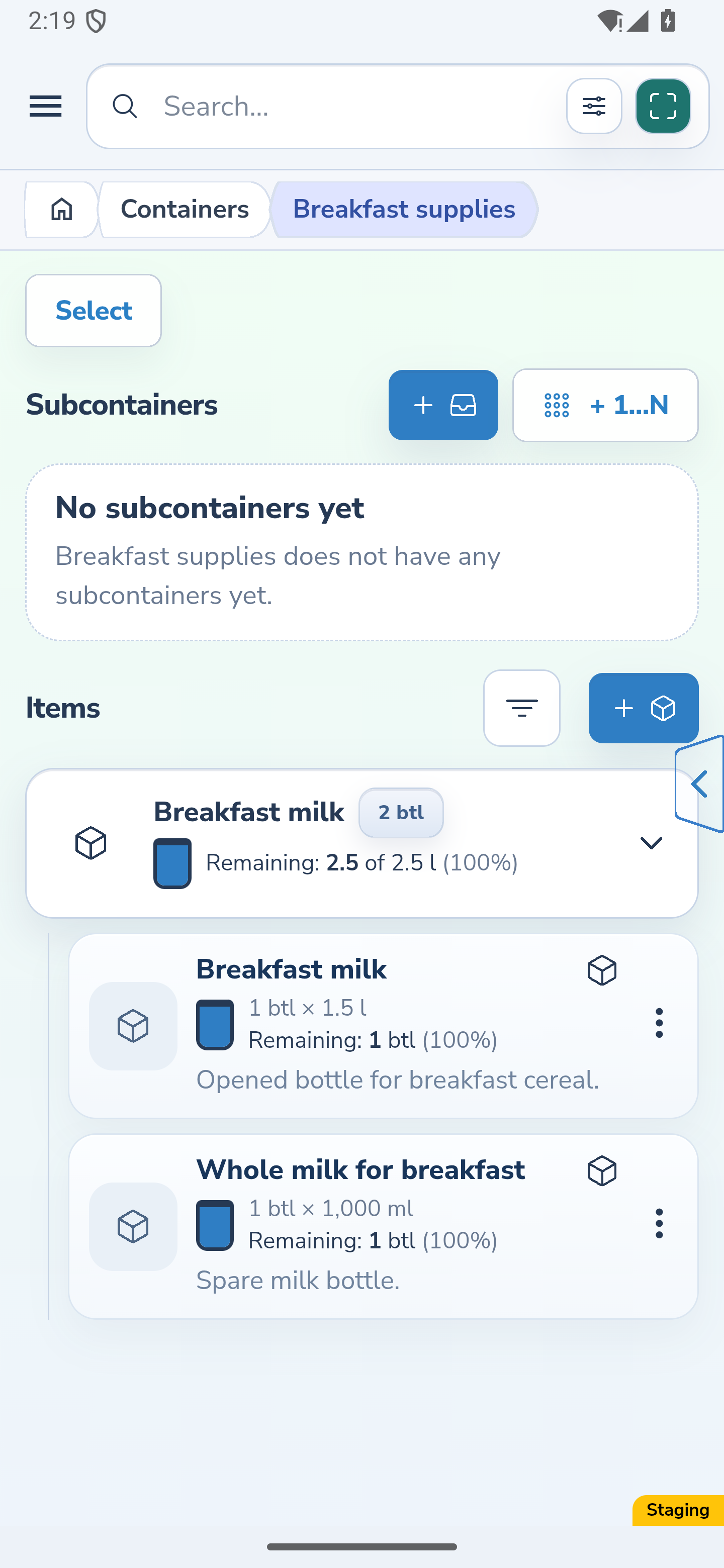
Select the Expand group arrow. Each record keeps its own name, description, quantity and packaging: the example shows one bottle containing 1 l and another containing 1000 ml. Open the relevant item to check its code or other details.
Ordinary initial matching for one owner uses the exact name, stock unit kind and normalized packaging. That makes 1 l and 1000 ml equivalent. One item in the illustrated pair has a barcode and the other does not; barcode absence alone does not separate these matching records.
The group header uses the name and photo of the first visible record in the list sorted by name. It does not automatically assign a shared name to every item. Read the expanded rows to distinguish them; when only one record is visible, it appears as an ordinary item.
Website
Android
3. Edit the intended record and check the result
Open Edit for the item with the barcode. Before any content write-off, the example changes its name, description and permitted capacity from 1 l to 1.5 l. After saving, expand the group again: the other item keeps its original name, description and 1000 ml packaging.
The group stays the same even though the records now have different names and capacities. Its total is 2 bottles and 2.5 l of contents. If the renamed item comes first after sorting, its name appears in the group header. Check each record’s packaging separately.
A barcode can preserve an established group connection during editing. A code previously associated with another group for the same owner can also direct a record to that historical group. Existing separate groups do not merge automatically; matching current names and packaging do not guarantee a merge.
Website
Android
4. Check the packaging lock after content write-off
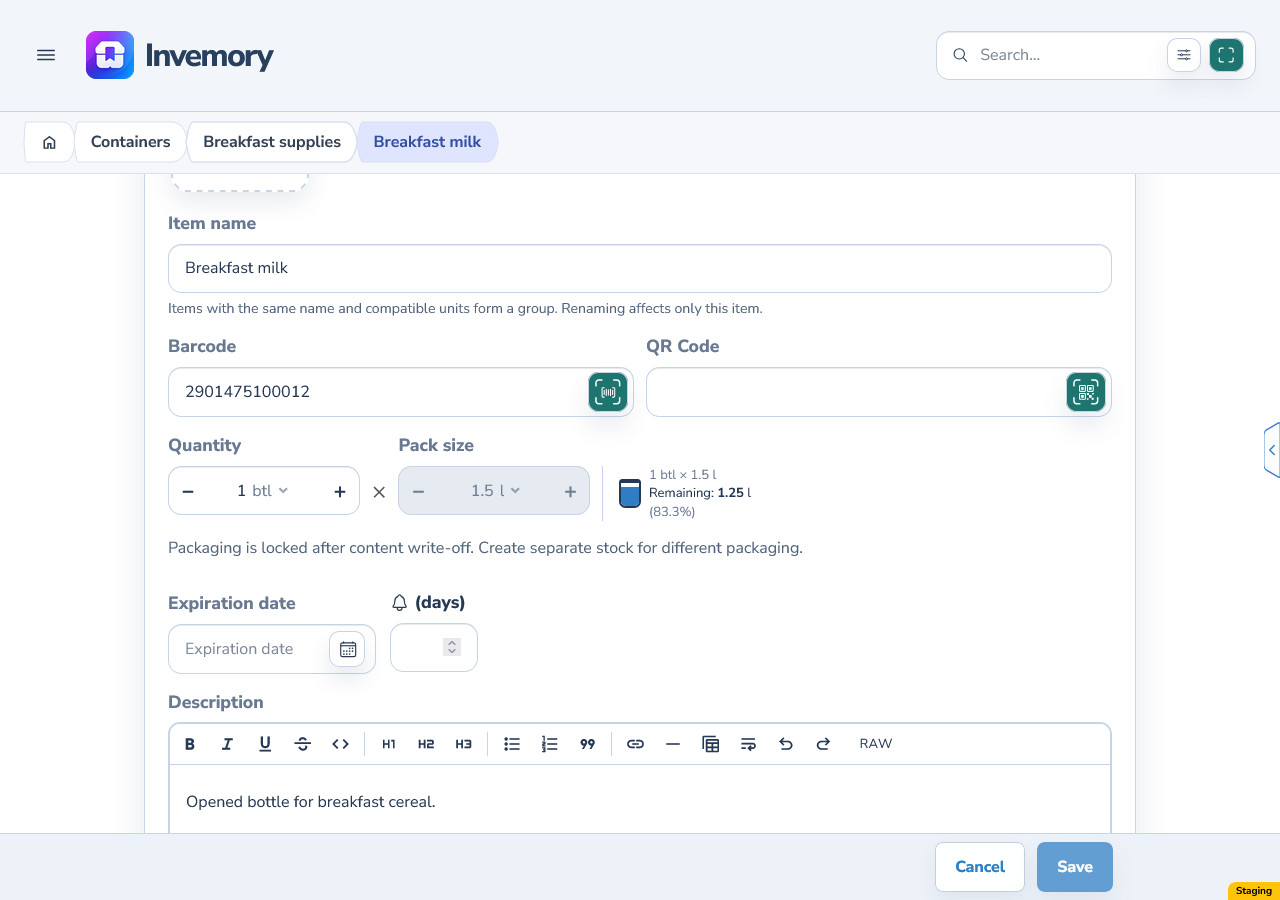
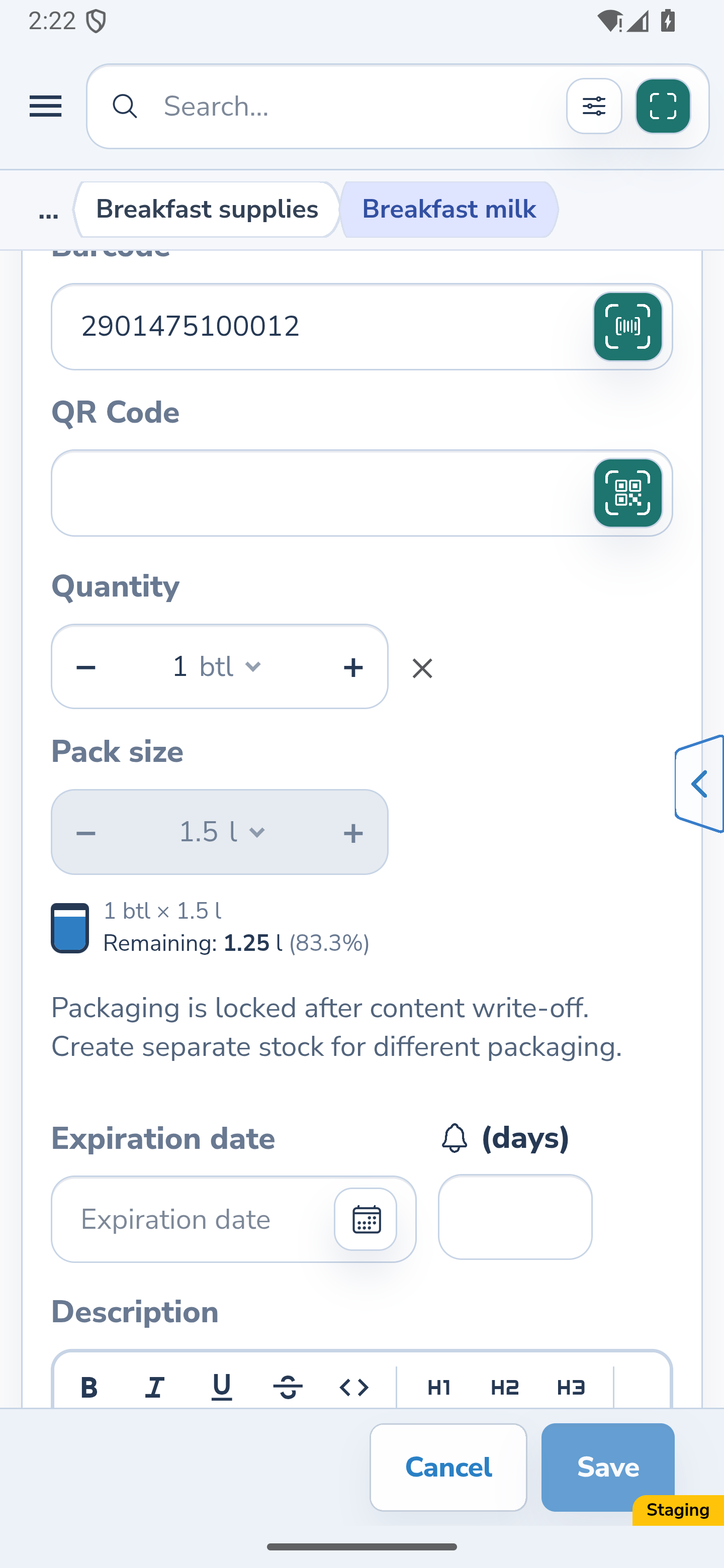
Content write-off applies to the selected item. In the example, Write off confirms the use of 0.25 l from the bottle with a capacity of 1.5 l. Open its editor afterwards: the actual remainder is 1.25 l.
After the first content write-off, the ordinary editor locks the stock unit, capacity per package and contents unit. The numeric package quantity field remains editable under the ordinary quantity rules. The barcode itself does not cause this lock.
The separate Correct packaging type action handles an allowed 1:1 correction of the outer unit while preserving quantity and contents. It does not enable arbitrary changes to the capacity of a package already used. See the related packaging correction guide for that separate workflow; create a separate item for stock with a different capacity.
Website
Android
The result
You can expand a group within a specific container, read its total stock and check each item’s data. You can assess independent edits and packaging rules using the individual records as well as the group header.
Useful to know
- Expand the group and read individual item descriptions to distinguish stock records. Renaming alone does not guarantee leaving an established group.
- Check package quantity separately from remaining contents: they describe different quantities.
- If the saved quantity or description does not explain a change, open the relevant item’s history. Item history and packaging correction have separate related guides.
Common questions
Does every item need a barcode to appear in a group?
No. With ordinary initial matching, matching records can form a group even when only some have a barcode. A code already associated with another historical group can still affect the result.
Does editing one item change the rest of the group?
No. Other items retain their own data. Your edit can update the totals and group header name, but it does not rewrite other records’ names, descriptions or packaging.
You can expand a group within a specific container, read its total stock and check each item’s data. You can assess independent edits and packaging rules using the individual records as well as the group header.
Open containers