
Guides
How to view and enlarge photos
Open a saved photo in the gallery to identify a belonging or inspect its details. Viewing does not change the item, container or shopping request and does not require editing it.
Last checked:
What you need
- Sign in with access to the record you want to inspect.
- A saved photo is required. The available images depend on the screen from which you open the gallery.
1. Open a photo from the relevant screen
On a computer, hover over an item or container thumbnail for about half a second. In a container’s item list, the gallery shows the item’s available photos, main image first. A group heading uses photos from its representative item.
On Android, holding a photo works only on cards that support this gesture, such as basket cards. On the Containers screen, holding is used for moving inventory: it is not a universal way to open photos.
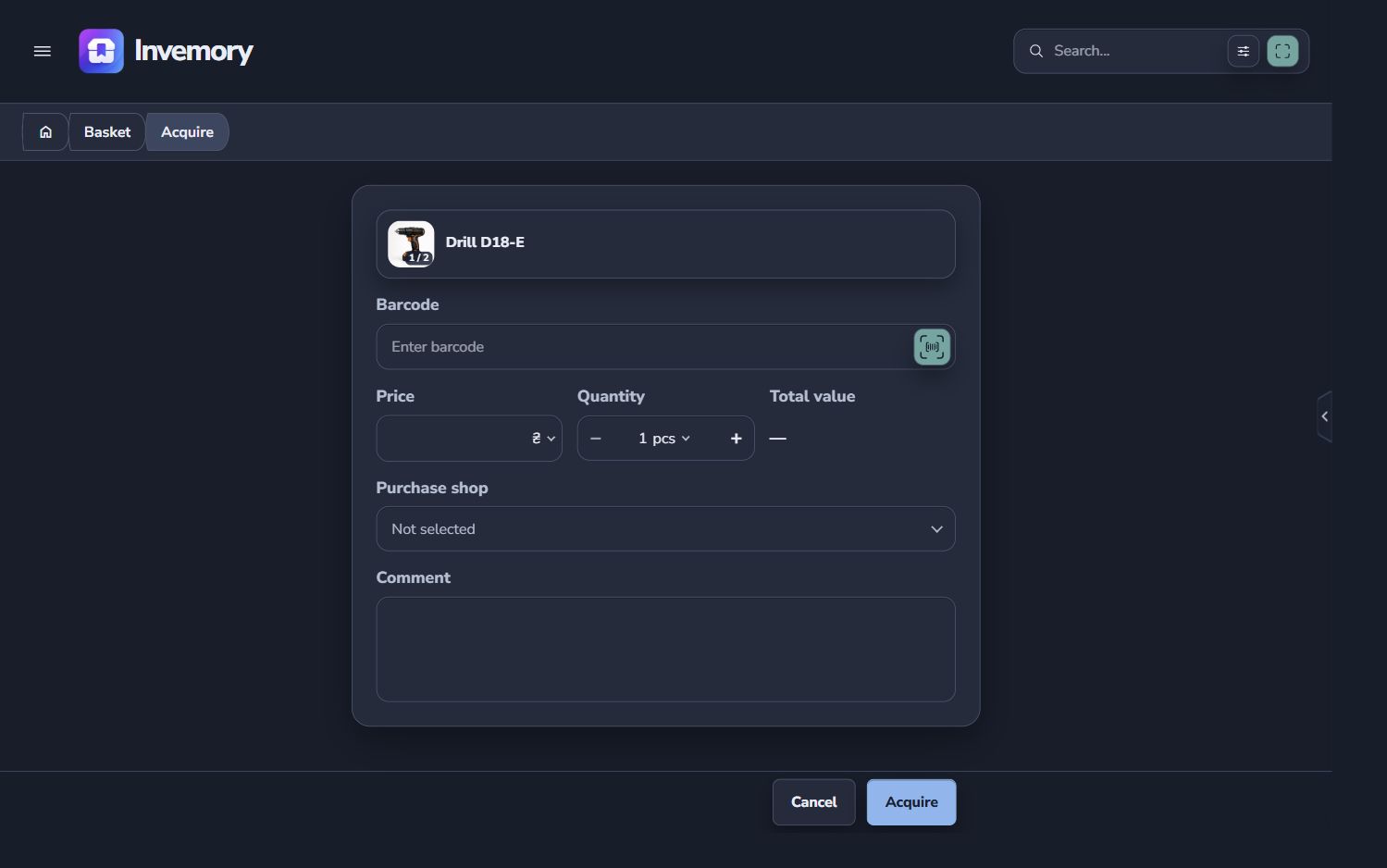
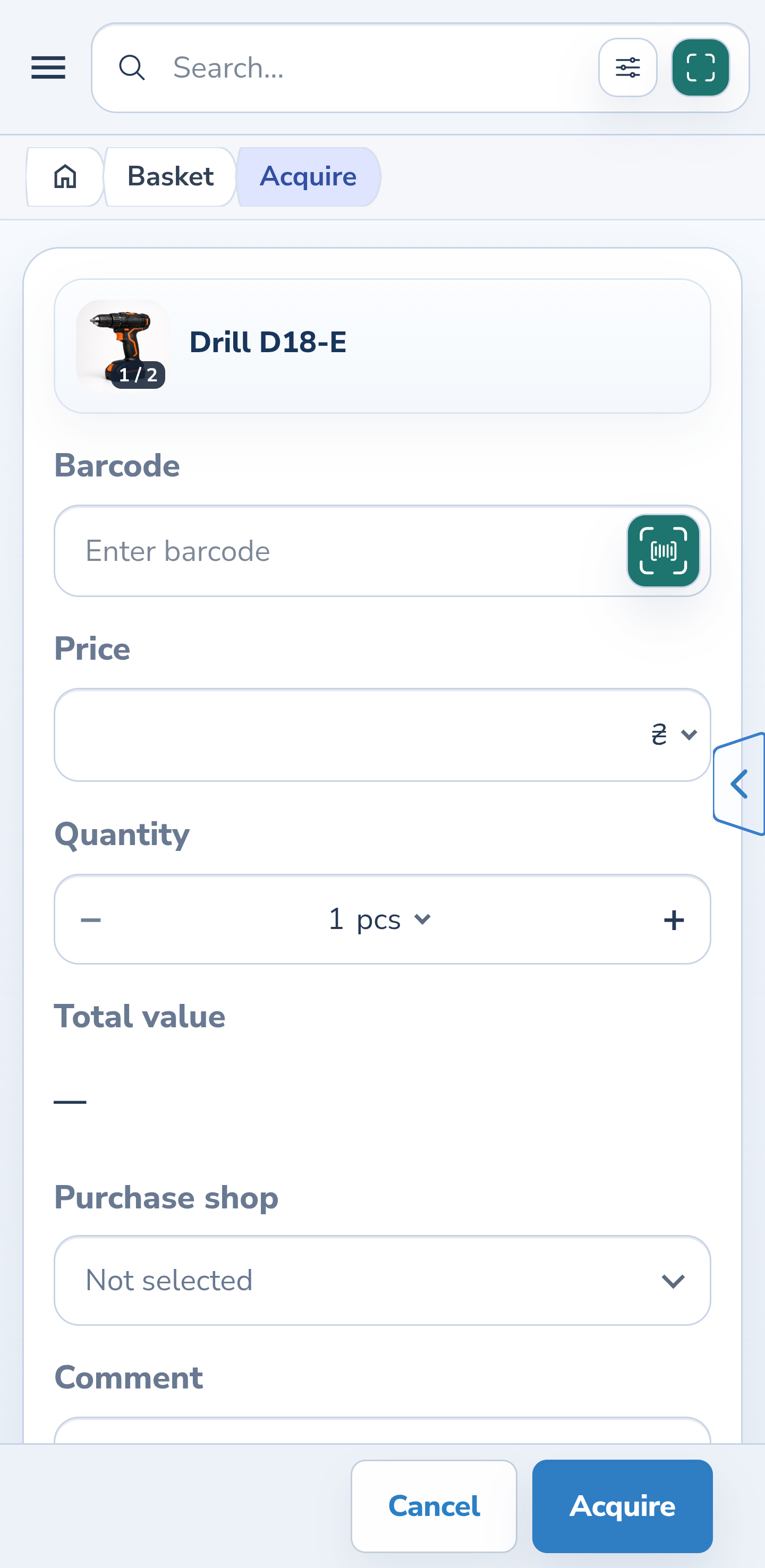
On both platforms, select the product photo button in the Acquire form. A 1 / 2 badge means two photos are available. The example below demonstrates this entry point.
Website
Android
2. Distinguish a single image from a full gallery
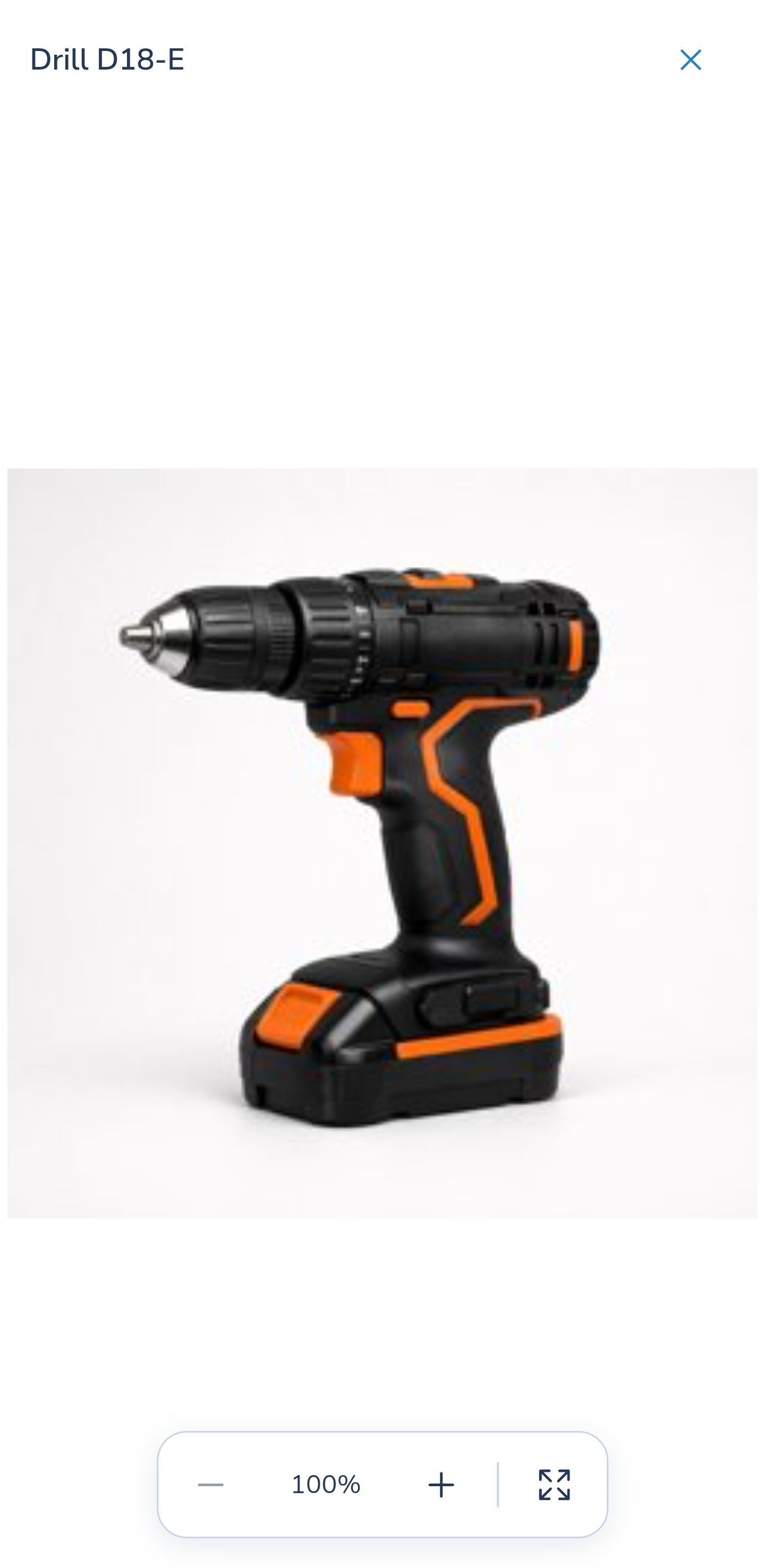
A single photo has no navigation arrows or counter. For example, holding a request thumbnail in the basket opens only that image; the photo button in the Acquire form can open several images for the same request. A container shows one photo.
Android
3. Browse the saved photos
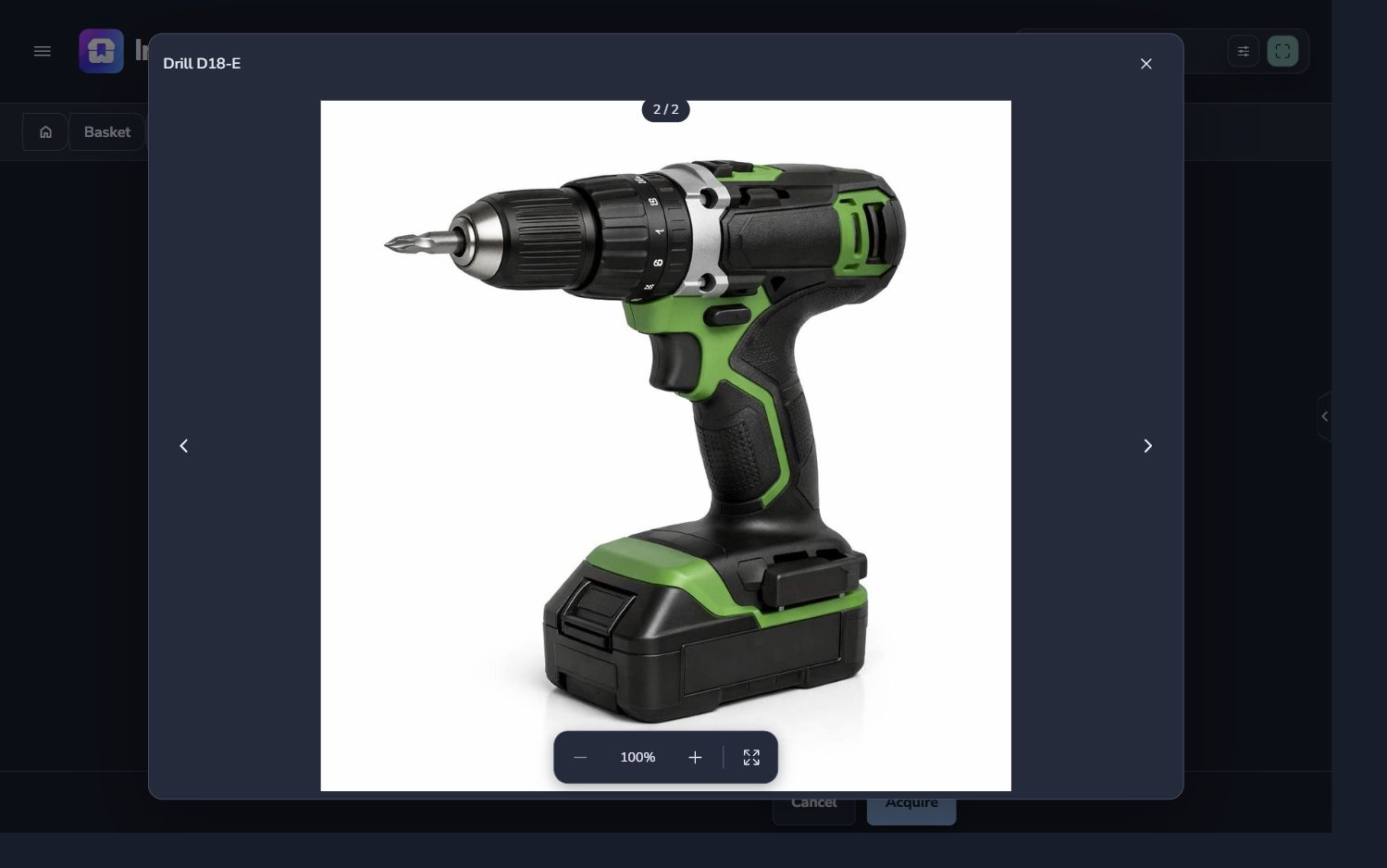
Select the previous or next arrow. On Android, you can also swipe horizontally at 100% zoom. The counter identifies the current photo; navigation wraps from the last photo to the first. Changing photos resets zoom and pan.
Website
Android
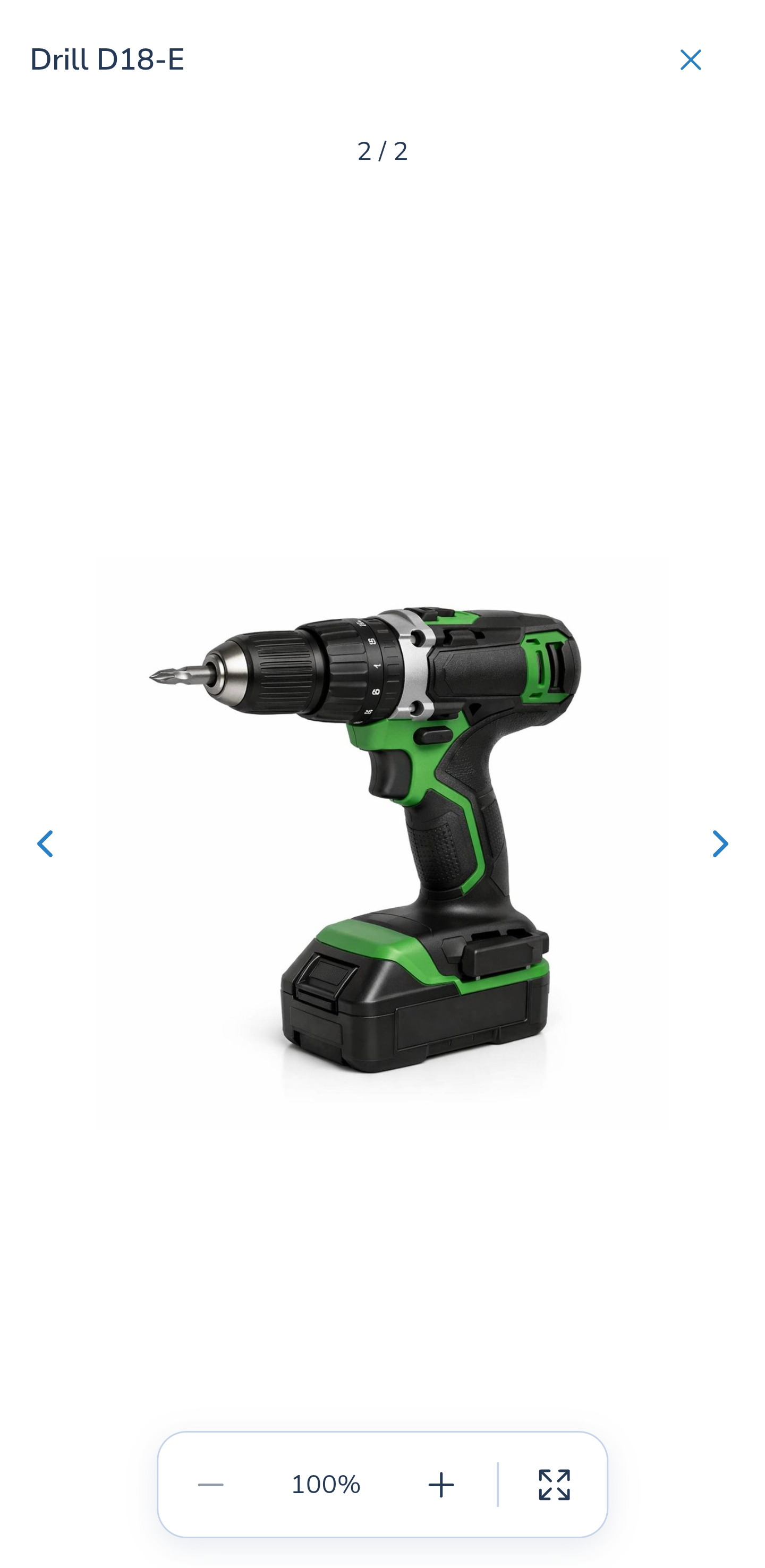
4. Zoom in and reset the scale
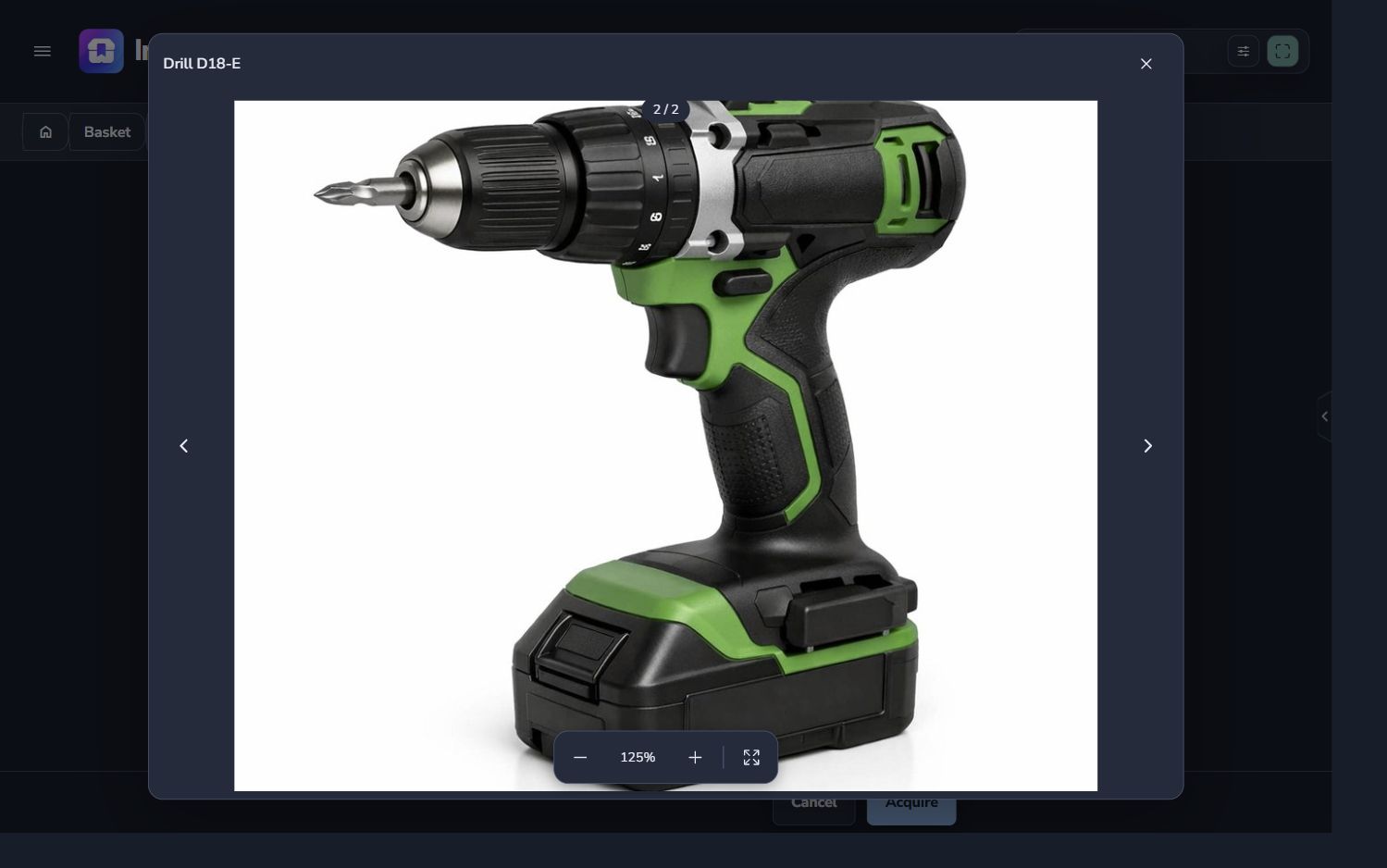
Use + and − to change the scale. Select the scale value to reset it to 100%. On Android, spread two fingers to zoom in or pinch them together to zoom out, between 100% and 500%. Enlarging an image cannot add detail missing from its original file.
Website
Android
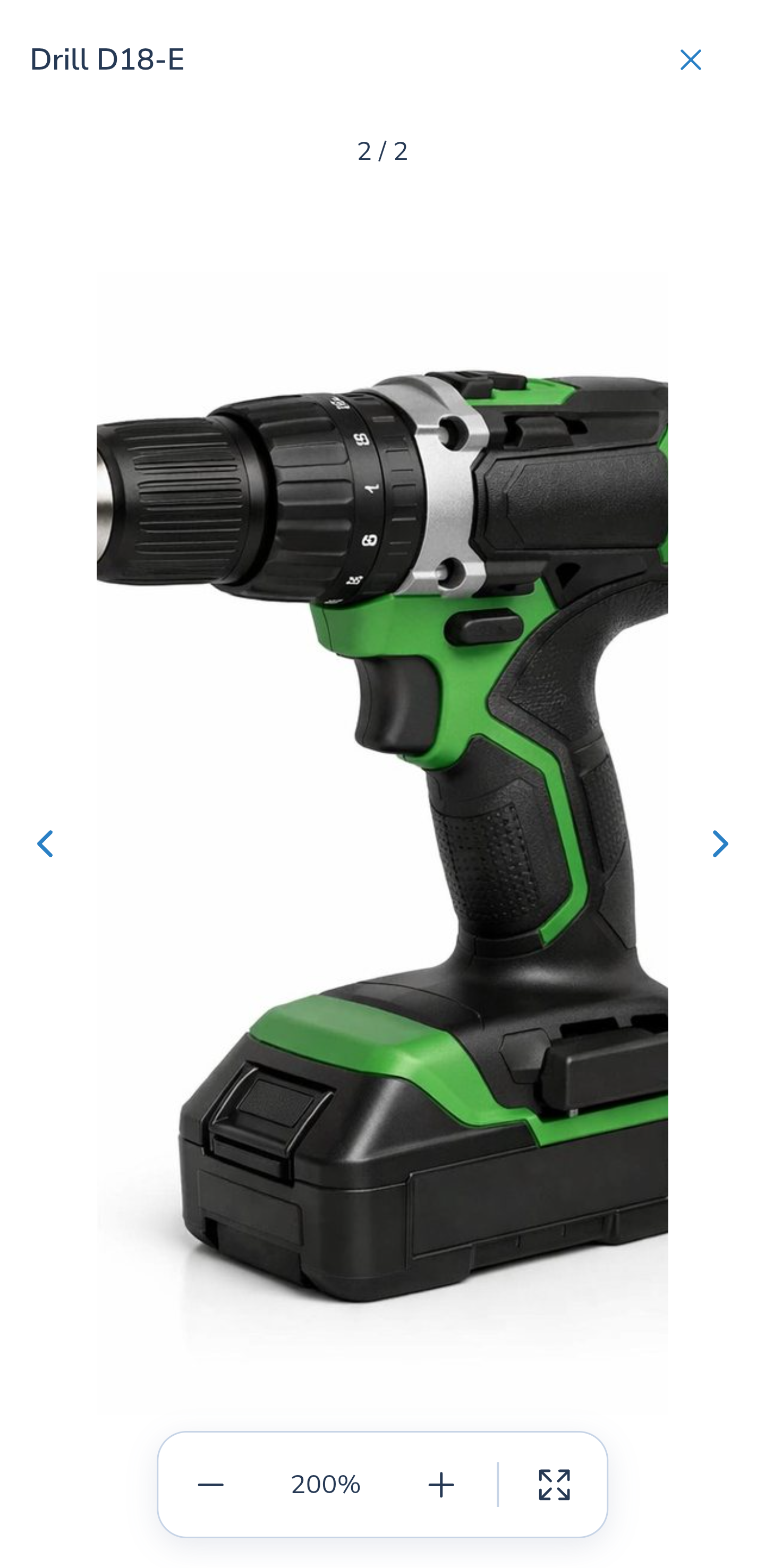
5. Move around an enlarged image
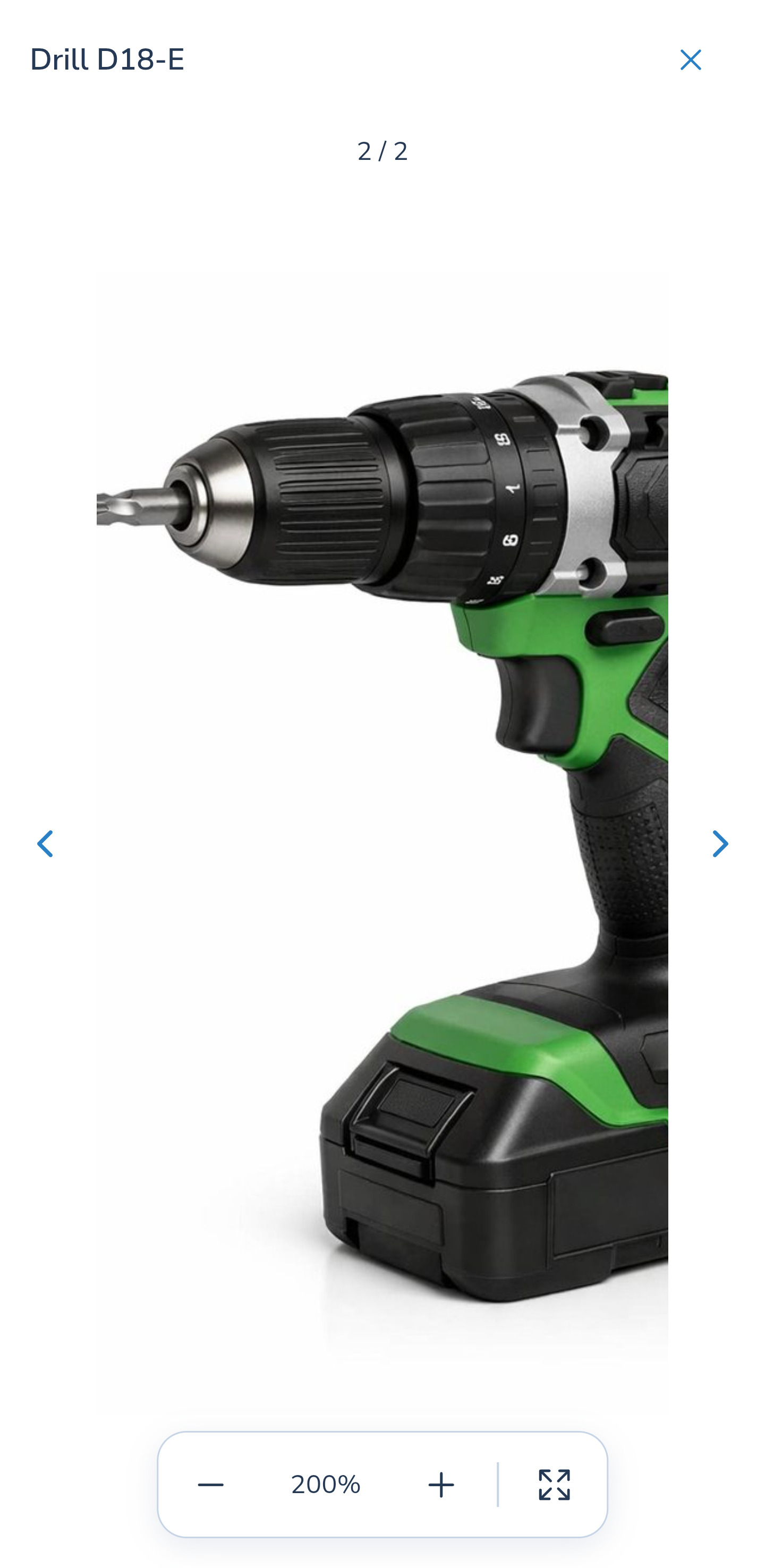
Above 100%, drag the photo with the mouse or one finger to inspect another area. This moves the current image instead of changing photos. Reset the zoom before swiping to another photo, or use the arrows.
Android
6. Hide controls for an unobstructed view
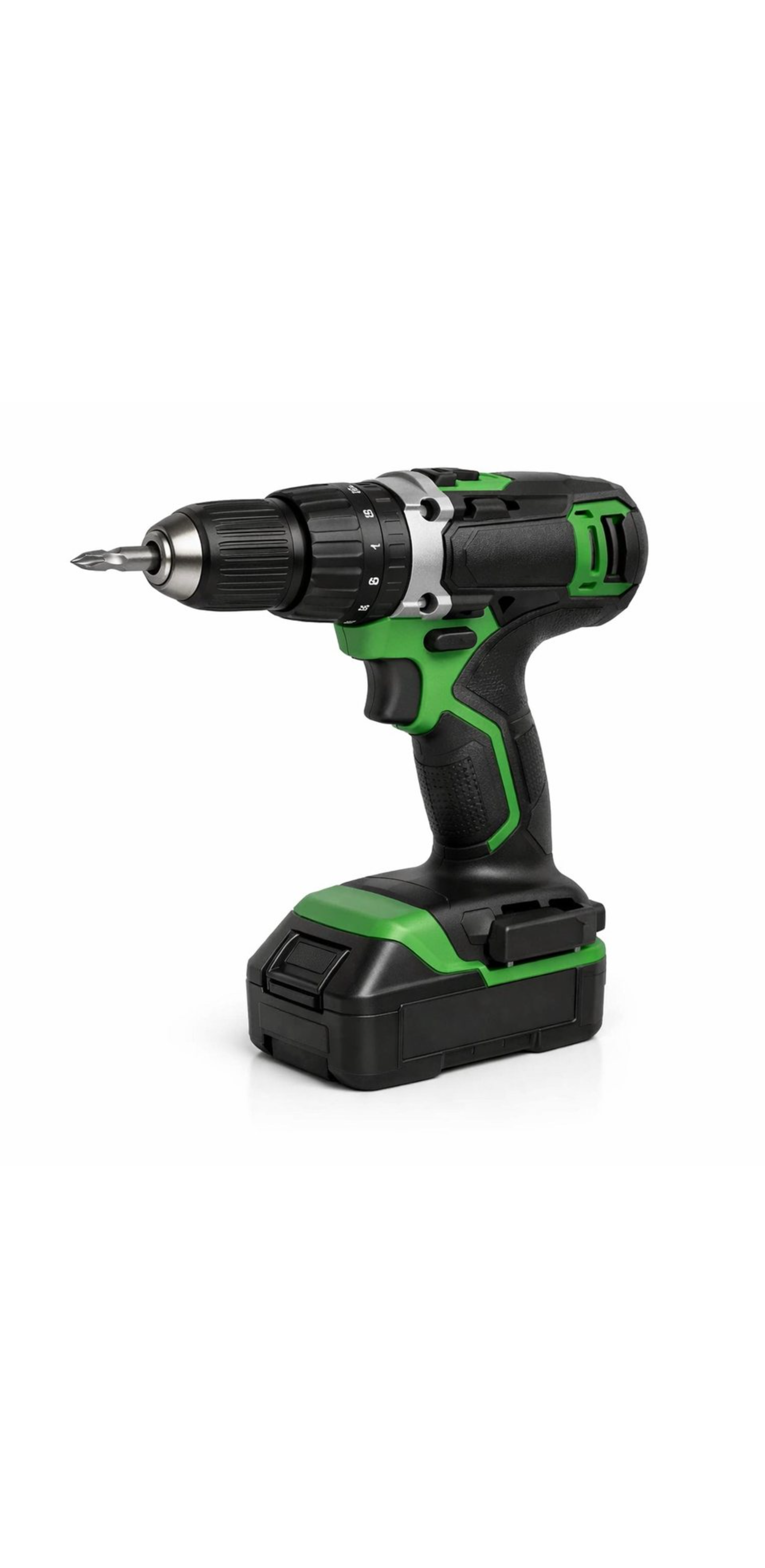
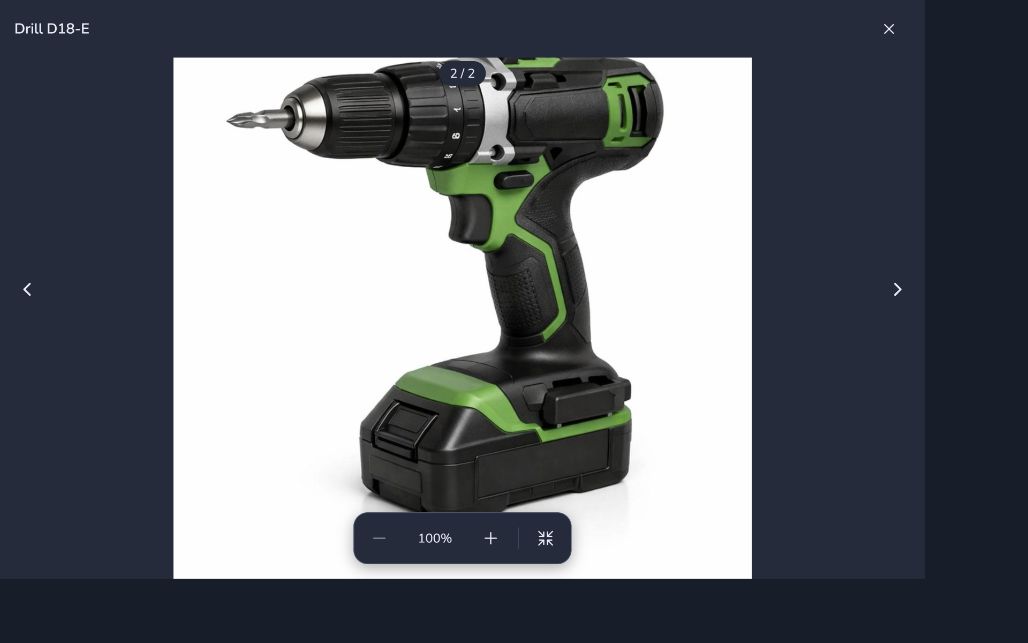
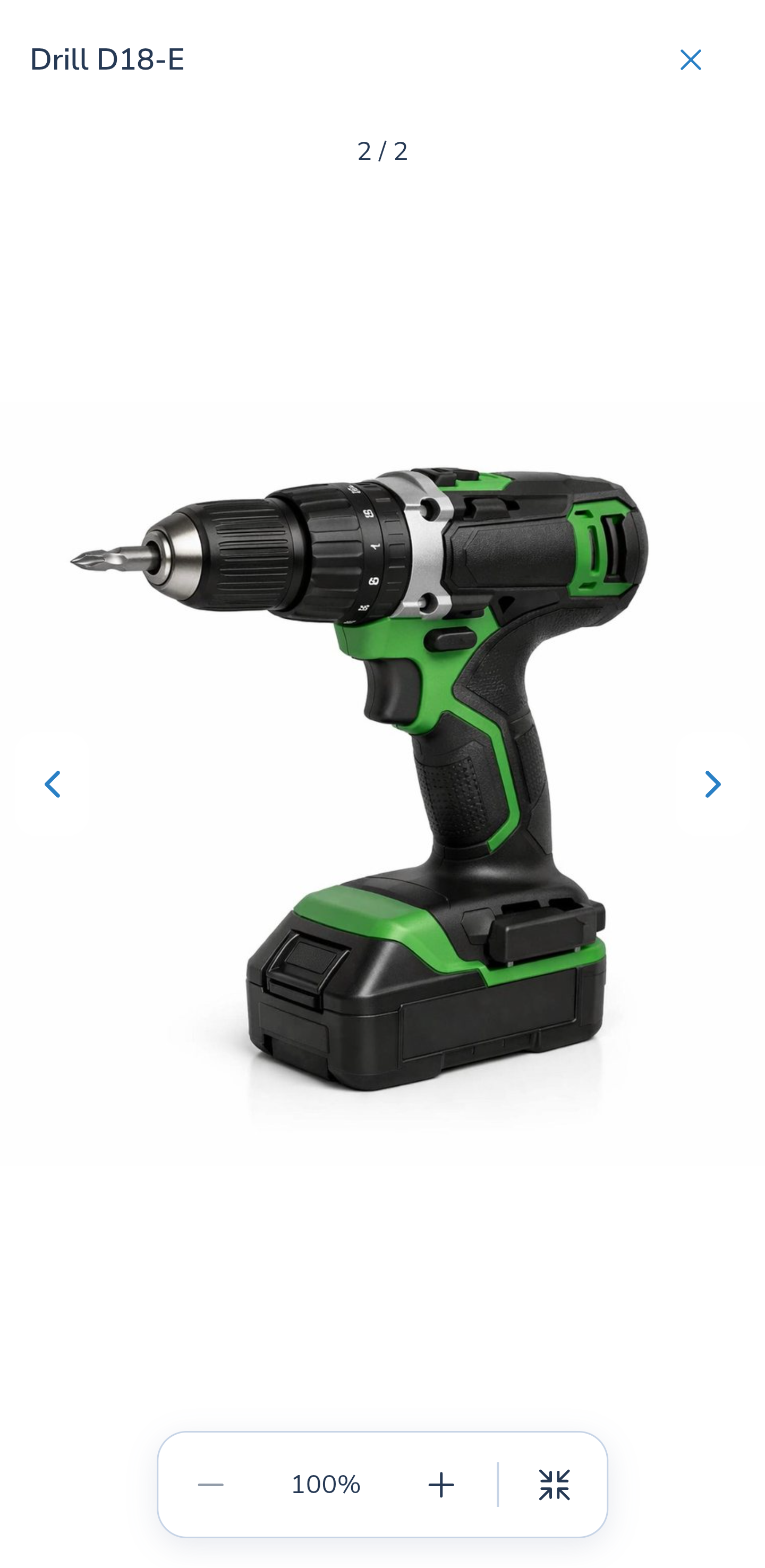
Select the expand button beside the scale. Fullscreen initially hides the heading, arrows, counter and toolbar. The image fits within the available area.
Tap or click the photo to show controls over it; tap again to hide them. The overlays do not change the image scale. On a computer, Tab also makes the controls accessible.
The website uses browser fullscreen where available. On Android, the gallery fills the application viewport while system bars remain visible. System bars are cropped from the illustrations; the application interface is preserved.
Website
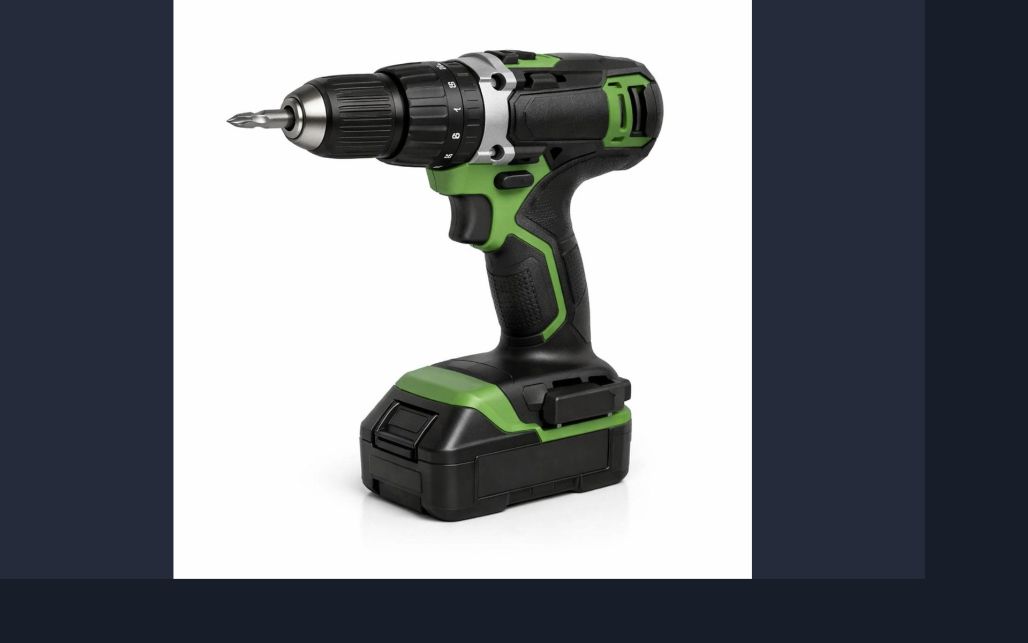
Android
Website
Android
7. Return to your record
In fullscreen, the first Escape on a computer or Back on Android returns to the normal gallery. The second closes it. You can also reveal the toolbar and use Exit fullscreen, or close the gallery with ×. Viewing photos does not record a purchase or change quantities.
8. When a photo is missing or unavailable
A card without a saved photo displays a standard icon; check the name and description. If an image file cannot be loaded, the gallery displays an unavailable message. Browse other photos if present. An unavailable image does not mean the item itself has been deleted.
After checking your connection, return to the list and open the record and photo again. Simply closing and reopening the gallery in the same form can retain the error state.
The result
You can inspect available photos and return to your work without editing the record.
Useful to know
- The current screen determines which photos are available: a thumbnail does not always provide every image of an item.
- Start at 100% to see the whole image or browse with a swipe.
Common questions
Can I replace or upload a photo here?
No. The gallery is for viewing. Change photos separately in the appropriate editor.
You can inspect available photos and return to your work without editing the record.
Open inventory