
Guides
How to add, select and restore a shop
Your shop catalog records where you plan to buy an item and where you actually purchased it. This guide covers adding, selecting, renaming and restoring your own shops on the Invemory website and Android app.
Last checked:
What you need
- Sign in to your account. Open My shops from the Basket menu.
- To select a shop while planning or recording a purchase, open a shopping request you can edit. Fill in its fields and add photos before opening shop creation.
1. Open your personal catalog
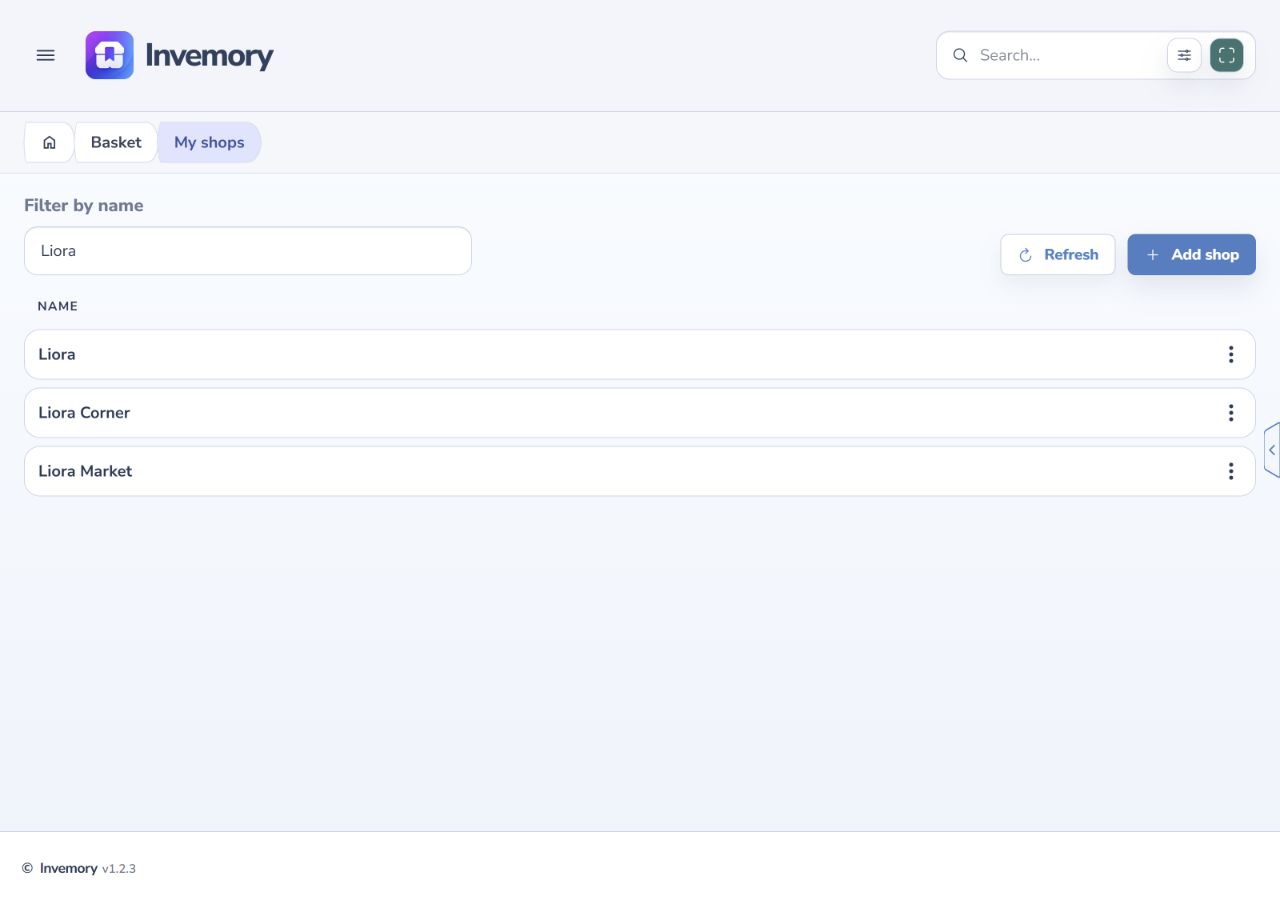
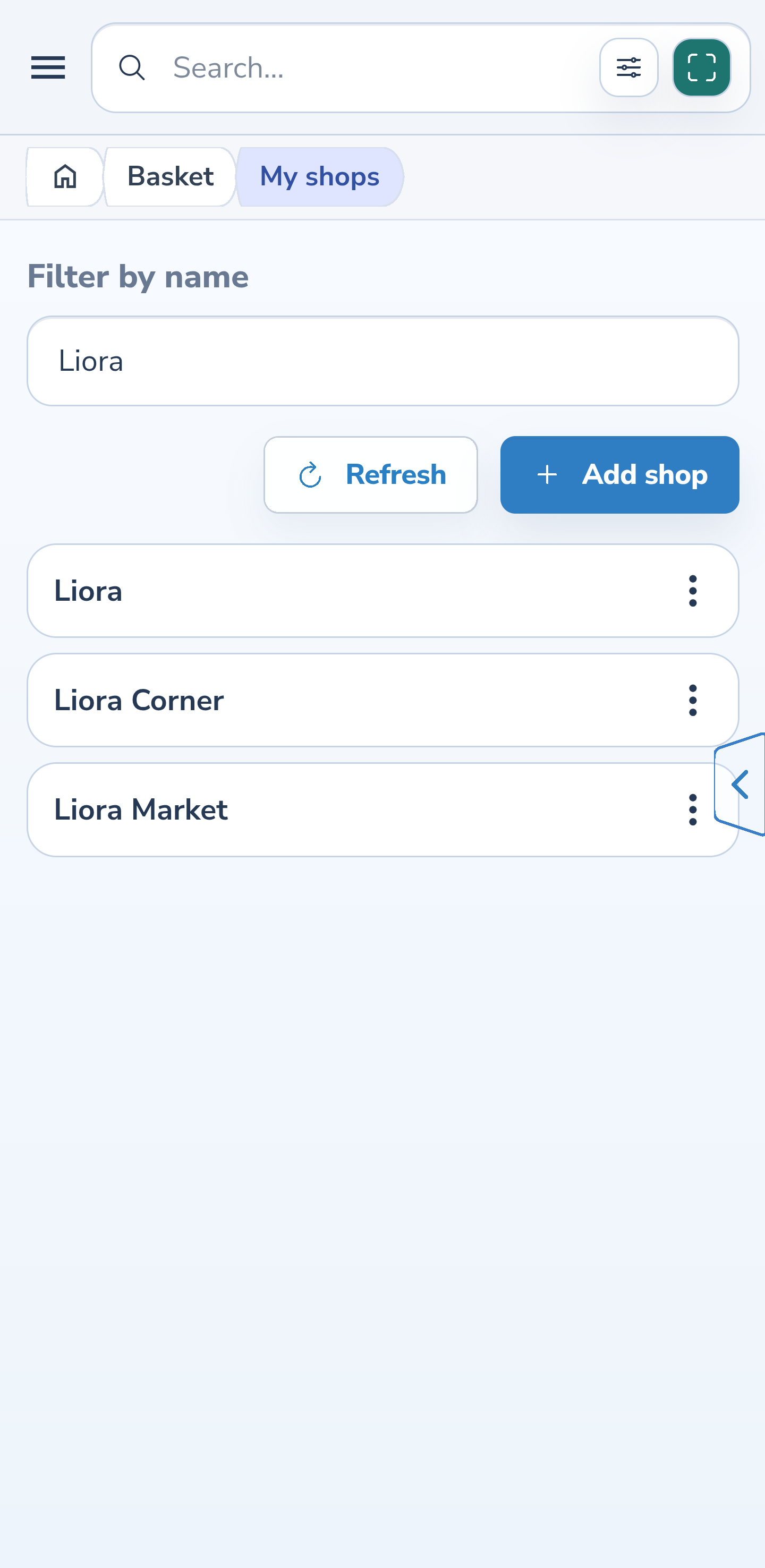
In My shops, enter part of a name in Filter by name. Refresh reloads the list. The website shows a table; Android shows rows with action menus.
Choose Add shop, enter a name and save. Leading and trailing spaces do not make a new name, and letter case does not distinguish shops: Liora and liora are one name in your catalog.
Website
Android
2. Create a shop from a shopping request
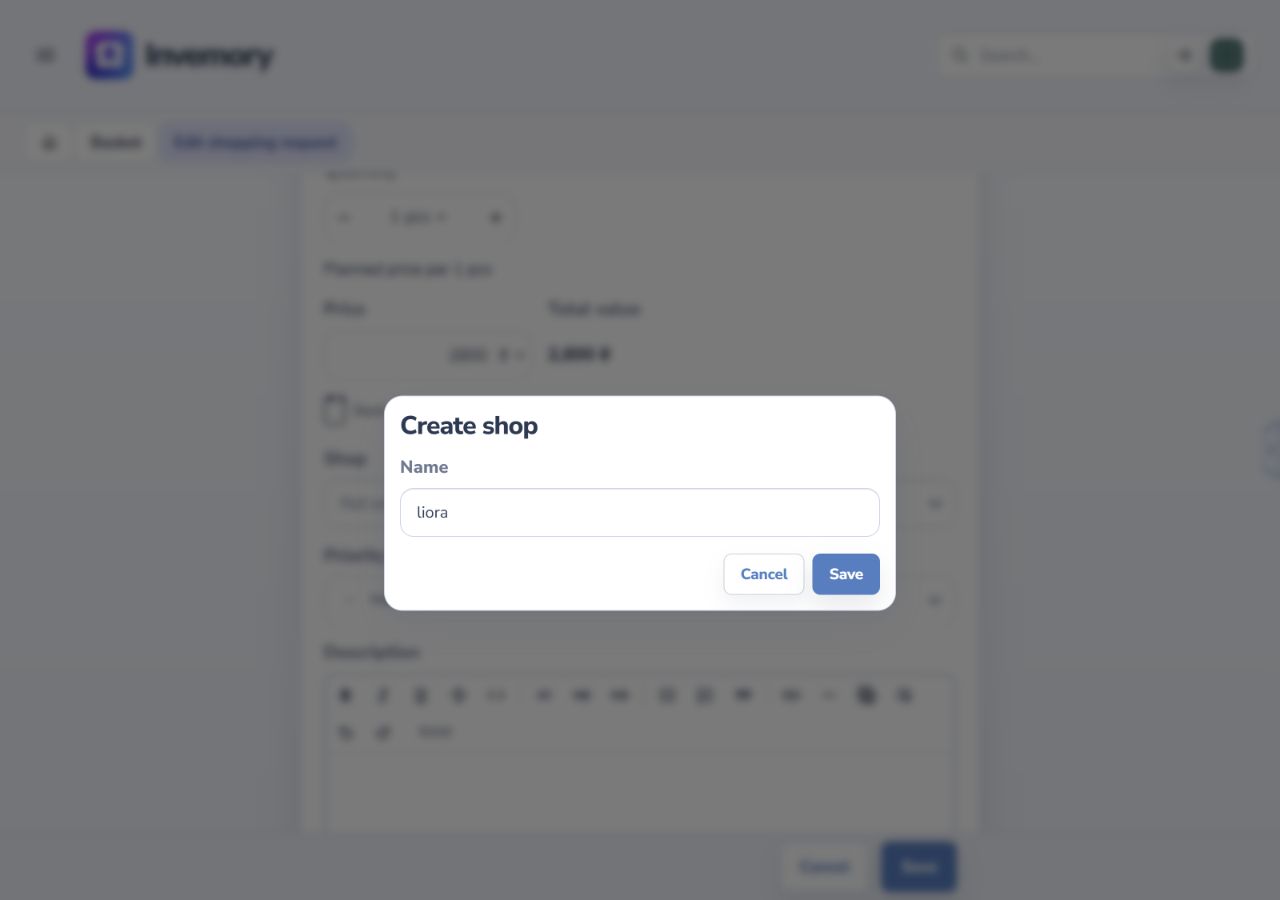
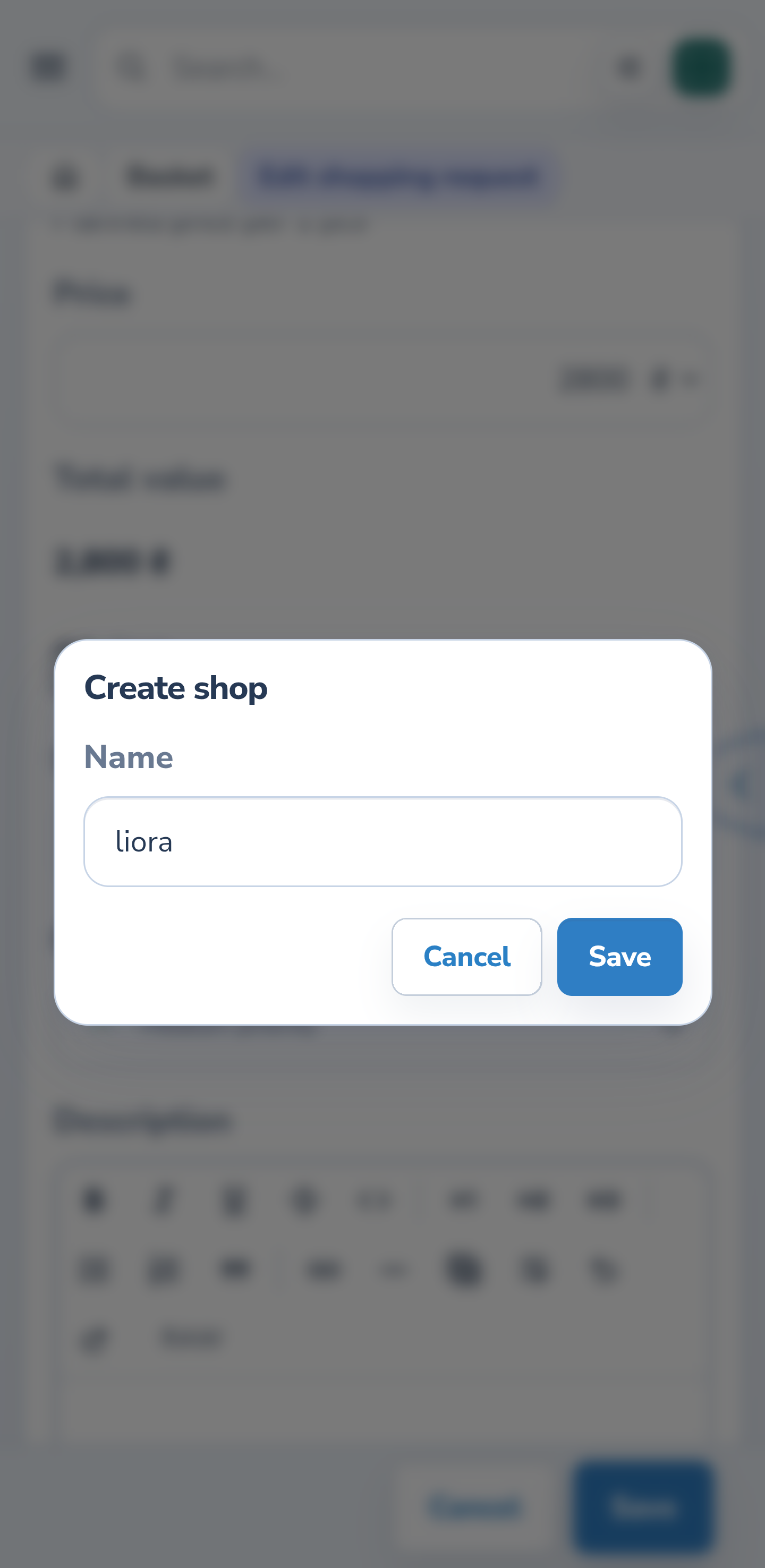
Open Add shopping request or Edit shopping request. Type the name into Shop and check the matches. If the shop is missing, choose Create.
Create shop is already filled with your search text. Check the name and choose Save. The created or restored shop is selected in the previous form; save the shopping request separately.
Website
Android
3. Select an existing shop after a duplicate warning
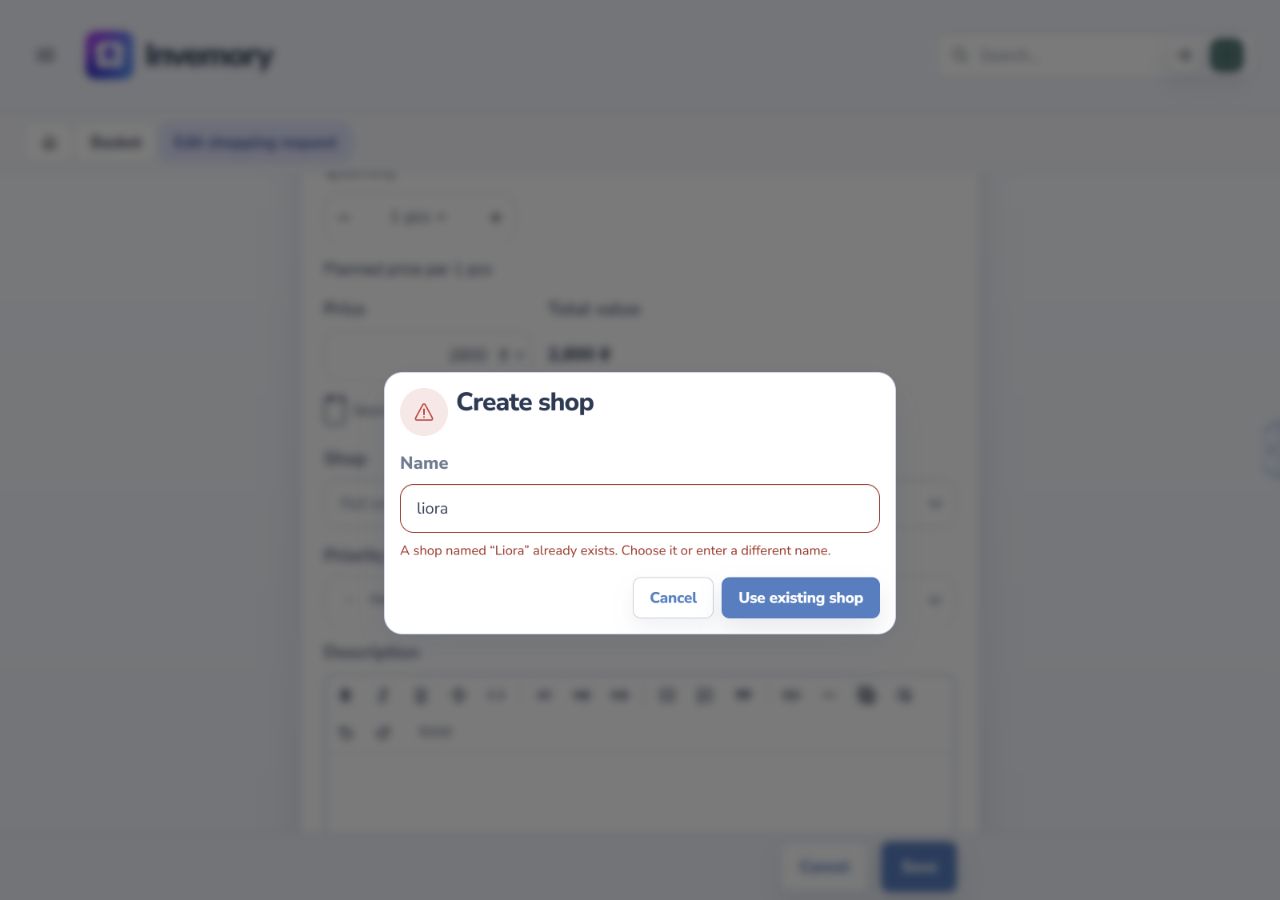
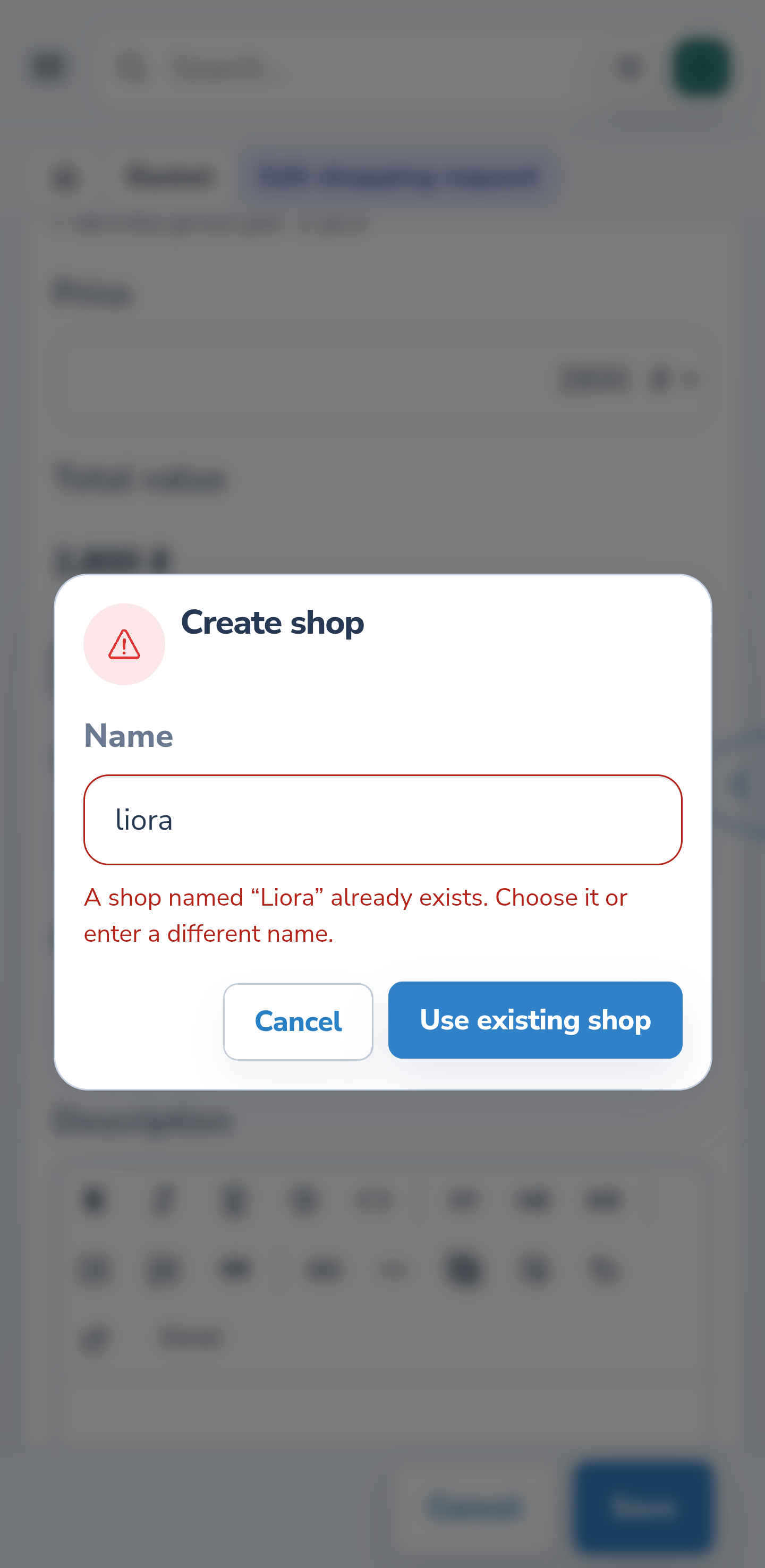
If an active shop already has that name, Name turns red and a message below it identifies the existing shop. Changing case or adding surrounding spaces does not bypass this rule.
When the dialog was opened from a request or acquisition, choose Use existing shop. The dialog closes and the shop is selected in your draft. To create a different shop, enter a genuinely different name first.
Website
Android
4. Continue with the same draft
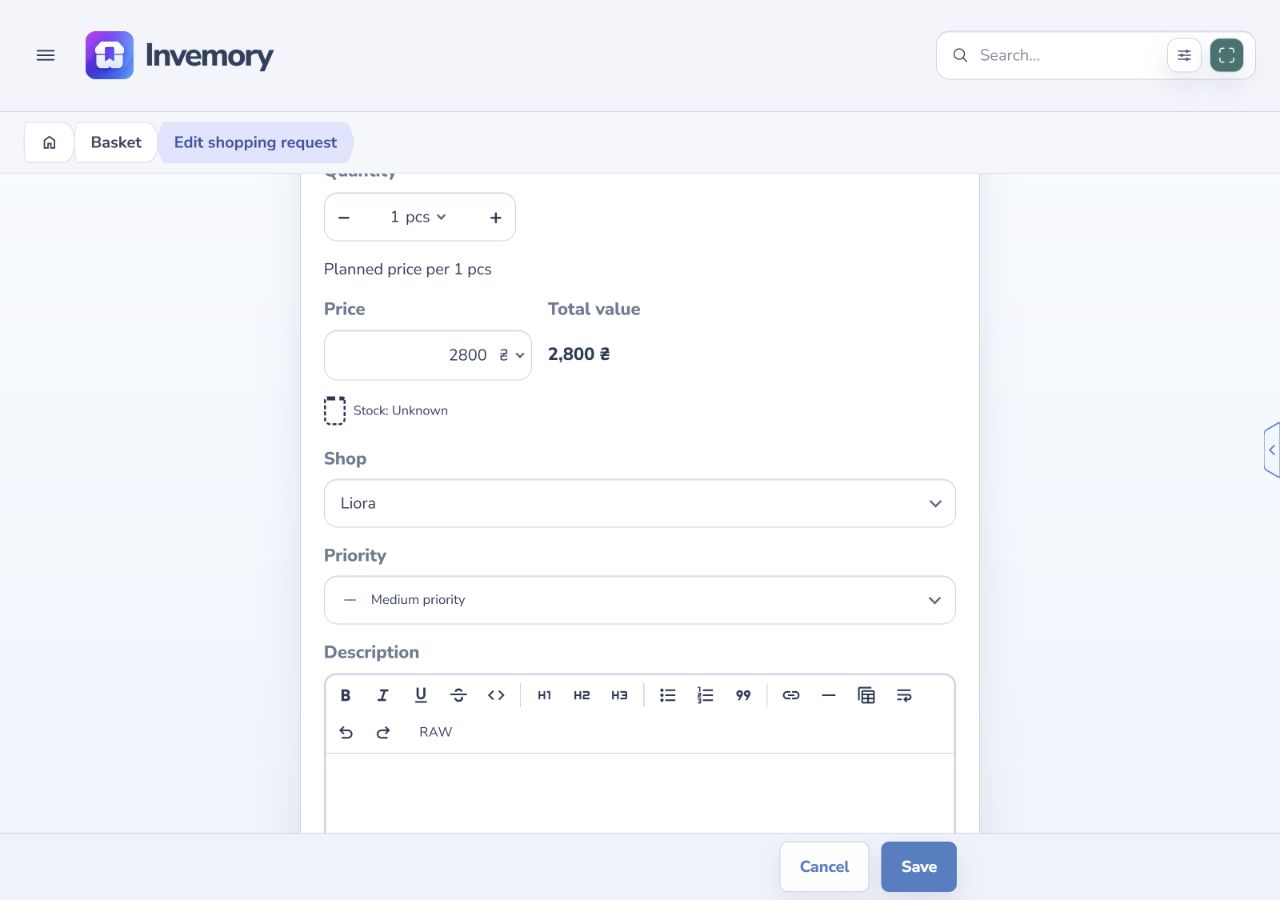
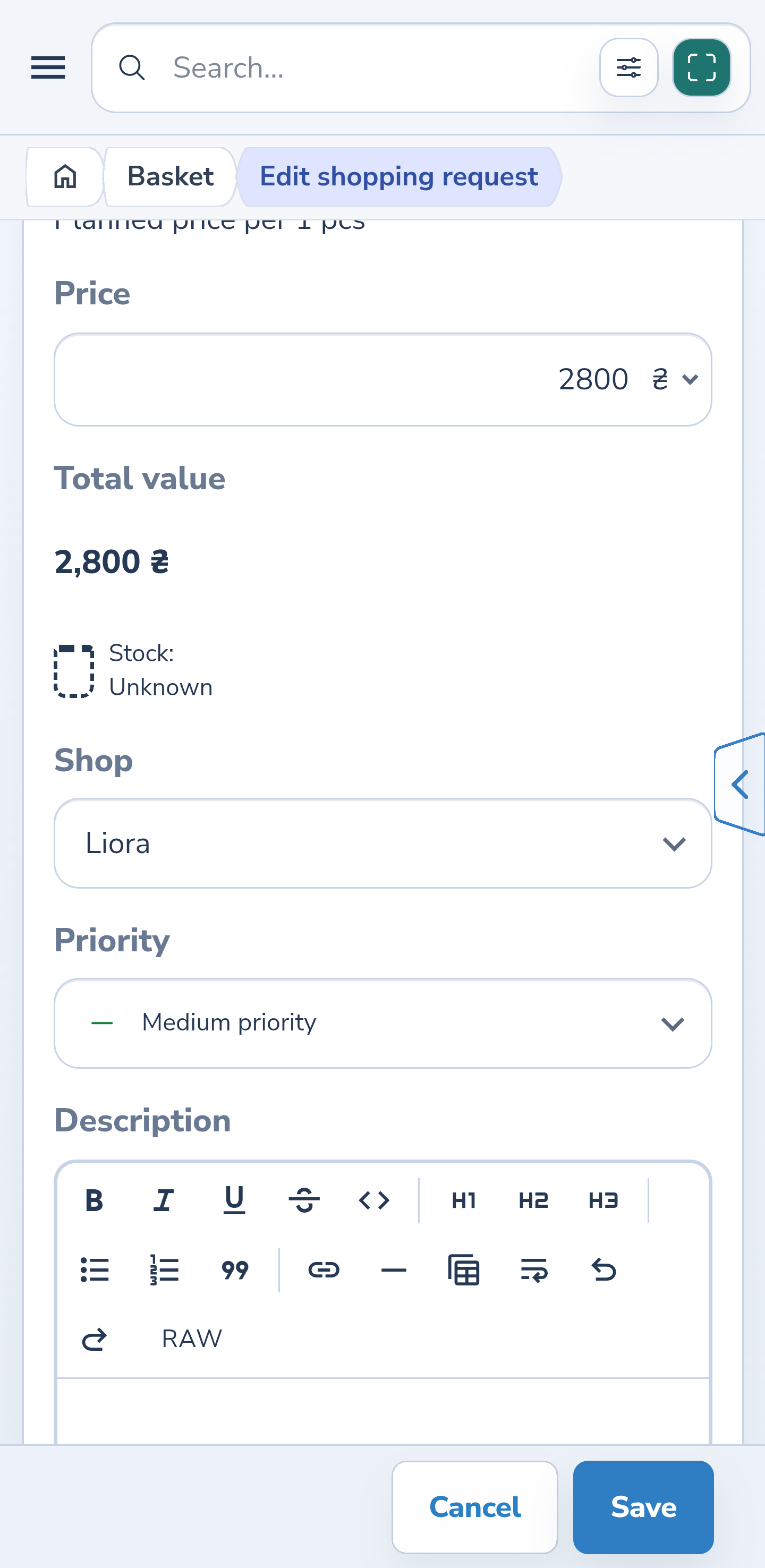
Check Shop after selecting the existing entry, then continue editing. Your entered fields and photos remain in the parent form. The example retains the planned price of UAH 2,800.
Cancel in Create shop returns to your draft. It does not cancel the shopping request itself. Leaving a changed parent form has a separate warning about unsaved changes.
Website
Android
5. Understand catalog creation and creation inside a form
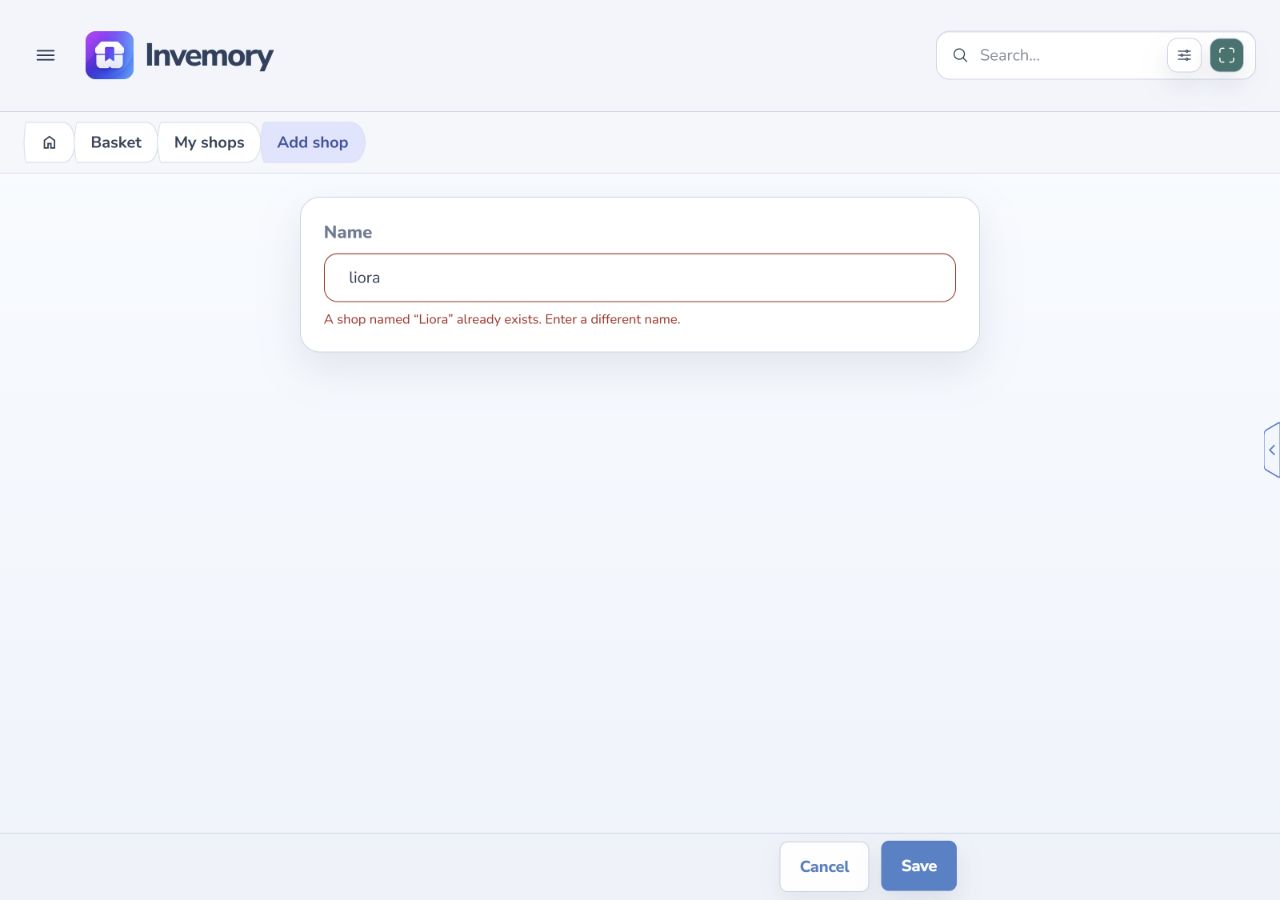
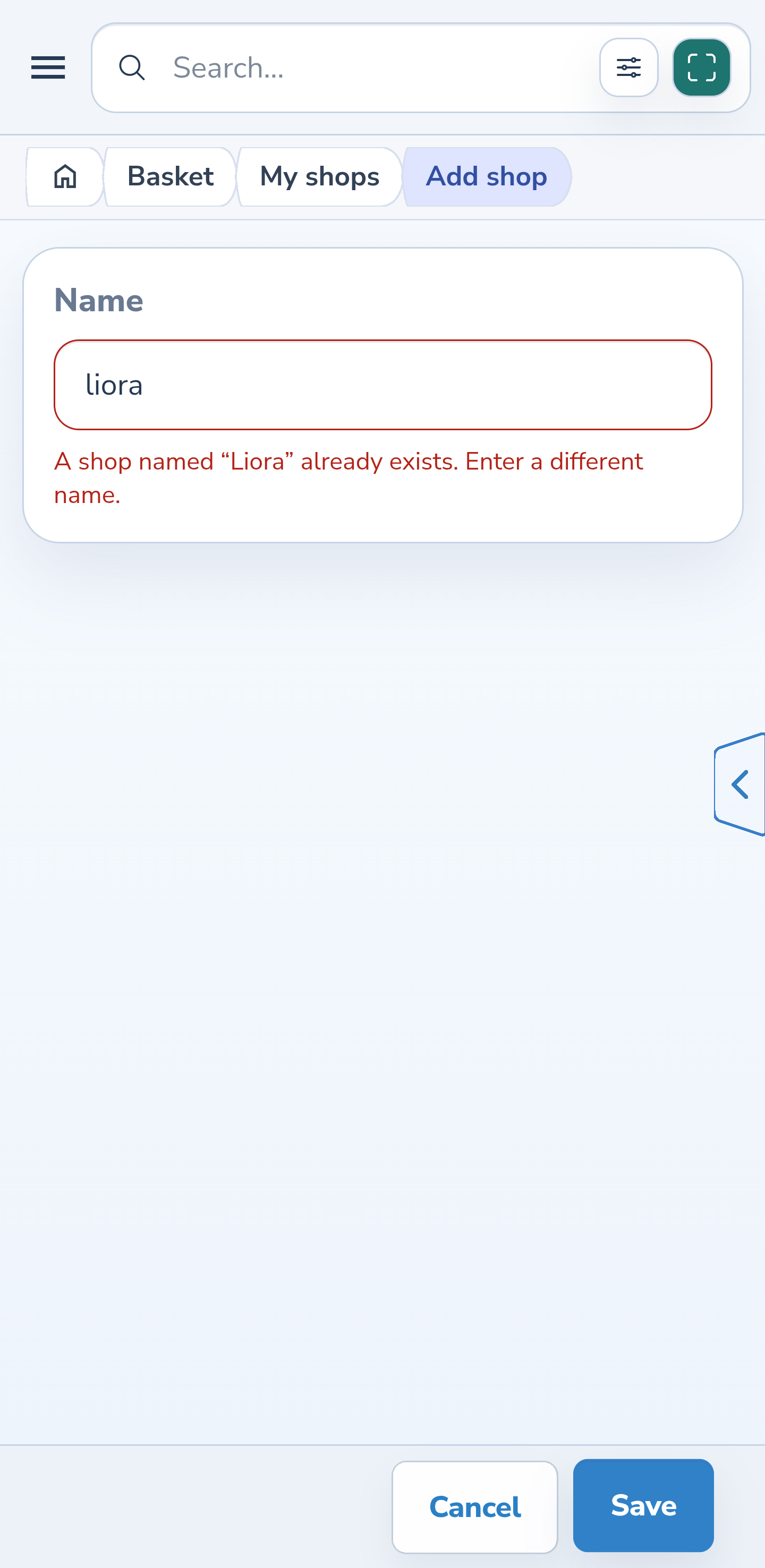
In My shops, a repeated active name also produces a red field and a message below it. Enter a different name or cancel creation.
The standalone editor has no Use existing shop button: there is no request or acquisition draft to receive the selection.
Website
Android
6. Set the shop for the actual purchase
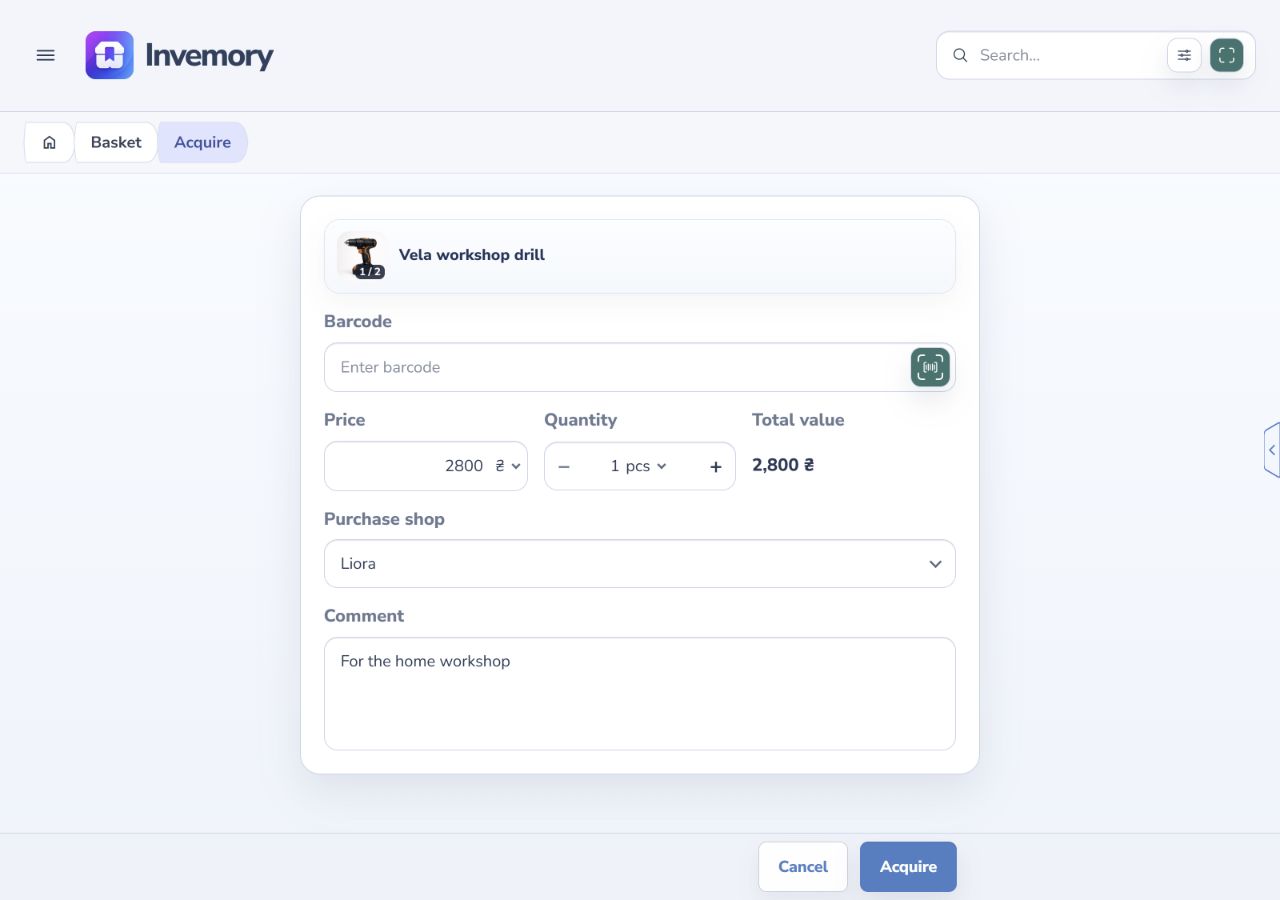
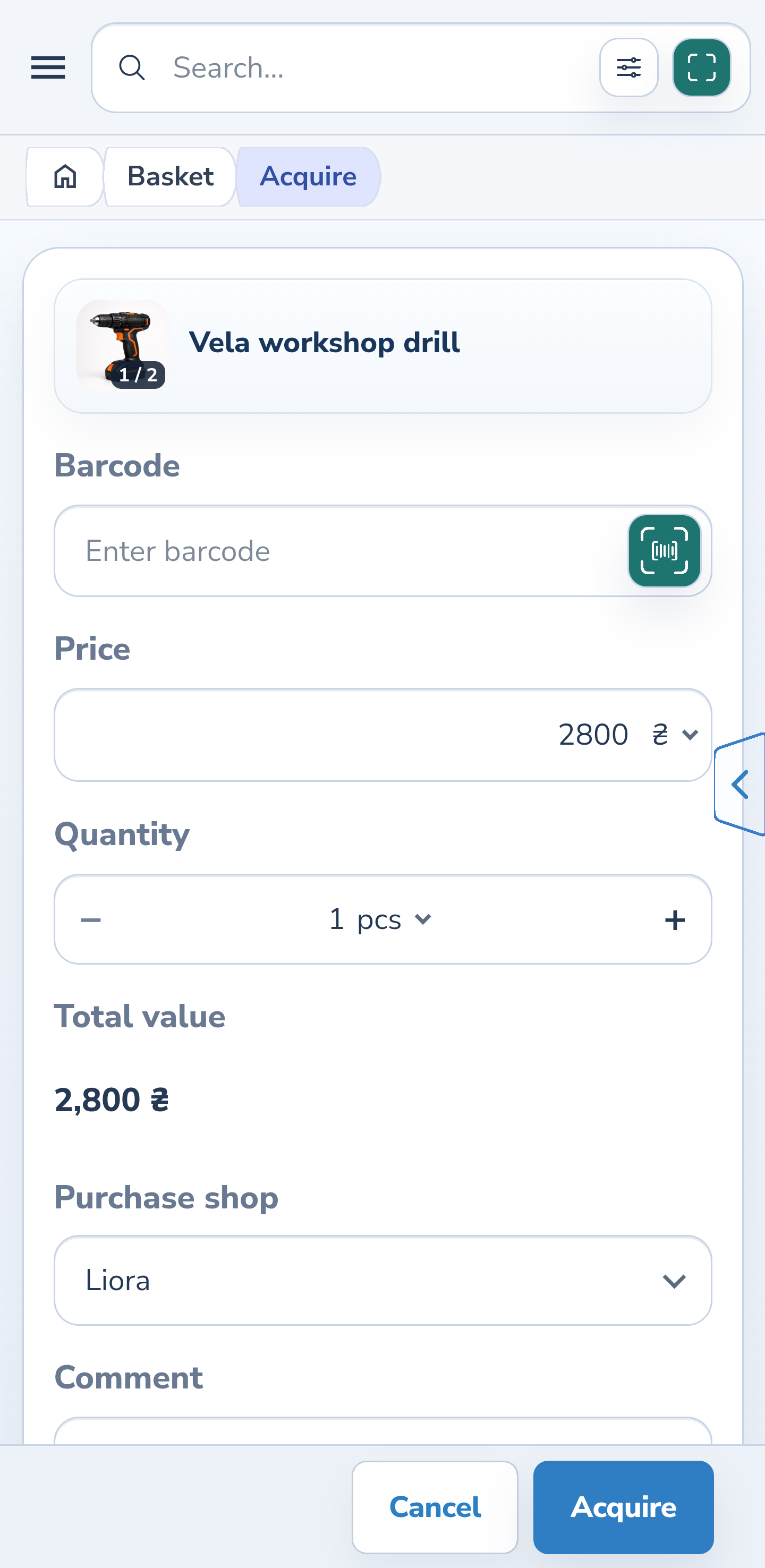
Choose Acquire from the request menu. Purchase shop offers the same search and creation flow. Check the actual price, quantity, product photos and shop before confirming the purchase.
If creation detects a duplicate, select the existing shop. The acquisition draft, its price and photos remain in place. Selecting a shop does not record the purchase: Acquire is the separate confirmation.
Website
Android
7. Remove a shop from the active catalog
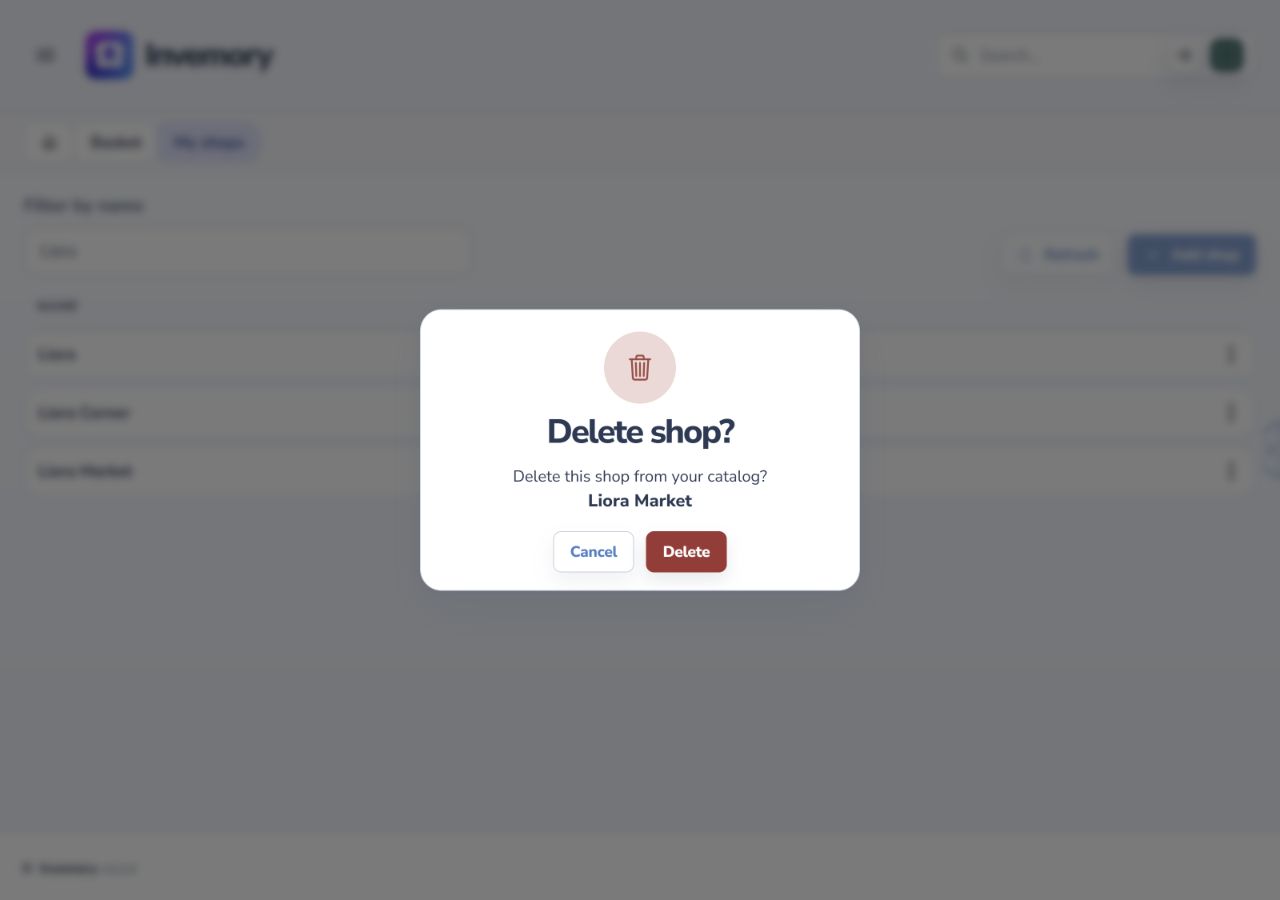
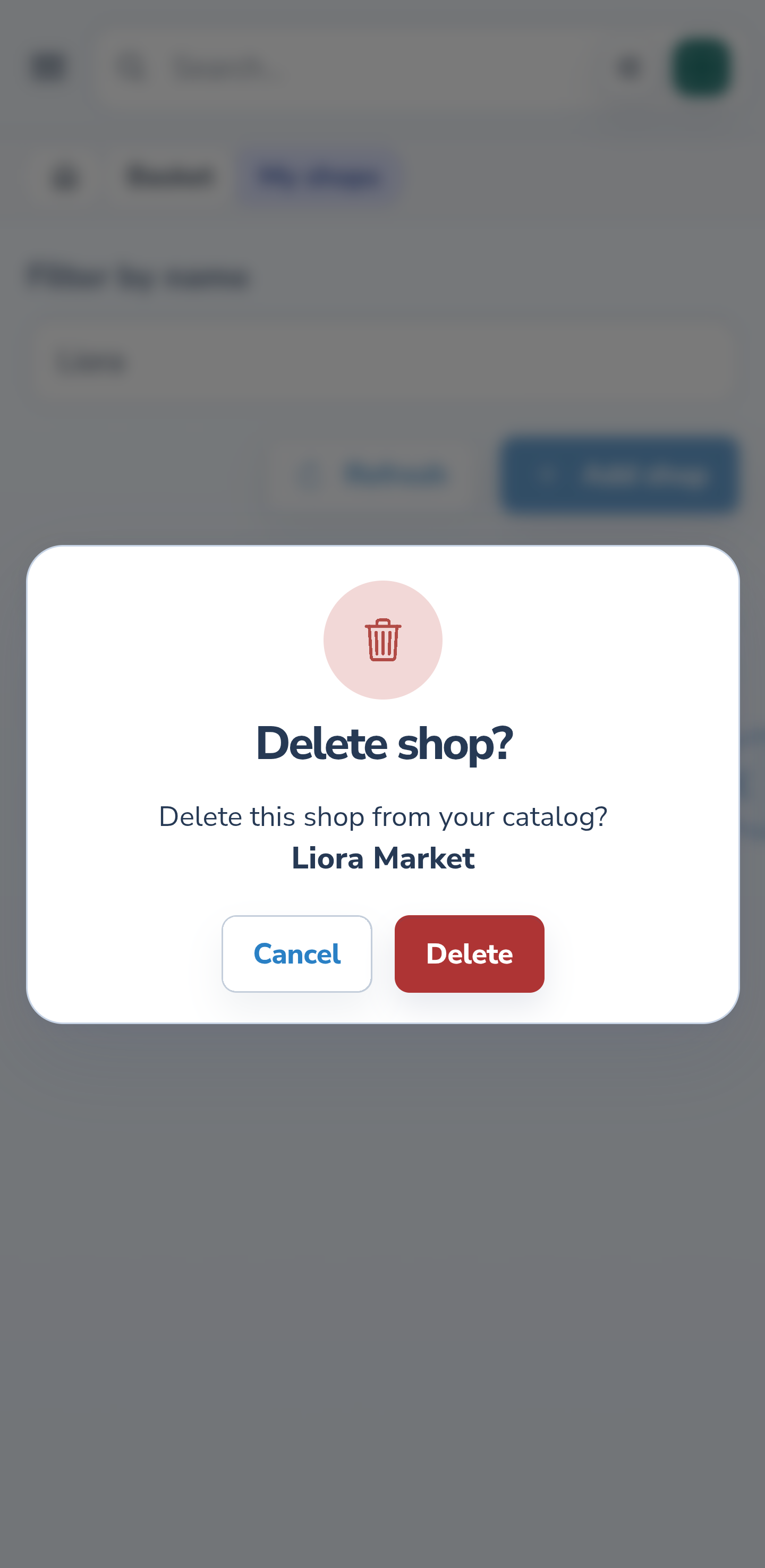
Open the shop action menu and choose Delete. Check the name in the confirmation. Once confirmed, the shop disappears from the active catalog: it is archived, not renamed.
To bring it back, create a shop with the same name. You do not need a separate restore button.
Website
Android
8. Restore an archived shop by its name
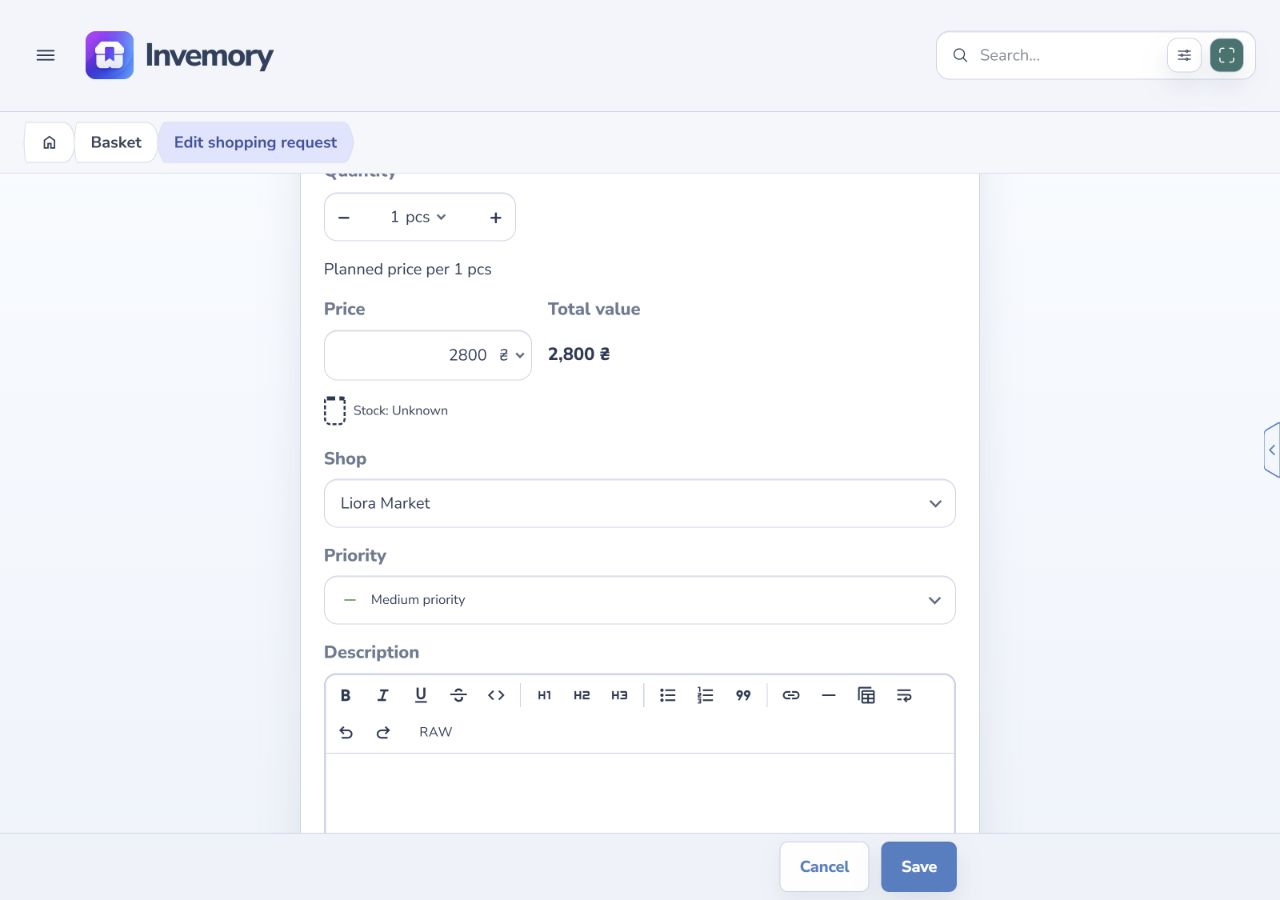
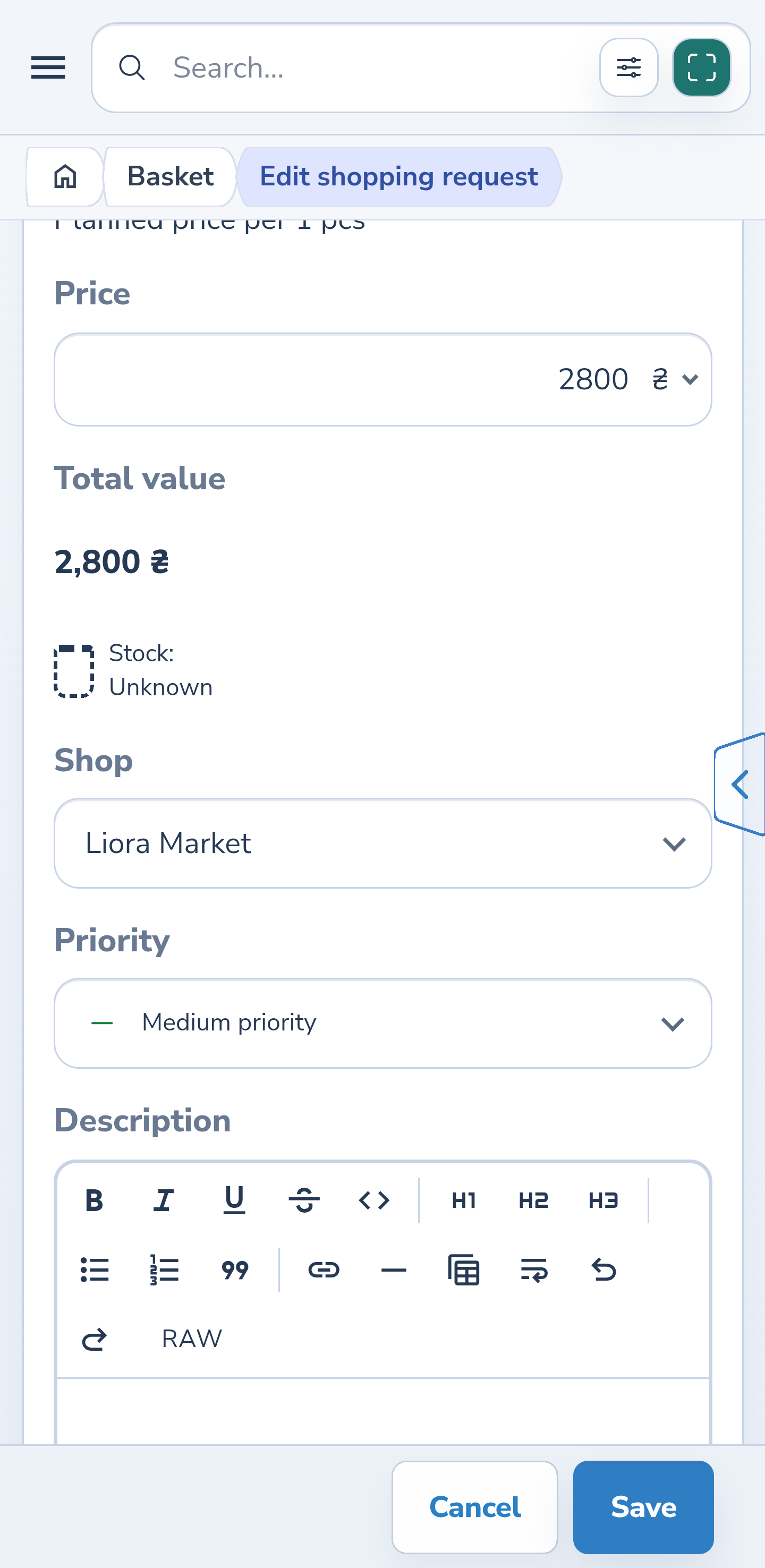
In the catalog or the creation dialog within a request or acquisition, enter the archived name and save. Invemory restores that same shop instead of creating a second entry.
If you started from a request or acquisition, the restored shop is immediately selected in the draft. Other fields remain in place; the example shows Liora Market with the price of UAH 2,800.
Website
Android
9. Rename a shop without a name collision
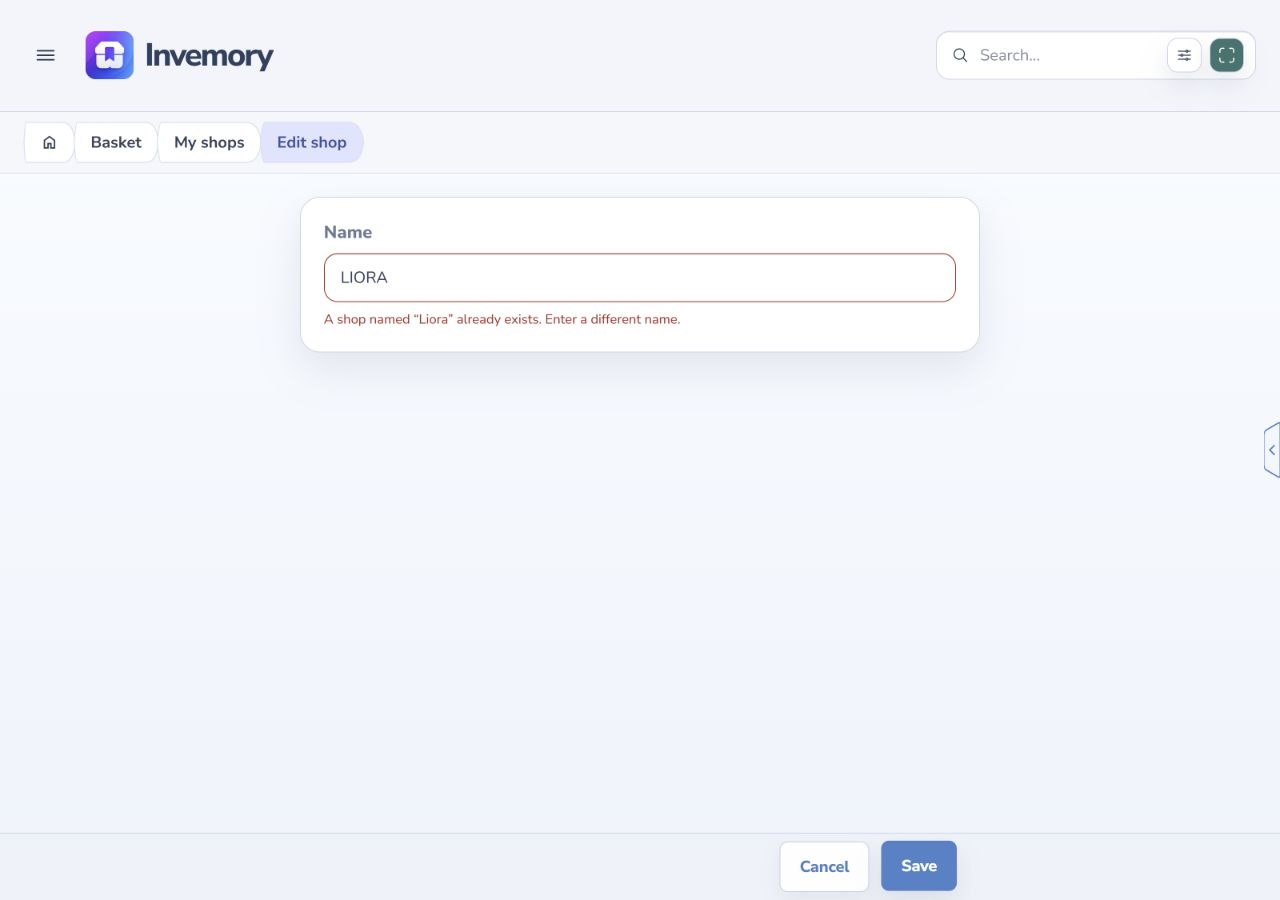
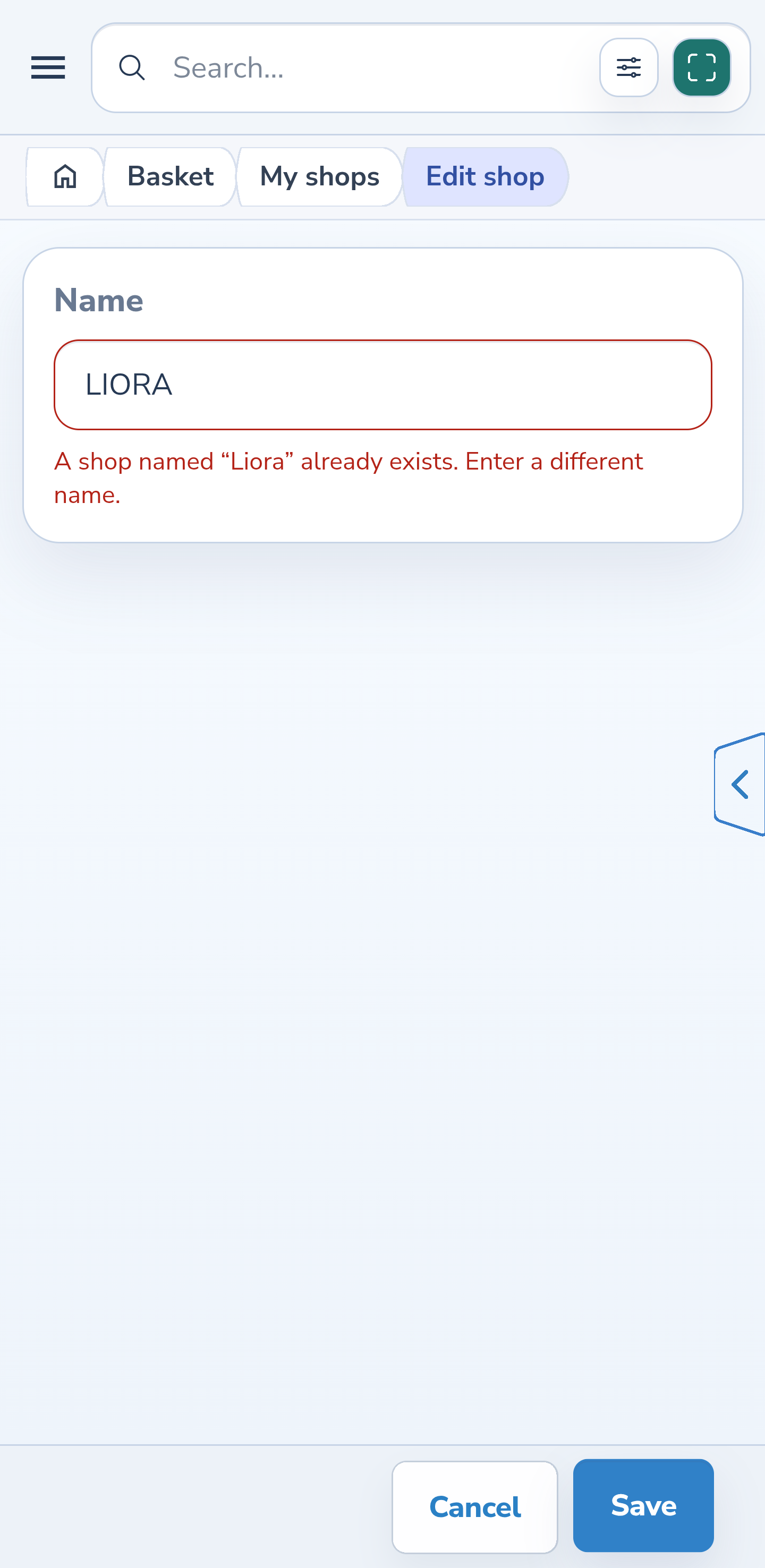
Open a shop by its name or choose Edit. Enter a different name and save. If an active shop already uses it, the editor shows an error below the red field.
An archived shop also reserves its name. Renaming another shop is not a way to restore it: use a different name or cancel editing, then use creation to restore the archived shop.
Website
Android
10. Retry the same action after an uncertain result
If a connection problem interrupts saving and the result is unknown, reconnect. After the server recovery message closes, the name remains locked. In the dialog inside a request or acquisition, choose Retry; in the standalone editor, choose Save. Do not create another spelling merely to bypass the error.
For a specific active or archived name conflict, follow the message beside the field. If you cancel creation, check your catalog before trying again.
The result
You can keep one clear entry for each of your shops and select it while planning or recording purchases without filling in the draft again.
Useful to know
- Search for part of the shop name before creating it.
- A shop on a shopping request helps you plan; verify the actual purchase shop during acquisition.
- The related guides below explain planned prices and checking photos before acquisition.
Common questions
Can another user have a shop with the same name?
Yes. Name uniqueness is checked within each user’s own catalog.
Why can older purchases show a different spelling?
After old duplicates are consolidated, references lead to one shop, but historical purchase labels retain the name recorded at the time of purchase.
Why is there no existing-shop selection in the standalone editor?
That action returns a shop to a request or acquisition draft. In the catalog, correct the name or cancel creation.
You can keep one clear entry for each of your shops and select it while planning or recording purchases without filling in the draft again.
Open my shops